Curve
In: Atomic Nodes
Remaps the values in an image using a custom curve.
The node provides an interface to image tonality remapping, similar to other 2D image editing applications. The user can place points and adjust Bezier curves to remap the input, which can be either grayscale or color.It is especially useful when used with gradient transitions to remap them to a specific height profile, it allows for very precise modeling of bevel profiles and the like.

Unlike most other nodes, the Curve node does not have a typical standard interface with sliders and parameters, but instead presents a full fledged curve editor. See the below expandable section on how to use it.
This does however mean that none of the parameters from a Curve node can be exposed to a subgraph. The only option here is to use a Multi-Switch to switch between different curve profiles.
Parameters
Curve editor
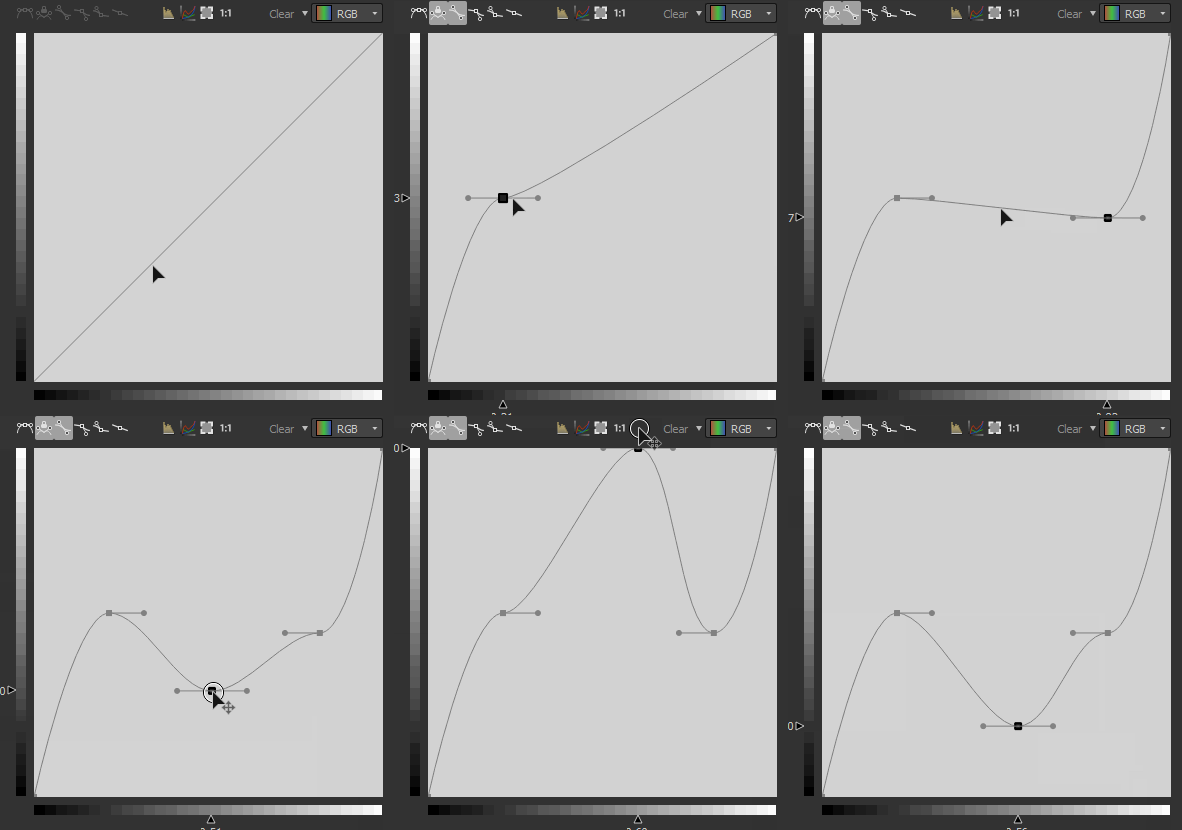
Create and move a point
In order to create a point, simply double-click anywhere on the Curve view:
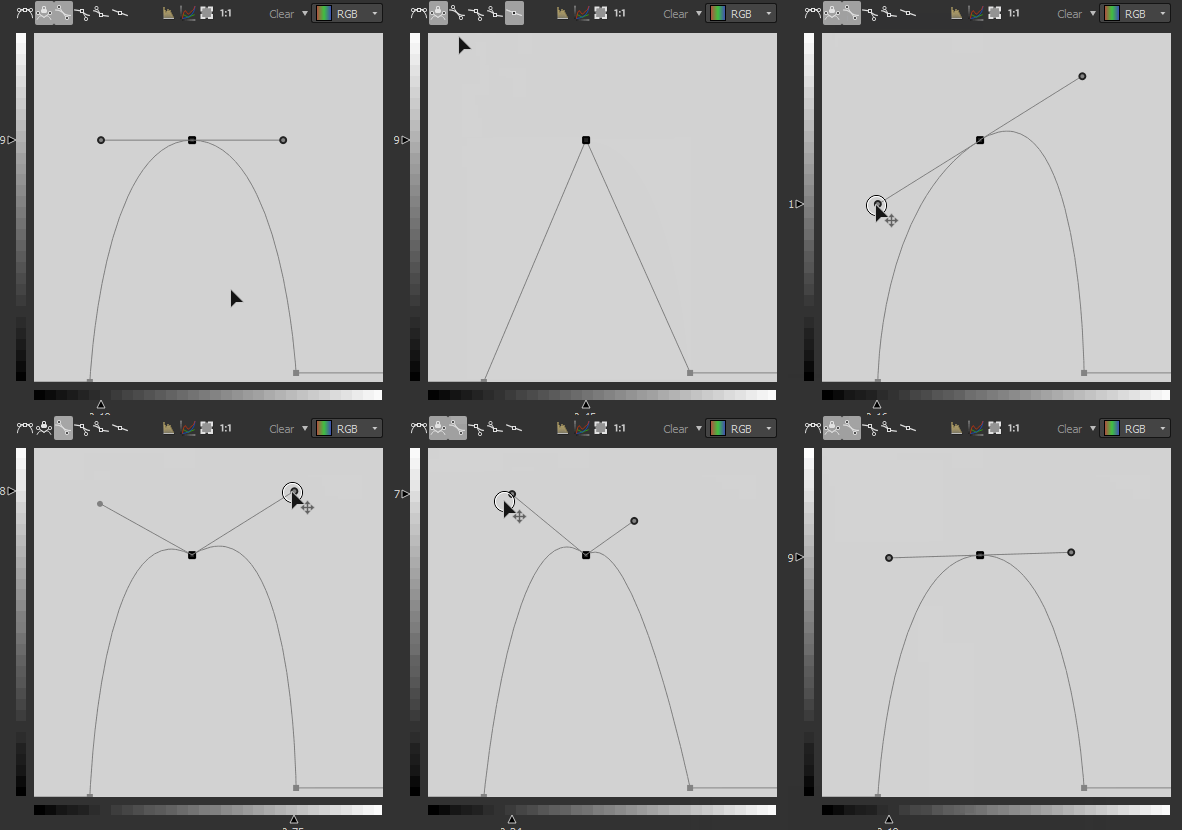
Controlling the point influence


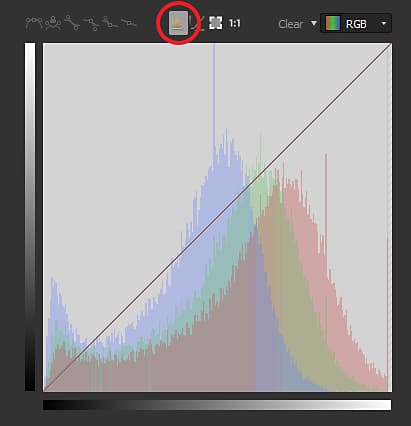
Show input histogram
You can show/hide the histogram of your input just by clicking on

Controlling each channel individually (color input)
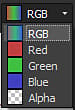
When you input is a color node, you have the ability to ajust the curve for each channel:
Just select the curve you want to ajust in the dropdown list located on the top right:
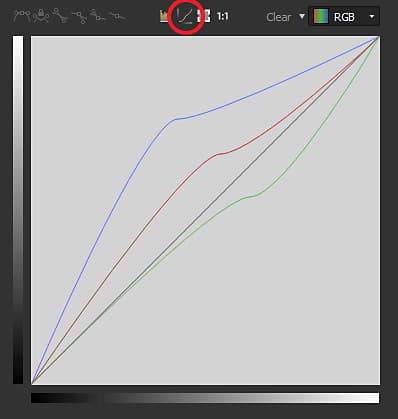
While in RGB curve mode, you canhide/show the individual channel curves by pressing/unpressing

Aligning, mirroring and flipping
If you right click on the curve view, you will get some more options.
Align top: Align the selected points horizontally with the highest one.
Align middle: Align the selected points horizontally to the selection’s average height.
Align bottom: Align the selected points horizontally with the lowest one.
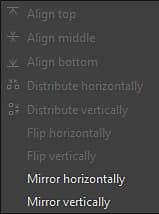
Distribute horizontally/vertically: Distribute the points on the selected axis
Flip horizontally/vertically: Flip the selected points according to the selected axis.
Mirror horizontally/vertically: Mirror the whole curve, according to the selected axis
Keyboard Shortcuts
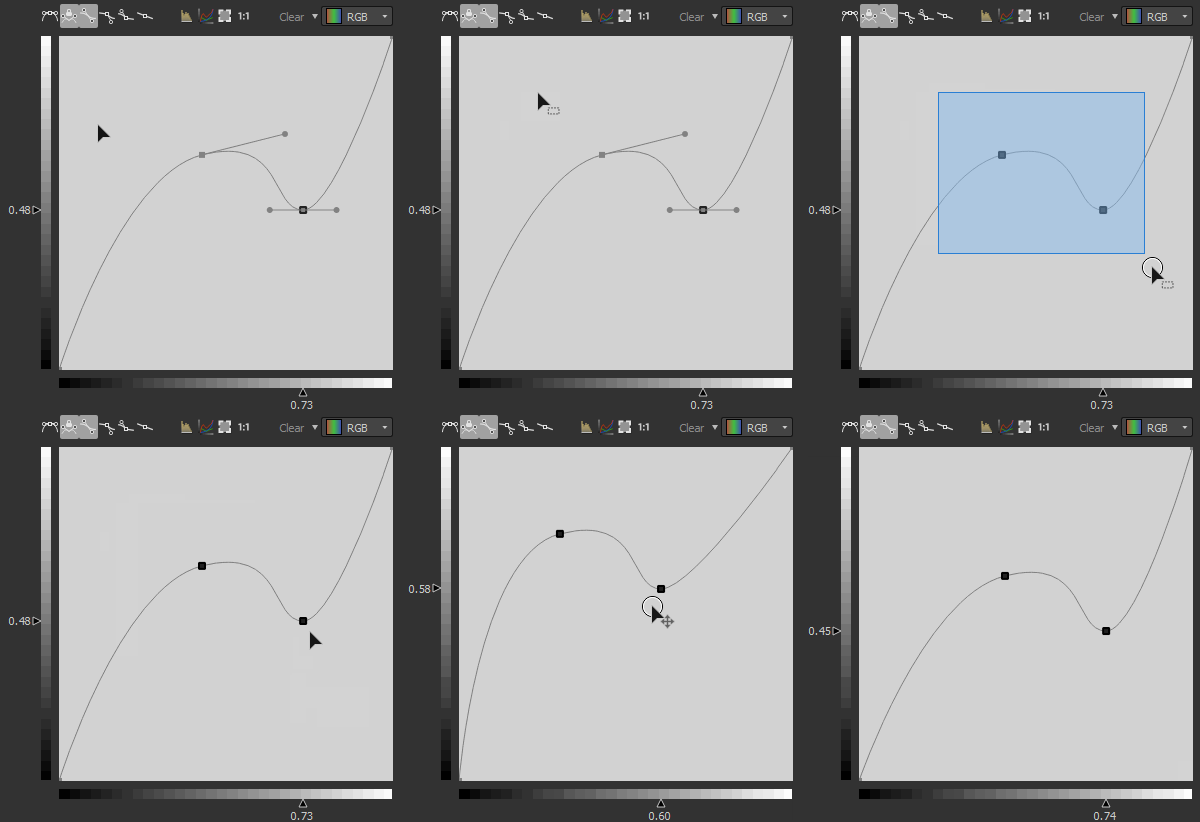
LMB + Drag
Draw a selection box.
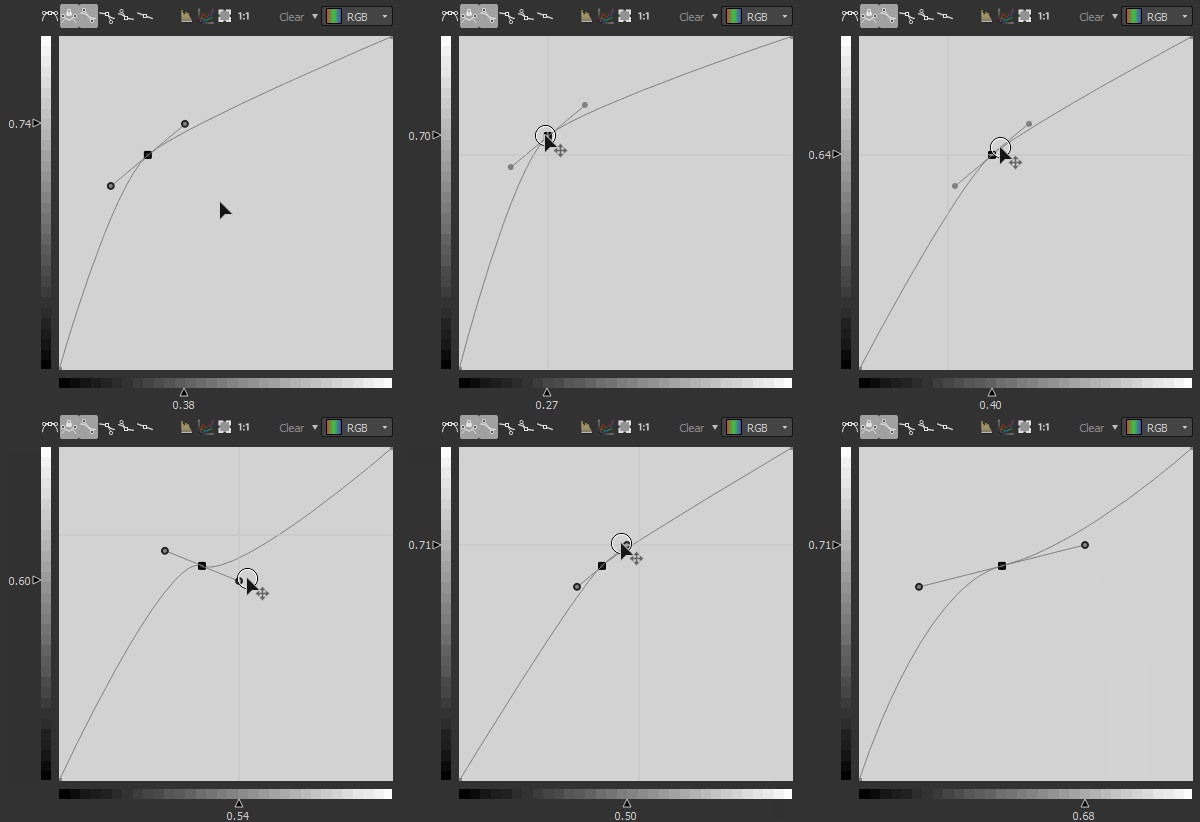
Shift + Drag
Constrain the movement on the X or Y axis.
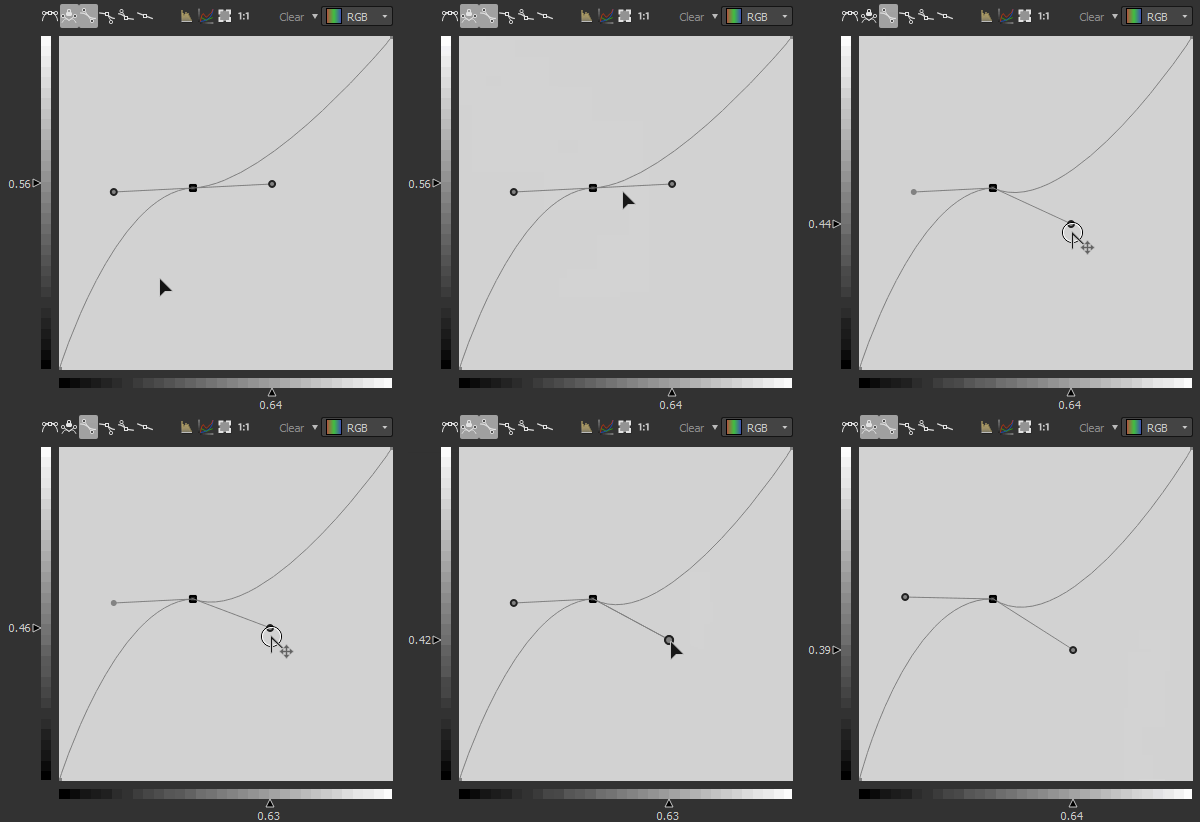
Alt + LMB + Drag
Temporarily break the handles to move them independently.
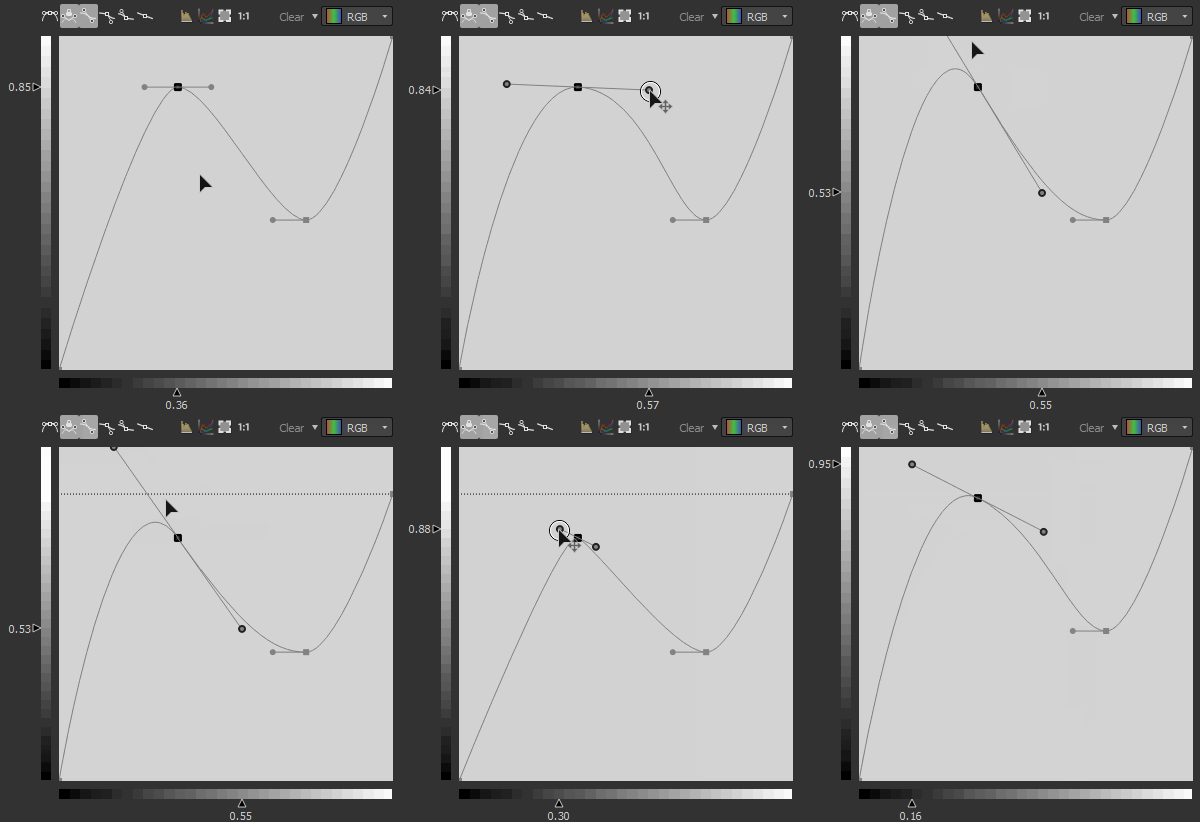
Adjust the framing of the curve
While tweaking the handlers, you may be in a case where one handler is going over the curve view.
In that case, you can use the

The

Input connectors
Examples
Coming soon.