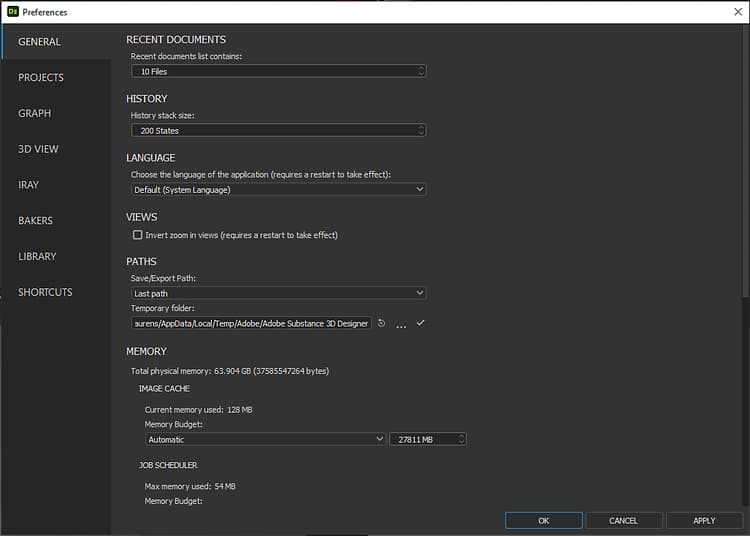
This page presents the Preferences window and all its settings.
You can find the Preferences window through the Edit menu in the main top bar the application. This dialog lets you adjust a number of settings. It is organized in tabs covering different areas of behavior and functionality. We recommend reviewing all of these settings to get a better insight on how the application operates and how it can be tailored to your workflow.
NOTE
For more information about how these preferences are stored and how you can integrate them in a production environment, you can refer to the User Preferences - Automating Setup page of the documentation.
General
Recent Documents
Recent documents list containsDefault: 10
This allows you to select the number of documents to list in the Recent Packages entry of the File item in the main menu.
History
History stack sizeDefault: 200
This indicates the number of available undo operations at any given time in the Edit > Undo item of the main menu. Caution: The more undo operations you need, the more memory the application will require.
Language
Choose the language of the applicationDefault: System
This setting defines the language used in the application interface. The ‘System’ option auto-detects language from your system language settings. The available languages are listed in our System requirements. Note: Changing this setting will only take effect after restarting the application.
Views
Invert zoom in viewsDefault: Unchecked
If checked, the zoom controls will be inverted in the 2D View, 3D View and graphs.
Paths
Save/Export pathDefault: Last path
Determines whether the suggested save/export path is your last selected path, or the SBS package’s path. The last selected path is saved across sessions.
Temporary folderDefault: Path depending on system OS
When the image data of a graph exceeds the allocated memory pool (see below Memory > Image Cache), the overflowing data is written on disk. This setting lets you define the location the overflowing image cache data is written to. This location is also used to store a copy of the currently open SBS package with the latest modifications since the last manual save.
Memory
Image Cache
The application keeps in cache a full-resolution, uncompressed image for each rendered node in the current graph. Instance nodes will generate these images for all nodes of the graph they reference, and delete them once their outputs have been computed. Only the outputs are kept in memory at that point.
You can set the maximum cache size allocated to thumbnails and images in system memory, and see the current usage. If the cache data overflows its allocated pool, the excess data is written to the Temporary folder (see above Paths > Temporary folder).
Memory budgetDefault: Automatic
This allocation is calculated automatically to approximately 75% of the total system memory pool. To set this value manually, select the ‘Custom’ option and set a value in the adjacent input field.
Please note writing to disk is orders of magnitude slower than writing to system memory. Therefore, graph rendering time will increase exponentially as overflowing data needs to be written to the Temporary Folder. To prevent this from happening, we recommend taking a look at the suggestions for decreasing a graph’s memory footprint in the Performance Optimization Guidelines section of the documentation.
Job Scheduler
During specific tasks, such as image conversions for thumbnails or the 2D View, separate jobs will be created and distributed across the system processing cores for efficiency. Each job will write data to system memory to perform its operations. This setting lets you define the allocated memory pool for all concurrent jobs. When this pool is entirely used, new jobs will be queued until the current ones have completed.
Memory budgetDefault: Automatic
This allocation is calculated automatically to approximately 10% of the total system memory pool. To set this value manually, select the ‘Custom’ option and set a value in the adjacent input field.
User Interface
Disable High DPIDefault: Unchecked
High DPI mode will maintain consistent scaling of text and user interface elements independently of the system’s display and scaling settings. Disabling (i.e. checkbox filled) this setting will let the interface be scaled, which results in larger and more readable text on some displays but can also create inconsistencies in text size, along with other layout issues. Caution: Designer acquires the specific scale of user interface elements from the OS. Therefore any adjustments to the scaling of the user interface should be done in the display settings of the OS. To ensure display settings are applied correctly in Designer, sign out of your OS user session and sign back in after changing these settings. Note: Changing this setting will only take effect after restarting the application.
Auto Backup
An auto-save feature is included by default, which creates copies of the current state of open SBS packages at set periods of time. Auto-saves are placed in an .autosave folder at the SBS package location.
Auto-backup every # minutesDefault: 5
The time period between each auto-save.
Keep up to # versionsDefault: 6
The maximum number of auto-saves to keep at any given time.
When the maximum amount of versions is reached, newer backups will delete the oldest backups. Please also note auto-saves should be opened after moving them to the original SBS package location. They should not be opened at their current location.
Publishing and sending SBSAR files
Always save .sbs file when publishing to .sbsar or sending to another applicationDefault: True
Controls the automatic saving of the SBS package when publishing it or sending it to another application.
Cooker
Cooking size limitDefault: 8192 pixels
Defines the maximum pixel resolution permitted for all nodes in any Substance graph. As graph outputs are always square images of powers-of-2 resolutions, the value set here defines both the maximum width and height, in pixels.
Engine
GPU cache limitDefault: 2048 MB
This setting lets you define how much memory should be reserved for caching render stages. Usually, the Substance Engine will cache the output of each node in a Substance graph.
NOTE
We recommend taking a look at the suggestions for decreasing a graph’s memory footprint in the Performance Optimization Guidelines section of the documentation.
If checked, the ‘Tab’ key will open the Node menu, replicating the functionality of the ‘Space’ key.
Enable creation of nodes by click-dragging connectorsDefault: Checked
If checked, when you click on any connector, drag the cursor and release the created link in graph empty space, to display the Node menu. The menu will also be filtered according to the type of the connector which was clicked on. This means only nodes which are compatible with the clicked connector will be displayed.
View outputs in 3D view when opening a graphDefault: Checked
If checked, all graph outputs are automatically applied in the 3D View when that graph is opened. This also has the effect of rendering all nodes which are part of a stream leading to an Output node.
Substance compositing graph
Automatically compute all nodes thumbnails when opening a graphDefault: Checked
If checked, automatically render all node thumbnails when loading the graph.
View output in 2D view when opening a graphDefault: Checked
If checked, the first graph output is automatically displayed in the 2D View when that graph is opened. This also has the effect of rendering all nodes which are part of a stream leading to that Output node.
Automatically display newly created compositing nodeDefault: Checked
If checked, the 2D View will automatically update to display the output of a newly created node.
If checked, automatically resolve Color/Grayscale connection types mismatches, by placing specific nodes to perform the appropriate conversion. When a Grayscale output (gray connector) is connected to a Color input (yellow connector), a Gradient Map node is automatically placed between the two connectors. When a Color output (yellow connector) is connected to a Grayscale input (gray connector), a Grayscale Conversion node is automatically placed between the two connectors.
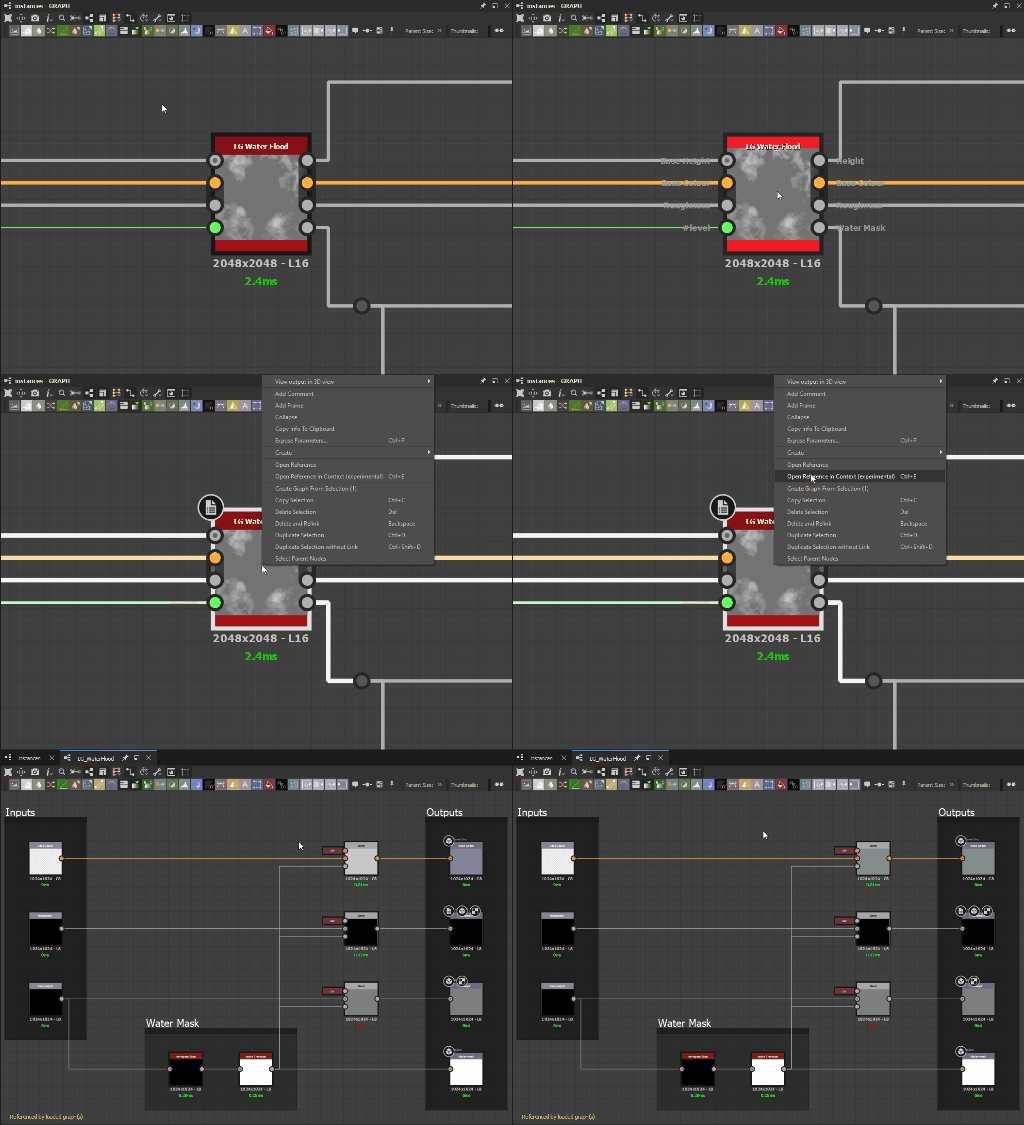
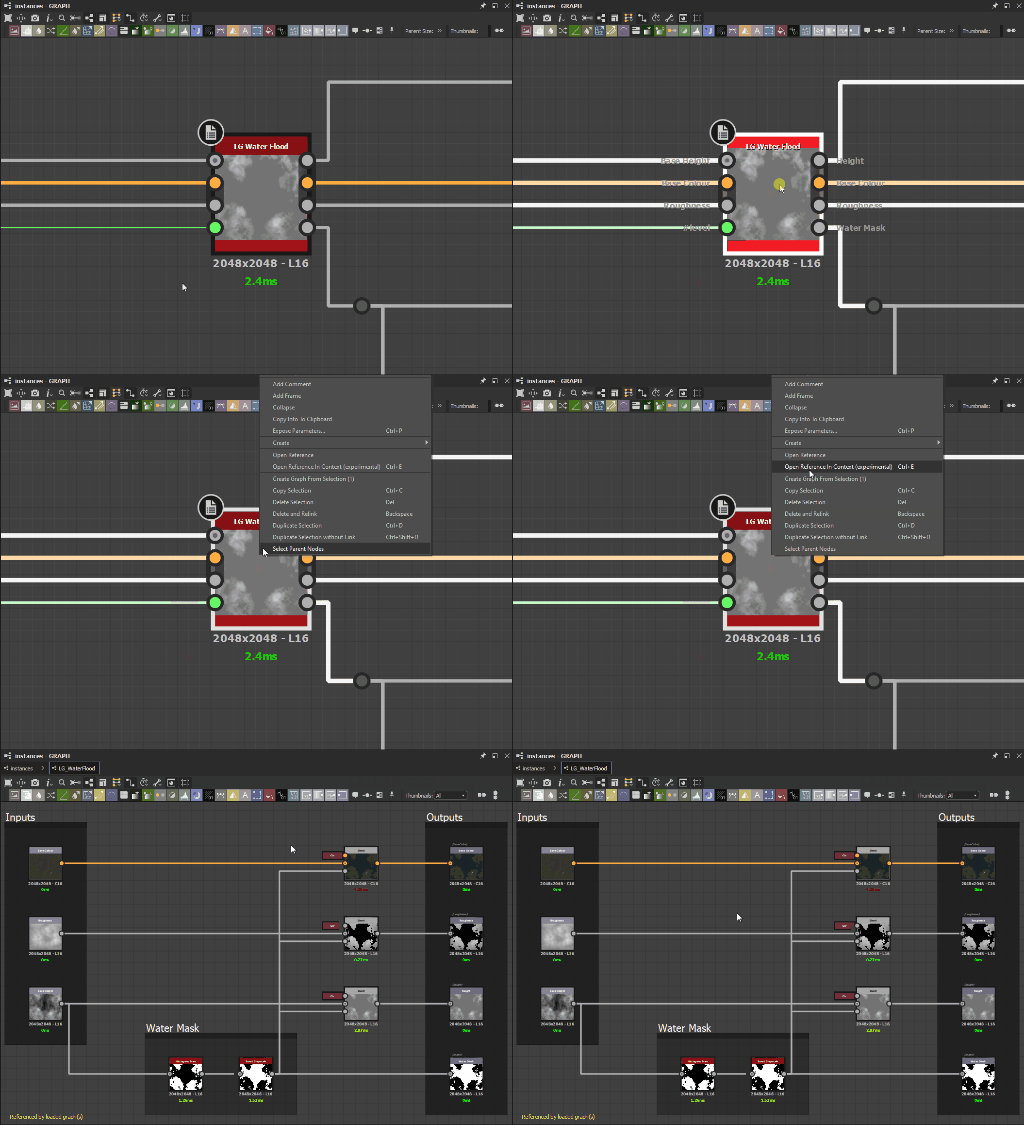
Enable graph editing in contextDefault: Unchecked
By default, when opening a graph referenced by an instance node with a right-click on the node and selecting Open Reference, that graph is loaded and edited in isolation. If checked, you can edit graphs referenced by instances using the information passed in the instance by the current graph. To do this, right-click on an instance node and select Open Reference In Context, or use the Ctrl+E keystroke. This means an instanced graph can be edited in the context of the graph it is instanced into. This is very useful for seeing the effects of the edits on the graph you were working in. See example below. Note: The Preview and Presets tabs are disabled in the graph properties when using in-context editing.
Open Reference
Open Reference In Context
3D View
Misc
Environment hidden by defaultDefault: Checked
Determines the Environment default visibility setting. When hidden, the backdrop of the 3D View is replaced with a solid color.
Viewport scalingDefault: Auto
Controls the scaling of the 3D View’s rendering resolution when the system uses display scaling.
Auto: the rendering resolution is based on the scaled display resolution
None: the rendering resolution is based on the native display resolution
OpenGL
Sample countDefault: 64
Impacts the size of the 3D View shaders’ sample table . A higher value will result in higher image quality at the cost of performance. Note: The shaders’ sample table is also impacted by the system’s GPU and OS.
Bakers
GPU raytracingDefault: Checked
If checked, raytracing will be performed on the GPU for compatible bakers. The following GPU raytracing backends will be the default depending on the NVIDIA GPU architecture:
DXR: Turing and newer
Optix: Pascal and Maxwell
Note: More information about GPU-powered bakers is available in the GPU Raytracing section of the Substance Bakers documentation. Tip: You can use the following command line arguments when starting the application to force the use of a different GPU raytracing backend:
–force-optix : force the use of Optix on Nvidia Turing or newer GPUs
–force-dxr : force the use of DXR on Nvidia Pascal GPUs
Library
Rebuild thumbnails
The option will trigger a recomputation of all Library thumbnails, which will automatically replace the previous ones.
Shortcuts
You can assign custom keyboard shortcuts for creating nodes in graphs.
Any node can be assigned a shortcut, even custom library nodes. A same shortcut can be assigned in different graph types. No shortcuts are assigned by default, you are free to customize this to your liking.
In case of a conflict with another node shortcut, or a built-in program shortcut, the entry will be highlighted a warning will be displayed. The shortcut will have no effect until the conflict is resolved.
IMPORTANT
Shortcuts overridden by Python plugins
When a Python plugin defines a keyboard shortcut that is assigned to a node, the plugin will override that shortcut. This means the key will trigger the plugin action instead of creating a node.
This is already the case for the H, S and V keys used by the node alignment tools.