Grayscale conversion

In: Atomic Nodes
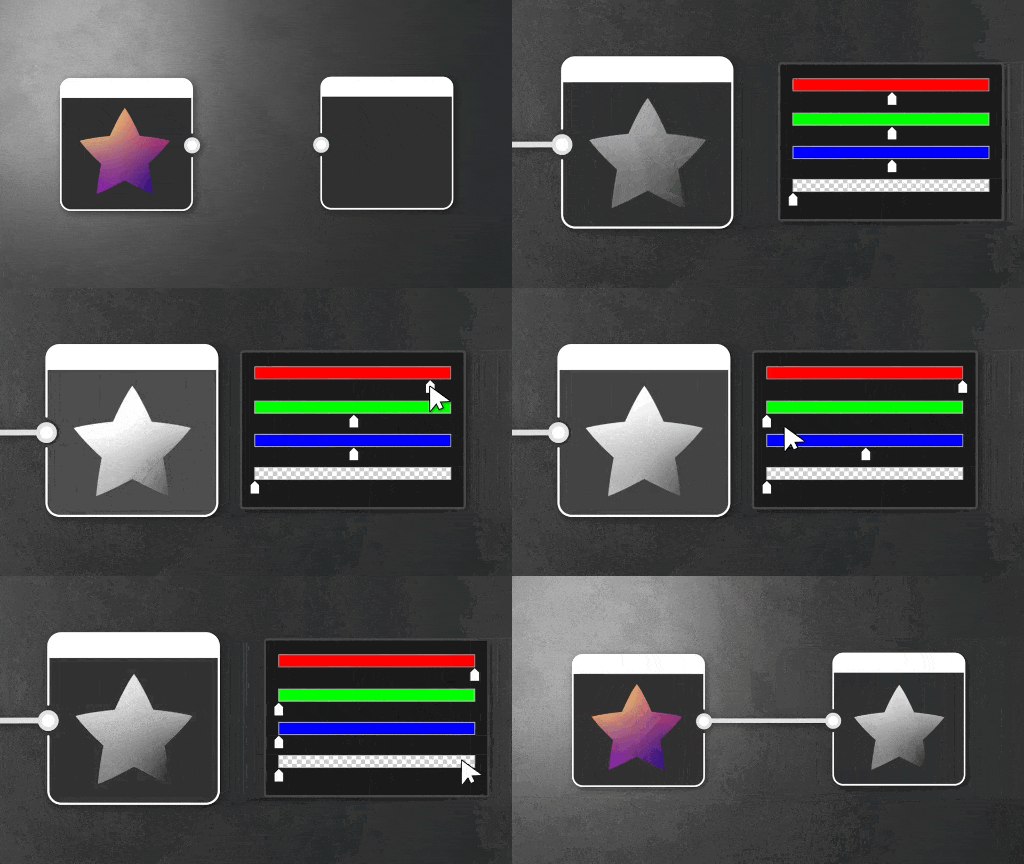
Converts a color image to grayscale by weighing the luminance of each color channel.
This node may be used as an optimised method to extract a grayscale channel out of a color image, by setting all ‘Channel weights’ values to 0 except the desired channel, which should be set to 1.
Most nodes can be set to output in either grayscale or color, where the former is preferred for simplicity and performance reasons.
Indeed, it is recommended to work in grayscale from the outset and colorize images later in your workflow, using for instance a Gradient map node.
This means that a grayscale conversion node is generally only reserved for cases where you specifically want to convert a color image to grayscale. In those cases also take a look at Grayscale conversion advanced and Color to mask.
Parameters
Input connectors
Examples
Coming soon.