3D view
The 3D View helps you view and understand your materials with custom meshes and rendered PBR materials.
Like with all Substance 3D Designer Windows, it works together with other windows through right-click menu options and drag-and-drop operations.
The 3D view also provides two main methods of rendering materials in 3D scenes:
- Fast, realtime visualisation with the Rasterizer and OpenGL renderers
- High-quality raytraced renders with GPU Pathtracer renderer
Learn more here: 3D renderers
Viewport interactions
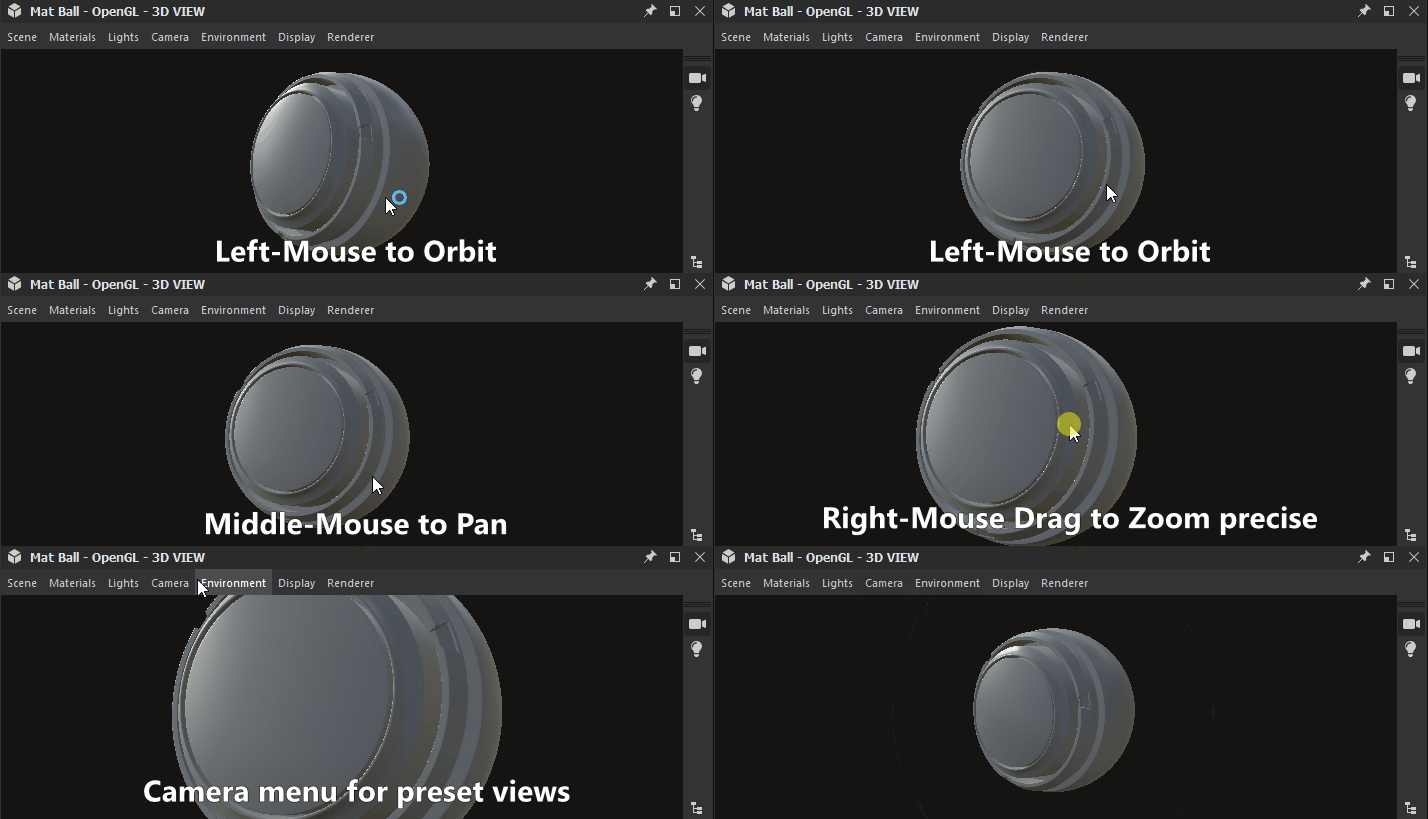
The section below explains you how to do common actions in short, along with an animated gif to illustrate the process.
Navigation
The 3D View camera and environment may be manipulated in three ways:
- Orbit: LMB+Drag
- Pan: MMB+Drag / Ctrl+RMB+Drag
- Zoom: Scroll using MouseWheel / RMB+Drag
- Rotate environment: ⇧+RMB+Drag
- Focus on a selected mesh: F (focuses on entire scene if there is no selection)
- Orbit point light 1: Ctrl+⇧+LMB+Drag
- Move point light 1 closer to/away from origin: Ctrl+⇧+RMB+Drag
- Reset camera orbit position: R
- Reset camera orbit position and properties: ⇧+R
Using a trackpad (macOS only)
- Orbit: Two-finger swipe
- Pan: ⇧+Two-finger swipe
- Zoom: Two-finger pinch / ⌘+Two-finger swipe
- Rotate environment: ⇧+Two-finger swipe
- Mouse wheel up pulls the scene closer
- RMB and drag up pushes the scene away
Select and focus
You can interact with meshes directly in the viewport:
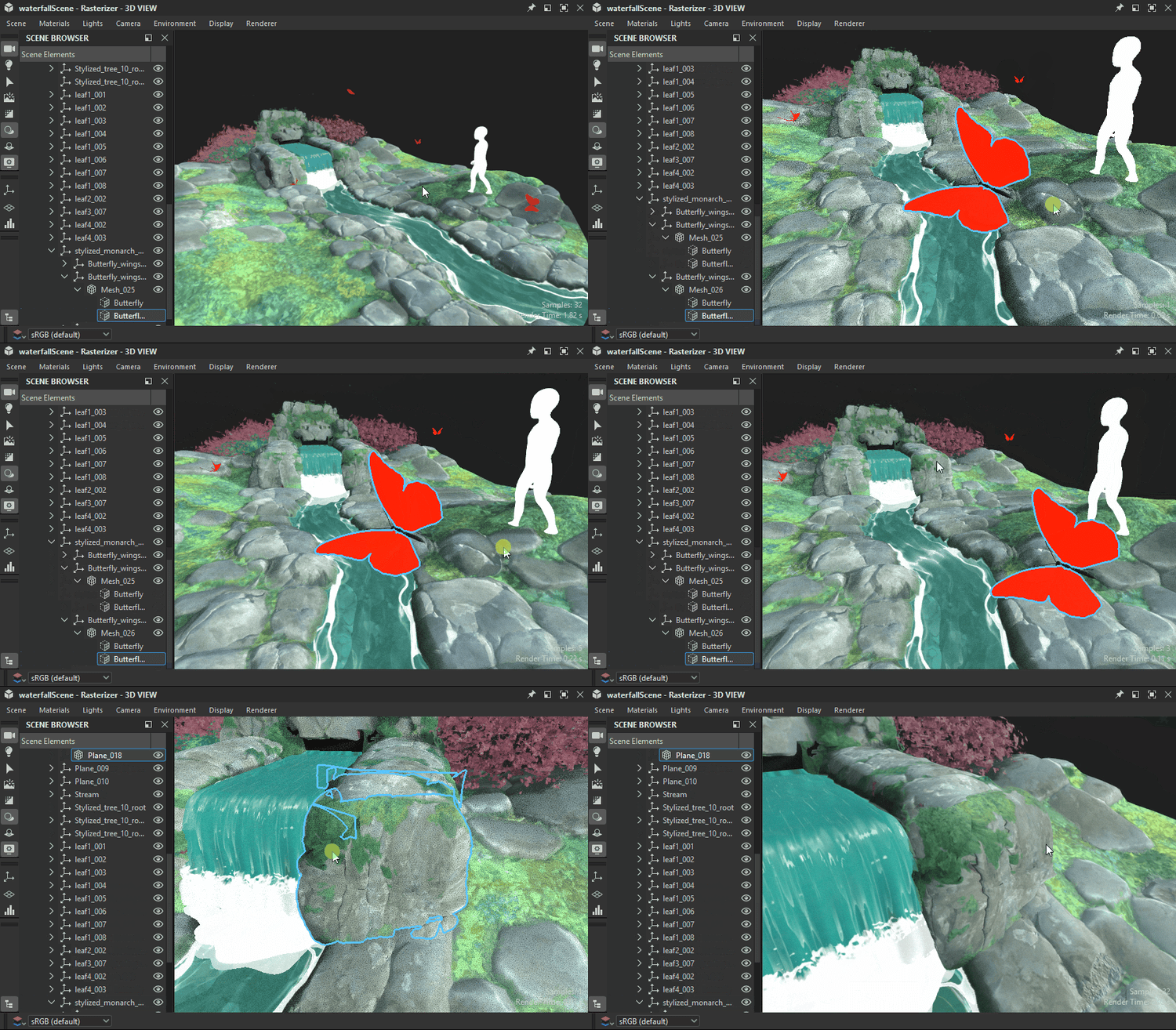
Hold ⇧ and click LMB on a mesh to select a mesh. Selected meshes have a blue outline.
Press F to focus on a selected mesh. Focusing a mesh moves the camera to frame it and orbit around it.
Click RMB while a mesh is selected to access its material actions in a contextual menu.
Press Escape to unselect. The cursor does not need to be on the mesh.
Select, focus, unselect
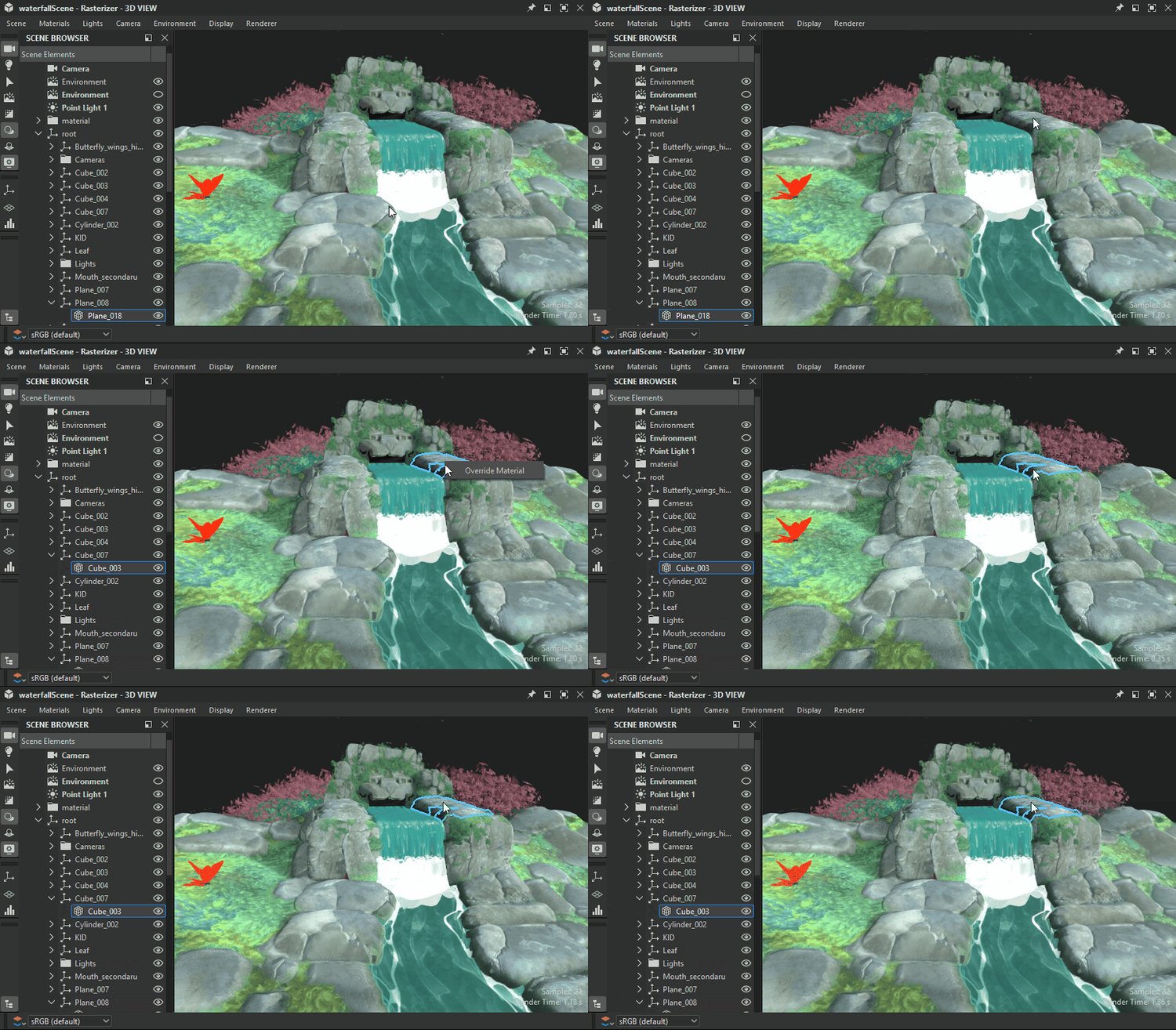
Select, contextual menu
Changing the environment lighting (IBL)
Designer works with image-based lighting (IBL) by default. A high-dynamic range bitmap is used to render environment lighting.
You can rotate this environment around your 3D object, or you can load either preset, or custom HDR light environments. Please note that your HDR images shoud use an equirectangular projection and have a precision of 32-bit floating point.
⇧+RMB+Drag rotates the environment in the 3D view.
To set a precise rotation, use Environment > Edit in the top 3D View toolbar and change the Rotation angle slider in the properties window.
To use a preset HDR light environment, click the HDRI environments section of the 3D View category in the Library, and then drag and drop any of the icons to the 3D view.
To use your own, custom HDR light environment, import an HDR image by dragging and dropping the file into a package in the Explorer Window (Link the file when prompted). Then drag and drop the resource, choose Latitude/Longtitude Panorama as the target.
Point lights
Go to Lights > Edit properties to toggle point lights in your scene.
Point light 1 can be moved around the scene’s origin by holding LMB or RMB and dragging in the viewport in Lighting mode.

While in Camera mode

View data in 3D View
Substance graphs
You can view entire materials as a complete material in the 3D View. This is the most common way to work, and will match the usage attributes on output nodes , to the relevant texture slots of the 3D view material. That means your outputs need to be set correctly (using Templates ensures this is the case), and that you selected material/viewport shader supports
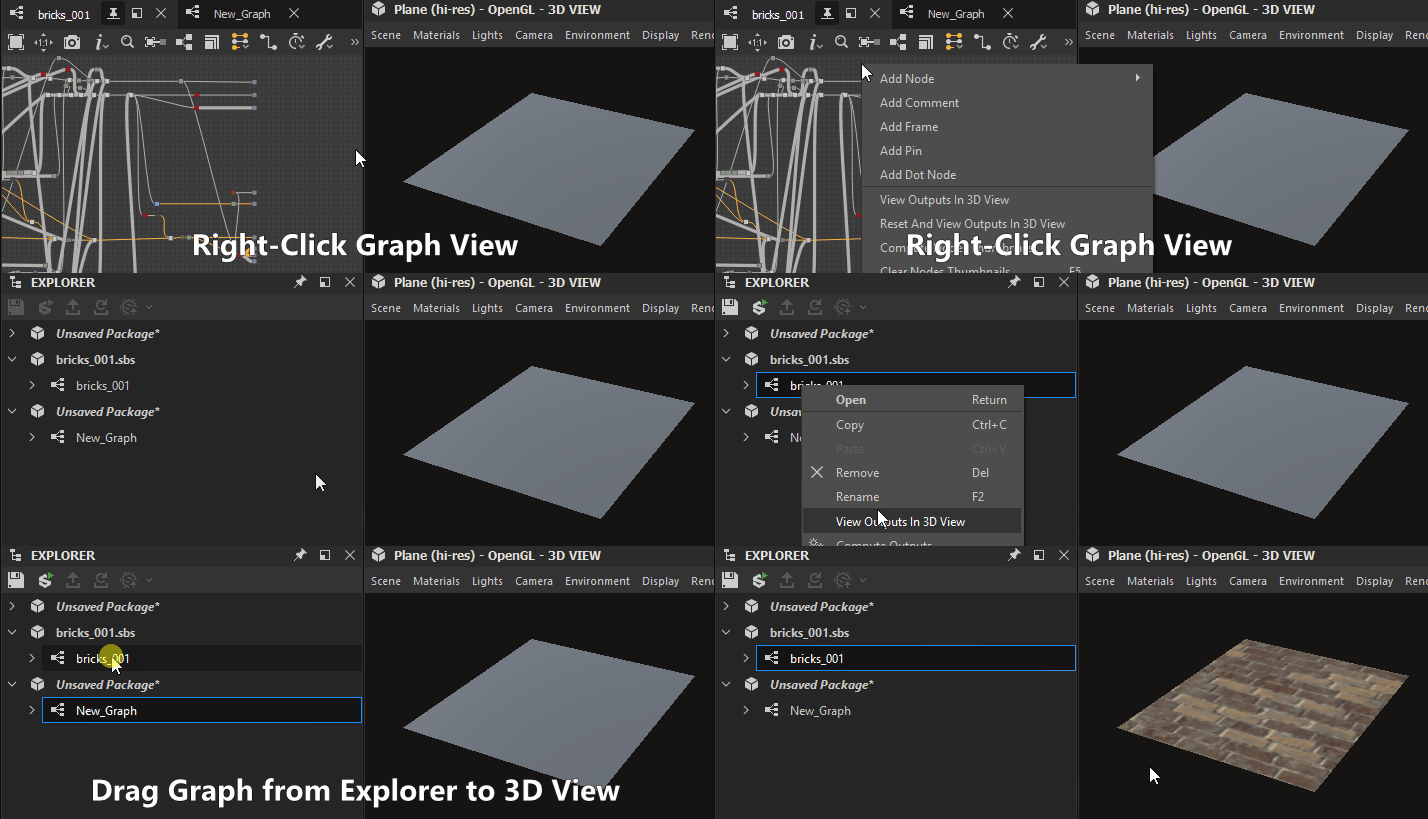
You view all of a graph’s outputs by clicking RMB an emtpy area in the Graph view, and choosing the View Outputs in 3D View option in the contextual menu.
You can also view a graph’s outputs without having to open it, by clicking RMB on a graph resource in the Explorer dock and choosing the View Outputs in 3D View option in the contextual menu.
As an alternative to the graph’s contextual menu, you can achieve the same result by dragging the graph from the Explorer dock to the 3D View.
When loading a graph, its outputs are automatically applied in the 3D View by default. You can disable this behaviour in the Preferences. Go to Edit > Preferences > Graph > Common and uncheck the View outputs in 3D view when opening a graph option.
Individual node/graph output
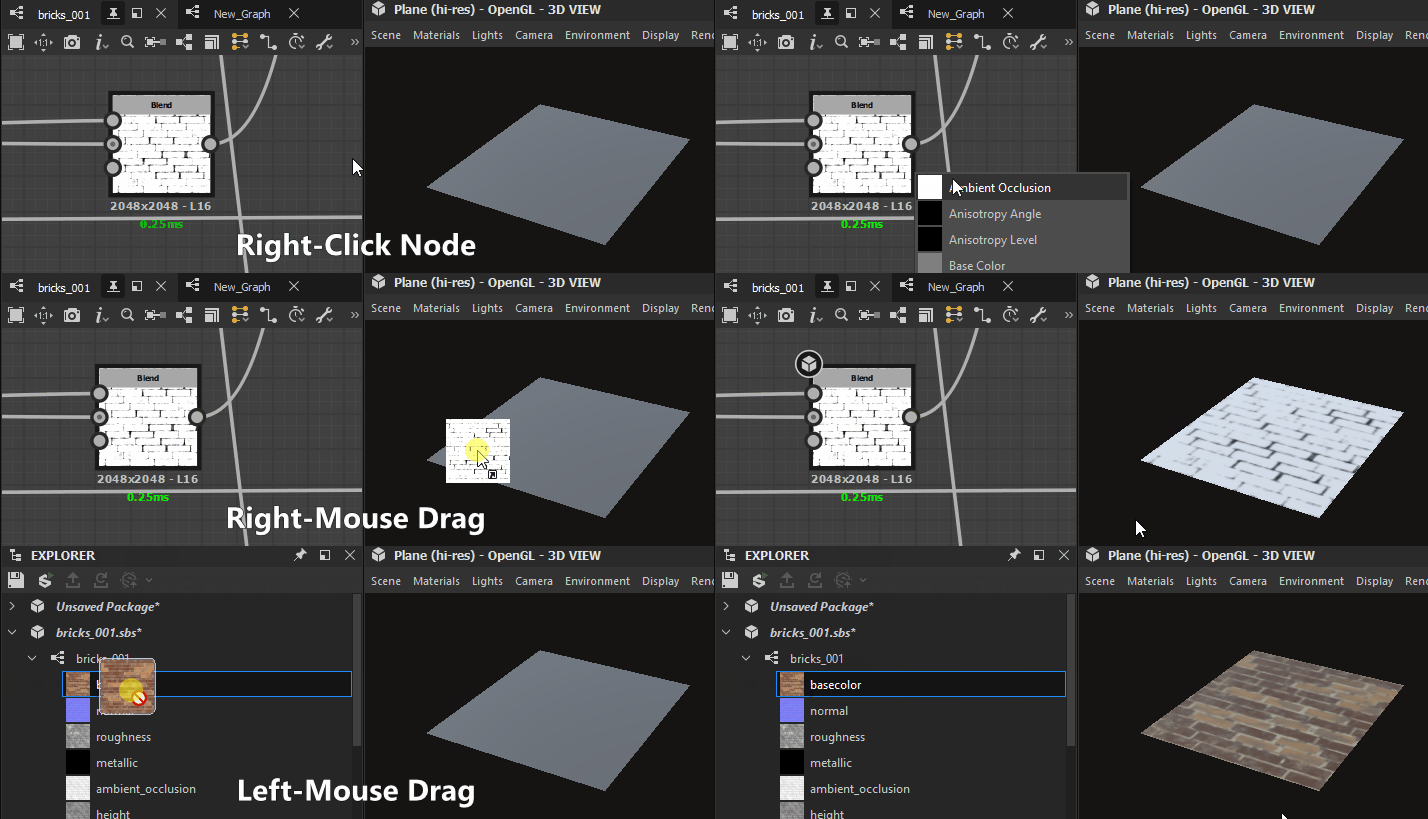
You can view just a single output in any available material channel in the 3D View. This is less commonly used, but good for previewing quick tests or individual nodes with no output.
You can view any node, not just output nodes, by right clicking it in the Graph view, and choosing View in 3D View. You’ll be shown a list with available channels to assign the node to. Click any to confirm.
You can also use RMB to drag and drop any node from the Graph view to the 3D View. You’ll be shown a list with available channels to assign the node to. Click any to confirm.
You can view any individual graph output by expanding the graph resource in the Explorer dock, and using LMB to drag that output to the 3D View. You will be shown a list with available channels to assign the node to. Click any to confirm.
View (custom) 3D scenes
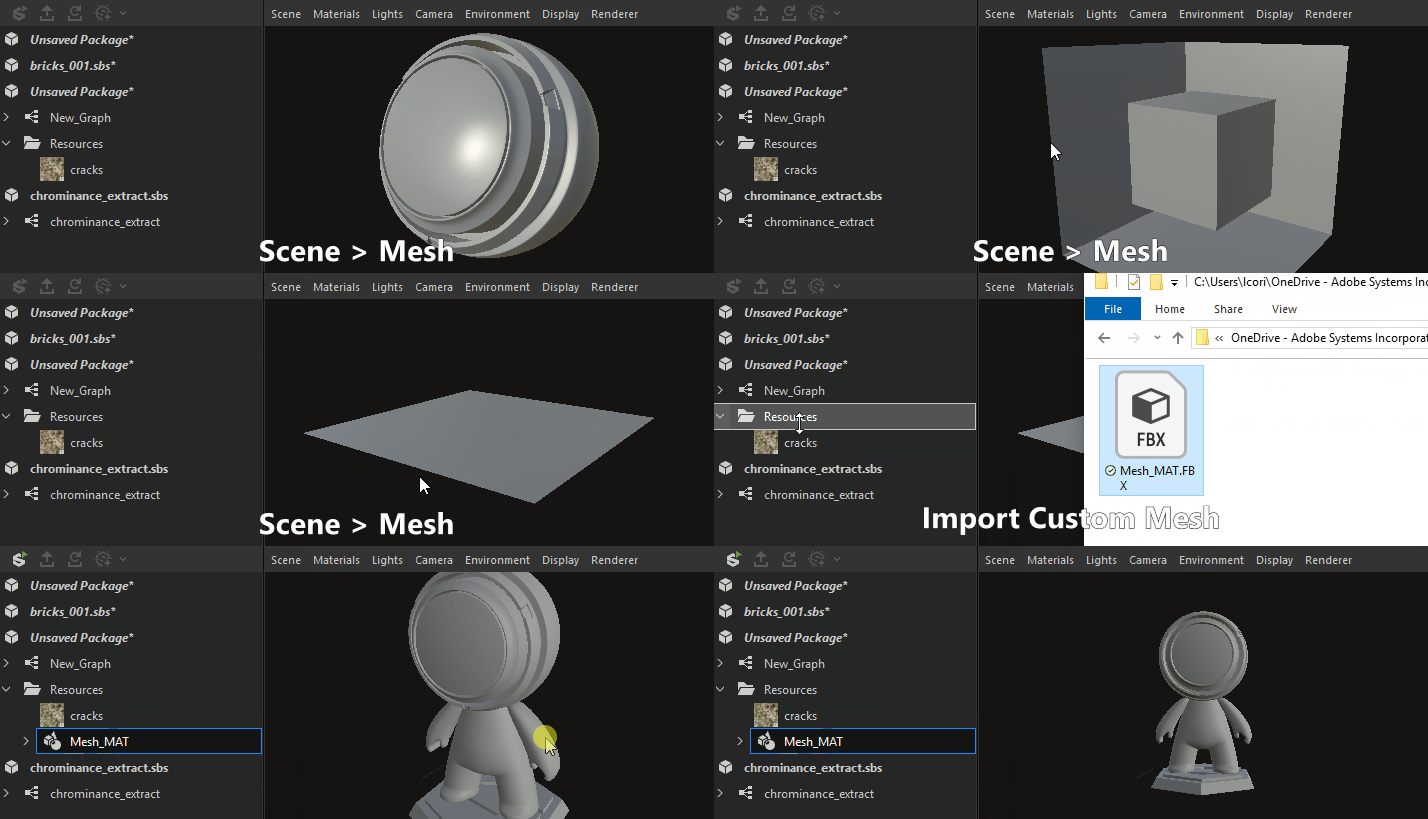
Designer offers a dozen preset meshes. These meshes have uniform, useable UV coordinates and serve most scenarios for tiling textures. Importing and viewing your own 3D meshes is also possible.
Pick any of the default meshes through the Scene dropdown menu in the top bar.
For custom 3D scenes, go to the Working with 3D scenes section.
Change shader properties
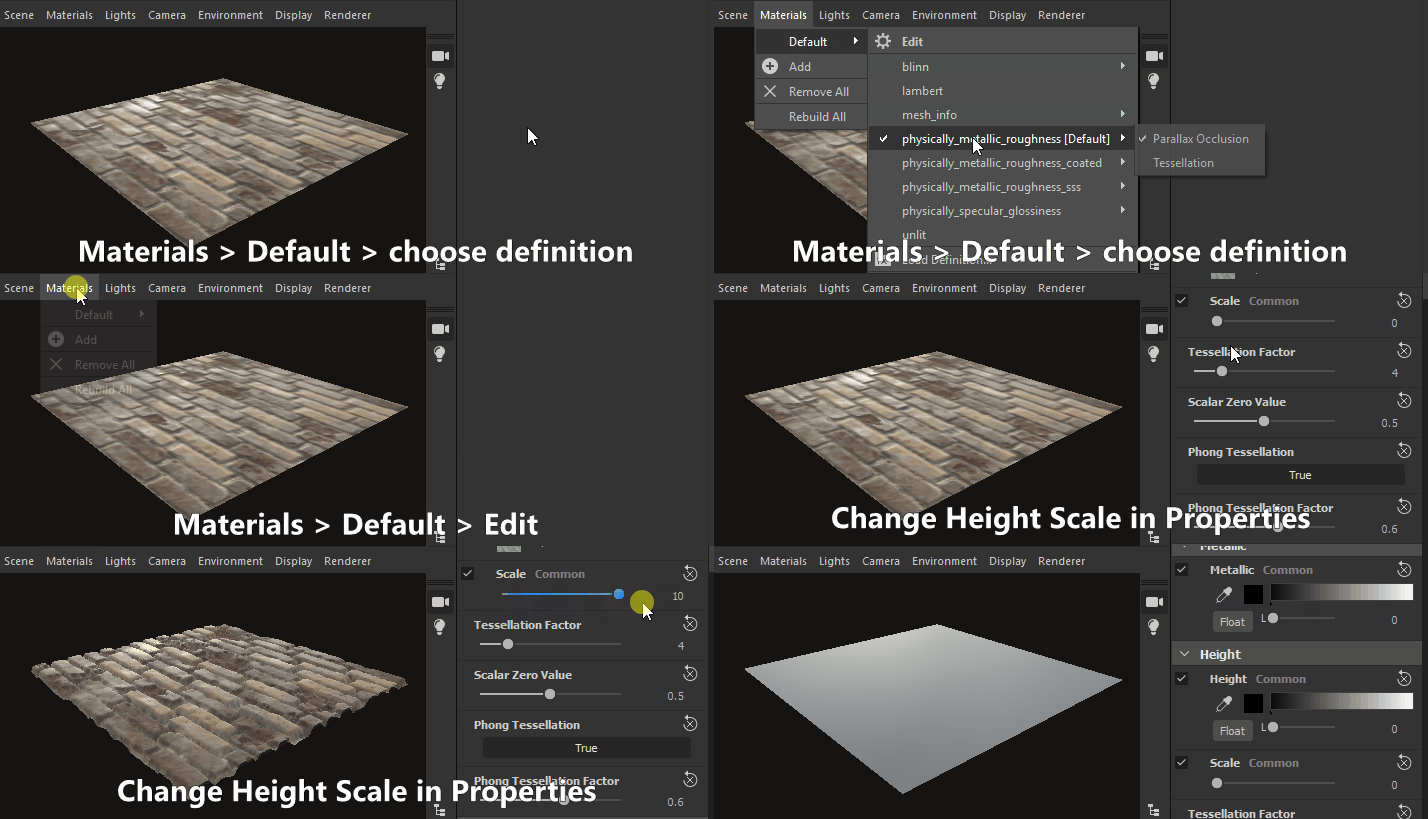
There are a few different shaders available by default in Designer, and each shader has options beyond just texture channels. They can be configured individually.
Keep in mind shaders are different across Designer’s 3D renderers and only settings marked with a ‘Common’ label will carry over when switching renderers.
To change the current shader, go to ‘Materials’ menu then open the submenu for the material you wish to edit.
For example, to adjust the ‘Height scale’ property for the ‘Default’ material in the ‘Plane (hi-res)’ scene, go to ‘Materials > Default > Edit properties’. Then find the ‘Height scale’ property in the Properties dock.
Shaders can be reset using the ‘Reset material’ or ‘Reset to scene state’ actions in the submenu. If you were viewing Substance graph outputs in the 3D view, you will need to reapply them again.
- Rasterizer/GPU Pathtracer: Located in the renderer settings (Renderer > Edit settings), impacts the entire scene.
- OpenGL: Located in the material properties, impacts the material.
Export scene
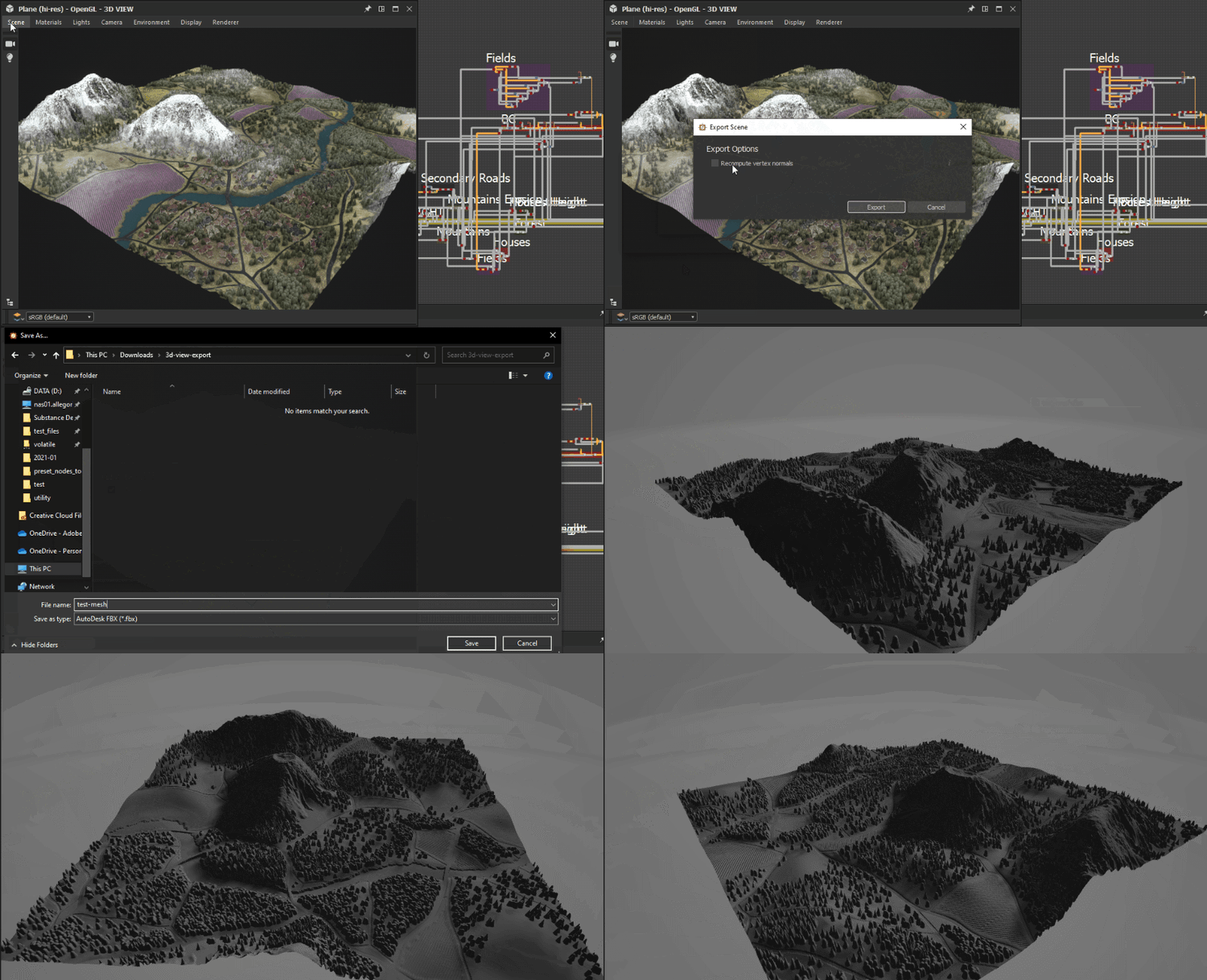
Learn about exporting 3D scenes in this page.
Export tessellated mesh (OpenGL renderer only)
You can export the mesh from the 3D View to a file in the OBJ, FBX or PLY formats. If tessellation displacement is enabled, the subdivision of the geometry is baked into the exported mesh.
However, the vertex normals of the original mesh may not match its new displaced shape, which means the displaced mesh may not render correctly. You can manage this in two ways:
- Use the mesh normal map which will provide the correct normals
- Recompute the mesh normals on export using the mesh normal map, which means these normals are baked into the exported mesh and the normal map is no longer necessary
To export the 3D View mesh, go to Scene > Export tessellated mesh…, set your choice regarding normals recomputation, then select a location, name and file format for the exported mesh.
Menu bar
The menu bar provides 7 menus with options related to the 3D View. below is an overview of all options available.
The Scene menu deals with the geometry (3D Resource) shown and with 3D view states. 3D Resource sare just the mesh, Scene states are lights, camera, and related settings, and can also contain the mesh alongside.
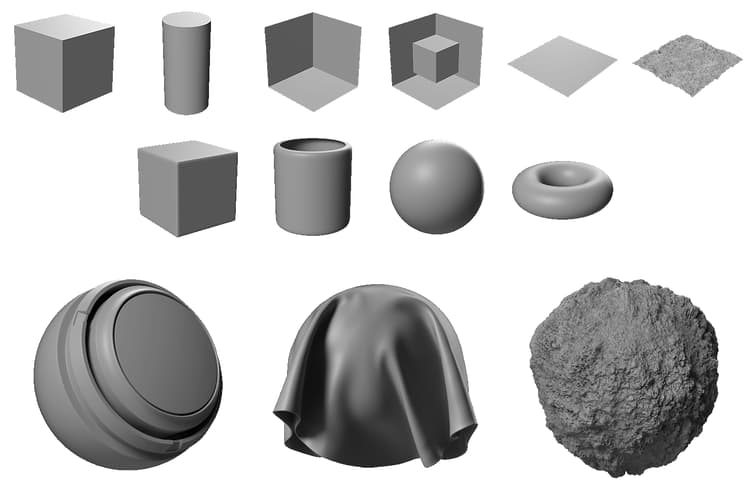
Edit: Loads scene options in the Properties panel. Lets you toggle visibility of the 3D Mesh.
Standard primitives: Shows any of the below simple 3D meshes in the 3D View.
-
Cube
-
Cylinder
-
Hollow Box
-
Inner Box
-
Plane
-
Plane (hi-res)
-
Sphere
Extended primitives: Shows any of the below 3D meshes in the 3D View.
-
Cloth
-
Mat Ball
-
Rounded Cube
-
Rounded Cylinder
-
Sphere 2 tiles
-
Torus
Display UV’s in 2D View: Enables the display of the UVs for the currently selected mesh as an overlay in the 2D View .
Create 3D resource from current scene…: Creates a new 3D scene resource in a package out of the current scene.
Load state file…: Loads an externally saved scene state file (*.sbsscn). Does not replace the 3D mesh, only loads settings for 3D renderer, camera and lights.
Load state file with mesh…: Loads an externally saved scene state file (*.sbsscn). Loads settings for 3D renderer, camera, lights, along with its references 3D scene. .
Save state file…: Save the current state of the 3D view to a scene state file (*.sbsscn).
Save current state as default: Set the current state of the 3D view as as a scene state file to be used by default when creating new 3D Views. This file is loaded every time the 3D view is reset or intialised, and can be set in the Project settings.
Export scene: (Rasterizer/GPU Pathtracer renderers only) Exports the current scene as a flattened scene, where only the result scene is written and any references to the original scene are lost. The contents of the exported scene depend on the features supported by the selected export format.
Available formats: STL, FBX, GLB, GLTF, PLY, USDC, USD, USDA, USDZ, OBJ.
Export scene with layers: *(Rasterizer/GPU Pathtracer renderers only)*Exports the current scene as a layered scene, where all edits to the original scene are saved to separate files in a non-destructive workflow. This is only available for USD file formats.
Available formats are: USDC, USD, USDA.
Export tessellated geometry: (OpenGL renderer only) Exports the current scene with tessellation as raw geometry, see Export scene section.
Reset scene: Resets the 3D view to default.
Some software updates can change the way Scene state files are saved/loaded.
If the scene is not restored correctly from the file, it is recommended to manually set the desired state of the scene, and reexport the Scene state file.
The Materials menu changes based on the 3D mesh loaded and the renderer used.
The ‘Materials’ menu features a list of all materials assigned to a mesh in the scene. Each material listed in the ‘Materials’ menu has a submenu of material actions:
Edit - Edit settings of the current material in the Properties window.
Shaders list - All shaders available for the current 3D renderer.
Load Definition…: (OpenGL renderer only) Lets you load your own custom GLSLFX shader. The shader is added into the list above.
Reset common parameters: Resets all parameters that are common across shaders. For instance, when switching between the Rasterizer/GPU Pathtracer and OpenGL renderers, several parameter values in the Adobe Standard Material are carried across.
Rename: Change the label for this material.
Reset material: Resets all shader parameters to their default values. If textures are connected to any of the shader’s samplers, they are disconnected.
Reset material to scene state: (Rasterizer/GPU Pathtracer renderers only) Resets all properties for overridden materials to their original values from the scene, including original textures if any.
Add: Adds a new material to the list. It is unused by default and may be connected to a scene material using the Scene browser.
The Lights menu only deals with older, legacy ambient and point lights. These lights are not PBR-compliant and do not give the same high-quality results as HDR image based rendering.
Edit: edit individual settings for the ambient light and the two point lights.
Reset Lights: resets light properties to default state.
The Camera menu lets you change camera settings, go to predefined angles, and load Camera angles stored inside a custom 3D mesh file.
Edit properties: opens the default camera’s settings in the Properties dock.
Focus: (F) Focuses the default camera on the currently selected mesh. I.e., frames the mesh and aligns the camera pivot to it. If there is no active selection, the scene’s global bounding box is used.
Scene cameras: If the scenes includes one or more cameras, they are listed here and their settings are used as presets to be applied to the scene’s default camera.
Viewpoints: Preconfigured point of views for the default camera. These only impact the camera’s transformation (position and rotation).
-
Default: A high-angle shot from the objects’ front left.
-
Back
-
Bottom
-
Front
-
Left
-
Right
-
Top
Save render…: (Alt+S) Saves the currently rendered image to disk, at the resolution specified in the renderer properties, or default camera’s properties if an overriding resolution was set up.
Copy render to clipboard: (Alt+C) Copies the currently rendered image to the clipboard, for pasting in an external image editor.
Reset position: ® Resets the position of the camera.
Reset selected: (Shift+R) Resets the position and properties of the camera.
The Environment menu lets you modify the settings related to the HDRI environment used to light PBR correct materials.
Edit properties: Gives access to the HDR environment settings, used for lighting in PBR. Specifically you can toggle visiblity, change exposure with a preview, and set rotation with a precise slider…
Reset environment: Resets all environment properties to default.
The display menu lets you toggle view modes, helpers and information for the rendered scene:
Axis: Toggles display of the 3D axis in the viewport.
Grid: Toggles display of the world frid.
Resolution: Toggles the display of a small resolution counter.
Scene stats: Toggles the display of scene statistics, such as polycount, materials count, static meshes count, etc.
Render time: The time to compute one sample for the full image.
Samples: The amount of pixel samples computed for accumulation antialiasing (Rasterizer) or pathtracing (GPU pathtracer).
Backface culling: disabling this option lets you see a mesh face from both sides. The option works in combination with Wireframe
Bounding box: toggles display of the mesh’ bounding box.
Wireframe: toggles display of the mesh wireframe.
Light: toggles display of helper lines for the point lights.
Vertex tangent space: displays the tangent, binormal and normal vectors for all vertices as colored gizmos
Some of these options are available as button toggles in the Scene toolbar.
The Renderer menu lets you switch 3D renderers and access the properties of the current 3D renderer through the Edit properties action.
The available renderers and their settings are documented in this dedicated page.
Scene toolbar
The Scene toolbar, which is located on the left border of the 3D View by default, offers controls for viewing and interacting with the scene.
It also lets you access the Displacement pop-up and the Scene browser dock.
Display options
Top

Displays a hierarchy of all elements in a 3D scene.

Enables direct selection of meshes in the scene.
LMB Select a mesh in the scene.
Selects individual meshes in the scene. Selected meshes have a blue outline in the viewport and are highlighted in the Scene browser.
A contextual menu is available for selected meshes and may be displayed by clicking RMB.
Meshes can also be selected in Camera or Light modes, by pressing Shift+LMB.

Enables direct control of the Camera in the scene.
LMB Orbit the camera around its target.RMB Move the camera closer or farther from its target.

This button toggles the display of the scene’s environment. The same setting can be found in the Properties dock after going to Environment > Edit in the 3D View’s menu bar.

Enables direct control of the Point light 1 in the scene.
LMB Orbit the camera around the scene’s origin.RMB Move the light closer or farther from the scene’s origin.

Displays the settings of the current renderer in the Properties dock.

Toggles the selection of the GPU Pathtracer renderer.

Toggles the rendering of real-time shadows in the Rasterizer renderer.

Toggles the rendering of the ground plane in the Rasterizer and GPU Pathtracer renderers.

Displays the Displacement pop-up.
Bottom

Toggles the display of the world grid.

Toggles display of scene statistics, such as polycount, materials count, static meshes count, etc.

Toggles display of the 3D axis in the viewport.
OpenGL renderer only

Disabling this option lets you see a mesh face from both sides. The option works in combination with Wireframe.

Toggles display of the mesh’ bounding box.

Displays the tangent, binormal and normal vectors for all vertices as colored gizmos.

Toggles display of the mesh as a wireframe.
Display toolbar
The Display toolbar, which is located at the bottom of the 3D View panel by default, lets you control how the rendered image is displayed in the viewport.
Color channels
You can display a single channel of the image using the

The icon of the Color channels button changes depending on the currently display channel(s).
Color space
For the most accurate representation of color, images are displayed by default in a color space which matches the one used by the monitor.
The available controls will depend on the color management mode set in the Project settings. Learn more about these controls in the Color management section in this page.