GPU drivers crash with long computations (TDR crash)
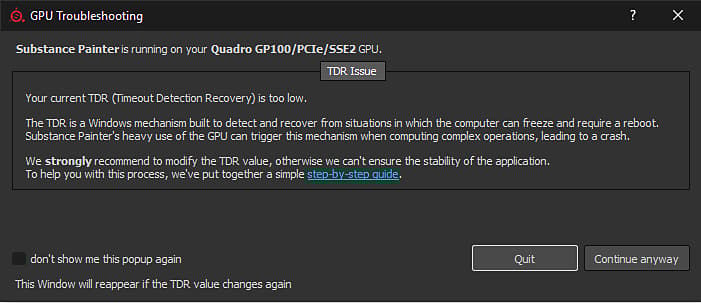
On Windows, this window will appear if Substance 3D Painter detects that the current TDR value is below a specific limit (10 seconds).
Why does the GPU driver crash?
In order to prevent any rendering or GPU computation from locking up the system, the Windows operating system kills the GPU driver whenever a rendering takes more than a few seconds. When the driver is killed, the application using it crashes automatically. It is not possible to know how long a rendering task or a computation may take (it depends on the GPU, the drivers, the OS, the mesh size, the texture size, etc.), therefore it is not possible to put a limit on how much the computer should process and avoid the crash from the application level.
On Windows there is a registry key specifying how long the OS should wait before killing the GPU driver. Application are not authorized to modify this setting directly, this procedure has to be done manually (see below).
For more information consult the official documentation: https://docs.microsoft.com/en-us/windows-hardware/drivers/display/tdr-registry-keys.
List of Keys that need to be changed
To adjust the TDR simply increase the TDR Delay: change both TdrDelay and TdrDdiDelay to a higher value (like 60 seconds).
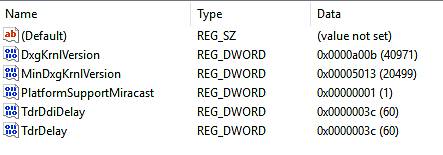
How to edit the TDR values
Follow this procedure to change the TDR value.
Note that two different keys will have to be created/edited.
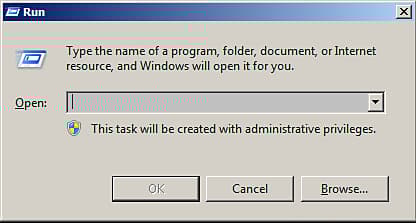
1 - Open the Run window
Click on Start then Run (or press the Windows and R key). It will open the Run window.
2 - Launch the registry editor
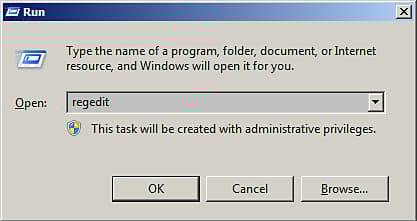
Type regedit in the text field and press OK.
3 - Navigate to the GraphicsDrivers registry key
The registry window will open.
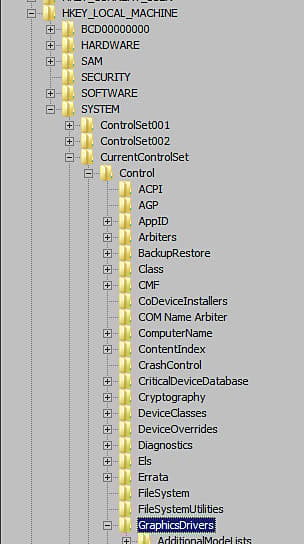
In the left pane, navigate in the tree to the GraphicsDrivers key by going into:
Computer\HKEY_LOCAL_MACHINE\SYSTEM\CurrentControlSet\Control\GraphicsDrivers
Be sure to stay on “GraphicsDrivers” and to not click on the Registry keys below before going through the next steps.
4 - Add or Edit the TdrDelay value
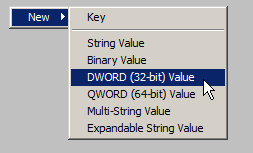
In the right pane, double click on the value TdrDelay. Change the Base setting to Decimal . Set the value to something else than the default 2 (we recommend 60).
This value indicates in seconds how long the operating system will wait before considering that the GPU is unresponsive during a computation.
5 - Add or Edit the TdrDdiDelay value
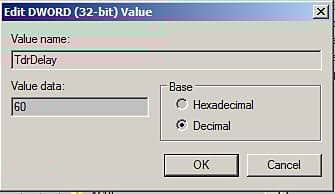
In the right pane , double click on the value TdrDdiDelay . Change the Base setting to Decimal . Set the value to something else than the default 5 (we recommend 60 ).
This value indicates in seconds how long the operating system will wait before considering that a software took too much time to leave the GPU drivers.
Hexadecimal is the default value, simply switch to decimal to display the right value. Note that 3C (Hexadecimal) equals to 60 (Decimal).
6 - Finish and Restart
The right pane should now looks like this:
Close the Registry editor. Restart the computer by using Start then Restart .
The TdrValue is only looked at when the computer start, so to force a refresh a reboot is necessary.
If the application still crashes when doing a long computation, try increasing the delay (in seconds) from 60 to 120 for example.
Revert TDR values to defaults
There are two ways to revert the TDR to its default values :
- Set the TdrDelay to 2s and the TdrDdiDelay to 5s, by following the steps described above.
- Or Remove the TdrDelay and TdrDdiDelay keys from the registry entry.