Overriding scene materials
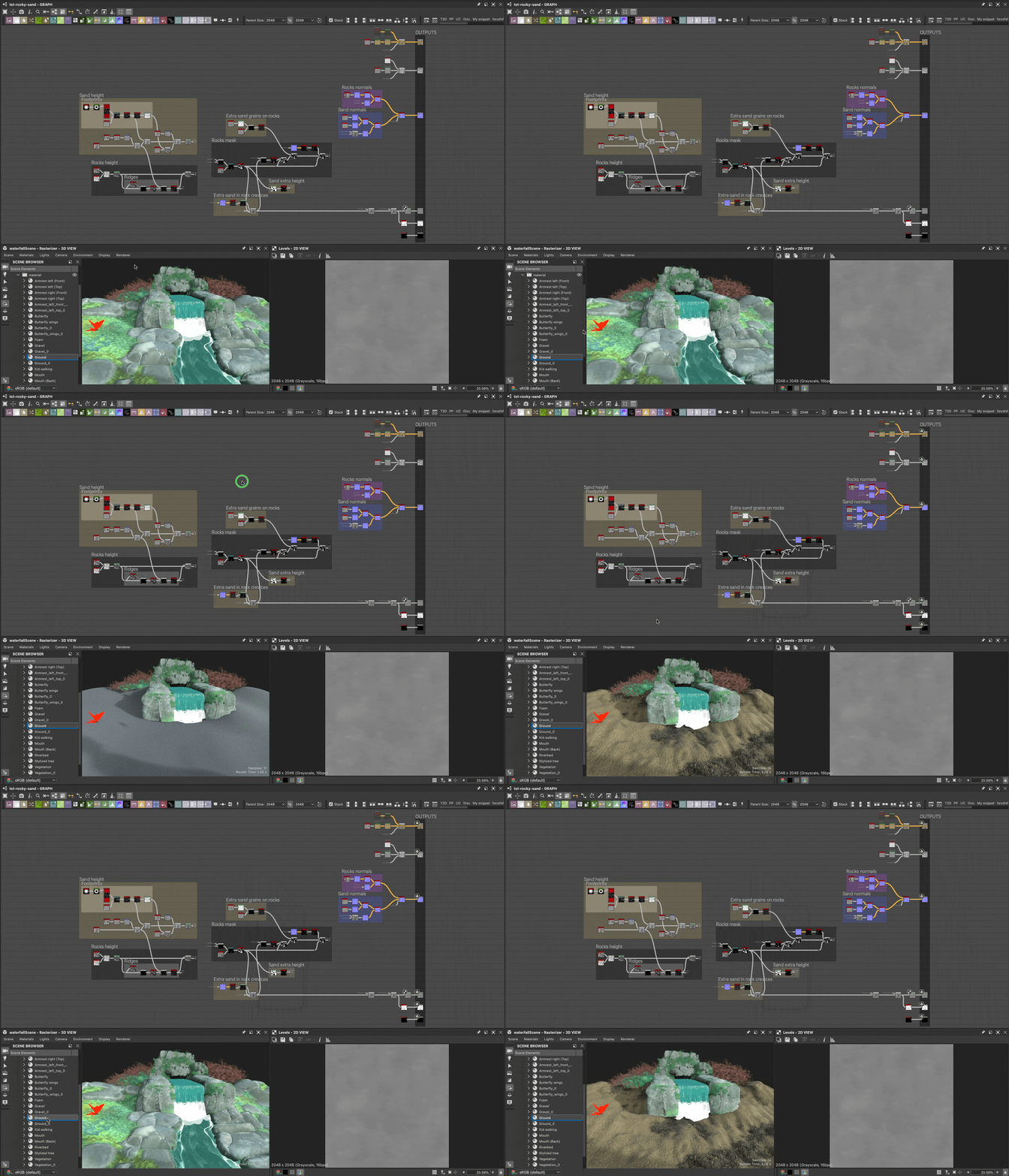
When working with 3D scenes with existing materials, it is necessary to override these materials in order to replace them with your own.
Your material can be built from scratch, or an adjusted version of a scene’s material which has been extracted into a Substance graph.
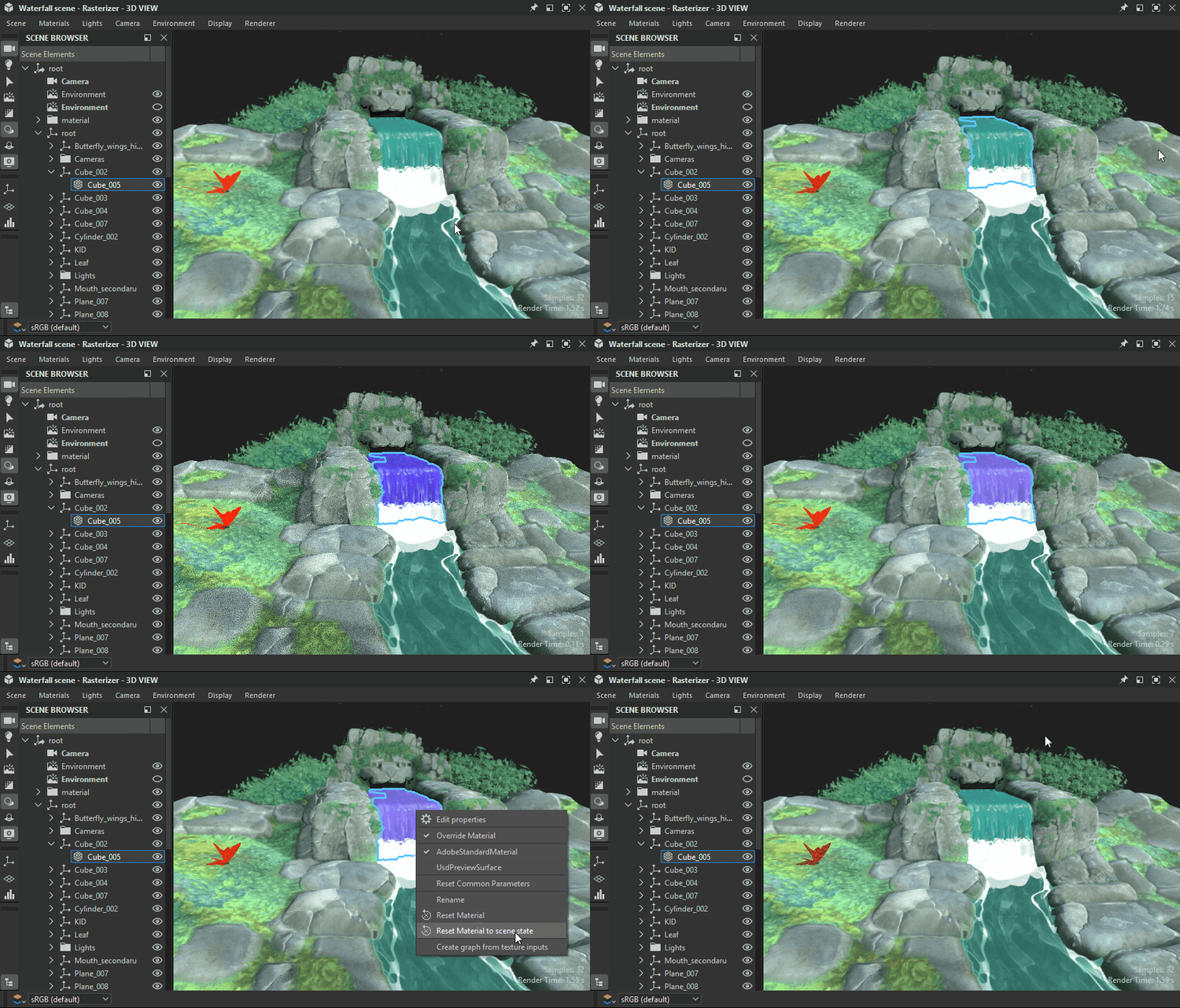
Override scene material
Any material used in a scene can be overridden with your own version, that being a new material or an edited version of the existing material.
The ‘Override material’ action can be found in two places:
- Open the ‘Materials’ menu and go to the desired material’s submenu
- Press Shift+LMB on a scene object to select it, then click RMB to open its contextual menu
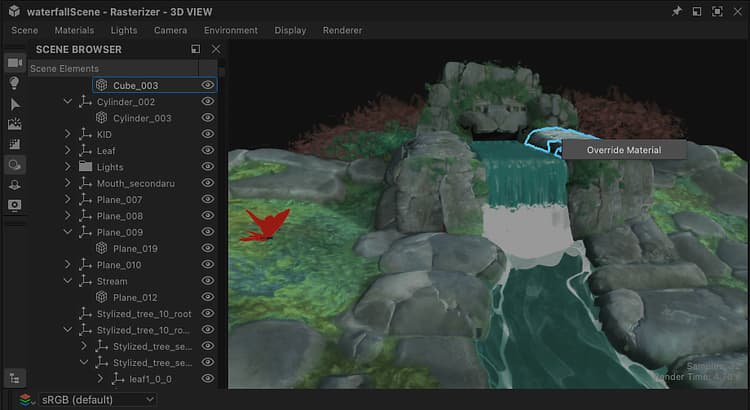
Action in 3D View viewport
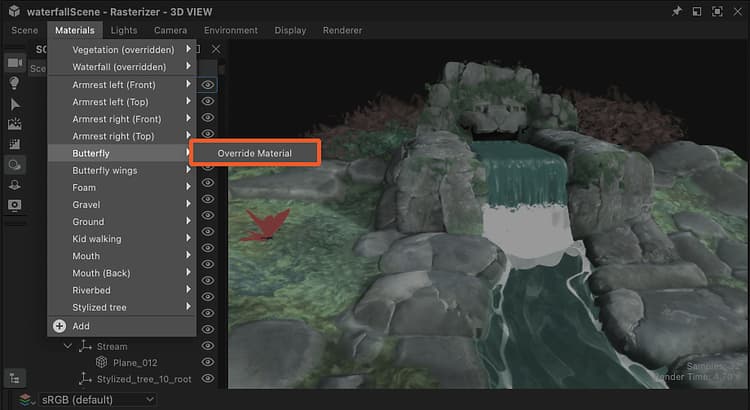
Action in Materials menu
In the context of Designer, which uses USD for its internal scene description, overriding means creating a copy of the material which matches the original as closely as possible, and changing the material binding of the scene’s meshes from the original to the copy.
That means two important things:
- The original material is never changed in any way.
- Any work done in Designer will be applied to the copy.
You can toggle any override on and off at any point through the same ‘Override material’ action, if you wish to restore the original scene’s material or perform a quick before-and-after check as you go
Considering the copy is created to match the original, overriding a material should not change its appearance in most cases (see Note below), until you connect a Substance graph to it or edit its properties.
Reset to scene state
If you need to go back to a material’s initial state, while keeping it overridden and still being able to edit it, any material copy can be reset to its initial values.
If a material property value was modified, or a texture from a graph was applied to it, the property is reverted to its initial value or texture.
A material can be reset entirely, or per property.
Use the ‘Reset material to scene state’ action in the material’s submenu or a mesh’s contextual menu, to reset the material entirely.
The action can be found in three places:
- Open the ‘Materials’ menu and go to the desired material’s submenu
- Press Shift+LMB on a scene object to select it, then click RMB to open its contextual menu
- The hamburger menu at the top of that material’s properties
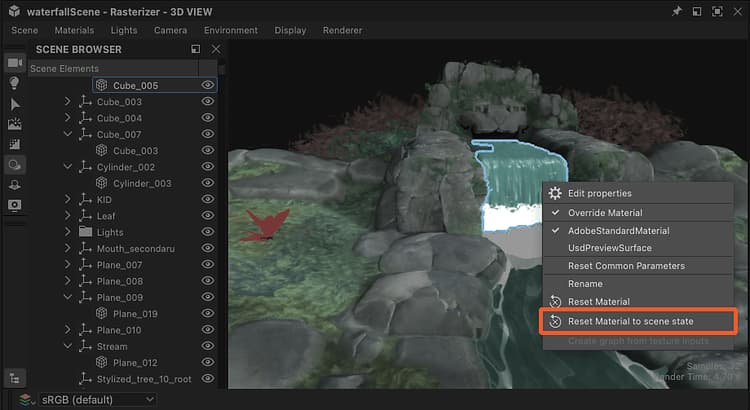
Action in 3D View viewport
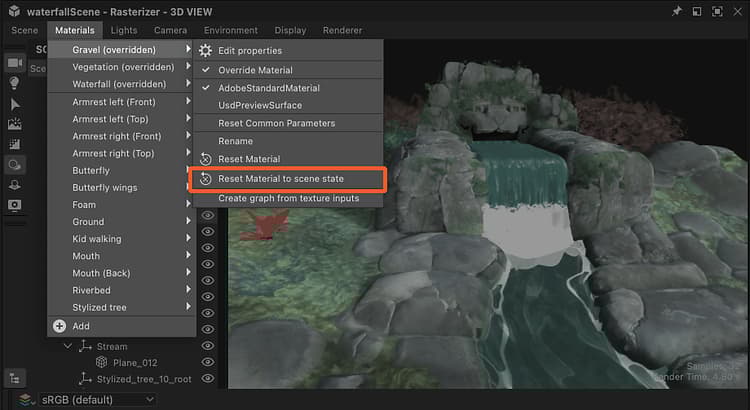
Action in Materials menu
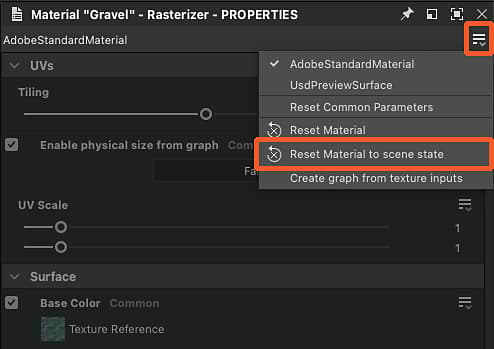
Action in material’s properties
The action is also available per property in the material properties, in case you want to reset only some aspects of a material.
Open the material property’s hamburger menu to find the ‘Reset to default scene state’ action.
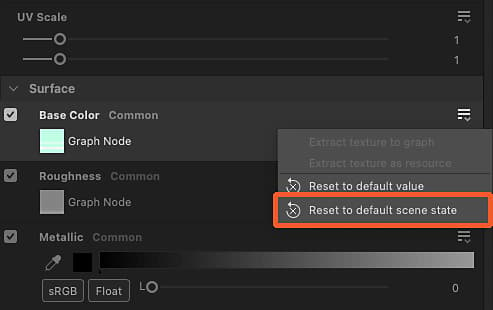
Connected material
Again: Designer does not directly alter a scene’s material, it creates a copy in the scene and binds the meshes to that copy instead of the original.
On another hand, Designer has its own separate list of materials in its ‘Materials’ menu which matches the scene’s list of materials by default. You may add new materials in that list at any time.
This is a different set of data which is authored and managed in Designer only. These materials are then connected to the copies which override the scene’s original materials.
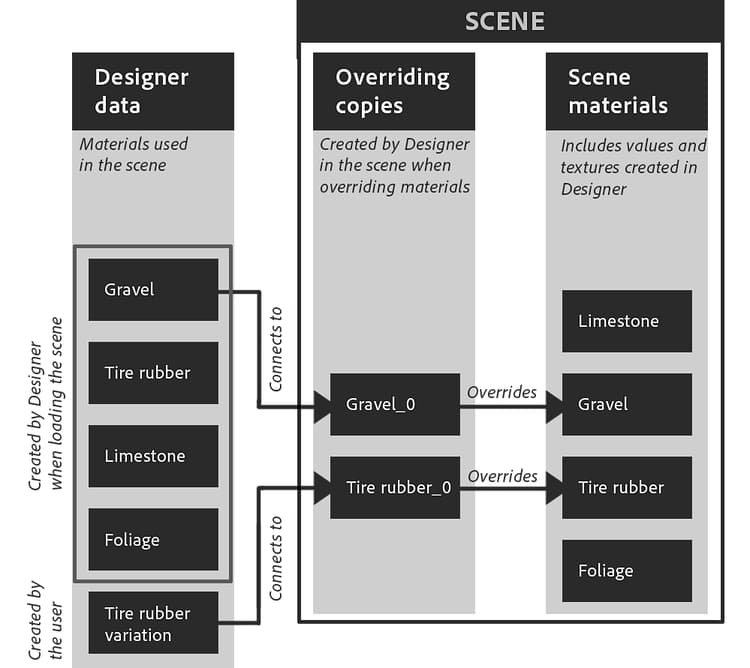
You can connect any of the materials listed in the ‘Materials’ menu to the copies created by Designer in the scene: Click RMB on a copy in the Scene browser and going to the ‘Connect material’ submenu.
The submenu lists all materials in the scene and any materials you may have manually created from the ‘Materials’ menu.