Displacement pop-up
The Displacement pop-up available in the 3D View toolbar offers direct controls to the displacement and tessellation of meshes.
There are three parameters:
- Height scale
- Height level
- Tessellation
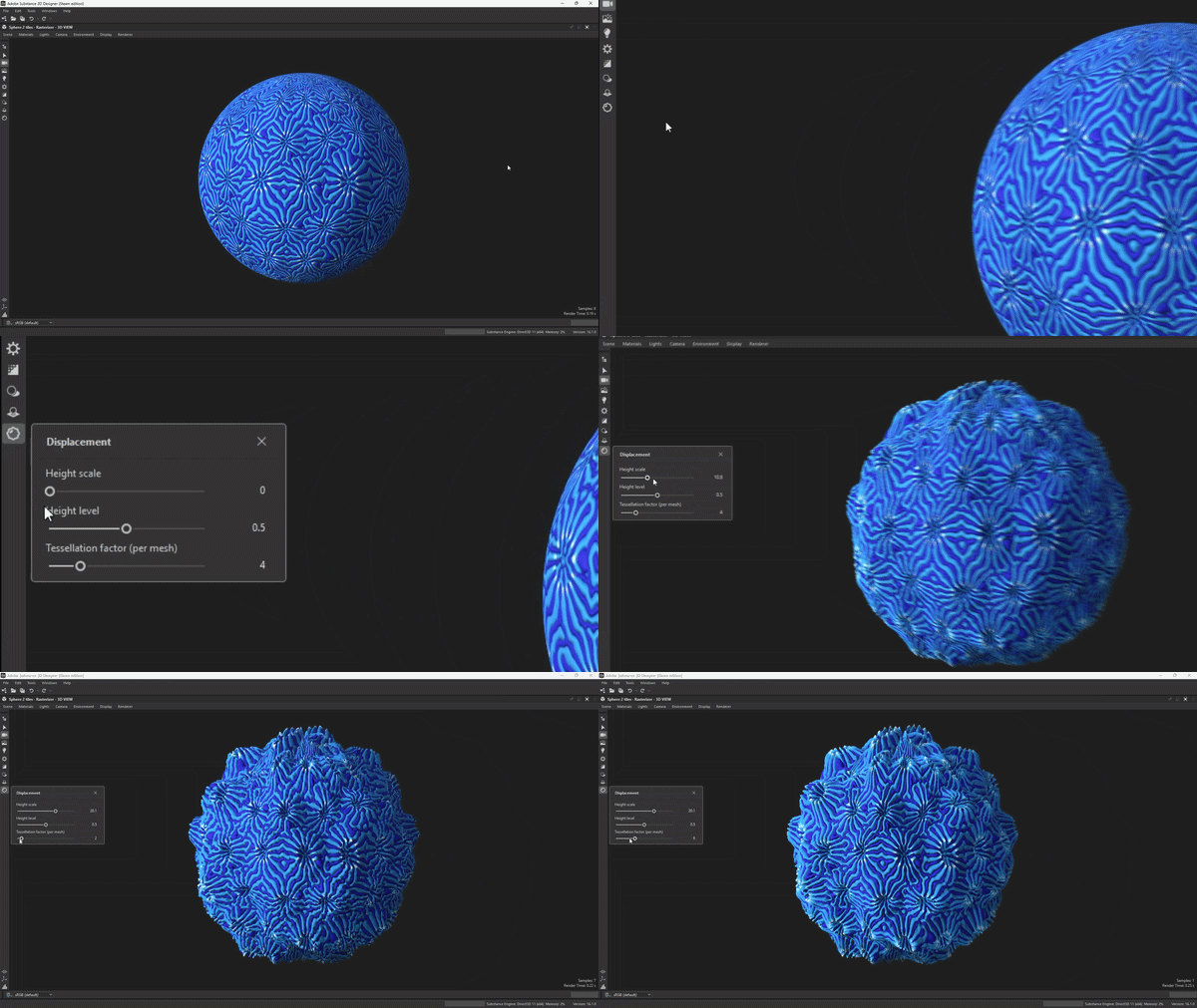
Height scale
The maximum distance of displacement for the mesh vertices along their normal, in scene units.
This is the distance travelled for a value of 1.0 in the height map.
When a Substance graph is connected to a material and that graph includes an Output node with
the heightScale usage, then the Height scale parameter in the pop-up is disabled for that material
since it is being currently driven by the graph.
to ensure correct shading when using displacement.
Height level
The grayscale value in the height map that is used as the midpoint for the displacement height.
I.e. the threshold value used as 0.0 elevation.
Values below that threshold result in vertices being displaced backward, while values above the threshold result in
vertices being displaced forward.
Tessellation
Tessellation involves subdividing individual mesh faces by adding a vertex on their segments then connecting
all vertices to a new vertex at their center, so that 1 face becomes 6.
The parameter defines the amount of times faces should be subdivided recursively.
The scope of the tessellation parameter varies according to the renderer being currently used: it can be applied
per mesh or per material.
Per mesh
When using the Rasterizer or GPU Pathtracer renderer, each Mesh object in the scene has a separate
subdivision value.
Subdivision is contextual: it is optimized in such a way that only surface with a non-uniform height value or
a non-flat height map will be subdivided, regardless of the parameter value.
Tessellation factor = 1)For high poly meshes, this step can be time consuming and significantly impact performance when using displacement.
0 in the properties of the Mesh objects listed in the Scene browser.Per material
When using the OpenGL renderer, each material in the scene has a separate subdivision value, which
is applied to all faces using that material.
Subdivision is not contextual: the surfaces are subdivided the specified amount of times regardless of their current
height value or texture.
Visualizing tessellation
You can visualize the result of tessellation by checking the wireframe of the mesh.
The steps to displaying the wireframe for each renderer are described below:
Rasterizer/GPU Pathtracer
Use the

button, then in the Properties dock go to Render settings > Diagnostic mode and select the Wireframe
(world space) option.
OpenGL
Use the

button.