Exporting scenes
When you need to export the scene with all edits made in Designer, use the ‘Export scene…’ actions in the 3D View’s ‘Scene’ menu.
For exports to USD formats, the contents of the scene will match the tree displayed in the Scene browser.
For other formats, the contents of the scene and its internal structure will depend on the features supported by the selected file format.
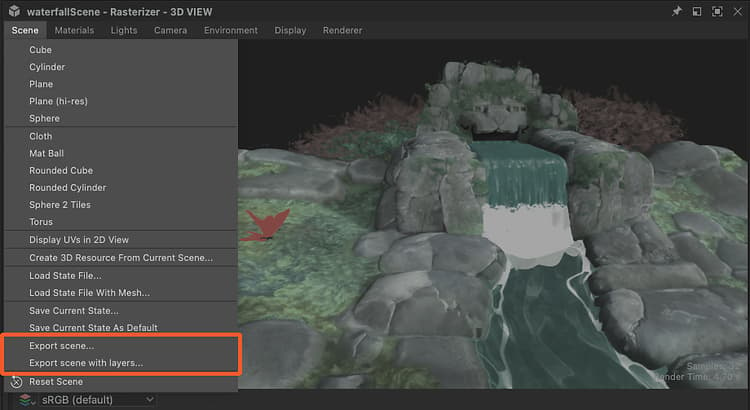
Export scene
The ‘Export scene…’ action in the ‘Scene’ menu exports edited 3D scenes destructively: the scene is flattened and any reference to the original is lost.
This means edits to the original scene do not impact the exported scene at all.
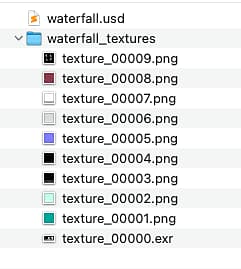
Export scene as layers
The ‘Export scene as layers…’ action exports to USD formats (.usd, .usda, .usdc, .usdz) and is non-destructive: the main exported file helms a chain of references where all the edited aspects of the new scene are stored into separate USD files.
This means edits to the original scene carry over to the exported scene.
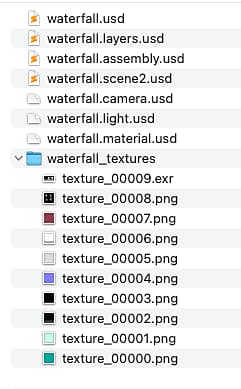
The exported files follow this structure:
-
Main file
-
.layers: References the sublayers below and declares the material overrides, which bind of geometry to the material copies created by Designer.
- .assembly: References the .scene# file and declares the geometry overrides, which bring the data recomputed by Designer of the geometry impacted by overridden materials.
- .scene#: References the original scene.
- .camera: Declares the camera added by Designer to the scene.
- .light: Declares the lights added by Designer to the scene.
- .material: Declares the materials copies added by Designer to the scene, which use the exported textures.
- .assembly: References the .scene# file and declares the geometry overrides, which bring the data recomputed by Designer of the geometry impacted by overridden materials.
-
Textures
Textures are exported in a directory next to the exported file and named after it, with a ‘_textures’ suffix.
They use the PNG format, except HDR textures (floating-point) which use the EXR format.