Levels
In: Atomic Nodes
Adjusts the global tonal range and color balance of an image’s shadows, midtones and highlights.
The Levels node allows you to remap the tones of an input by setting input and output remap factors, presented in a histogram interface familiar from other 2D image editors.

It is one of the core, most useful nodes in Substance 3D Designer, and is very often used to remap and adjust values in a graph, as it provides the most precise and accurate interface to changing values.
While it is an important node, for some use cases the interface can be a bit cumbersome, so make sure to look into Auto Levels, Contrast/Luminosity and Histogram Scan for alternatives.
The node offers two interfaces to adjust its values: histogram and sliders. You can switch between them with the rightmost button in the ‘Specific parameters’ header bar:


Usage guide
Check out this video overview of the Levels node and its histogram editor:
Quick actions
In the ‘Specific parameters’ header bar, you can find buttons to access convenient functions of the histogram:

1 - Invert: Swaps the values of the ‘Level out low’ and ‘Level out high’ parameters.
2 - Auto level: Automatically adjusts the values of the ‘Level in low’ and ‘Level in high’ parameters respectively to the lowest and highest value present in the image.
3 - Switch interfaces: Toggles between the histogram and slider editors.
Histogram
The histogram editor is intended for visual, quick adjustments where accurate values are not really needed, and exposing parameters is not of importance. It is generally the fastest and easiest way to work with Levels.
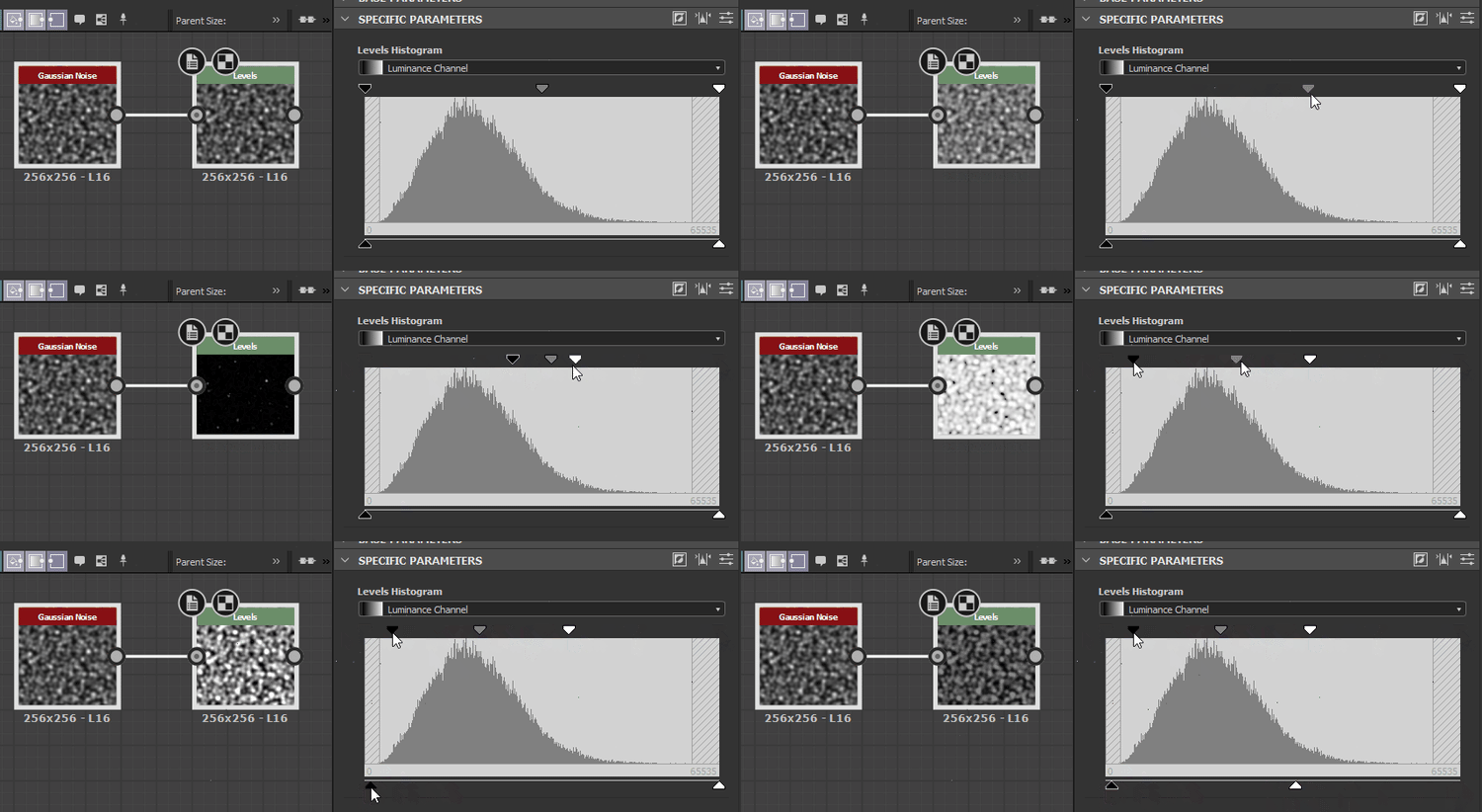
Depending on the input type (Color or Grayscale) you can use the dropdown above the Histogram to choose which channel you are modifying.
Sliders
The sliders editor does away with any visual editor and presents only numerical sliders, useful mostly if you want to clamp or remap to very exact values, or if you intend to expose any of these parameters, as this is only possible in the sliders editor.
The sliders change depending on a Color or Grayscale input: Color inputs create 4 Sliders for each RGBA channel separately, Grayscale only has a single slider, making it easier to work with. See above Parameter listing for an explanation on every slider.
Input connectors
Examples
Coming soon.