AxF (Appearance eXchange Format)
Substance 3D Designer supports X-Rite’s Appearance eXchange Format. The creators of the format describe it as follows:
‘AxF files are used to capture, store, edit, and communicate complex material characteristics throughout the digital design workflow. AxF provides a standard way to store and share all relevant appearance data – color, texture, gloss, refraction, translucency, special effects (sparkles) and reflection properties – across Product Lifecycle Management (PLM), Computer-Aided Design (CAD), and state-of-the art rendering applications.’
In simple terms, AxF files host a number of textures extracted by X-Rite’s TAC7 scanner hardware, coupled with metadata that describe additional properties of the material. That means an AxF is more than just texture data: it also carries shading properties.
AxF files are not imported as a package resource. Rather, the import process involves extracting textures and metadata from the AxF file then using those to prepare graphs created from dedicated templates.
The available templates are aimed at two AxF workflows:
- Converting an SVBRDF material in an AxF file into a PBR material;
- Editing an SVBRDF material in place and exporting it to an existing AxF file as a new layer.
Importing AxF files
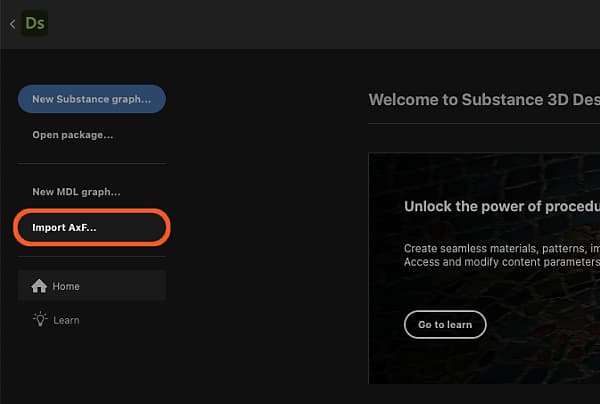
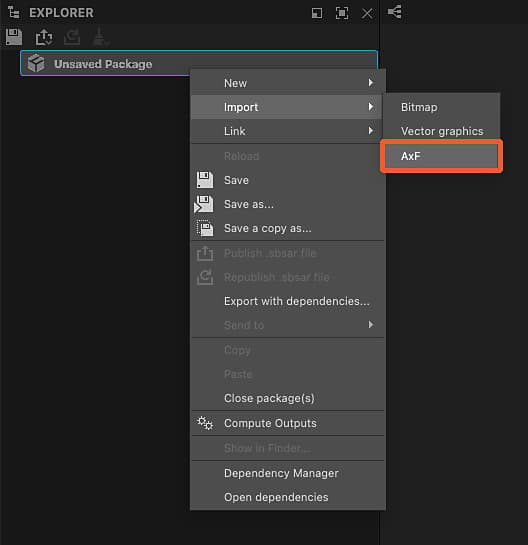
The AxF files import workflow may be started from on of the two methods below:
Click on the Import AxF… button in the Home screen’s left section.
Click RMB on a package in the Explorer, and go to Import > AxF in the package’s contextual menu.
Import dialog
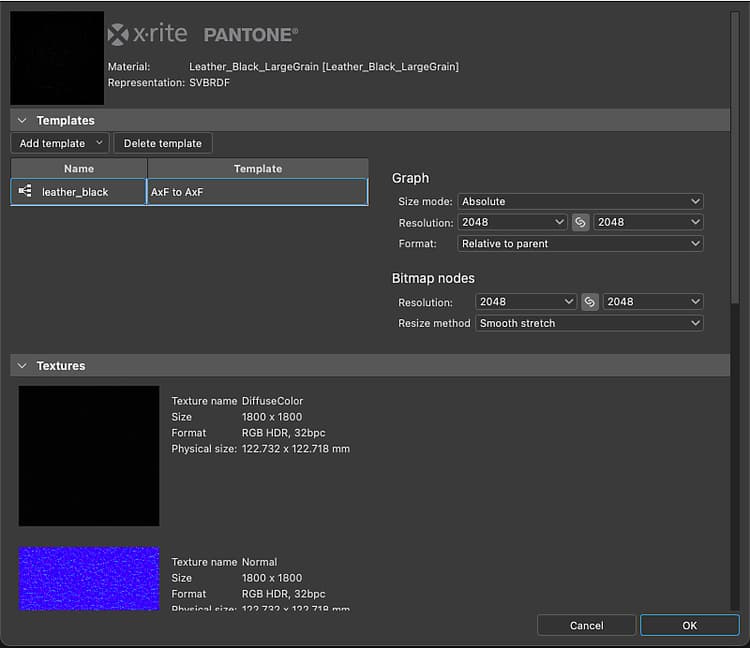
The AxF import dialog lets you review the data loaded from the selected AxF file, and setup the graph templates required for performing the intended edits or conversions.
It features four sections:
The Header displays the name of the material detected in the AxF file, as well as its representation (currently, always SVBRDF). The preview thumbnail embedded into the file is also displayed.
The Templates section lets you set up the Substance graph template to get started with working on the material. See the Graph templates section below to learn more about these templates and setting them up.
Textures lists all textures extracted from the AxF file involved in the detected material. For each texture, their name, native resolution, data format and physical size are displayed.
Metadata and Properties list data extracted from the material in the AxF file. These have an impact on how some Substance graph templates properties are configured (see Graph templates section below).
Result
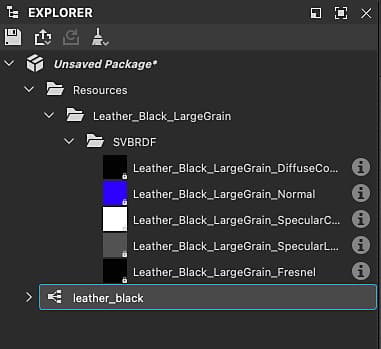
After clicking the OK button, a package is created in the Explorer. The package includes the following resources:
A Resources folder hosts a subfolder for each material imported from the AxF file.
Each subfolder includes another subfolder that contains the textures extracted from the AxF file for that material. This last subfolder is named after the material representation used by the textures (currently only SVBRDF).
A graph for each template set up in the Templates section of the import dialog.
In the case of Substance graphs, these are preconfigured with the textures and data extracted from the AxF file, as well as your selected template settings (see Graph templates section below).
Graph templates
There are graph templates dedicated to AxF workflows for Substance graphs.
Click the Add template button and select the desired graph type in the drop down menu.
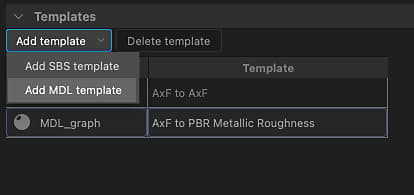
Substance graph templates
Two types of Substance graph templates are available:
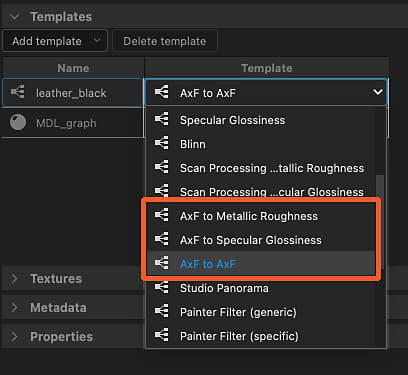
AxF to Metallic Roughness and AxF to Specular Glossiness are conversion templates let you map AxF materials to standard PBR models.
These can then be used with the default 3D View shaders and combined with other PBR materials produced in Designer, Sampler or acquired from our 3D Assets library.
AxF to AxF is a passthrough template that lets you edit AxF materials in place and export these changes as new layers in existing AxF files. See Exporting AxF files below to learn more.
For all Substance graph templates added in the Templates list, the following additional operations are performed:
For any Input node which usage matches the identifier of a texture extracted from the AxF file, that Input node is replaced by a Bitmap node referencing that texture;
The graph’s Resolution property (I.e., Output size) is automatically set to the power of two equal to or above the resolution of the largest extracted texture;
The Bitmap nodes’ Resolution property (I.e., Output size) is automaticall set to mach the graph’s, after the previous operation is applied;
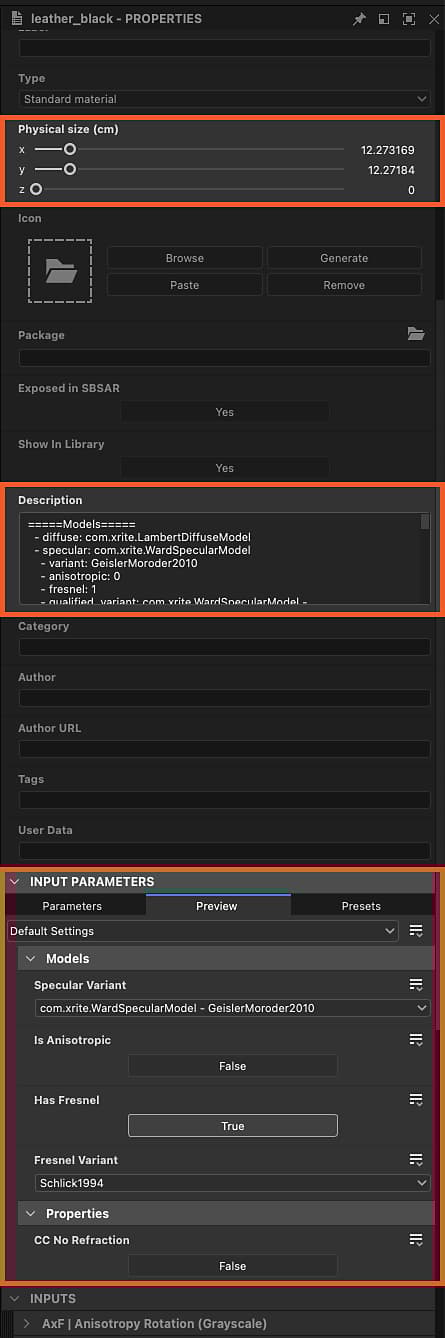
The graph’s Physical size property is set to the physical size of the first extracted texture;
The default values of the graph’s parameters are set to match the data in the AxF file.
The metadata extracted from the material in the AxF file is copied in the graph’s Description property.
| note important |
|---|
| IMPORTANT |
| The default values of the graph’s parameters should not be modified after this initial configuration. |
| They specify shading properties that are essential to interpret the values in the textures correctly. |
| Therefore, changing these settings will result in incorrect render when visualizing the material in the 3D View. |
Exporting AxF files
Existing AxF files can be edited in place from Designer, their resources are updated using the outputs of a Substance graph.
With the ability to export graph outputs to AxF files, a typical AxF workflow in Designer may look like this:
- Import AxF file
- Use ‘AxF to AxF’ Substance graph template
- Edit the extracted textures using the features and nodes available in Substance graphs
- Export the graph outputs to the same AxF file
The graph’s Physical Size property is used to set the Physical Size attribute of the updated textures in the edited AxF file.
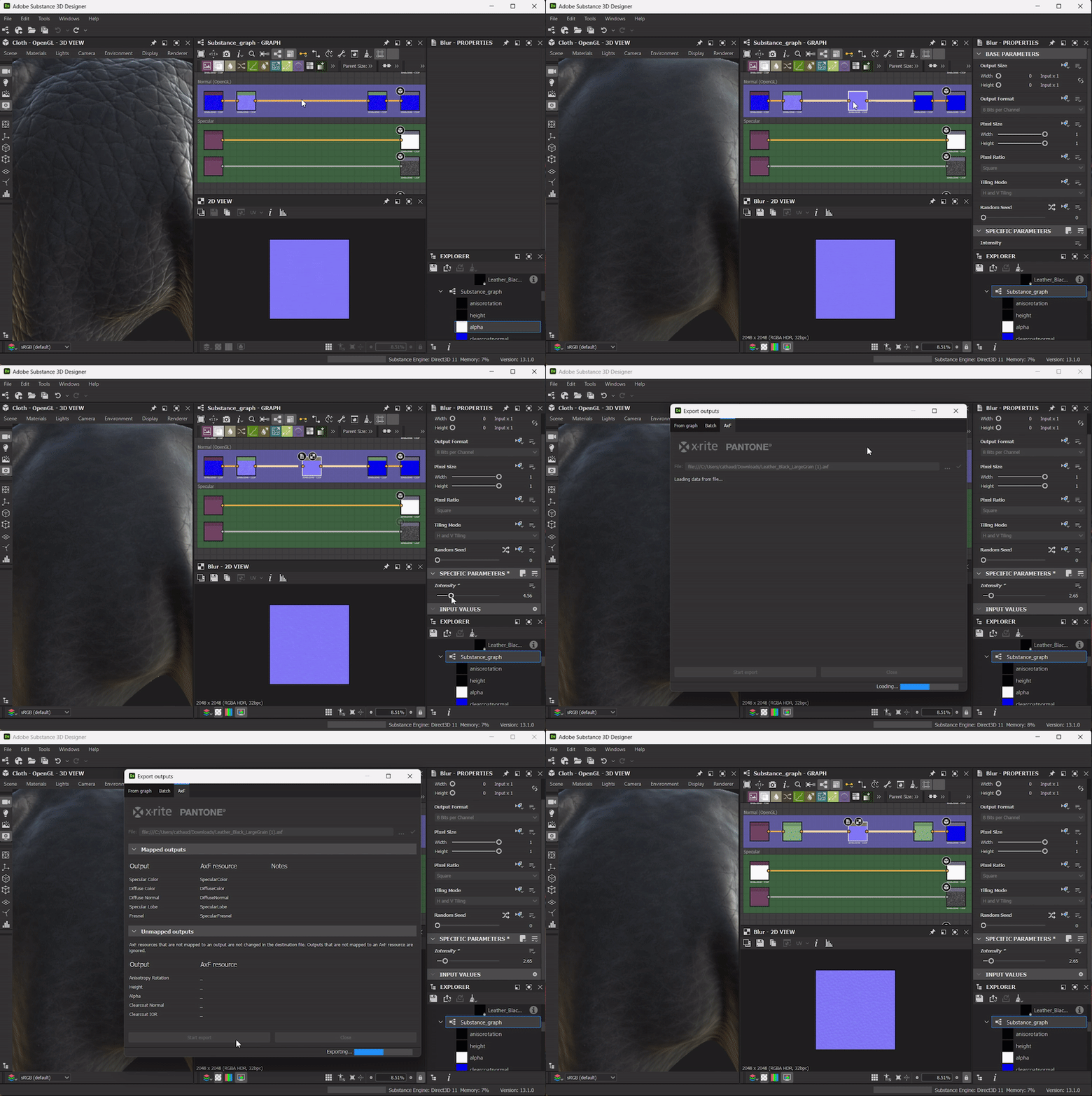
Export dialog
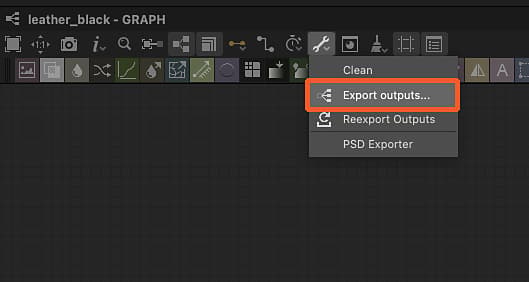
The AxF export dialog is available in the Export outputs dialog as a dedicated tab.
In the Graph View toolbar, open the

The dialog features three main sections:
The File input field lets you select the target AxF file which should be edited. That file is loaded and checked, then if valid its data is used to populate the ‘AxF resource’ columns below.
Mapped outputs lists the graph outputs in the Output column, and matches their usage with an AxF resource in the target file that shares the same identifier. If any issues are detected, they are displayed as a warning (yellow) or error (ref) in the Notes column.
Unmapped outputs lists graph outputs and AxF resources in the target file that could not be mapped. These outputs are ignored and these AxF resources are unchanged.
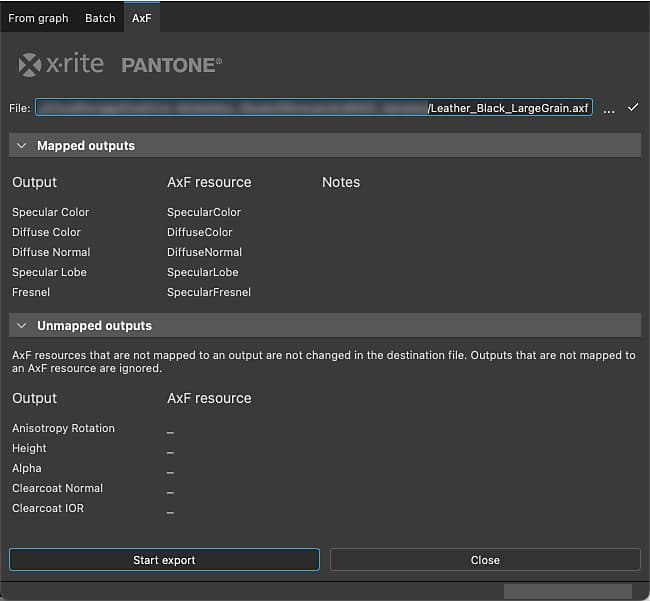
Click Start export to edit the target AxF file with the new layer containing the changes in the mapped outputs.
The result is displayed as a message next to the progress bar in the dialog’s status bar.
Mapping outputs to AxF resources
When exporting to an existing AxF file, its resources are updated using the graph outputs. Designer matches the resource identifier to the Output nodes which have that same identifier as a Usage.
Additionally, the Output’s Group property must be set to ‘AxF’ for it to be listed in the AxF export dialog (see above).
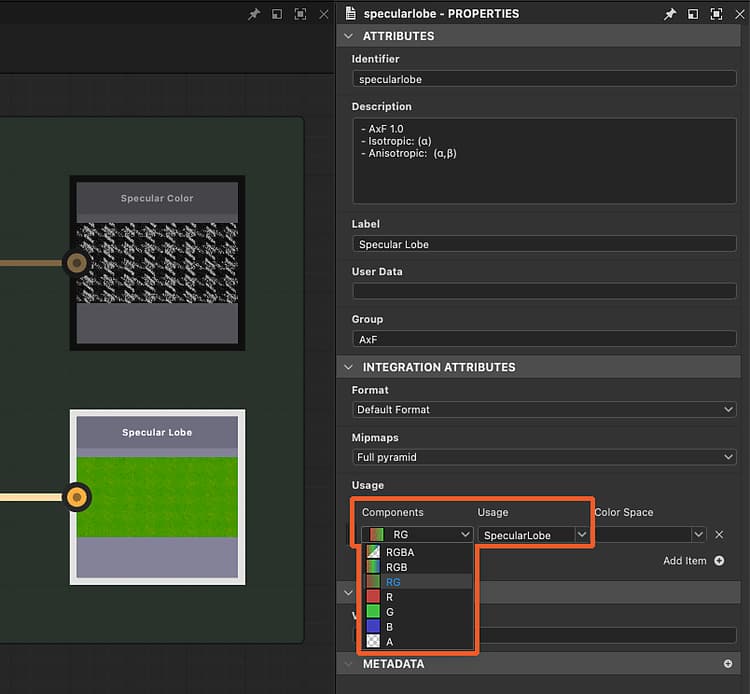
Resources can be textures (I.e. bitmaps) or uniforms (I.e. values) with a specific number of channels. It is compulsory that the graph output matches that number of channels exactly. If that is not the case, an error will be raised for that resource during the export, and the resource will be unchanged.
The number of channels is specified differently depending on the type of data supplied to the Output node:
- Bitmap (Texture): The Components property is used to specify the number of channels, where R is one channel, RG is two channels, and so on. The property is used to let Designer know which of the color bitmap’s RGBA channels should be encoded into the resource.
- Value (Uniform): The number of components of the vector value is used to specify the number of channels, where Float is one channel, Float2 is two channels, and so on.
If the imported AxF file uses more than one channel in its Specular Lobe resource, please set the Output’s Components property accordingly.
Viewing AxF files in the 3D View
The method to render AxF SVBRDF materials in the 3D View depends on the import setup.
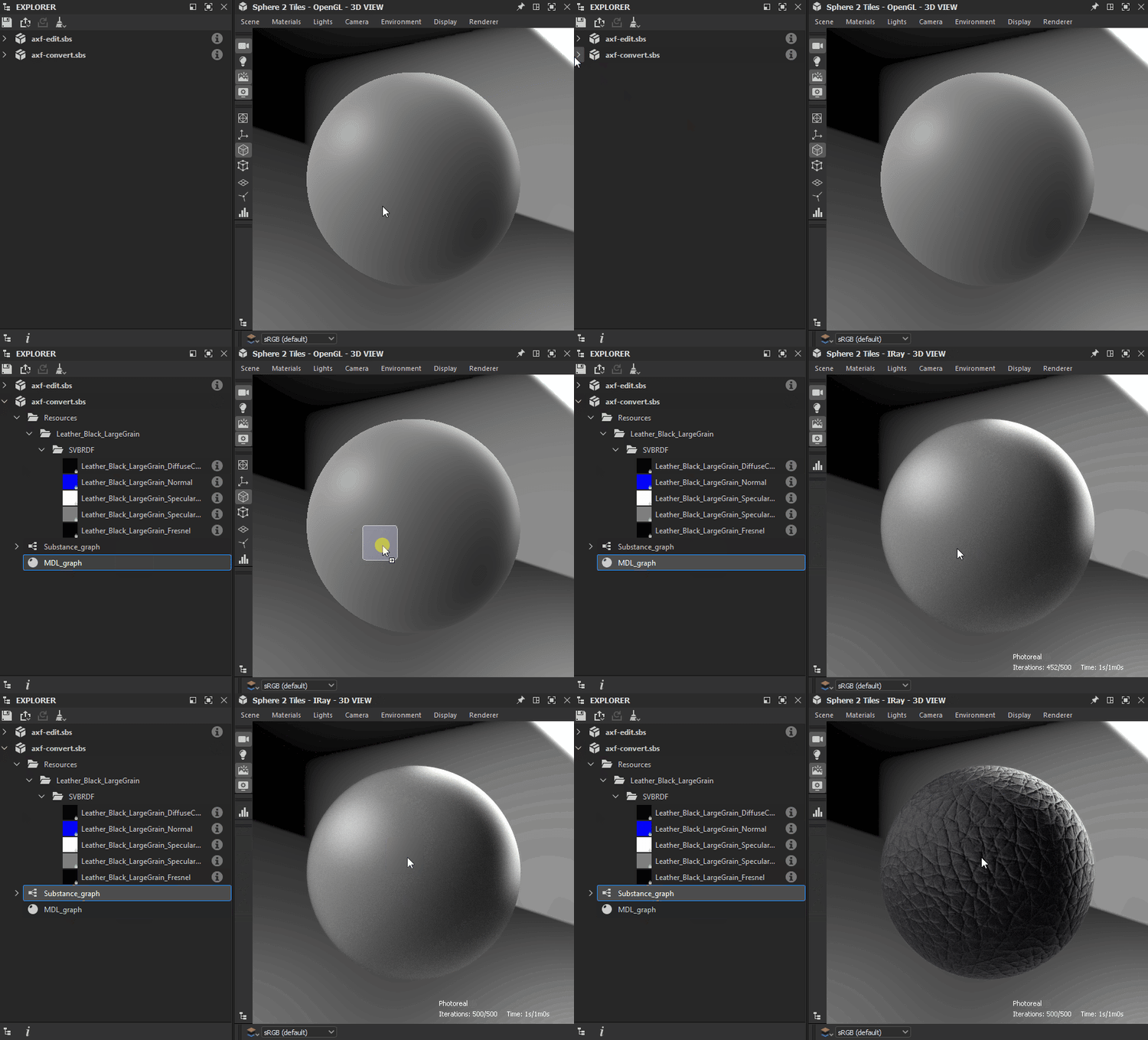
If you wish to convert an SVBRDF material in an AxF file into a standard PBR material, then your import setup will likely involve a Substance graph conversion template.
In that case, you should use the OpenGL renderer in the 3D View and select the AxF SVBRF shader.
Then, you may drag and drop the Substance graph that you set up in the import dialog, in order to connect its outputs to the shader.
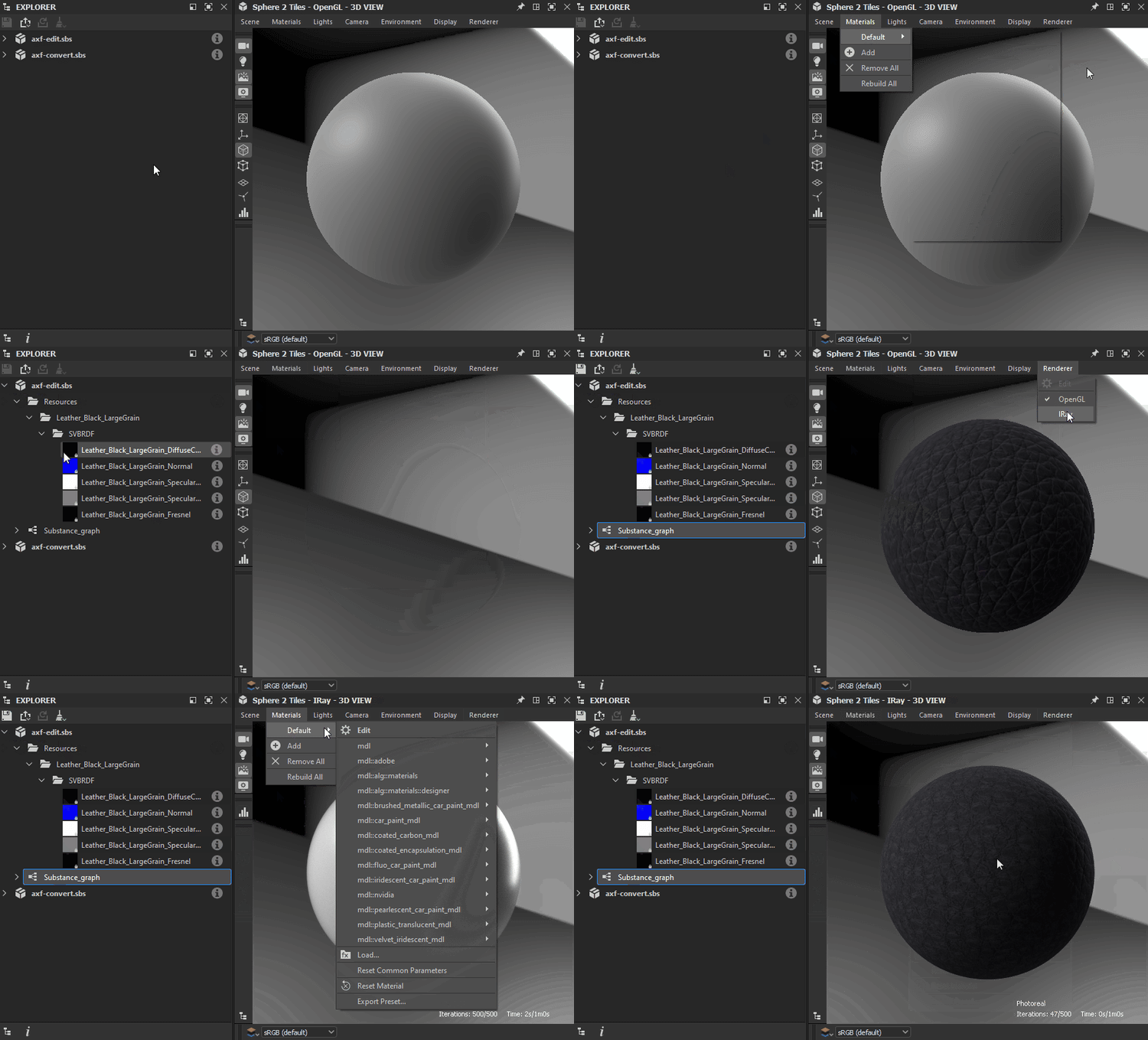
If your goal is to perform edits on an existing AxF file, then follow the instructions below to visualise its SVBRDF material according to the selected renderer:
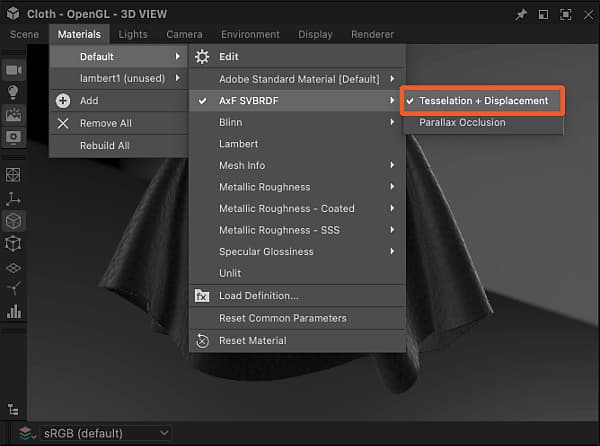
A dedicated GLSLFX shader is available for visualizing materials using an SVBRDF representation from an AxF file: AxF SVBRDF.
The shader is available in the Materials menu : open the submenu for the scene’s material (‘Default’ by default) and select any technique under the AxF SVBRDF entry.
Use the Edit option in the same submenu to display the shader’s properties in the Properties dock.
In particular, the Tiling property lets you adjust the tiling of textures on the model, so you can visualize the material at an appropriate scale.
After selecting the shader, click RMB in empty space in the graph and select the View outputs in 3D View option to visualise its outputs in the 3D View.
This shader is currently a work in progress and some features are still unsupported. Therefore, while it can provide an overview of the materials’ characteristics, it should not be used for fine adjustments .
Use the Edit option in the same submenu to display the shader’s properties in the Properties dock.
In particular, the Tiling property lets you adjust the tiling of textures on the model, so you can visualize the material at an appropriate scale.
After selecting the shader, click RMB in empty space in the graph and select the View outputs in 3D View option to visualise its outputs in the 3D View.
Supported model variants
The shaders used in the 3D View support the following variants for specular, Fresnel and clear coat transmission models: