Health Checks
Health checks scan your schemas, identities, and datasets in your sandbox and provide a summary of issues that you can explore and troubleshoot with AI Assistant.
Poor schema and identity configurations lead to significant downstream issues, including incorrect profile creation, failed audience qualification, and inaccurate activation. These issues are difficult to detect and often require specialized expertise to diagnose. Health checks shift your approach from reactive troubleshooting to proactive, preventative maintenance.
With health checks, you can:
- Detect configuration issues early: Identify missing best practices, misconfigurations, and patterns that lead to inefficiencies in personalization, activation, and more.
- Receive guided remediation: Get clear guidance on what each issue is and what to do about it.
- Monitor continuously: Currently, health checks run daily automatic scans so that you can catch problems before they become critical failures. The schedule may change in future releases.
Prerequisites prerequisites
To access health checks, you need the View Health Checks access control permission. Contact your system administrator to ensure you have the appropriate permissions.
Access health checks access-health-checks
To access health checks from the Experience Platform UI:
- Select Run and Operate from the left navigation.
- Select Health Checks.
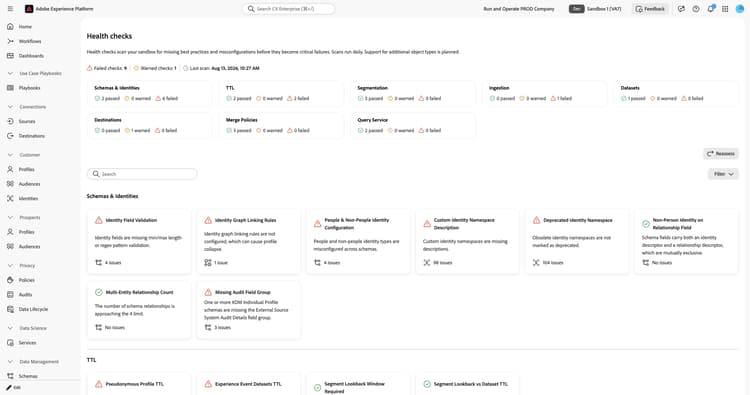
The health checks dashboard displays a summary of your most recent scan results.
Understanding the dashboard understanding-dashboard
The health checks dashboard provides three areas of information to help you assess the state of your implementation.
Objects evaluated objects-evaluated
The Objects evaluated section shows the total number of schemas, identity namespaces, and datasets scanned, along with how many issues were found for each category. This gives you a quick view of the scope and severity of configuration problems in your sandbox.
Scan results scan-results
The Scan results section displays the number of failed checks. A failed check indicates that one or more of the health checks detected configuration issues that require attention. The Last daily health scan completed on timestamp shows when the most recent scan ran.
Identified issues identified-issues
The Identified issues section shows a card for each health check. Each card displays:
- The health check name and a brief description of the issue.
- The number of issues found, or a confirmation that no issues exist.
- A status indicator showing whether the check passed or requires attention.
Select any card to explore the details of that health check.
Available health checks available-health-checks
Health checks currently evaluate checks across ten categories. Select a category to view its checks in detail.
These checks target the most impactful data modeling, data lifecycle, segmentation, ingestion, and activation issues across the platform.
Coworker skills coworker
You can also view your latest health check results and remediate select issues through Coworker Chat. Use natural language prompts to check for violations and fix supported issues directly from chat.
For supported skills and sample prompts, see Health checks skills in Coworker Chat.
Next steps next-steps
After reviewing your health check results, explore the following resources to deepen your understanding:
- Learn about schema best practices for designing reliable data models.
- Understand identity graph linking rules to prevent profile collapse.
- Review identity namespace documentation for namespace management best practices.
- Configure pseudonymous profile expiration to manage data retention and reduce Addressable Audience overages.
- Set up Experience Event dataset retention to prevent data bloat and performance degradation.
- Explore other Run and Operate tools including Job Schedules for batch operation visibility.
- To summarize your latest health check assessment results, ask an MCP-compatible AI client connected through Adobe CX Coworker Gateway. See Experience Platform tools in Adobe CX Coworker Gateway.