Inspect job schedules
- Batch data lake ingestion
- Batch profile ingestion
- Batch segmentation
- Batch destination activation
Job Schedules provides a unified view of all scheduled batch processing jobs across your data pipeline, from ingestion through destination activation. Inspect execution status, identify scheduling conflicts, and diagnose configuration issues before they impact your business operations.
Use Job Schedules to investigate failures, optimize job timing, and understand dependencies between data lake ingestion, profile processing, segmentation, and destination activation. For guidance on resolving common configuration problems, see the documentation on identifying job schedule anti-patterns.
Prerequisites prerequisites
To access Job Schedules, you need the View Job Schedules and View Profile Management access control permissions.
Contact your system administrator to ensure you have the appropriate permissions.
Getting started getting-started
Before using Job Schedules, you should be familiar with the following Experience Platform concepts:
- Batch ingestion: How data is loaded into the data lake and profile store on scheduled intervals.
- Segmentation: How audiences are evaluated and updated based on profile data and segment definitions.
- Real-Time Customer Profile: How profile data is unified and made available for segmentation and activation.
- Destinations: Where and how data is activated to downstream systems and marketing platforms.
Understanding these components helps you interpret job execution patterns and diagnose issues when they occur.
Understanding the job schedules interface understanding-interface
To access Job Schedules:
- In the Experience Platform UI, select Run and Operate from the left navigation.
- Select Job Schedules.
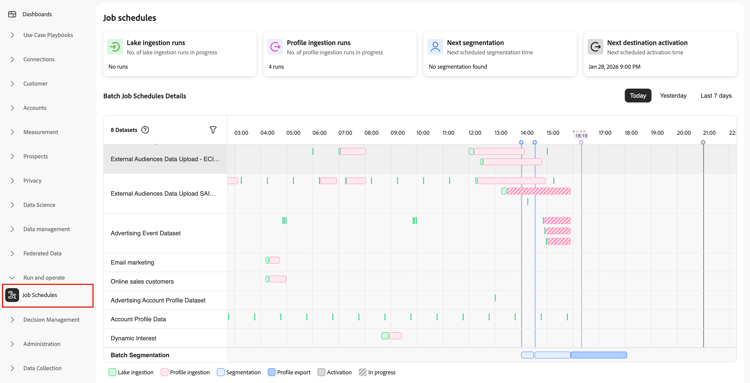
The Job Schedules page provides an overview of all your scheduled batch processing jobs.
Summary cards summary-cards
At the top of the page, you can see summary cards that provide quick insights into your batch processing jobs.

- Lake ingestion runs: The number of data lake ingestion jobs that have run.
- Profile ingestion runs: The number of profile ingestion jobs that have run.
- Next segmentation: When the next scheduled segmentation job will run.
- Next destination activation: When the next scheduled destination activation job will run.
These cards help you understand the activity and upcoming schedules across your data pipeline. The values for Lake ingestion runs and Profile ingestion runs change based on the selected time interval (Today, Yesterday, or Last 7 days); the next-run cards (Next segmentation and Next destination activation) are not affected by the time selector.
Time period selector time-period
Use the time period selectors to choose how far back to look at scheduled jobs.
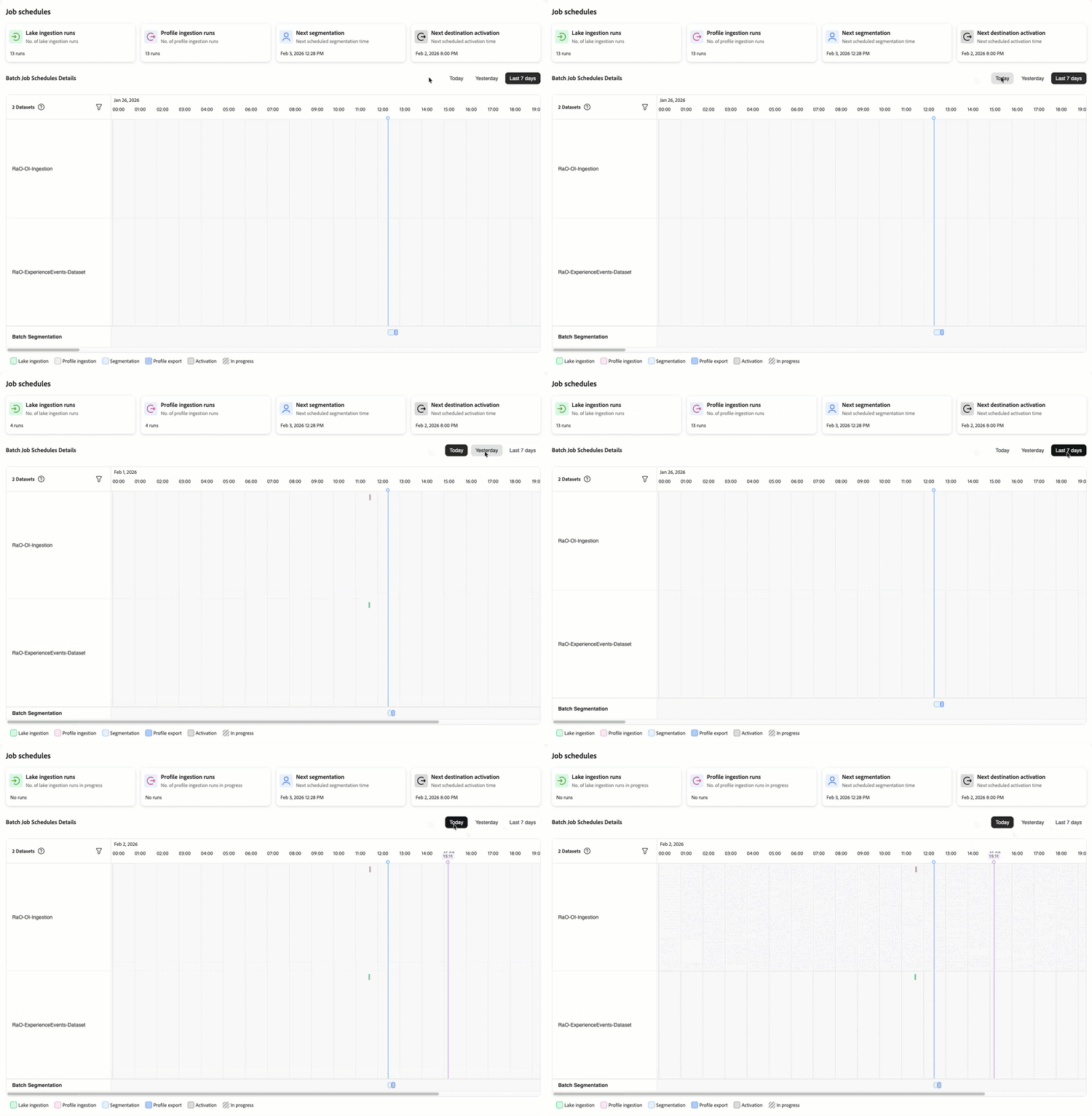
- Today: View jobs scheduled for today (default view).
- Yesterday: View jobs that ran yesterday.
- Last 7 days: View jobs from the past week.
Batch job schedules details job-schedules-details
The main view shows you when your batch jobs are scheduled to run throughout the day. You can:
-
View jobs by dataset or entity: The left column shows the names of datasets or processing jobs (for example, ingestion datasets or segmentation jobs).
-
See job timing: The timeline shows when each job is scheduled to run, with visual indicators marking the scheduled time.
-
Filter jobs: Use the filter icon to narrow down which datasets to include in the report.
-
Understand job types: The color-coded legend at the bottom helps you identify different job types:
- Lake ingestion (green): Data ingestion into the data lake
- Profile ingestion (pink): Data ingestion into the profile store
- Segmentation (light blue): Audience evaluation jobs
- Profile export (blue): Export of profile data
- Activation (dark gray): Destination activation jobs
- In progress (striped): Jobs currently running or queued
This timeline view helps you identify scheduling conflicts, understand dependencies between jobs, and optimize your batch processing schedules.
Identifying configuration issues identifying-issues
As you review your job schedules, you may notice patterns that indicate configuration problems. Common issues include:
- Jobs scheduled too close together, causing resource contention
- Too many batches running within the same time window
- Individual datasets with excessive daily batch jobs
- Ingestion jobs scheduled immediately before segmentation runs
These patterns can lead to job failures, incomplete data processing, and poor system performance. To learn how to identify and resolve these issues, see the documentation on identifying job schedule anti-patterns.
When you need to investigate specific datasets or job runs, you can drill down into detailed views to see execution history, error messages, performance metrics, and dependencies. For information on viewing this detailed data, see the documentation on viewing job details.
Next steps next-steps
After learning about job schedules, you may want to explore these related topics:
- View job details: Learn how to drill down into individual datasets and job runs for detailed investigation.
- Identify job schedule anti-patterns: Learn how to spot and resolve common configuration issues that impact pipeline performance.
- Batch ingestion: Learn how to ingest data into Experience Platform using batch processing.
- Segmentation: Understand how audiences are evaluated and updated on scheduled intervals.
- Monitor dataflows for destinations: Learn how to monitor destination activation dataflows.
- Schedule audience exports: Learn how to configure scheduled batch destination activations.