View job schedule details
- Batch data lake ingestion (Real-Time CDP)
- Batch profile ingestion (Real-Time CDP)
- Batch identity ingestion (Real-Time CDP)
- Batch segmentation (Real-Time CDP)
- Batch destination activation (Real-Time CDP)
- Scheduled batch campaigns (Adobe Journey Optimizer)
When troubleshooting job failures or investigating performance issues, you need detailed information about specific datasets and their job runs. The Job Schedules interface allows you to drill down from the timeline view into individual datasets and jobs to understand execution history, timing, and status.
Use this detailed view to:
- Investigate why a specific job failed or took longer than expected
- Review the execution history for a dataset over time
- Understand the timing and duration patterns of batch jobs
- Identify which specific batches are causing pipeline issues
- Gather information needed for troubleshooting with Adobe Support
Prerequisites prerequisites
Before viewing job details, you should:
- Have access to Job Schedules with the View Job Schedules and View Profile Management access control permissions.
- Be familiar with the Job Schedules interface and timeline view.
- Understand the different job types (lake ingestion, profile ingestion, identity ingestion, segmentation, activation, campaign audience export, campaign delivery).
Understanding the details hierarchy details-hierarchy
Job schedules provide three levels of detail, allowing you to move from broad patterns to specific issues:
Navigation flow: Start with the timeline view to identify issues → Select a dataset to see its details → Select a specific job run to investigate details.
Understanding the timeline view timeline-visualization
The timeline view uses a horizontal and vertical layout to help you understand job schedules and critical processing times:
-
Horizontal axis (time progression): Datasets and their job runs are displayed across the timeline from left to right, showing when jobs execute over the selected time period (today, yesterday, or last 7 days). Each colored bar represents a job run, positioned horizontally according to its start and end time.
-
Vertical axis (scheduled start times): Critical scheduled start times are displayed as vertical lines that span across all datasets, making it easy to see the timing relationship between upstream jobs and downstream processing:
- Blue vertical line: Represents when segmentation is scheduled to begin
- Black vertical line: Represents when destination activation is scheduled to begin
For scheduled batch campaigns in Adobe Journey Optimizer, the campaign row also shows its own send window next to the segmentation job it depends on, so you can compare the two directly on the timeline.
This layout allows you to quickly identify timing relationships between your data pipeline jobs and downstream processing. Ideally, upstream jobs (like data lake and profile ingestion) should complete to the left of these vertical markers, ensuring data is ready before segmentation and activation begin. Jobs that extend past these markers indicate potential timing issues where downstream processes may start before data is fully prepared.
Which view should I use? which-view
Use the table below to choose the right view for your task. Match what you need to do with the recommended view to navigate efficiently.
View dataset details view-dataset-details
To view details for a specific dataset:
- In the Job Schedules timeline view, locate the dataset you want to investigate.
- Select the dataset name from the left column.
The dataset details view opens in a right-side panel, showing information about all jobs associated with this dataset.
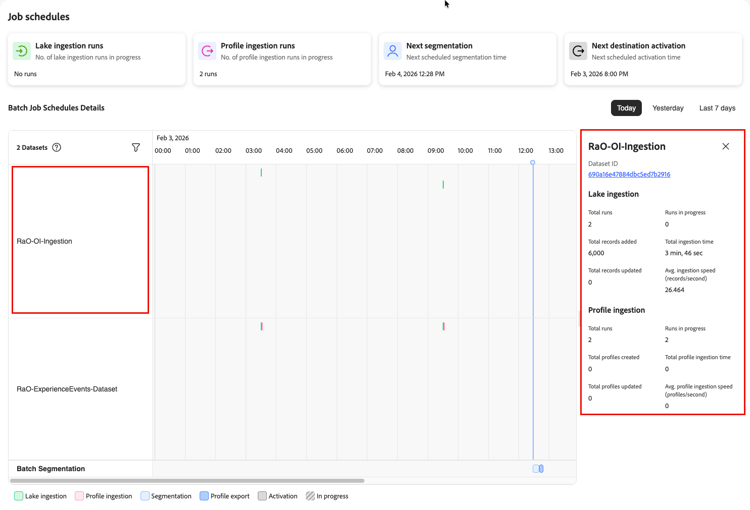
The dataset details panel displays the dataset name, ID, and job-specific metrics organized by job type. At the top of the panel, the dataset ID is displayed as a clickable link. Select this ID to navigate to the full dataset details page.
Each dataset details panel includes the following metrics:
Lake ingestion metrics lake-ingestion-metrics
For datasets with data lake ingestion jobs, the panel shows the following metrics:
Profile ingestion metrics profile-ingestion-metrics
For datasets with profile ingestion jobs, the panel shows the following metrics:
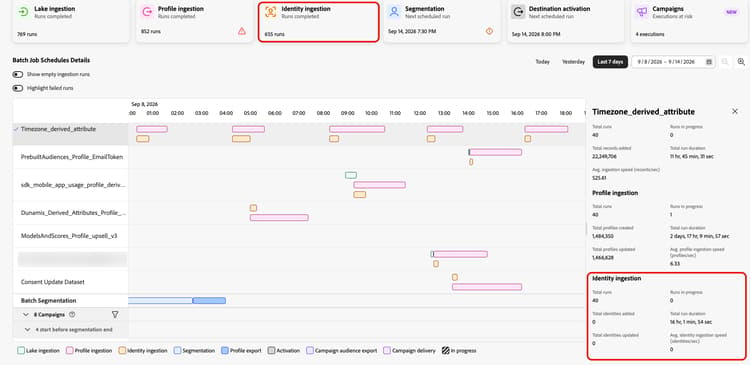
Identity ingestion metrics identity-ingestion-metrics
For datasets with identity ingestion jobs, the panel shows the following metrics:
Campaign details campaign-details
For scheduled batch campaigns in Adobe Journey Optimizer, the timeline groups campaigns with a start time before the projected segmentation completion time under a start before segmentation end label, so you can identify at-risk executions without opening a details panel.
To view details for a specific campaign, select the campaign name from the left column. The campaign details panel opens in a right-side panel.
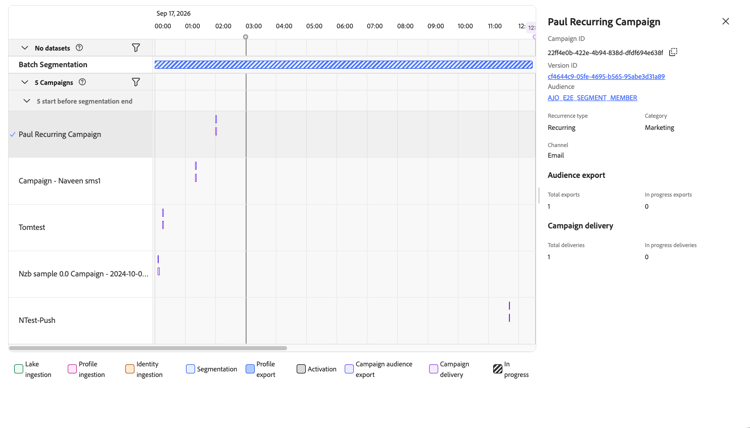
The campaign details panel displays the following information:
The panel also shows metrics for the two job types associated with the campaign:
Filter datasets in the timeline filter-datasets
When you have many datasets with scheduled jobs, you may want to focus on specific datasets rather than viewing all of them at once. The dataset filter allows you to select which datasets appear in the timeline view.
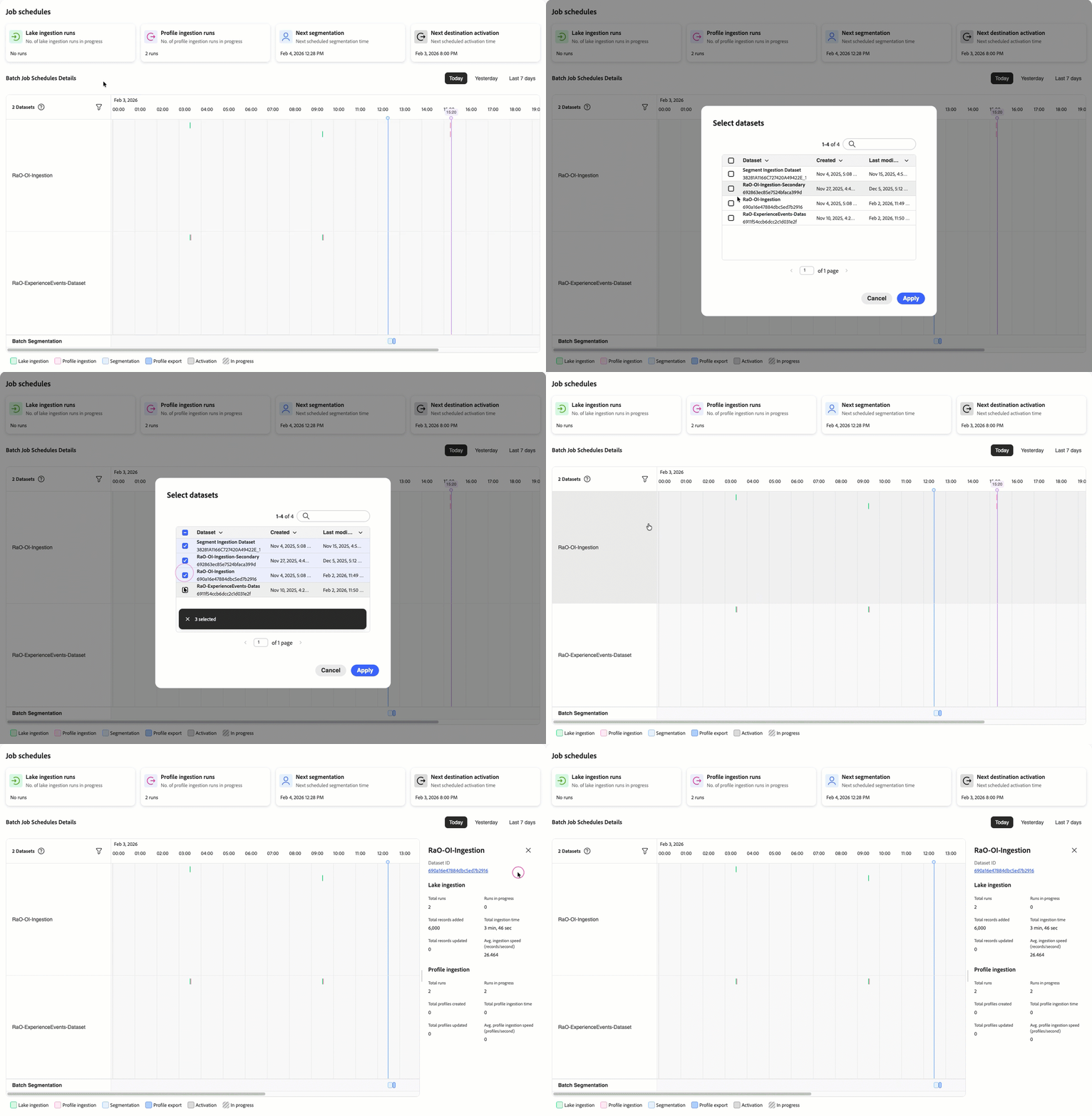
To filter the datasets displayed in the timeline:
- Look for the dataset counter in the upper left of the timeline view (for example, “2 Datasets”).
- Select the filter icon next to the dataset counter.
- A dataset selection panel opens, showing all available profile-enabled datasets with scheduled jobs.
- Select or deselect datasets to show or hide them in the timeline view.
- The timeline updates immediately to show only the selected datasets.
Use filtering to:
- Focus on specific data sources: When troubleshooting a particular data pipeline, filter to show only the relevant datasets.
- Reduce visual clutter: If you have many datasets, filtering helps you see patterns more clearly for a subset of data.
- Compare related datasets: Select only datasets that are related to understand their scheduling relationship.
- Investigate anti-patterns: When you identify a potential configuration issue, filter to the affected datasets to examine them more closely.
The filter persists during your session, so you can navigate between time periods (today, yesterday, last 7 days) while maintaining your dataset selection.
View individual job run details view-job-details
When you need to investigate a specific job run, select it from the timeline to see detailed execution information for that particular run.
Access job run details access-job-details
To view details for a specific job run:
- In the Job Schedules timeline view, locate the specific job run you want to investigate.
- Select the job indicator on the timeline (the colored bar representing the job).
The Dataflow run details panel opens, showing information about that specific job execution.
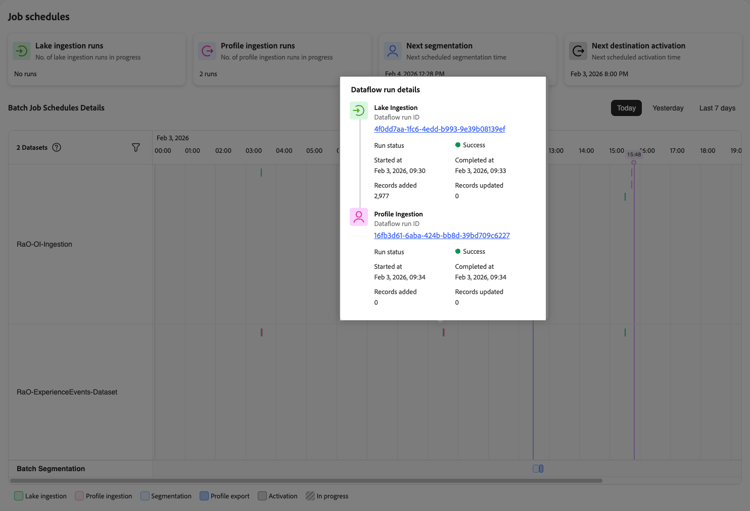
Dataflow run details dataflow-run-details
The dataflow run details panel displays information about the specific job run, organized by job type. For ingestion jobs, you’ll see details for both lake ingestion and profile ingestion stages.
Lake ingestion job details lake-ingestion-job-details
Profile ingestion job details profile-ingestion-job-details
Campaign delivery job details campaign-delivery-job-details
For scheduled batch campaigns in Adobe Journey Optimizer, select the campaign name in the left column to open the campaign details panel, which shows total and in-progress counts for the campaign audience export and campaign delivery jobs.
Understanding job execution flow job-execution-flow
When viewing a specific job run, you can see the relationship between lake ingestion, profile ingestion, segmentation, and scheduled campaign delivery:
- Lake ingestion runs first: Data is loaded into the data lake and validated.
- Profile ingestion follows: After lake ingestion completes, eligible records are processed into the profile store.
- Segmentation depends on profile ingestion: Audiences are evaluated after profile data is available.
- Campaign audience export depends on segmentation: For scheduled batch campaigns in Adobe Journey Optimizer, the campaign audience export runs after the upstream segmentation job completes.
- Campaign delivery follows the audience export: The campaign send executes after its audience export completes.
- Timing matters: Note the time difference between when upstream jobs complete and when the next dependent job starts. Gaps here can impact downstream processes like segmentation and campaign delivery.
Use job run details to:
- Verify that a specific job completed successfully
- Calculate the actual duration of a job run (completed time minus started time)
- Understand how many records were processed in a specific run
- Compare performance across different job runs
- Access detailed dataflow monitoring for troubleshooting failures
- Identify timing issues between lake and profile ingestion stages
Troubleshooting with job details troubleshooting
Use job details to investigate issues and determine next steps:
Failed jobs: Select the dataflow run ID to view error details in the monitoring dashboard. Check dataset details for recurring patterns, review the timeline for resource contention, and identify anti-patterns in your configuration.
Slow jobs: Compare duration against historical averages in dataset metrics. Common causes include schedule overlap, dense batch stacking, or increased data volume.
Record mismatches: Compare lake ingestion records against profile ingestion records in the job run details. Profile ingestion typically shows fewer records due to identity requirements and data quality rules.
For detailed dataflow status information, see Monitor data lake ingestion, Monitor dataflows for profiles, Monitor dataflows for audiences, and Monitor dataflows for destinations.
Next steps next-steps
After learning how to view job details:
- Review the Job Schedules overview to understand the timeline view and interface.
- Learn about anti-patterns to prevent common configuration issues.
- Understand batch ingestion to optimize your data loading schedules.
- Explore monitoring destination dataflows for end-to-end pipeline visibility.