Create your first journey jo-quick-start
Adobe Journey Optimizer includes an omnichannel orchestration canvas which allows marketers to harmonize marketing outreach with one-to-one customer engagement. The user interface allows you to easily drag and drop activities from the palette into the canvas to build your journey. The journey user interface is detailed on this page.
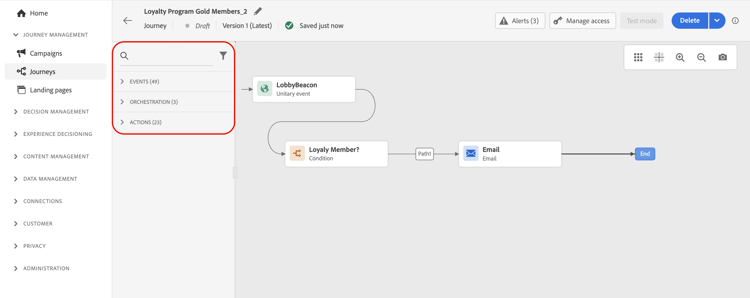
The main steps to create a journey are detailed on this page. They are streamlined as follows:

In this guide, you will:
- Define a journey entry point — an audience segment or a real-time event
- Add message actions across channels — email, push, SMS, in-app, web, code-based experience, content card, and more. See supported channels
- Test your journey with test profiles before activation
- Publish your journey and monitor its performance
Build multi-step customer journeys to initiate a sequence of interactions, offers, and messages across channels in real time. This approach ensures customers are engaged at the optimal moments based on their actions and relevant business signals.
Before you start prerequisites
What you need to configure before building depends on how your journey is triggered. Most journeys start from one of these two entry points:
-
Audience-based entry — The journey runs for a defined set of profiles at a scheduled time. Create an audience in Adobe Experience Platform before building your journey. This is the recommended starting point if you are new to Journey Optimizer.
-
Event-based entry — The journey is triggered in real time when an individual performs an action, such as a purchase or a sign-up. Configure an event to define the trigger and the data it carries.
The following elements are optional, but may be required depending on your use case:
-
Data source — To enrich journey conditions or personalization with data from an external system, set up a data source.
-
Custom action — If you deliver messages through a third-party system rather than the built-in channels, configure a custom action.
-
If you are a data engineer responsible for the technical setup (events, data sources, and actions), refer to this section.
-
Journey guardrails and limitations are detailed on this page.
Create a journey jo-build
To create a multi-step journey, follow these steps:
-
In the JOURNEY MANAGEMENT menu section, click Journeys.
-
Click the Create Journey button to create a new journey.
-
Edit the journey’s configuration pane to define the name of the journey and set its properties. Learn how to set your journey’s properties on this page.
note tip TIP Which journey type should I choose? If you are new to Journey Optimizer, start with an audience-based journey using a Read Audience activity — it requires no prior event configuration and is the easiest way to get familiar with the canvas. For real-time, event-triggered experiences (for example, reacting to a purchase or a form submission), configure an event first and use an event-based entry. Ready to go deeper? Discover all journey types and their entry rules. 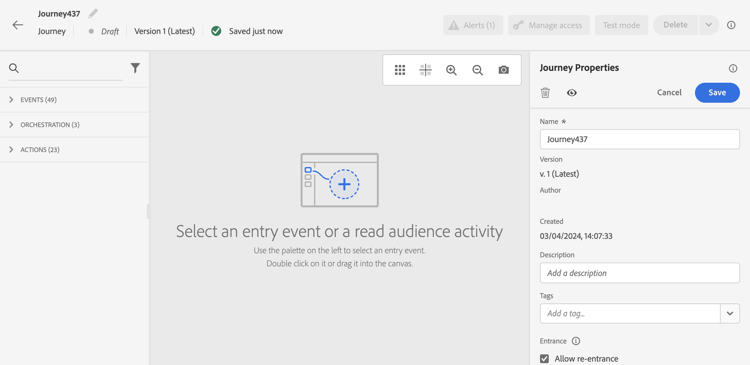
You can then start designing your journey.
Design the journey jo-design
The journey designer lets you build multi-step journeys using an intuitive drag-and-drop interface. Activities in the left palette are organized into three categories: Events, Orchestration, and Actions. For a full overview of the canvas and its controls, refer to this page.
Follow these steps to design your journey:
-
Add an entry point — Drag an event or a Read Audience activity from the palette onto the canvas. This defines how profiles enter the journey: individually in real time (event-based) or all at once from a defined audience (audience-based).

-
Add message actions — From the Actions section of the palette, drag a channel action onto the canvas to send messages to profiles flowing through the journey. Actions are available for email, push notifications, SMS, and more.
-
Add orchestration activities — Use a Condition activity to branch the journey into multiple paths based on profile attributes or behavior. Use a Wait activity to introduce a time delay between steps.
Test the journey jo-test
Once you have built your journey, test it before publishing. Journey Optimizer offers a Test mode as a way to view test profiles as they move along the journey, detecting potential errors before activation. Running quick tests ensures that journeys operate correctly so that you can publish them with confidence. Learn how to test your journey in this section
You can also execute your journey in Dry run. Journey Dry run is a special journey publication mode in Adobe Journey Optimizer that allows journey practitioners to test a journey using real production data without contacting real customers or updating profile information. This feature helps journey practitioners gain confidence in their journey design and audience targeting before publishing it live. Learn how to publish a journey in Dry run mode in this section.
Publish the journey jo-pub
You must publish a journey to activate it and make it available for new profiles to enter it. Before publishing your journey, verify that it is valid and that there are no errors. You cannot publish a journey with errors. Learn more about journey publication in this section.
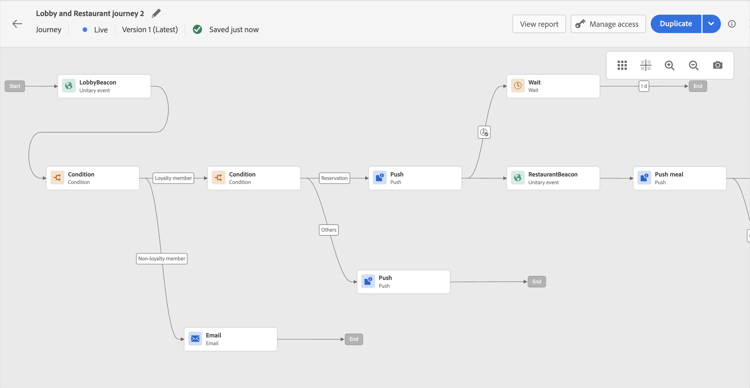
Once published, you can monitor your journey using the dedicated reporting tools to measure your journey’s effectiveness.
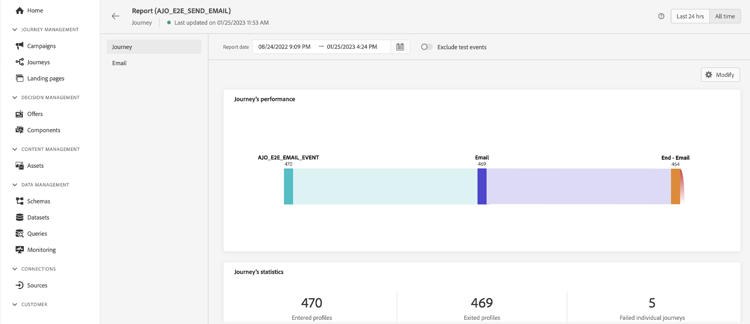
Learn more about journey reports in this section.
Common use cases use-cases
Not sure where to start? Here are three typical scenarios where journeys deliver the most value:

Welcome series
Automatically onboard new users with a sequence of messages after sign-up, guiding them through your product or service.

Cart abandonment
Re-engage customers who left without completing a purchase by sending a timely reminder with personalized content.

Re-engagement
Win back inactive users with targeted offers or updates based on their last known behavior.

Additional resources
- Journey types and profile entry - Understand all journey types (unitary event, business event, read audience, audience qualification) and how profiles enter, re-enter, and flow through journeys.
- Journey designer overview - Master the journey canvas interface to design and orchestrate customer journeys.
- Journey activities - Discover all available activities including events, actions, and orchestration components.
- Testing journeys - Learn how to test your journeys using test mode before publishing to production.
- Publishing journeys - Understand the journey publication process and how to manage live journeys.
- Journey reporting - Track and analyze journey performance with detailed metrics and insights.
- Troubleshooting journeys - Find solutions to common journey issues and best practices for debugging.
- Journey tutorials - Explore step-by-step video tutorials on journey building and best practices.