On this page: Learn how to configure the data sources, events, and actions required to trigger journeys, enrich them with external data, and send messages in Adobe Journey Optimizer.
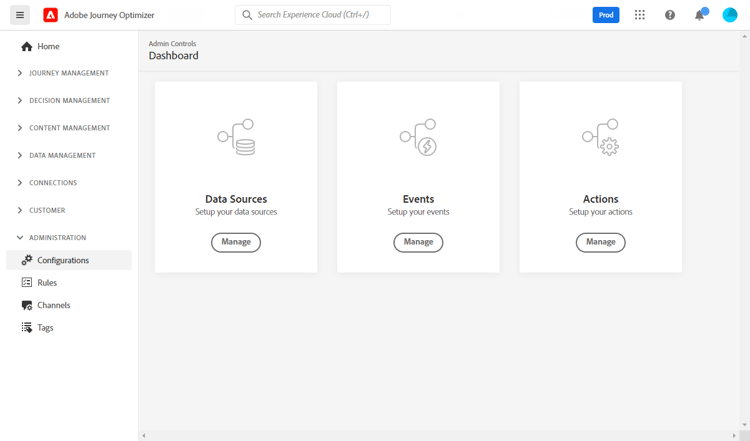
To send messages and orchestrate experiences with journeys, you must configure Data Sources, Events, and (when using external systems) Actions.
Think of this page as the starting point for journey configuration:
- Data Sources – where journeys can look up additional data.
- Events – what triggers journeys or moves a person to the next step.
- Actions – how journeys send messages or call external systems.
If you are new to Adobe Journey Optimizer, start with the quick start guide or the journey configuration overview.
You can also configure connections to external systems via custom Data Sources and custom actions. This allows you, for example, to enrich your journeys with data coming from an external reservation system, or send messages using a third-party system. Learn how to integrate Journey Optimizer with external systems.
Before you build journeys: configuration checklist checklist
Use this checklist to make sure the most important configuration pieces are in place before you design journeys.
Data Sources data-sources
Data Sources allow your journeys to look up additional data at run time. They can use the built-in Adobe Experience Platform data source to read Real-time Customer Profile attributes and behavioral history, or external data sources to call external APIs and use their responses in the journey. For new external lookups, use custom actions instead of external data sources, as described in the guardrails.
You typically use Data Sources to:
- Build conditions in journeys (for example, “if loyaltyTier = gold and weather = rainy”).
- Personalize message content and custom action payloads with dynamic values.
- Define custom waits or time zone logic based on retrieved data.
- In Journey Optimizer, go to Configurations in the left navigation.
- Under Data sources, select Manage.
When planning your data, choose the pattern that best fits your use case:
Learn more: Get started with data sources | Configure data sources
Events events
Events tell Journey Optimizer when to start a journey or advance a person through a path.
Events are based on Experience Events ingested into Adobe Experience Platform through sources such as the Adobe Experience Platform Web SDK, Adobe Mobile SDK, Streaming Ingestion APIs, and Adobe Analytics source connectors.
Event types
Journeys support three event types. You configure the first two in the Events configuration:
-
Unitary events
Linked to a single profile. They describe an individual’s behavior or a fact related to that person (for example, “placed an order,” “installed the mobile app,” “reached 10,000 loyalty points”). Journeys can start or branch when a unitary event occurs. -
Business events
Not tied to a single profile (for example, “flight canceled,” “product back in stock,” “weather alert”). A business event can be used with an audience so that multiple profiles who care about that event can react when it happens. -
Audience qualification events
Triggered when a profile enters or exits an audience. You select them on the journey canvas, not in the Events configuration.
Business events cannot be combined with unitary events or audience qualification activities in the same journey. See Journey guardrails - Events.
In the event configuration, you define:
- Which schema and fields are used.
- How to identify the profile (identity namespace and field).
- The Event ID condition that filters which incoming events should trigger journeys.
- Optional timeouts, for example when listening for subsequent events later in the journey.
- In Journey Optimizer, go to Configurations.
- Under Events, select Manage, then Create event.
Learn more: Get started with events | Create a unitary event | Work with Adobe Analytics data | Experience event lookup in journeys
Actions actions
Actions define how a journey sends a message or calls another system.
Journey Optimizer supports two main categories:
Action activity (built-in channels)
Journey Optimizer provides a single Action activity that covers all native channels: Email, SMS, Push notifications, In-app and Web, Content cards, and Code-based experiences.
Rather than separate channel-specific nodes, you drag and drop one Action activity onto the journey canvas and select the channel and content from there. You do not need to configure an Action object in the Configuration menu for built-in channels.
Learn more: Action activity
Custom actions
Use custom actions when you want a journey to call an external HTTP service via a REST API with a JSON payload. Typical use cases:
- Sending messages through a third-party provider (for example, external messaging platforms or internal gateways).
- Writing to internal systems (for example, CRM, ticketing, Order Management).
- Posting webhooks to other applications.
A custom action configuration includes:
- Target URL and HTTP method.
- Authentication (for example, API key, OAuth).
- Headers and payload structure.
- Optional throttling and capping settings.
- In Journey Optimizer, go to Configurations.
- Under Actions, select Manage, then Create action.
A technical user must configure custom actions. Once created, they are available as Action activities in the journey canvas.
Learn more: Get started with custom actions | Use custom actions | Pass collections dynamically with custom actions | Limit throughput with External Data Sources and Custom Actions
Example – Put it all together: order confirmation journey example
The following simple use case shows how Data Sources, Events, and Actions work together.
1. Event – Purchase completed
- Configure a unitary event based on your purchase Experience Event schema (for example,
commerce.order.orderID). - Set the profile identifier (for example, email).
- Define an Event ID condition that matches “order placed” events.
2. Data Source – Profile and order details
-
In the Experience Platform data source, enable profile fields such as:
person.name.firstNamecommerce.order.orderIDcommerce.order.priceTotal
-
These fields are available in conditions and personalization.
3. Action – Action activity (Email)
- Drag and drop an Action activity onto the journey canvas.
- Select Email as the channel and configure the message content.
- Personalize the message with data from the event and data source (for example, first name, order ID, total amount).
With these three pieces configured, you can design a journey that starts when the purchase event arrives, optionally checks additional conditions using Data Sources, and sends a personalized email using the Action activity.
Frequently Asked Questions faq
No. If your journey only uses fields present in the event payload, and you do not need additional profile attributes or external lookups, you can rely on the event alone.
Configure Data Sources when you want to use additional profile attributes or history from Real-time Customer Profile or call external APIs during the journey.
No. For built-in channels (Email, SMS, Push, In-app, Web, Content cards, Code-based experiences), you only need to configure the channel itself (for example, channel surfaces, subdomains, IPs) and add an Action activity to your journey canvas to select the channel from there.
You configure an Action object in the Configuration menu only for custom actions that call third-party systems. Learn more: Action activity
Events are Experience Events ingested into Adobe Experience Platform through Streaming Ingestion APIs, the Adobe Experience Platform Web SDK, Adobe Mobile SDK, and Adobe Analytics and other source connectors.
In the Events configuration, you define how Journey Optimizer interprets those events (schema, identity, and conditions) so that they can trigger journeys.
Learn more about sources: Get started with source connectors
A unitary event is tied to a single profile — it represents something a specific person did (for example, placed an order or opened an email). It triggers a journey for that individual profile.
A business event is not tied to a single profile — it represents something that happened in your business context (for example, a flight was canceled or a product came back in stock). Business events are used to re-engage multiple profiles at once, typically combined with an audience to determine who should enter the journey.
Learn more: Get started with events
Yes. Once a custom action is configured and saved in the Configuration menu, it becomes available as an Action activity in the journey canvas for all journeys in that sandbox. You do not need to reconfigure it for each journey.
If you update the custom action configuration (for example, the endpoint URL or authentication), the change applies to all journeys using it. Test any updates carefully before publishing.
Learn more: Get started with custom actions
Journey Optimizer applies guardrails to events, data sources, and custom actions. For example, a single XDM schema can be referenced by a maximum of 100 events across active journeys at one time.
For current values, see Journey guardrails and limitations.
Browse through Adobe Experience Platform fields friendly-names-display
When defining event payload, field group payload and selecting fields in the expression editor, the display name is shown alongside the technical field name to make it easier to identify the right field.
This information is retrieved from the schema definition in the Experience Data Model. When setting up schemas, you can provide descriptors (using the xdm:alternateDisplayInfo property) to replace generic technical names with user-friendly labels — particularly useful when working with reporting variables or generic field identifiers. This is especially useful when journey authors are not familiar with the underlying data model, as clear labels reduce configuration errors and speed up journey building. You can configure these friendly name descriptors via the Schema Registry. For more information, see the Schema Registry developer guide.
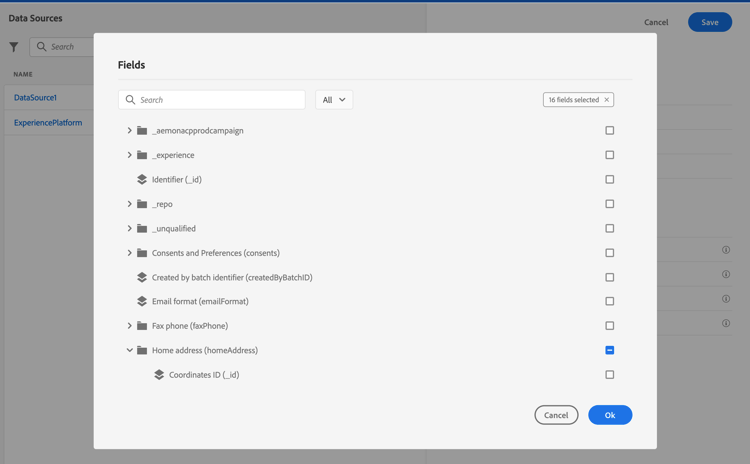
The display logic works as follows:
<friendly-name>(<name>)<display-name>(<name>)<name>Next steps next-steps
Once you understand how Data Sources, Events, and Actions work together, you can:
- Configure and manage your data sources: Get started with data sources
- Configure and manage events for your journeys: Get started with events
- Configure custom actions for third-party integrations: Get started with custom actions
- Build and publish your first journey: Create your first journey
For role-specific guidance:
Learn through use cases: See end-to-end examples that combine Events, Data Sources, and Actions in real journeys: Send multi-channel messages | Browse all use cases