On this page: Learn how to use custom actions to connect a journey to a third-party system through a REST API call with a JSON payload, while applying data governance and consent policies.
Use custom actions to enable connection to a third-party system to send messages or API calls. An action can be configured with any service from any provider that can be called through a REST API with a JSON-formatted payload.
Learn more about custom actions in this section.
Learn how to create and configure a custom action on this page.
Learn how to use API call responses from custom actions for personalization on this page.
Consent and data governance privacy
In Journey Optimizer, you can apply data governance and consent policies to your custom actions to prevent specific fields from being exported to third-party systems or exclude customers who have not consented to receive email, push or mobile communication. For more information, refer to the following pages:
URL configuration
The configuration pane of the Custom action activity shows the URL configuration parameters and the authentication parameters that are configured for the custom action. You cannot set up the static part of the URL in the journey, but in the global configuration of the custom action. Learn more.
Dynamic path
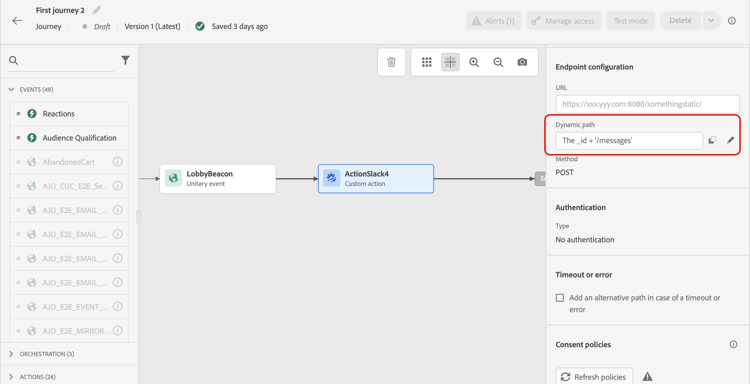
If the URL includes a dynamic path, specify the path in the Path field.
To concatenate fields and plain text strings, use the String functions or the Plus sign (+) in the advanced expression editor. Enclose plain text strings in single quotation marks (') or in double quotation marks ("). Learn more.
This table shows an example of configuration:
https://xxx.yyy.com:8080/somethingstatic/The _id + '/messages'The concatenated URL has this form:
https://xxx.yyy.com:8080/somethingstatic/<ID>/messages
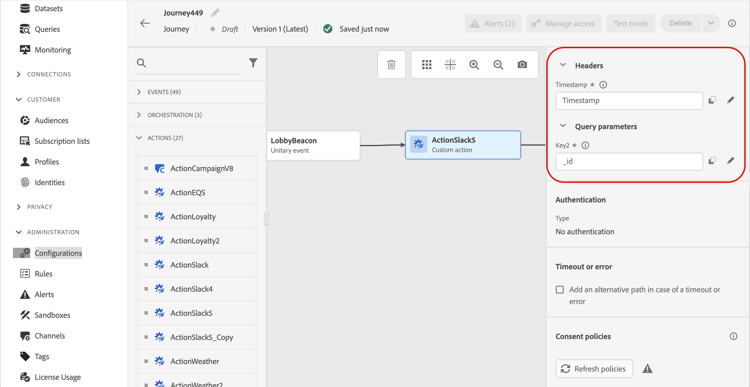
Headers and query parameters headers
The URL Configuration section shows the dynamic header and query parameter fields, but not the constant fields. Dynamic header and query parameter fields are defined as variable in the action configuration screen. Learn more
To specify the value of dynamic header and query parameter fields, click inside the field or on the pencil icon and select the desired field.
Action parameters
In the Action parameters section, you’ll see the message parameters defined as “Variable”. For these parameters, you can define where to get this information (example: events, data sources), pass values manually or use the advanced expression editor for advanced use cases. Advanced uses cases can be data manipulation and other function usage. Refer to this page.
This section contains structured knowledge intended to support interpretation, retrieval, and question answering related to this topic.
For complete understanding, this information should be combined with the documentation on this page. Neither source is intended to stand alone; the page describes the feature, while this section provides additional context that helps disambiguate terminology, intent, applicability, and constraints.
- TL;DR: This page explains how to add and configure a custom action activity in a journey to call a third-party REST API with a JSON payload, including URL configuration, header/query parameter mapping, action parameter mapping, and applying data governance and consent policies.
Intents:
- Add a custom action activity to a journey to send data to a third-party system via REST API
- Configure a dynamic URL path by concatenating fields and static text in the expression editor
- Map dynamic header and query parameter values from journey events or datasources
- Map action parameters (defined as Variable) to event fields, datasource fields, or static values
- Apply data governance and consent policies to control what data is exported via custom actions
Glossary:
- Custom action: A journey action activity that calls an external REST API endpoint with a JSON-formatted payload to integrate third-party systems (product-specific)
- Dynamic path: The variable portion of the custom action URL that is defined per-execution using fields from the journey context (product-specific)
- Action parameters: Message payload fields defined as “Variable” in the custom action configuration, mapped to journey data at the journey level (product-specific)
Guardrails:
- The static part of the URL cannot be modified in the journey; it must be set in the global custom action configuration.
- Dynamic header and query parameter fields are defined as variable in the action configuration screen, not in the journey.
- Data governance and consent policies can be applied to prevent specific fields from being exported or to exclude non-consented customers.
Terminology:
- Canonical name: Custom action — Acronym: none — variants: custom actions, third-party action
- Synonyms: “action parameters” = “message parameters defined as Variable”
- Do not confuse: “static URL part” (set in global action config, not editable in journey) ≠ “dynamic path” (set in the journey per-execution)
FAQ:
- Q: Can I change the base URL of a custom action inside the journey? — No, only the dynamic path portion can be set in the journey; the static part of the URL is configured in the global custom action configuration.
- Q: How do I build a dynamic URL path that includes a profile ID? — Use the Path field with the advanced expression editor to concatenate the ID field with static strings, for example:
_id + '/messages'. - Q: How do I apply consent rules to a custom action? — Configure consent policies on the custom action to exclude customers who have not consented to receive the relevant communication; refer to the Consent page for details.
- Q: Where do I map the values for dynamic headers? — In the URL Configuration section of the activity pane, click inside the dynamic header field or use the pencil icon to select the desired field from events or datasources.
- Q: What types of values can I assign to action parameters? — You can map parameters to event fields, datasource fields, pass values manually, or use the advanced expression editor for data manipulation.