On this page: Understand how actions and custom actions let you deliver personalized experiences and connect third-party systems through REST API calls, so you can extend journeys beyond built-in messaging.
Actions are connections through which you deliver personalized, real-time experiences to customers such as push notifications, email, mobile messages, or any other means of digital engagement you use in your business.
➡️ Discover this feature in video
Journey Optimizer comes with built-in message capability. Custom actions enable you to configure connection of a third-party system to send messages or API calls. An action can be configured with any service from any provider that can be called through a REST API with a JSON-formatted payload.
Custom actions are additional actions defined by technical users and made available to marketers: once configured, they appear in the left palette of your journey, in the Action category. Learn more on this page.
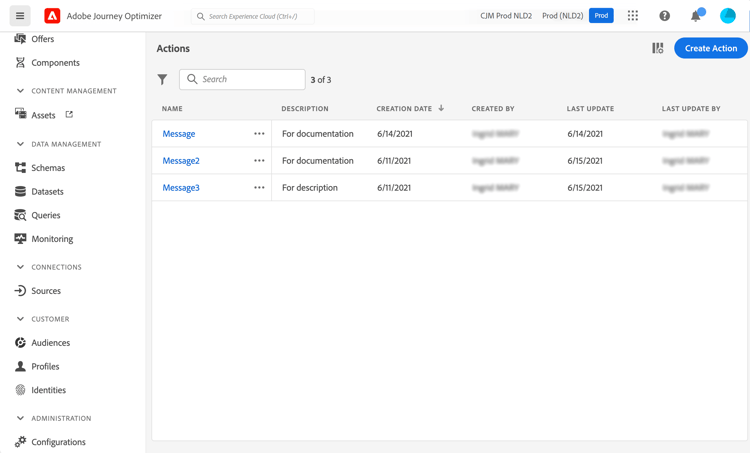
To view the action list or configure a new action, select Configurations in the ADMINISTRATION menu section. In the Actions section, click Manage. The list of actions is displayed. See this page for more information on the interface.
Learn how to troubleshoot a custom action on this dedicated page.
How-to video video
Learn how to configure custom actions.
Additional resources
Browse the sections below to learn more about configuring and using your custom actions:
- Configure your custom actions - Learn how to create and configure a custom action
- Use custom actions - Learn how to use custom actions in your journeys
- Pass collections into custom action parameters - Learn how to pass a collection in custom action parameters that is dynamically populated at runtime
- Custom action troubleshooting - Learn how to troubleshoot a custom action
This section contains structured knowledge intended to support interpretation, retrieval, and question answering related to this topic.
For complete understanding, this information should be combined with the documentation on this page. Neither source is intended to stand alone; the page describes the feature, while this section provides additional context that helps disambiguate terminology, intent, applicability, and constraints.
- TL;DR: This page introduces actions and custom actions in Journey Optimizer, which let you deliver personalized real-time experiences and connect third-party systems through REST API calls.
Intents:
- Understand what actions and custom actions are and how they extend journeys
- Distinguish built-in message capability from third-party custom actions
- Identify when to use the Adobe Campaign v7/v8 integration versus a custom action
- Access the action list from the Configurations Actions area
- Learn who is responsible for configuring custom actions
Glossary:
- Action: A connection through which you deliver personalized, real-time experiences to customers, such as push notifications, email, mobile messages, or other digital engagement (product-specific)
- Custom action: A configured connection to a third-party system that sends messages or API calls, defined by technical users and made available to marketers (product-specific)
- Built-in message capability: The messaging capability that comes with Journey Optimizer, distinct from custom actions (product-specific)
Guardrails:
- The configuration of custom actions must be performed by a technical user.
- An action can be configured with any service from any provider that can be called through a REST API with a JSON-formatted payload.
- Once configured, custom actions appear in the left palette of your journey, in the Action category.
Terminology:
- Canonical name: Custom action — Acronym: n/a — variants: action, custom actions
- Do not confuse: “built-in message capability” (native Journey Optimizer messaging) ≠ “custom action” (third-party connection through a REST API)
- Do not confuse: “action” (the general connection concept) ≠ “custom action” (the configured third-party connection)
FAQ:
- Q: What is a custom action? — A configured connection of a third-party system to send messages or API calls, usable with any provider callable through a REST API with a JSON-formatted payload.
- Q: Who must configure custom actions? — The configuration of custom actions must be performed by a technical user.
- Q: How do I connect Adobe Campaign v7 or v8? — An integration is available upon request; refer to the Adobe Campaign v7/v8 integration page.
- Q: Where do custom actions appear after configuration? — In the left palette of your journey, in the Action category.
- Q: Where is the action list found? — Select Configurations in the ADMINISTRATION menu section, then click Manage in the Actions section.