On this page: Learn how to use the Action activity to deliver content from the journey canvas through a single unified activity that covers Email, Push, Mobile message, In-app, Web, Code-based experiences, and Content cards.
The Action activity is the single entry point for delivering content to your customers from the journey canvas. Instead of choosing from a separate activity for each channel, you drag a single Action activity onto the canvas and select the channel you want to use.
It consolidates all legacy native built-in channels — Email, Push, Mobile message, In-app, Web, Code-based experience, and Content Card — into one unified activity type, replacing the individual channel activities used previously.
Use the Action activity to:
- Configure any built-in channel action from a single, streamlined interface.
- Combine several inbound experiences into one multi-action group.
- Add multiple outbound channels to a single action and use channel optimization to automatically select the best channel per customer (Limited Availability).
- Apply optimization, multilingual content, and channel-specific settings to any action.
About legacy channel activities
Legacy native channel activities (Email, Push, Mobile message, In-app, Web, Code-based experience, and Content Card) are deprecated as of the March 2026 release.
Existing journeys using these activities continue to work without any changes—no migration is required.
Legacy native channel activities are also preserved in these cases:
- Duplicate a journey — The duplicated journey continues to use legacy activities. You can edit and publish it as is; no migration is required.
- Create a new journey version — The new version continues to use legacy activities. You can edit and publish it as is; no migration is required.
- Copy and paste legacy activities in a journey — Pasted activities remain legacy activities. You can edit and publish them as is; no migration is required.
Add a built-in channel action to a journey add-action
To add a built-in channel action to your journey using the Action activity, follow the steps below.
-
Start your journey with an Event or a Read Audience activity.
-
From the Actions section of the palette, drag and drop an Action activity into the canvas.
-
Select the built-in channel activity you want to leverage in your journey.
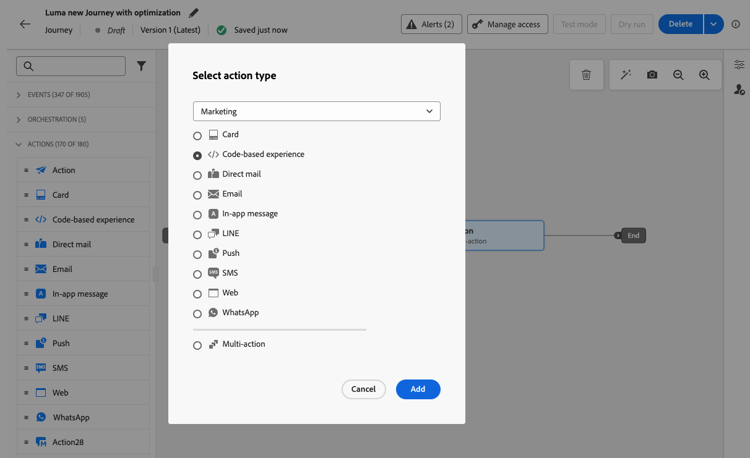
-
Add a label to your action and select Configure action.
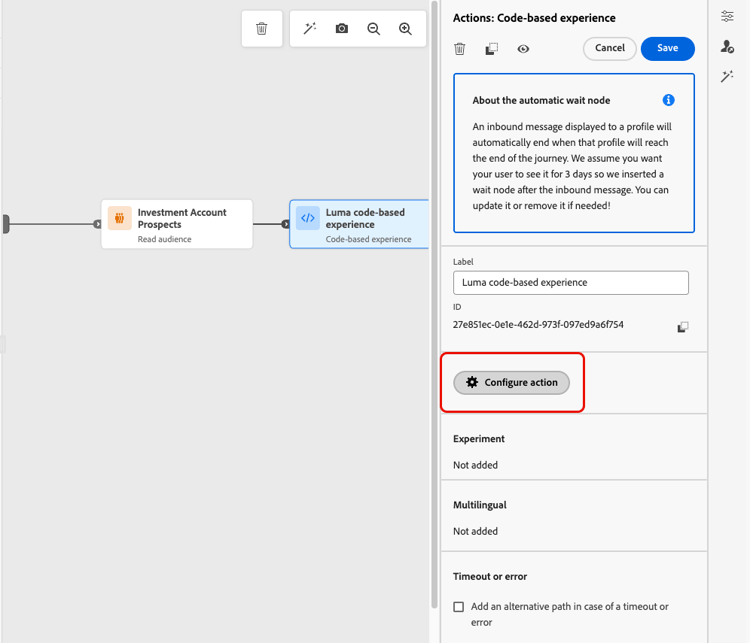
-
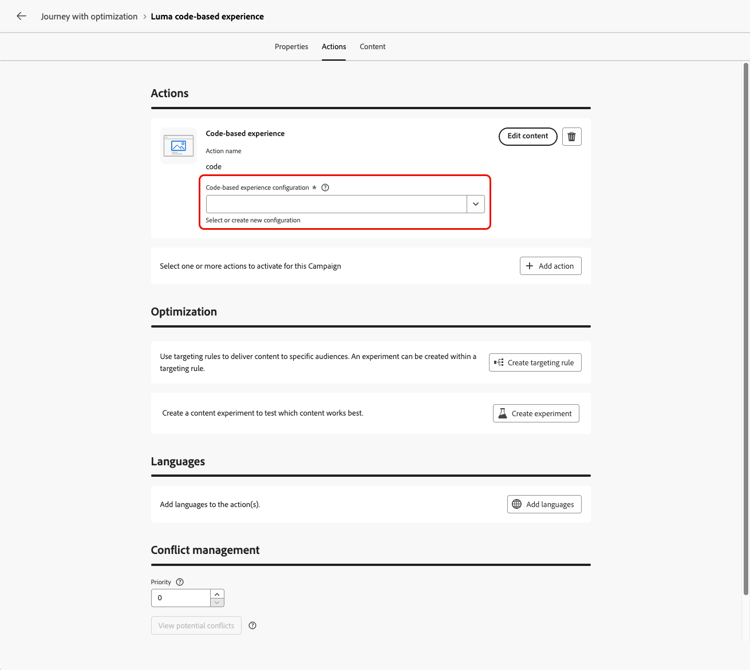
You are directed to the Actions tab of the journey action configuration screen.
Select the configuration to use for the selected channel.
-
If you selected an inbound channel, you can add multiple actions. Learn more
-
If you selected an outbound channel (Email, Push, Mobile message), you can add multiple channels and use channel optimization to automatically select the best channel per customer. Learn more
note availability AVAILABILITY This capability is available in Limited Availability. Contact your Adobe representative to enable it for your organization. -
Configure your activity according to the selected channel. Detailed configuration guidelines are available in the links below.
-
Learn the detailed steps to create your outbound action as follows:
table 0-row-3 0-border-0 layout-fixed html-authored no-header 


-
Learn the detailed steps to create your inbound action as follows:
table 0-row-4 0-border-0 layout-fixed html-authored no-header 


note NOTE -
Each inbound experience action comes with a 3-days Wait activity. Learn more
-
For emails and push notifications, you can enable Send-Time Optimization. Learn more
-
-
Depending on the activity, you can display advanced parameters specific to the selected channel, and override some default values such as the execution address. Learn more
note NOTE If the advanced parameters are hidden, click the Show read-only fields button on top of the right pane. -
Use the Optimization section to run content experiments, leverage targeting rules, or use advanced combinations of both experimentation and targeting.
These different options and the steps to follow are detailed in this section.
-
Use the Languages section to create content in multiple languages within your journey action. To do so, click the Add languages button and select the desired Language settings.
Detailed information on how to set up and use multilingual capabilities are available in this section.
Additional settings are available depending on the selected communication channel. Expand the sections below for more information.
In the Business rules drop-down list, select a rule set to apply capping rules to your journey action.
Leveraging channel rule sets allows you to set frequency capping by communication type to prevent overloading customers with similar messages.
Use the Action tracking section to track how your recipients react to your email or Mobile deliveries.
Tracking results are accessible from the journey report once the journey has been executed.
Rapid delivery mode is a Journey Optimizer add-on that allows very fast push message sending in large volumes though campaigns.
Rapid delivery is used when delay in message delivery is business-critical, when you want to send an urgent push alert on mobile phones, for example a breaking news to users who have installed your news channel app.
Learn how to enable Rapid delivery mode for Push notifications on this page.
For more information on performances when using Rapid delivery mode, refer to Adobe Journey Optimizer product description.
In the Conflict management section, you can assign a priority score to the journey action, allowing you to prioritize an inbound action when there are multiple journey actions or campaigns using the same channel configuration.
By default, the priority score for the action is inherited from the overall priority score for the journey.
For content card journeys, you can enable additional delivery rules to choose the event(s) and criteria which trigger your message.
For in-app messages, you can use the Edit triggers button to choose the event(s) and criteria which trigger your message.
Add multiple inbound actions multi-action
To simplify your journey orchestration, you can define several inbound actions inside a single journey action.
This capacity enables you to deliver various Code-based experiences, In-app messages, Content Cards or Web actions to different locations at the same time, without the need to create multiple journey actions. It makes the deployment of your journey easier and allows for smoother reporting, with all the data consolidated into one single journey.
For example, you can send a code-based experience to multiple endpoints with slightly different contents. To do this, create multiple code-based actions within the same journey action, each with a different endpoint configuration.
To define several inbound actions in a single journey action node, follow the steps below.
-
Start your journey with an Event or a Read Audience activity.
-
From the Actions section of the palette, drag and drop an Action activity into the canvas.
-
Select Multi action as the action type.
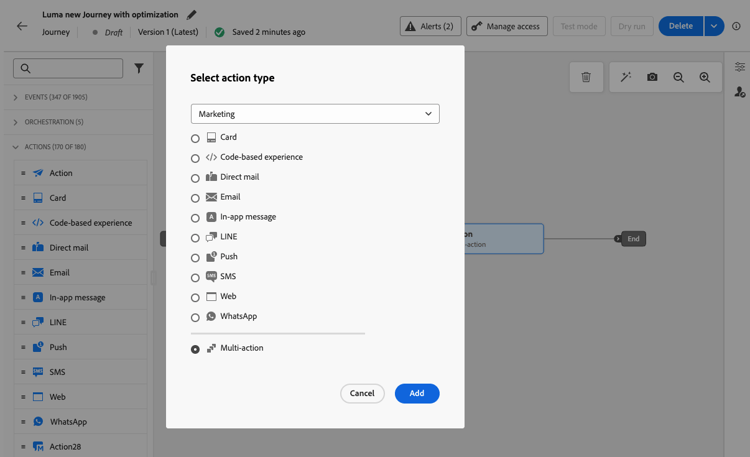
-
Add a label if needed and select Configure action.
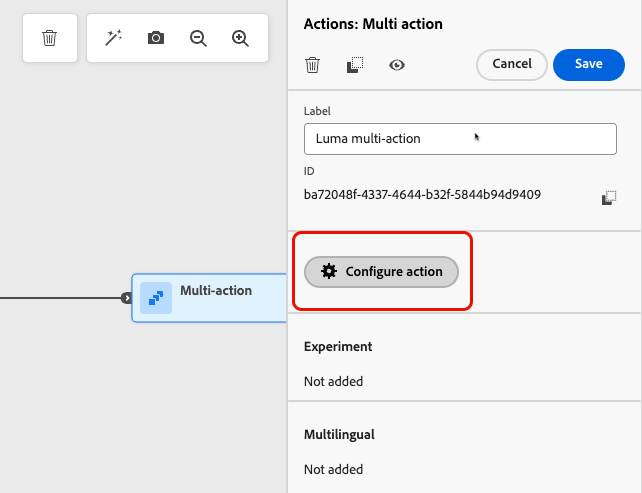
-
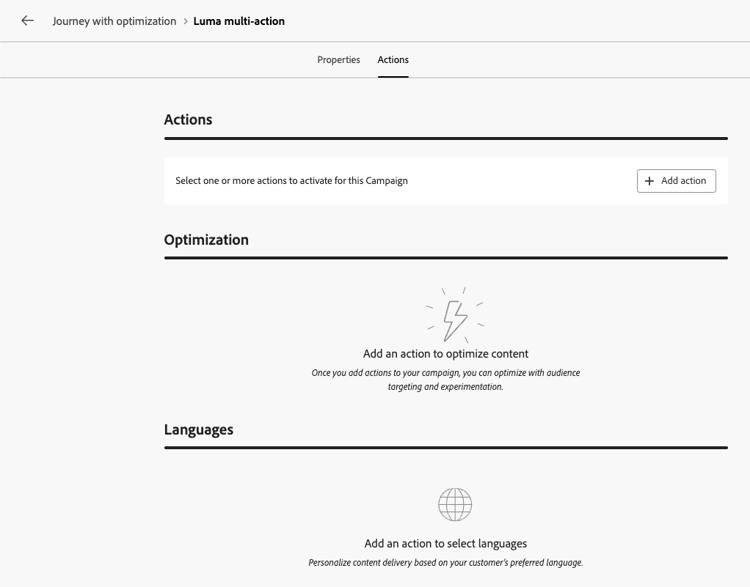
You are directed to the Actions tab of the journey action configuration screen.
-
Select an inbound action (Code-based experience, In-app message, Content Card or Web) from the Actions section.
-
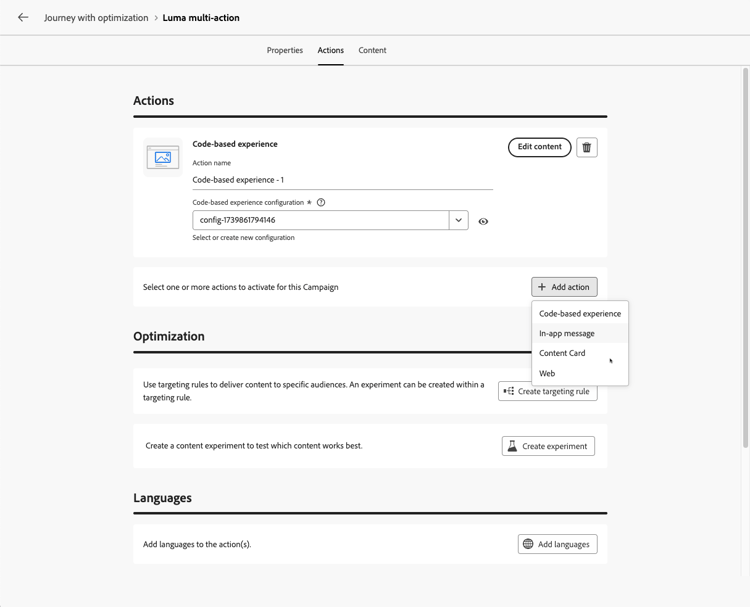
Select the channel configuration and define a specific content for that action.
-
Use the Add action button to select another inbound action from the drop-down list.
-
Proceed similarly to add more actions. You can add up to 10 inbound actions in a journey action group.
Once the journey is live, all actions are activated simultaneously.
Update a live content update-live-content
You can update the content of a built-in channel action in a live journey.
Any changes made to the content are not reflected in the journey until you save the action’s properties. Learn more
To do this, open your live journey, select the channel activity and click Edit content.
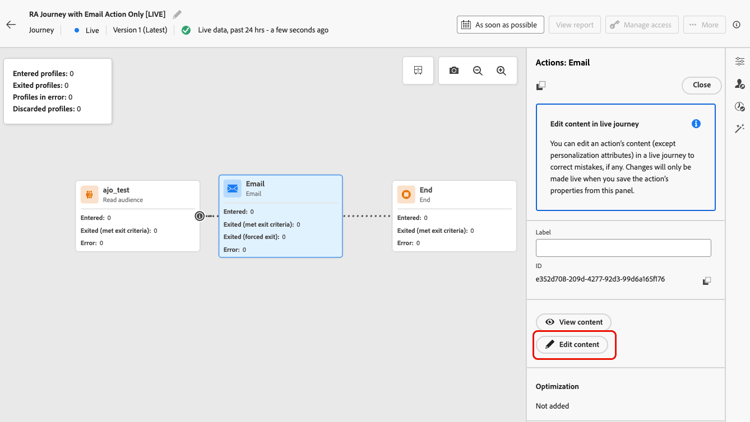
However, you cannot change the attributes used in personalization, whether they are profile attributes or contextual data (from event or journey properties).
-
If you modified contextual data, the following error message will be displayed:
ERR_AUTHORING_JOURNEYVERSION_201 -
If you modified profile attributes, the following error message will be displayed:
ERR_AUTHORING_JOURNEYVERSION_202
Note that for the In-app activity, any changes can be made to the content while the journey is live, but In-app triggers cannot be modified.
Send with custom actions recommendation
Instead of using the built-in message capabilities, you can use custom actions to configure connection of a third-party system to send messages or API calls.
-
If you are using a third-party system to send your messages, you can create a custom action. Learn more
-
If you are working with Adobe Campaign, refer to these sections:
This section contains structured knowledge intended to support interpretation, retrieval, and question answering related to this topic.
For complete understanding, this information should be combined with the documentation on this page. Neither source is intended to stand alone; the page describes the feature, while this section provides additional context that helps disambiguate terminology, intent, applicability, and constraints.
- TL;DR: This page explains how to use the unified Action activity in the journey canvas to configure built-in channel actions (email, push, Mobile message, in-app, web, content card, code-based experience), build multi-inbound-action groups, and apply optimization or multilingual settings.
Intents:
- Add a built-in channel action (email, push, Mobile message, in-app, web, content card, code-based experience) to a journey using the Action activity
- Configure a multi-action group to deliver multiple inbound actions simultaneously from a single journey node
- Apply frequency capping rules to an outbound channel action to prevent message fatigue
- Update message content in a live journey without republishing
- Connect a third-party messaging system to a journey using custom actions
- Enable Rapid delivery mode for high-volume urgent push notifications
Glossary:
- Action activity: The unified journey canvas activity that serves as the single entry point for all built-in channel actions, replacing individual legacy channel activities (product-specific)
- Multi-action: A configuration within a single Action activity node that allows up to 10 inbound channel actions to be delivered simultaneously (product-specific)
- Rapid delivery mode: An add-on that enables very fast, high-volume push message sending for time-critical alerts (product-specific)
- Automatic Wait node: A 3-day Wait activity automatically inserted after each inbound channel action to give profiles time to view the experience before the journey advances (product-specific)
- Priority score: A value assigned to a journey action to determine which inbound experience takes precedence when multiple actions compete for the same channel configuration (product-specific)
Guardrails:
- Legacy individual channel activities (Email, Push, Mobile message, In-app, Web, Code-based experience, Content Card) are deprecated as of the March 2026 release; existing journeys continue to work without migration
- Multi-action is only available for inbound channels; outbound channels such as Email are not supported in multi-action groups
- A multi-action group supports a maximum of 10 inbound actions
- In a live journey, personalization attributes (profile attributes and contextual data) cannot be changed; only message content can be updated
- In-app triggers cannot be modified in a live journey
Terminology:
- Canonical name: Action activity — Acronym: none — variants: channel action, message activity, built-in channel action
- Synonyms: “Action activity” = “channel action activity”
- Do not confuse: “Action activity” ≠ “custom action” — the Action activity uses built-in native channels, while a custom action integrates with a third-party system via API
FAQ:
- Q: What channels are available in the Action activity? — Email, Push, Mobile message (SMS/RCS/MMS), In-app, Web, Code-based experience, and Content Card.
- Q: Can I send to multiple inbound endpoints in the same journey node? — Yes, using the Multi action type you can add up to 10 inbound actions (Code-based experience, In-app, Content Card, Web) in a single Action activity node.
- Q: What happens to journeys that use the deprecated legacy channel activities? — They continue to work without any changes; no migration is required.
- Q: Can I change the email subject line of a live journey? — You can update message content in a live journey, but you cannot change personalization attributes or contextual data used in that content.
- Q: How do I apply frequency capping to a channel action? — Use the Business rules drop-down in the action configuration to select a rule set that applies capping rules for the selected channel.