このページ:単一のジャーニーアクションまたはアクションキャンペーン内で複数のインバウンドアクションを定義し、複数のエクスペリエンスを同時に異なる場所に配信する方法について説明します。
オーケストレーションを簡素化するには、特定のコンテンツを含む各アクションを1つのジャーニーアクションまたは1つのキャンペーン内で、いくつかのインバウンドアクションを定義できます。
この機能により、複数のジャーニーアクションやキャンペーンを作成することなく、さまざまなコードベースのエクスペリエンス、アプリ内メッセージ、コンテンツカード、web アクションを異なる場所に同時に配信できます。 あらゆるデータをひとつのジャーニーやキャンペーンに統合し、容易に展開し、よりスムーズなレポートを作成できるようになります。
例えば、コンテンツが少し異なる複数のエンドポイントに、コードベースのエクスペリエンスを送信できます。 これを行うには、同じジャーニーアクションまたはキャンペーン内に、それぞれ異なるエンドポイント設定を持つ複数のコードベースのアクションを作成します。
ジャーニーアクションまたはキャンペーンでは、最大10個のインバウンドアクションを追加できます。
アクション設定を開きます open-actions
最初のステップは、ジャーニー内で作業するか、キャンペーン内で作業するかによって異なります。
-
ジャーニーを「イベント」または「オーディエンスを読み取り」アクティビティで開始します。
-
パレットの「アクション」セクションから、アクションアクティビティをキャンバスにドラッグ&ドロップします。
-
「複数アクション」をアクションタイプとして選択します。
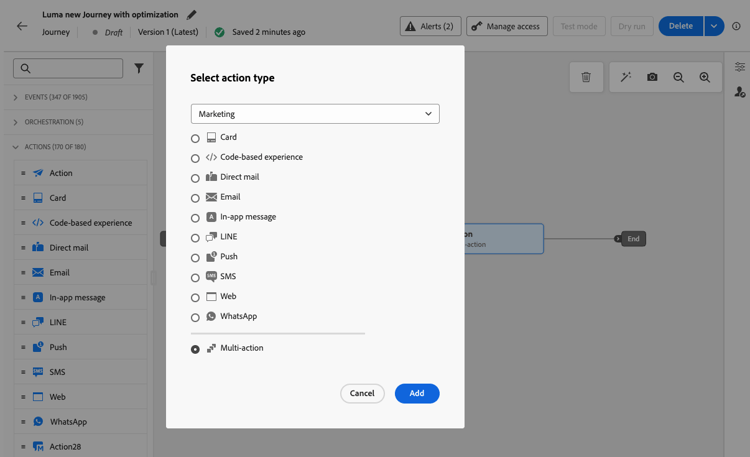
-
必要に応じてラベルを追加し、「アクションを設定」を選択します。
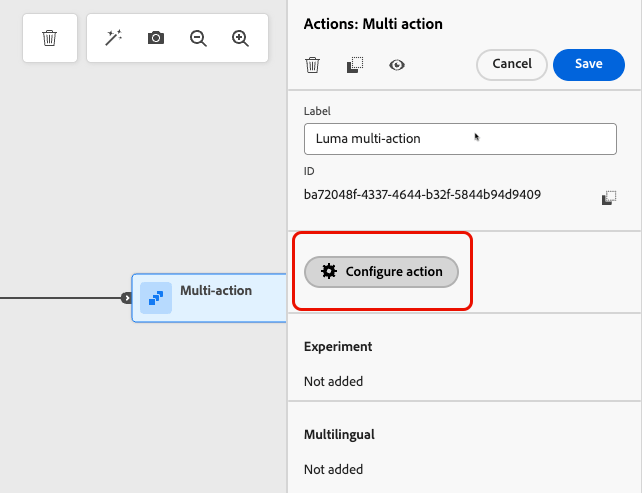
-
ジャーニーアクション設定画面の「アクション」タブに移動します。
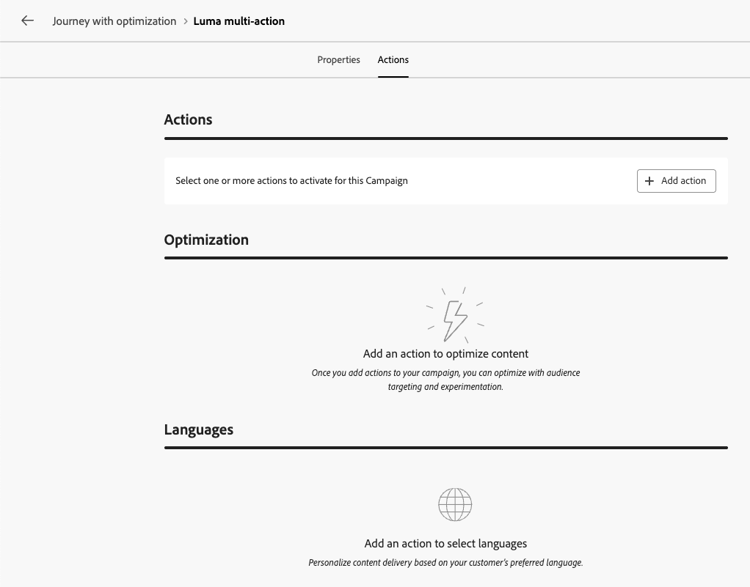
-
アクションキャンペーン を作成し、その プロパティ を定義します。
-
キャンペーンの「アクション」タブを開きます。
インバウンドアクションの追加 add-actions
以下の手順は、ジャーニーと実稼動型キャンペーンで同じです。
-
「アクション」セクションからインバウンドアクション(コードベースのエクスペリエンス、アプリ内メッセージ、コンテンツカード、または web)を選択します。
-
チャネル設定を選択し、そのアクションの特定のコンテンツを定義します。
-
「アクションを追加」ボタンを使用して、ドロップダウンリストから別のインバウンドアクションを選択します。
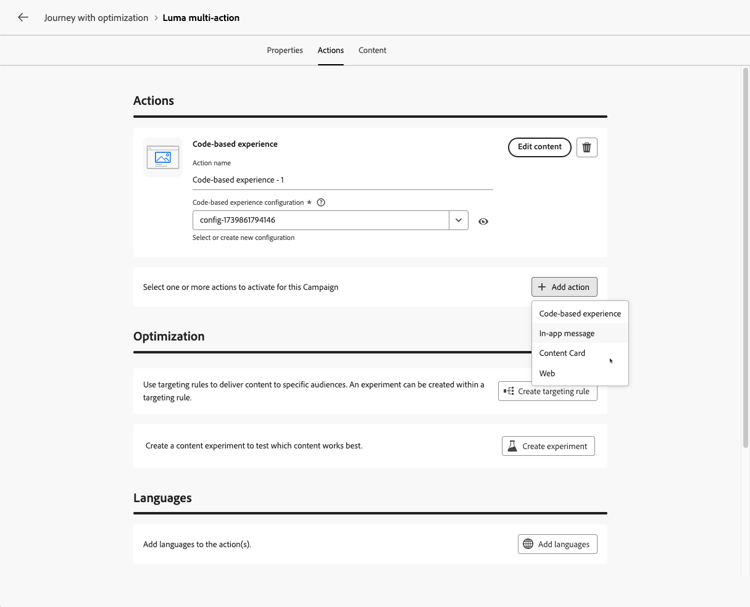
-
同様の手順を実行して、さらにアクションを追加します。 ジャーニーアクショングループまたはキャンペーンでは、最大10個のインバウンドアクションを追加できます。
ジャーニーが ライブ またはキャンペーンが ライブ になると、すべてのアクションが同時にアクティブ化されます。
複数のインバウンドアクションでの最適化の利用 optimization
ジャーニーアクションまたはキャンペーンに複数のインバウンドアクションが含まれる場合、設定した ターゲティングルール および コンテンツ実験は、それらすべてに適用されます。 コンテンツ最適化の詳細
顧客はこれらのアクションで同じバリエーションに割り当てられていますが、各アクションのバリエーションごとにコンテンツを定義する必要があります。
関連トピック see-also
This section contains structured knowledge intended to support interpretation, retrieval, and question answering related to this topic.
For complete understanding, this information should be combined with the documentation on this page. Neither source is intended to stand alone; the page describes the feature, while this section provides additional context that helps disambiguate terminology, intent, applicability, and constraints.
- TL;DR: This page explains how to define several inbound actions (Code-based experience, In-app message, Content Card, or Web) inside a single journey action or action campaign in Adobe Journey Optimizer, to deliver multiple experiences to different locations at the same time while keeping all reporting in one journey or campaign.
Intents:
- Deliver several inbound experiences from a single journey Action activity by using the Multi action type
- Deliver several inbound experiences from a single action campaign
- Send a code-based experience to multiple endpoints with slightly different contents
- Consolidate reporting for several inbound actions in one journey or campaign
- Apply targeting rules, a content experiment, or both across the inbound actions of a journey action or campaign
Glossary:
- Inbound action: An action that delivers a Code-based experience, In-app message, Content Card, or Web experience (product-specific)
- Multi action: The action type of a journey Action activity that groups several inbound actions in a single node (product-specific)
- Multi-action group: The set of inbound actions defined inside one journey Action activity (product-specific)
Contexts where multiple inbound actions are available:
- Journeys, in an Action activity with the Multi action type, started with an Event or Read Audience activity
- Action campaigns, in the Actions tab of the campaign, after creating the campaign and defining its properties
Guardrails:
- Available for inbound channels only; outbound channels (Email, Push, Mobile message) are not supported
- Maximum 10 inbound actions in a journey action group or in a campaign
- Each action has its own channel configuration and its own content
- All actions are activated simultaneously once the journey or campaign is live
- The targeting rules and content experiment configured in a journey action or campaign apply to all its inbound actions, not to a single action
- Customers are assigned to the same variant across all the inbound actions
- The content must be defined for each variant of each action
FAQ:
- Q: Can I add several Email or Push actions to the same journey action or campaign? — No; this capability is for inbound channels only. For outbound channels, use channel optimization to add multiple channels and automatically select the best channel per customer.
- Q: How many inbound actions can I add? — Up to 10 in a journey action group or in a campaign.
- Q: When are the actions activated? — All actions are activated simultaneously once the journey or campaign is live.
- Q: Which inbound actions can I combine? — Code-based experience, In-app message, Content Card, and Web.
- Q: Do targeting rules and experiments apply to a single inbound action? — No; the targeting rules and content experiment you configure apply to all the inbound actions of the campaign or of the journey Action activity. Customers are assigned to the same variant across those actions.
- Q: Do I need to define content for each variant of each inbound action? — Yes; the targeting rules and content experiment apply to all the actions, but you must define the content for each variant of each action.
- Q: Do I need to create one journey action or campaign per endpoint? — No; create multiple actions within the same journey action or campaign, each with a different configuration.
Personas:
- marketer: Can select Multi action as the action type of a journey Action activity, or open the Actions tab of an action campaign after creating it and defining its properties, then select an inbound action. Can use the Add action button to add up to 10 inbound actions, each with its own channel configuration and content. Where: “Open the actions configuration” and “Add the inbound actions”.
Onboarding:
- Level: Intermediate
- First minimal step: Select an inbound action in the Actions tab of your campaign, or add an Action activity with the Multi action type to your journey, then use the Add action button to add another inbound action.
- Success check: The configuration lists several inbound actions, each with its own content, and all of them are activated simultaneously when the journey or campaign goes live.
- Previous: Create a journey or an action campaign before adding inbound actions: Use the Action activity (building-journeys/journey-action.md); Create an action campaign (campaigns/create-campaign.md); Define the campaign properties (campaigns/campaign-properties.md); Configure the campaign action (campaigns/campaign-action.md)
- Next: Publish the journey or activate the campaign: Publish your journey (building-journeys/publish-journey.md); Review and activate an Action campaign (campaigns/review-activate-campaign.md)