Sur cette page : concevez et testez le contenu de votre campagne d’action pour le canal que vous avez sélectionné afin que chaque message soit prêt avant d’activer la campagne.
Pour configurer le contenu du message, accédez à l’onglet Contenu ou cliquez sur le bouton Modifier le contenu.
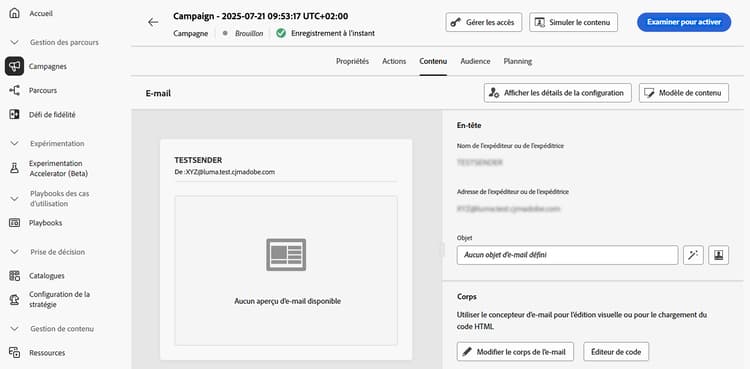
Concevoir le contenu action-campaign-channels
Le processus de création du contenu dépend du canal que vous avez sélectionné. Découvrez les étapes détaillées pour créer le contenu de votre message dans les pages suivantes :





Tester et vérifier votre contenu
Une fois le contenu défini, cliquez sur le bouton Simuler le contenu pour prévisualiser et tester le contenu. Vous pouvez utiliser l’une des méthodes de simulation suivantes :
- Cliquez sur Simuler le contenu pour tester des variations de contenu avec des exemples de données d’entrée ou des données générées par l’IA.
- Cliquez sur Simuler le contenu puis sélectionnez Simuler le contenu (profils AEP) dans la liste déroulante pour prévisualiser le contenu avec des profils de test.
Découvrir comment prévisualiser et tester votre contenu
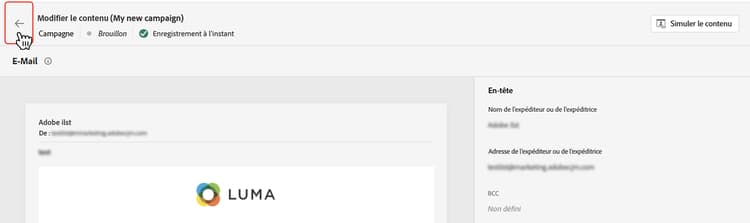
Pour revenir à l’écran de création de campagne, cliquez sur la flèche pointant vers la gauche.
Étapes suivantes next
Une fois que le contenu de votre campagne d’action est prêt, vous pouvez définir l’audience de la campagne. En savoir plus
This section contains structured knowledge intended to support interpretation, retrieval, and question answering related to this topic.
For complete understanding, this information should be combined with the documentation on this page. Neither source is intended to stand alone; the page describes the feature, while this section provides additional context that helps disambiguate terminology, intent, applicability, and constraints.
- TL;DR: This page explains how to open the content of an Action campaign for the channel selected, find the channel-specific content creation pages, and preview and test the content with Simulate content.
Intents:
- Open the content of the campaign from the Content tab or the Edit content button
- Find the page that explains content creation for each channel
- Preview and test content with Simulate content
- Preview content with test profiles using Simulate content (AEP profiles)
- Go back to the campaign creation screen
Glossary:
- Simulate content: Button used to preview and test content; tests content variations with sample input data or AI auto-generation. (product-specific)
- Simulate content (AEP profiles): Option selected from the Simulate content dropdown; previews the content with test profiles. (product-specific)
Terminology:
- Canonical name: Action campaign content — variants: message content
- Acronym: AEP — Adobe Experience Platform
- Do not confuse: “Simulate content” (sample input data or AI auto-generation) ≠ “Simulate content (AEP profiles)” (test profiles)
FAQ:
- Q: How do I open the content of my Action campaign? — Navigate to the Content tab or click the Edit content button.
- Q: Where do I find how to create content for my channel? — The content creation process depends on the channel you selected; the page lists Email, Mobile message, Push notification, Direct mail, In-app, Web, Code-based experience, Content cards, LINE, and WhatsApp, each linking to its page.
- Q: How do I preview and test my content? — Use Simulate content to test content variations with sample input data or AI auto-generation, or select Simulate content (AEP profiles) from the dropdown to preview with test profiles.
- Q: How do I go back to the campaign creation screen? — Click the left arrow.
Related pages:
- Email content: Email (email/create-email.md)
- Mobile message content: Mobile message (mobile/create-mobile-message.md)
- Push content: Push notification (push/create-push.md)
- Direct mail content: Direct mail (direct-mail/create-direct-mail.md)
- In-app content: In-app (in-app/create-in-app.md)
- Web content: Web (web/create-web.md)
- Code-based content: Code-based experience (code-based/create-code-based.md)
- Content cards content: Content cards (content-card/create-content-card.md)
- LINE content: LINE (line/get-started-line.md)
- WhatsApp content: WhatsApp (whatsapp/get-started-whatsapp.md)
- Previewing and testing content: Learn how to preview and test content (content-management/preview-test.md)
- Next step, audience: Define the Action campaign audience (campaigns/campaign-audience.md)
Personas:
- marketer: Can open the content of an Action campaign from the Content tab or the Edit content button. Can use Simulate content to test content variations with sample input data or AI auto-generation. Can select Simulate content (AEP profiles) from the dropdown to preview with test profiles. Where: “Test and check your content”.
Onboarding:
- Level: Beginner
- First minimal step: Navigate to the Content tab or select the Edit content button to configure the message content.
- Success check: The content is defined, and Simulate content is available to preview and test it.
- Next: Learn how to preview and test content: Preview and test your content (content-management/preview-test.md); Once the content of the Action campaign is ready: Define the Action campaign audience (campaigns/campaign-audience.md)