[AEM Assets]{class="badge positive" title="Applies to AEM Assets)."}
Assets Insights asset-insights
Overview overview
Assets Insights tracks usage statistics for images deployed across third-party websites, marketing campaigns, and Adobe’s creative solutions. It delivers actionable insights into the performance and popularity of each image, helping teams understand which visual assets resonate most with audiences. As a usage-analytics capability, it connects real-world engagement data back to the digital assets managed within Adobe Experience Manager (AEM).
Key metrics and scoring key-metrics-and-scoring
Assets Insights measures two core engagement signals for every image:
- Clicks — the number of times an image is clicked by users.
- Impressions — the number of times an image is loaded on a website, indicating how frequently the asset is viewed.
Assets Insights assigns each image a score based on these clicks and impressions statistics. This scoring converts raw activity into a comparable performance ranking, so teams can quickly identify high-value assets. You can apply these scores and performance statistics to:
- Select popular, high-performing images for inclusion in catalogs.
- Prioritize proven assets for marketing campaigns and merchandising initiatives.
- Formulate archival policies that retire underperforming or unused images.
- Guide license renewal decisions based on documented asset usage and value.
This ensures data-driven asset selection, because decisions about which images to promote, retire, or re-license are grounded in measured audience engagement rather than assumption.
Assets Insights now supports Adobe Analytics 2.0 API
Assets Insights in AEM Admin View now supports the Adobe Analytics 2.0 Application Programming Interface (API) with OAuth Server-to-Server authentication. The Adobe Analytics 1.4 API has been retired; as a result, this update preserves continued access to current asset usage insights that would otherwise be interrupted. You can reconfigure Assets Insights integration to resume synchronization of impressions and clicks from Adobe Analytics, including data collected during the transition period, without losing existing insights data.
You must have an Adobe Analytics license to use this feature.
View statistics for an image viewing-statistics-for-an-image
You can view the Assets Insights scores from the metadata page. These scores help you evaluate how an asset is reused and how it performs across creative solutions.
-
From the Assets user interface, select the image and then click Properties from the toolbar.
-
From the Properties page, click Insights.
-
Review the usage details for the asset in the Insights tab. The Score section describes the total asset usage and performance scores of an asset.
The Usage score describes the number of times an asset is used across various solutions.
The Impressions score is the number of times the asset is loaded on the website. The number displayed under Clicks is the number of times the asset is clicked. Together, impressions and clicks indicate how visible and engaging the asset is to end users.
-
Review the Usage Statistics section to know which entities the asset was part of and which creative solutions recently used it. The higher the usage, the greater the likelihood that the asset resonates with users, because frequently reused assets are typically those that perform well across channels. Usage data is displayed under the following heads:
-
Asset: The number of times the asset was part of a collection or compound asset.
-
Web & Mobile: The number of times the asset was part of websites and apps.
-
Social: The number of times the asset was used in other solutions such as a Adobe Campaign.
-
Email: The number of times the asset was used in email campaigns.
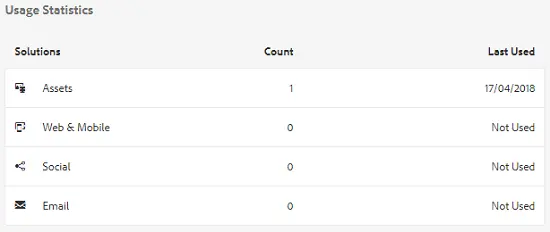
note NOTE The Assets Insights feature typically fetches the Solutions data from Adobe Analytics in a periodic manner. As a result, the Solutions section may not display the most recent data. The time period for which the data is displayed depends on the schedule of the fetch operation that Assets Insights runs to retrieve Analytics data. -
-
To view performance statistics for the asset graphically over a period of time, select a period in the Performance Statistics section. Details, including clicks and impressions, are displayed as trend lines of a graph, allowing you to identify performance patterns over time.
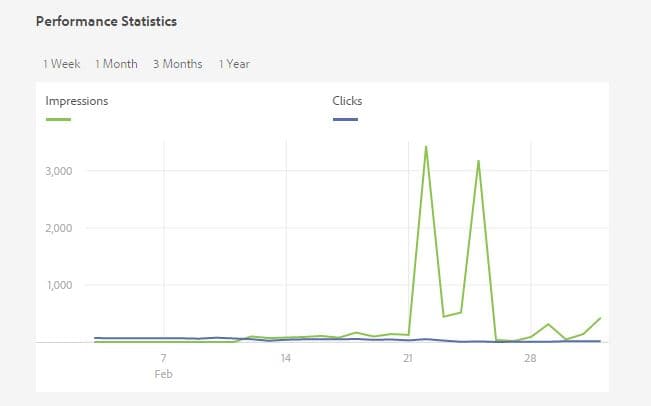
note NOTE Unlike the data in the Solutions section, the Performance Statistics section displays the most recent data. -
To obtain the embed code for the asset that you embed in websites to get performance data, click Get Embed Code below the asset thumbnail.
View aggregate statistics for images viewing-aggregate-statistics-for-images
Users can view usage scores for all assets within a folder simultaneously using Insights View. Insights View is a layout mode that surfaces aggregate performance and usage data for every image in a folder, presenting these ratings side by side so teams can evaluate an entire asset collection at a glance rather than inspecting each file individually.
Reviewing assets collectively supports data-driven asset management: comparing usage scores helps identify which images are most widely used or best performing, which in turn informs decisions about content reuse, promotion, and cleanup.
-
In the Assets user interface, navigate to the folder containing the assets for which you want to view insights.
-
Click the Layout option from the toolbar, and then choose Insights View.
-
The page displays usage scores for the assets in the folder. Compare the ratings of the various assets to draw insights, because side-by-side comparison makes it easier to spot high-value, high-usage images and prioritize them for continued use or promotion, while lower-scoring assets can be reviewed, retired, or improved.
Impact of the Adobe Analytics API retirement api-retirement-impact
Configure Assets Insights configure-assets-insights
Experience Manager Assets fetches usage data about digital assets deployed on third-party websites directly from Adobe Analytics. This usage data powers Assets Insights, which surfaces how assets perform once they are published and consumed outside the digital asset management (DAM) environment.
Assets Insights requires an active integration with Adobe Analytics to retrieve this data and generate insights. Because the two systems must exchange data securely, the integration relies on Adobe’s identity and authentication framework rather than a direct, unauthenticated connection.
Prerequisites prerequisites
To enable Assets Insights to retrieve usage data and generate insights, configure the integration with Adobe Analytics using both of the following components:
- An Adobe Identity Management System (Adobe IMS) Configuration — the identity configuration that authenticates Experience Manager against Adobe services, establishing the trusted connection through which Adobe Analytics data is requested.
- An OAuth Server-to-Server credential — a service-to-service authentication credential that allows Experience Manager to securely obtain access tokens and call Adobe Analytics on behalf of the configured account, without requiring interactive user sign-in.
Before configuring Assets Insights, confirm that all of the following requirements are met. Each prerequisite establishes a dependency that Assets Insights relies on to collect, process, and display reporting data:
- Your Adobe Experience Manager (AEM) as a Cloud Service environment has received the update that provides the Asset Insights Cloud Solution. This update makes the Cloud Solution available in the environment, which is required before any Insights configuration can begin.
- AEM Assets Reporting is enabled for the Adobe Analytics report suite used for Assets Insights, because this connection is what routes asset usage data into the report suite that powers Insights.
- You have an active Adobe Analytics entitlement, which is required to access the report suite and surface the analytics data behind Assets Insights.
- You have access to the Adobe Developer Console and can create an OAuth Server-to-Server credential, which enables secure, automated authentication between AEM and Adobe Analytics without requiring interactive user sign-in.
How Assets Insights works how-assets-insights-works
Once the Adobe IMS Configuration and the OAuth Server-to-Server credential are in place, Experience Manager Assets authenticates through Adobe IMS and uses the credential to query Adobe Analytics. Adobe Analytics returns usage data tied to the digital assets that appear on third-party websites, and Assets Insights aggregates this data into reporting within the Assets environment.
This integration allows teams to:
- Track real-world asset usage — understand which published assets are being viewed and consumed on external sites.
- Connect DAM assets to performance data — link individual assets managed in Experience Manager Assets to their downstream analytics.
- Inform content decisions — identify high-performing and underused assets to guide future asset creation, reuse, and retirement.
Configuring both the Adobe IMS Configuration and the OAuth Server-to-Server credential is a required step; without them, Assets Insights cannot authenticate with Adobe Analytics and therefore cannot retrieve usage data or generate insights.
Create an OAuth Server-to-Server credential create-oauth-credential
-
Create an OAuth Server-to-Server credential in the Adobe Developer Console. OAuth (Open Authorization) Server-to-Server credentials use the client credentials grant to authenticate server-side applications without user interaction, making them suited for automated backend integrations.
-
Open an existing project for the Identity Management System (IMS) Org (organization) used with Adobe Analytics, or create a new project.
-
Add the Adobe Analytics API to the project. This step grants the project access to the Adobe Analytics endpoints your integration will call.
-
Select OAuth Server-to-Server as the credential type. Do not create a new Service Account (JSON Web Token, or JWT) credential for this integration, because the Service Account (JWT) credential type is deprecated and OAuth Server-to-Server is the supported replacement.
-
Open the credential details and securely save the Client ID, Client Secret, and Scopes values. The Client ID identifies the application, the Client Secret authenticates it, and the Scopes define the level of API access granted. Store these values in a secure secrets manager, because the Client Secret grants access to your data. You will supply these saved values when configuring the integration to authenticate against the Adobe Analytics API.
-
Confirm that the IMS Org has an active Adobe Analytics entitlement, because the credential can only authenticate successfully when the organization is licensed for the API. Also confirm that the credential has access to the required report suite, since API calls fail if the credential lacks the necessary report suite permissions.
-
Create the Adobe IMS Configuration in AEM create-ims-configuration
The Adobe Identity Management System (IMS) configuration establishes the secure authentication link that allows Adobe Experience Manager (AEM) to connect to Adobe services on behalf of your organization. Creating this configuration correctly is what enables the Asset Insights integration to authenticate and exchange data through Adobe IMS.
-
In Adobe Experience Manager (AEM), click Tools > Cloud Services > Adobe IMS Configurations > Create.
-
For Cloud Solution, select Asset Insights. This tells AEM which integration the credentials apply to.
note NOTE If Asset Insights is not available as a Cloud Solution, it is because your AEM as a Cloud Service environment has not yet received the update that introduces the new integration. As a result, the option cannot appear in the list until that update is present. Confirm that the required update is available in your environment before proceeding. Do not create a new legacy configuration as a workaround, because a legacy configuration will not connect through the new integration path. -
Enter the values from the OAuth Server-to-Server credential that you created in Adobe Developer Console. OAuth Server-to-Server is a server-side authentication method that lets AEM obtain access tokens from Adobe IMS without user interaction, which is why these exact values must match the credential:
table 0-row-2 1-row-2 2-row-2 3-row-2 4-row-2 Field Value Auth Server https://ims-na1.adobelogin.comClient ID Client ID from Adobe Developer Console Client Secret Client Secret from Adobe Developer Console Scopes Scopes copied from the credential details — these define the specific permissions granted to the integration Copy each value directly from the credential details so that the Client ID, Client Secret, and Scopes align exactly with what Adobe IMS expects. A mismatch in any of these fields prevents successful authentication.
-
Click Save, then use Check Health to confirm that the configuration authenticates successfully through Adobe IMS. The Check Health action performs a live verification of the credentials, so a successful result confirms that AEM can reach Adobe IMS and retrieve a valid access token. If the health check fails, re-verify the Auth Server URL, Client ID, Client Secret, and Scopes against the OAuth Server-to-Server credential in Adobe Developer Console, because an incorrect or mistyped value in any of these fields is the most common cause of authentication failure.
Configure Assets Insights with the IMS integration configure-assets-insights-ims-integration
Configuring Assets Insights with the Adobe Identity Management System (IMS) integration links Adobe Experience Manager Assets to Adobe Analytics, enabling asset usage reporting. Complete the following steps in sequence:
-
In Experience Manager, click Tools > Assets > Insights Configuration.
-
For IMS Configuration, select the Adobe IMS Configuration that you created in the previous step. This IMS Configuration authenticates the connection between Experience Manager and Adobe Analytics.
-
In Analytics Company, enter the Adobe Analytics Global Company ID. The Global Company ID is the identifier associated with your Adobe Analytics account and is required for the integration to retrieve the correct report suites.
note NOTE The Global Company ID is different from the company display name used in the legacy Assets Insights configuration. Do not enter the company display name in this field. As a result, using the display name instead of the Global Company ID causes an empty report suite list, which prevents you from selecting a report suite in the next step. -
Select the Report Suite used for Assets Insights. The report suite determines where Assets Insights data is collected and reported within Adobe Analytics.
-
If required, enter the Tracking Server and Secure Tracking Server values. If your tag management solution already sends Adobe Analytics beacons, leave these fields blank, because populating them in that scenario can result in duplicate beacon calls.
-
Click Done to save the configuration. Saving applies the settings so that Assets Insights begins collecting data through the configured report suite.
For more information, see Adobe Analytics Web Services.
Enable AEM Assets Reporting enable-aem-assets-reporting
The Adobe Analytics report suite used for Assets Insights must have AEM Assets Reporting enabled. AEM Assets Reporting is a report suite setting in Adobe Experience Manager (AEM) that activates asset-level tracking within Adobe Analytics. Without this setting enabled, the report suite cannot capture the asset-specific data that Assets Insights relies on.
To enable AEM Assets Reporting, complete the following steps:
-
In Adobe Analytics, go to Admin > Report Suites.
-
Select the report suite used for Assets Insights.
-
Select Edit Settings > AEM > AEM Assets Reporting.
-
Confirm that AEM Assets Reporting is enabled.
Enabling this setting provisions the Analytics dimensions and events used to track asset impressions, clicks, and asset identifiers. As a result, the report suite records how assets are viewed and interacted with, and it links each interaction to a specific asset through its identifier. This ensures that Assets Insights receives complete, accurate reporting data, which is essential for measuring asset performance and understanding how assets are consumed across your digital properties.
Verify the configuration and data flow verify-configuration-data-flow
After configuring Assets Insights:
-
Verify that the Adobe Identity Management System (IMS) Configuration Check Health action succeeds.
-
Confirm that the expected report suite is correctly selected in Insights Configuration.
-
Verify that your existing website instrumentation continues to send asset impressions and clicks to Adobe Analytics.
-
Allow the next scheduled synchronization to complete. Assets Insights synchronizes data daily, and newly available data can take up to 24 hours to appear.
-
After reconfiguration, the next synchronization retrieves available insights data, including data collected during the period when Adobe Experience Manager (AEM) could not retrieve data through the retired Application Programming Interface (API). This ensures no available insights are lost during the transition.
-
Open an image asset in Experience Manager and review the asset’s Insights tab to confirm that impression and click data displays correctly.
If your existing website instrumentation already sends asset impressions and clicks correctly, you do not need to replace it as part of this configuration change.
Page Tracker page-tracker
After you configure Assets Insights, Experience Manager makes the Page Tracker code available for download. To enable Assets Insights to track Experience Manager assets displayed on third-party websites, embed the Page Tracker code directly in the website code. This code instruments each page so that asset impressions and clicks are captured and reported, which is what allows Assets Insights to measure how published assets perform outside Experience Manager.
Prerequisites and relationship to Adobe IMS authentication page-tracker-prerequisites
The Page Tracker and the asset tracking implementation are separate from the Adobe IMS authentication configuration described in Configure Assets Insights. These are two distinct layers: the IMS authentication configuration governs secure access, while the Page Tracker governs the collection of on-page usage data. As a result, if your website is already instrumented for Assets Insights and successfully sends asset impressions and clicks to Adobe Analytics, you do not need to change the existing tracking implementation as part of this configuration update.
Download the Page Tracker code download-page-tracker-code
Follow these steps to download the Page Tracker code:
-
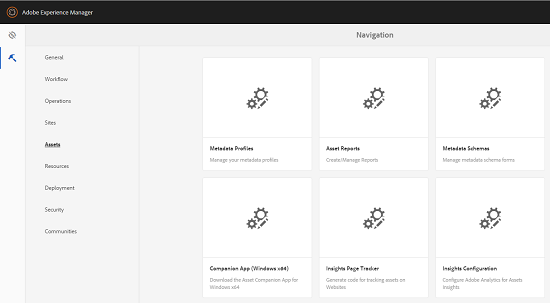
In Experience Manager, click Tools > Assets.
-
From the Navigation page, click the Insights Page Tracker card.
-
Click Download to download the Page Tracker code, then add it to your website code to begin capturing asset impressions and clicks.
Troubleshooting troubleshooting-assets-insights
The Asset Insights Cloud Solution is not available
If Asset Insights does not appear as an option when you create an Adobe Identity Management System (IMS) Configuration, your Adobe Experience Manager (AEM) as a Cloud Service environment does not yet include the update that introduces the new integration.
Cause
The Asset Insights cloud solution becomes selectable only after the required AEM update is applied to your environment. Because the new integration is delivered through this update, the option remains hidden until the environment receives it. This occurs when the environment is running a version that predates the integration.
Resolution
Follow these steps in order:
- Confirm the required AEM update is available in your environment. Verify that your AEM as a Cloud Service environment has received the update that introduces the Asset Insights integration.
- Do not create another legacy configuration. Creating a legacy configuration does not resolve the missing option and may add unnecessary configurations to your environment.
- Retry the configuration after the update is applied. Once the required update is available, the Asset Insights option appears when you create the Adobe IMS Configuration.
- Contact Adobe Support if the option remains unavailable. If Asset Insights is still missing after the required update is available in your environment, contact Adobe Support for further assistance.
Troubleshooting a Check Health failure in Adobe Developer Console troubleshooting-check-health-failure
Why the Check Health test fails
A Check Health failure occurs when the connection cannot authenticate against Adobe Analytics. In most cases, the failure is caused by a mismatch between the credentials configured in the integration and the OAuth Server-to-Server credential defined in the Adobe Developer Console, or by a missing Adobe Analytics entitlement. Because the health check validates authentication end to end, any single misconfiguration below will cause it to fail.
Verification checklist
Work through the following checks in order. Each item confirms one requirement that the connection depends on:
-
Confirm the Client ID and Client Secret match the OAuth Server-to-Server credential defined in the Adobe Developer Console. OAuth Server-to-Server is a machine-to-machine authentication method, so the Client ID and Client Secret must match the console values exactly; even a copied trailing space or truncated value causes authentication to fail.
-
Verify the credential uses OAuth Server-to-Server authentication. This is the required authentication type for programmatic access. A credential configured with any other authentication method will not authenticate correctly against the Adobe Analytics Application Programming Interface (API).
-
Confirm the scopes were copied exactly from the credential details. Scopes define the permissions the credential is granted. Copying them exactly from the credential details ensures the connection requests the correct access; a partial or altered scope value will be rejected.
-
Verify the Adobe Analytics API was added to the Developer Console project. The API grants the project access to Adobe Analytics services. If the Adobe Analytics API is not attached to the project, the credential has no service to authenticate against and the health check fails.
-
Confirm the IMS Organization (Identity Management System Org) has an active Adobe Analytics entitlement. An entitlement is the active license or provisioned access that permits an organization to use a product. Without an active Adobe Analytics entitlement on the IMS Organization, authentication may succeed while access to Adobe Analytics data is still denied.
The report suite list is empty
An empty report suite list typically indicates a configuration or authorization issue in the integration rather than a missing report suite. When any of the required identity, credential, or entitlement conditions are not satisfied, the connection cannot enumerate the available report suites, and the list appears empty. Verify each of the following conditions:
-
The Analytics Company value is the Global Company ID, not the company display name. The Global Company ID is the unique, machine-readable identifier used to route API requests to the correct Analytics company; the human-readable display name is not a valid substitute. Supplying the display name in this field prevents the integration from resolving the company, so no report suites are returned.
-
The OAuth (Open Authorization) credential has access to the target report suite. OAuth credentials govern which report suites the integration is authorized to query. If the credential lacks entitlement to the target report suite, that report suite is excluded from the list even when it exists.
-
The IMS Org (Identity Management System Organization) in Adobe Developer Console is associated with the Analytics company. The IMS Org links the developer project and its credentials to the correct organizational tenant. If the IMS Org is not associated with the Analytics company, the credential authenticates against the wrong organization, and no matching report suites are found.
-
AEM (Adobe Experience Manager) Assets Reporting is enabled for the report suite. A report suite must have Assets Reporting explicitly enabled to be eligible for the integration. If this setting is disabled, the report suite is filtered out of the list even when all authentication and organizational associations are correct.
Confirming all four conditions — the correct Global Company ID, an OAuth credential with report suite access, an IMS Org associated with the Analytics company, and AEM Assets Reporting enabled — restores population of the report suite list.
Troubleshooting: Adobe Experience Manager (AEM) is not showing current analytics data troubleshooting-aem-not-showing-current-data
When Adobe Experience Manager (AEM) is not displaying current asset performance data, the most common cause is the timing of the scheduled synchronization between AEM and Adobe Analytics, followed by misconfigured tracking or an incorrect report suite. Work through the following verification steps in order after completing the configuration.
Common causes of missing or delayed AEM asset data include:
- The scheduled synchronization job has not yet run.
- Asset impressions or clicks are not reaching Adobe Analytics.
- The asset identifier is absent from the tracking calls.
- The activity is being recorded in a different report suite than the one being reviewed.
Verification Steps
-
Allow up to 24 hours for the scheduled synchronization. AEM relies on a scheduled synchronization job to pull asset activity from Adobe Analytics, so data does not appear instantly. Because this process runs on a fixed interval, wait up to 24 hours after configuration before concluding that a problem exists — recently generated impressions and clicks may simply not have synchronized yet.
-
Confirm that new asset impressions or clicks are visible in Adobe Analytics. Verify directly within Adobe Analytics that the asset is generating impression and click events. If these events are missing at the source, AEM has no activity to synchronize, which explains why current data does not appear in AEM.
-
Confirm that the existing tracking implementation is sending the asset identifier. Inspect the tracking calls to ensure the asset identifier is populated and transmitted with each impression or click. Adobe Analytics uses this identifier to attribute activity to the correct asset, so if the tracking implementation omits it, the data cannot be matched back to the asset in AEM.
-
Confirm that the selected report suite is the one receiving the asset activity. Check that the report suite chosen in the AEM configuration matches the report suite that is actually collecting the asset impressions and clicks. When activity is recorded in a different report suite than the one AEM is querying, AEM returns no current data even though tracking is functioning correctly.
Completing these four checks isolates whether the issue is a normal synchronization delay, a tracking gap, or a report suite mismatch — the three factors that most often prevent current asset data from appearing in AEM.
Frequently asked questions frequently-asked-questions-assets-insights
Will asset impressions and clicks stop being collected?
No. Asset impressions and clicks continue to be collected. The retirement affects only the legacy Adobe Experience Manager (AEM)-to-Adobe Analytics retrieval path. This retrieval path is the reporting pipeline used to pull asset activity data through the older integration, and it is distinct from the code that actually captures events on your site.
Existing website instrumentation continues to send asset activity to Adobe Analytics. Because event capture occurs at the instrumentation layer rather than through the retired retrieval path, ongoing data collection is unaffected. In practical terms, the change alters how legacy data was retrieved, not whether asset impressions and clicks are recorded. Your existing tracking remains in place and continues to report asset activity to Adobe Analytics as before.
Will data be lost?
No — no data is lost. Existing data is never deleted during this process, and information collected while the connection is temporarily interrupted is preserved rather than discarded.
Data continuity is maintained across the entire transition:
- Existing data stays intact. Records already stored are not removed or overwritten when the configuration is updated.
- Gap-period data is retained in Adobe Analytics. Any data captured during the temporary gap remains fully available within Adobe Analytics, because Adobe Analytics continues to store collected data independently of the configuration status in the connected system.
- AEM recovers the data automatically once synchronization resumes. After the new configuration is completed, Adobe Experience Manager (AEM) retrieves the retained data, and normal synchronization resumes.
The reason no data is lost is that collection and synchronization are separate functions. Adobe Analytics keeps recording and holding data throughout the interruption, so when the new configuration is applied and synchronization restarts, AEM can pull the gap-period data back in. As a result, the temporary interruption affects only the timing of when the data appears in AEM — not whether the data exists.
Does Assets Insights automatically switch to the new configuration?
No, Assets Insights does not automatically switch to the new configuration. The transition is not automatic and requires manual action by an administrator after the required Adobe Experience Manager (AEM) update becomes available.
Because the new setup depends on a separate identity configuration that must be explicitly created and linked, Assets Insights continues to use its existing configuration until you complete the migration steps yourself. As a result, the following manual actions are required:
- Install the required Adobe Experience Manager (AEM) update — the switch cannot proceed until this update is available in your environment.
- Manually create the Adobe Identity Management System (IMS) Configuration — this establishes the new authentication configuration that Assets Insights will reference.
- Update the Assets Insights configuration to use the new Adobe IMS Configuration — this final step points Assets Insights to the newly created configuration and completes the transition.
This manual, step-by-step process ensures that administrators retain control over when and how the configuration is applied, preventing any unintended disruption to existing Assets Insights functionality during the update.
Are Assets View Insights affected?
No. This integration change applies only to Assets Insights in the Adobe Experience Manager (AEM) Admin View. Assets View Insights is not affected by this integration change.
The scope is limited to the Admin View because Assets Insights in the Admin View and Assets View Insights operate as separate, distinct interfaces within Adobe Experience Manager (AEM). As a result, any updates, adjustments, or behavioral changes tied to this integration are contained entirely within the AEM Admin View and do not extend to the Assets View experience.
Key points:
- Affected: Assets Insights in the AEM Admin View.
- Not affected: Assets View Insights, which continues to function without change.
- Reason: The integration change is confined to the Admin View interface and does not alter the separate Assets View Insights experience.
Are Adobe Analytics reports affected?
No, Adobe Analytics reports are not affected. Adobe Analytics continues to receive, process, and store the collected data without interruption.
The change affects only the retrieval and display of refreshed insights data within the Adobe Experience Manager (AEM) Admin View. Because data collection and storage in Adobe Analytics occur independently of how insights are surfaced in AEM, the underlying analytics data set remains complete and intact. In practical terms, refreshed insights data refers to the up-to-date metrics displayed alongside assets in the AEM Admin View; the change alters how this data is refreshed and shown there, not whether Adobe Analytics captures or retains it.
See also
- Translate Assets
- Assets HTTP API
- Assets supported file formats
- Search assets
- Connected assets
- Asset reports
- Metadata schemas
- Download assets
- Manage metadata
- Manage Dynamic Media templates
- Manage reports in Assets view
- Search facets
- Manage collections
- Bulk metadata import
- Publish Assets to AEM and Dynamic Media