[AEM Assets]{class="badge positive" title="Applies to AEM Assets)."}
Enable Dynamic Media Prime and Ultimate enable-dynamic-media-prime-and-ultimate
Adobe Experience Manager as a Cloud Service enables you to access Dynamic Media Prime and Ultimate offerings to streamline your digital workflows and optimize content management. To understand their benefits and the key differences between them, see Dynamic Media Prime and Ultimate.
This article provides the end-to-end workflow to enable the Dynamic Media Prime and Ultimate offerings.
Enable Dynamic Media Ultimate enable-dynamic-media-ultimate
To enable Dynamic Media Ultimate:
If you need to enable Dynamic Media Prime, see quick links provided in Enable Dynamic Media Prime.
Activate Dynamic Media with OpenAPI activate-dynamic-media-with-openapi
Dynamic Media with OpenAPI capabilities puts DAM at the core of an agile and efficient content supply chain ecosystem to ensure asset governance and delivery.
The first step in the process of enabling Dynamic Media Ultimate is to activate Dynamic Media with OpenAPI for your Cloud Service environment.
Get started prerequisites
Ensure that you fulfill the following requirements before starting the activation process.
- Access to Cloud Manager.
- Your program includes Dynamic Media solutions.
- You have a Dynamic Media Prime or Ultimate license.
Enable Dynamic Media with OpenAPI capabilities in your Cloud Service environment enable-dynamic-media-with-openapi-capabilites-in-your-CS-environment
-
Create an environment, if you do not have access to an existing one.
-
Select Click to activate in the Dynamic Media row of the Environment Information section on the Environment details page.

-
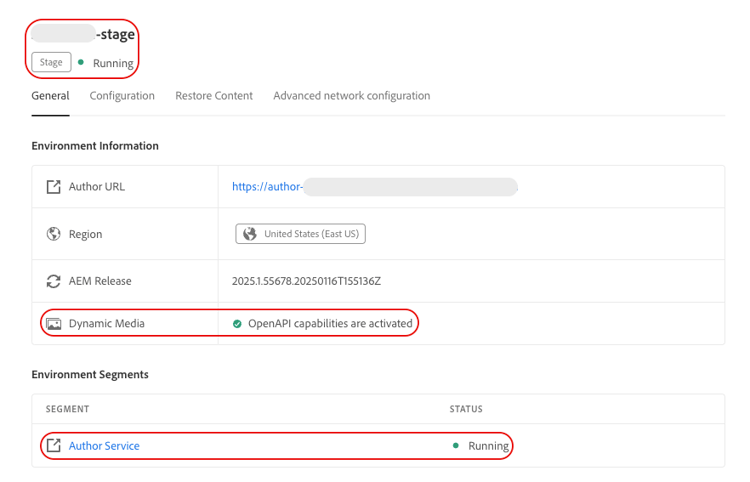
Click Activate on the confirmation dialog to start the Dynamic Media with OpenAPI Activation process. After successful activation, the Cloud Manager displays the following status updates:
-
Environment stage: Running
-

-
Retry activation retry-activation
If activation fails, the Cloud Manager displays the following status updates:
-
Environment stage: DM with OpenAPI Failed
-
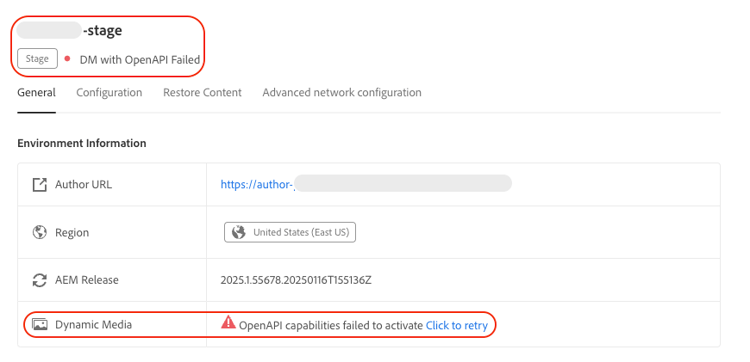
Select Click to retry to restart activation.
Alternatively, execute these steps to restart the activation process:
-
Navigate to the page which lists all environments.
-
Click more options (

-
Select Retry DM with OpenAPI Activation to restart activation.

Configure Dynamic Media solutions configure-dynamic-media-solutions
Configure Dynamic Media solutions to use the basic and advanced capabilities of Dynamic Media with OpenAPI on existing or new environments available in Cloud Manager.
Prerequisites for getting started prerequisites-to-configure-dynamic-media-solutions
Ensure you have the following to configure Dynamic Media solutions:
- Access to Cloud Manager.
- You have a Dynamic Media Ultimate license.
Configure Dynamic Media solutions for asset delivery configure-dynamic-media-solutions-for-asset-delivery
Execute the following steps:
-
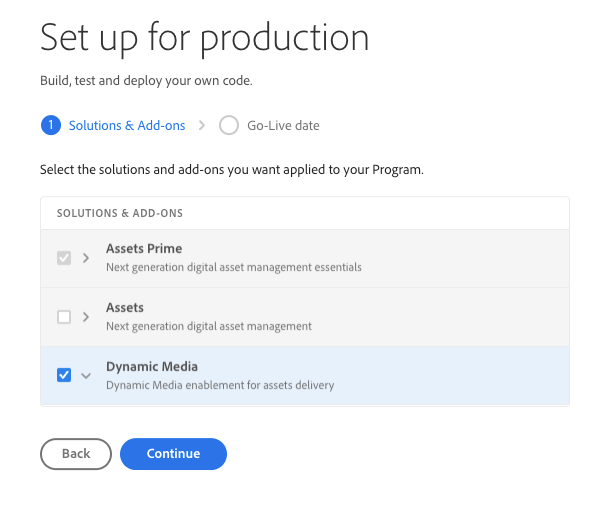
Create a new program or navigate to an existing program and click Edit. The Set up for production page displays the Solutions & Add-ons tab.
-
Select Assets, Assets Prime, Assets Ultimate or Sites to add the Dynamic Media solution to your program.
-
Select Dynamic Media solution and click Continue to add Dynamic Media solution to your program. This action restarts all existing environments in your program and adds the Dynamic Media solution to them. Also, any new environment that you create under your program automatically gets Dynamic Media.
To start using the capabilities of Dynamic Media with OpenAPI capabilities in your environment, see Activate Dynamic Media with OpenAPI.
Access Dynamic Media APIs access-dynamic-media-apis
After enabling Dynamic Media with OpenAPI, a delivery instance gets created. Click the delivery instance to view the AEM Assets DM OpenAPI Users - delivery - Program xxxx - Environment yyyy product profile. The product profile already has AEM Dynamic Media enabled API Services enabled by default.
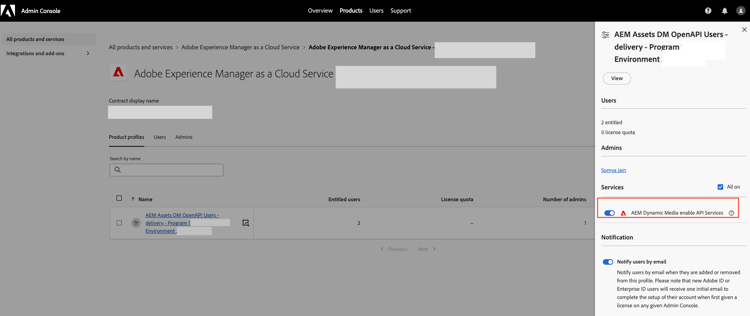
Create a new Project in Adobe Developer Console and use the AEM Dynamic Media API card to get access to Dynamic Media with OpenAPI capabilities.
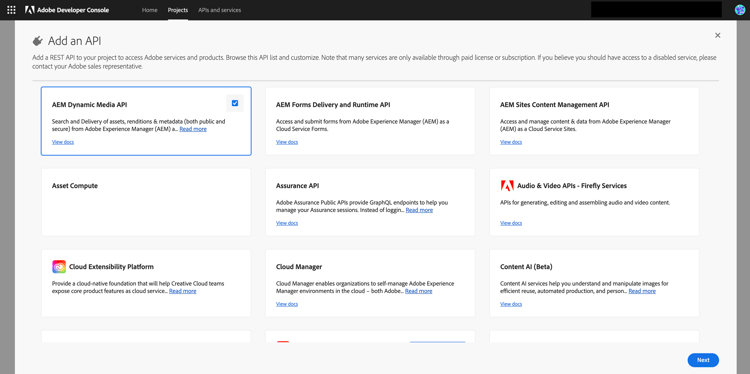
You can either use Server-to-Server authentication or User Authentication using Web App credentials or SPA credentials.
Before accessing the API, you must be added to the AEM Assets DM OpenAPI Users - delivery - Program xxxx - Environment yyyy product profile.
Once the access token is fetched using any of the authentication methods, you can define client ID as the API key in the cURL request and start using Dynamic Media with OpenAPIs.
Create and list Dynamic Media companies create-and-list-dynamic-media-companies
Create and list Dynamic Media companies in your AEM Cloud Service environment to manage configurations within your AEM environment.
Prerequisites for getting started prerequisites-to-create-and-list-dynamic-media-companies
To see the existing companies (accounts) or add a new Dynamic Media company (account) in your IMS org, you must have:
- Access to Cloud Manager.
- You have Dynamic Media Ultimate license.
Create and list Dynamic Media companies in your IMS organization create-and-list-dynamic-media-companies-in-your-ims-organisation
-
Navigate to the Cloud Manager license page.
-
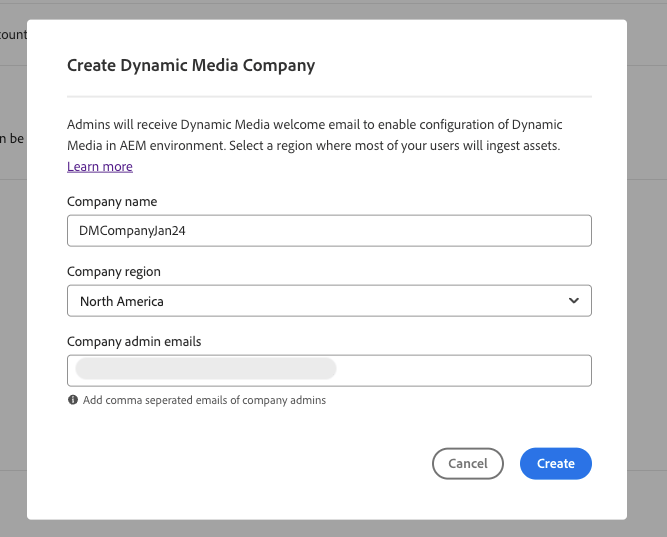
Click Add Company, the Create Dynamic Media Company dialog box displays.
-
Specify a unique Dynamic Media company name, select a company region and add a list of company admin email IDs separated by commas.
-
Click Create to start creating your company. This action adds a new row to Dynamic Media companies section and displays Setting up as the company’s STATUS.

-
Optional: Click


-
As a Dynamic Media administrator, check your mailbox for a welcome email that includes a list of steps to configure Dynamic Media company in your AEM Cloud Service environment to get started.

Retry company creation retry-company-creation
If Dynamic Media company creation fails, execute the following steps based on the failure status:
-
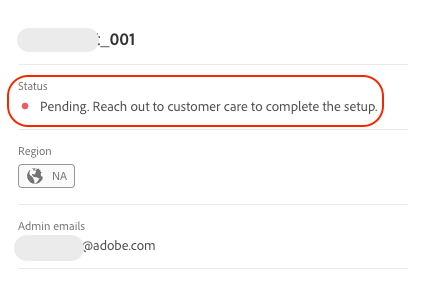
If Status is Pending, then raise the issue to the customer support team for resolution.
-
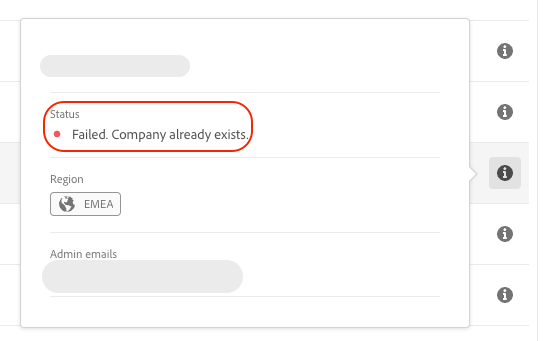
If Status is failed, then retry based on the reason for failure.
Optional: Configure custom domain in delivery tier configure-custom-domain-in-delivery-tier
While AEM as a Cloud Service comes with a default domain, you can customize it as per your needs. Attach a custom domain to the delivery tier using Cloud Manager.
Prerequisites for getting started prerequisites-to-configure-custom-domain-in-delivery-tier
Ensure that you fulfill the following requirements before starting the configuration process:
- Access to Cloud Manager.
- Already activated Dynamic Media with OpenAPI in your environment.
- Enabled Dynamic Media with OpenAPI in ready state.
- EV or OV type certificate for the domain to be used for delivery tier. See Introduction to SSL certificates for more details.
Configure custom domain in delivery tier using Cloud Manager configure-custom-domain-in-delivery-tier-using-cloud-manager
-
Navigate to the environment details page and add a CDN configuration. While adding the configuration, select Delivery in the Tier field of the Configure CDN dialog box.

After adding the configurations, the STATUS of CDN Configurations updates to Applied.

-
Click more options (

-
Run the Configure CNAME steps to map
cdn.adobeaemcloud.com(CNAME record) in the DNS record of the DNS service provider. This mapping ensures that requests received at the custom domain are redirected to Adobe’s CDN.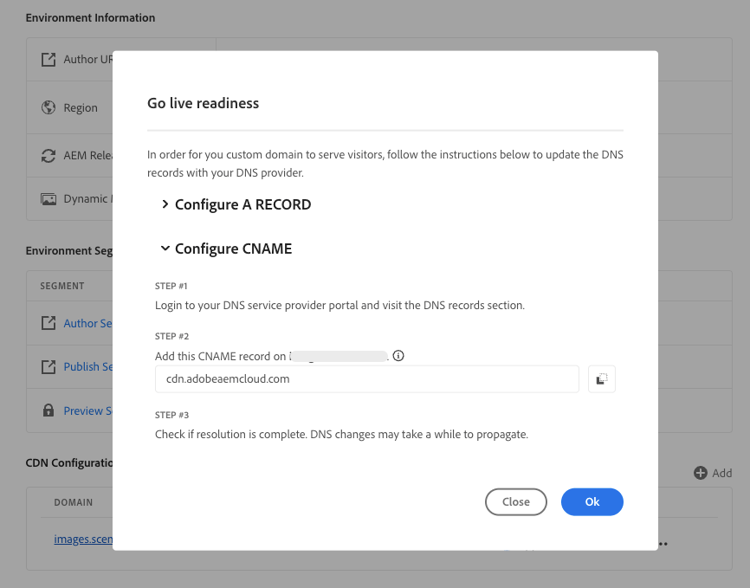
-
Click OK, the STATUS updates to Verified. The custom domain is ready to use in the delivery URL.

Enable Dynamic Media Prime enable-dynamic-media-prime
To enable Dynamic Media Prime:
Frequently Asked Questions frequently-asked-questions-dynamic-media-prime-ultimate
What are the prerequisites for activating Dynamic Media with OpenAPI? dynamic-media-openapi-prerequisites
Activating Dynamic Media with OpenAPI requires three prerequisites: access to Cloud Manager, a program that includes Dynamic Media solutions, and a valid Dynamic Media Prime or Ultimate license. If no existing environment is available in Cloud Manager, a new environment must be created before activation can begin. The Dynamic Media solution must be added to the program before the activation step is executed on the environment details page.
How do I activate Dynamic Media with OpenAPI in my Cloud Service environment? activate-dynamic-media-openapi
To activate Dynamic Media with OpenAPI, navigate to the Cloud Manager UI and open the environment details page. In the Environment Information section, locate the Dynamic Media row and click Click to activate. Click Activate on the confirmation dialog to start the activation process. After successful activation, Cloud Manager displays the environment stage as Running and the Dynamic Media status as OpenAPI capabilities are activated.
What to do if Dynamic Media with OpenAPI Activation fails? dynamic-media-openapi-activation-failure
If Dynamic Media with OpenAPI Activation fails, Cloud Manager displays the environment stage as DM with OpenAPI Failed and the Dynamic Media status as OpenAPI capabilities failed to activate. To retry, click Click to retry on the environment details page. Alternatively, navigate to the page listing all environments, click the more options icon at the end of the environment row, and select Retry DM with OpenAPI Activation to restart the process.
What are the prerequisites for configuring Dynamic Media solutions? configure-dynamic-media-solutions-prerequisites
Configuring Dynamic Media solutions requires access to Cloud Manager and a valid Dynamic Media Ultimate license. Dynamic Media Prime does not require this step — it is applicable only for Dynamic Media Ultimate customers who need to add the Dynamic Media solution to an existing or new program in Cloud Manager.
How do I add the Dynamic Media solution to an AEM Cloud Service program? add-dynamic-media-solution-program
To add the Dynamic Media solution to a program, create a new program or navigate to an existing program in Cloud Manager and click Edit. On the Set up for production page, select the Solutions & Add-ons tab, then select Assets, Assets Prime, Assets Ultimate, or Sites to make the Dynamic Media solution available. Select Dynamic Media and click Continue to add it to the program. This action restarts all existing environments in the program and adds the Dynamic Media solution. All new environments created under the program automatically receive Dynamic Media.
How do I access Dynamic Media APIs after enabling Dynamic Media with OpenAPI? dynamic-media-apis-faqs
After enabling Dynamic Media with OpenAPI, a delivery instance is created in Adobe Admin Console. Click the delivery instance to view the AEM Assets DM OpenAPI Users product profile. This profile has AEM Dynamic Media enabled API Services enabled by default. To access the APIs, create a new project in Adobe Developer Console and use the AEM Dynamic Media API card. Authentication options include Server-to-Server authentication, Web App credentials, or SPA credentials. Before accessing the API, the user must be added to the AEM Assets DM OpenAPI Users delivery product profile for the relevant program and environment.
What are the prerequisites for creating a Dynamic Media company? create-dynamic-media-company-prerequisites
Creating a Dynamic Media company requires access to Cloud Manager and a valid Dynamic Media Ultimate license. The company is created from the Cloud Manager license page and represents an account that can be configured within the AEM Cloud Service environment. Dynamic Media company creation is a Dynamic Media Ultimate-specific step and is not required for Dynamic Media Prime.
How do I create a new Dynamic Media company in my IMS organization? create-dynamic-media-company
To create a new Dynamic Media company, navigate to the Cloud Manager license page and click Add Company. In the Create Dynamic Media Company dialog box, specify a unique company name, select a company region, and add company admin email IDs separated by commas. Click Create to initiate company creation — a new row is added to the Dynamic Media companies section with a status of Setting up. When creation is complete, the status updates to Ready. The Dynamic Media administrator receives a welcome email with steps to configure the Dynamic Media company in the AEM Cloud Service environment.
What to do if Dynamic Media company creation fails? dynamic-media-company-creation-failure
If Dynamic Media company creation fails, the action to take depends on the status displayed. If the status is Pending, raise the issue with the Adobe customer support team for resolution. If the status is Failed, retry the creation based on the reason for failure shown. Company creation failure is separate from activation failure — both have their own retry mechanisms in Cloud Manager.
What are the prerequisites for configuring a custom domain in the Dynamic Media delivery tier? custom-domain-delivery-tier-prerequisites
Configuring a custom domain in the Dynamic Media delivery tier requires four prerequisites: access to Cloud Manager, activated Dynamic Media with OpenAPI, and an EV or OV type SSL certificate for the delivery tier. The custom domain configuration is optional for both Dynamic Media Prime and Dynamic Media Ultimate.
How do I configure a custom domain for Dynamic Media delivery using Cloud Manager? configure-custom-domain-delivery-tier
To configure a custom domain for Dynamic Media delivery, complete three steps in Cloud Manager: add a customer-managed SSL certificate, a custom domain name, and a CDN configuration from the environment details page, selecting Delivery. After adding the CDN configuration, the status updates to Applied. Click more options and select Go live readiness, then follow the Configure CNAME steps to map cdn.adobeaemcloud.com as a CNAME record in the DNS service provider. Once the DNS mapping is confirmed, click OK and the domain status updates to Verified, making the custom domain ready for use in delivery URLs.