[AEM Assets]{class="badge positive" title="Applies to AEM Assets)."}
Use Connected Assets to share DAM assets in Experience Manager Sites use-connected-assets-to-share-dam-assets-in-aem-sites
Connected Assets integrates Experience Manager Sites and Experience Manager Assets so authors can build web pages using Digital Asset Management (DAM) assets that live in a separate Assets deployment. In large enterprises, the infrastructure used to build websites is often distributed across multiple deployments, with website creation capabilities and digital assets residing in different environments.
Why enterprises run distributed deployments
Website authoring capabilities and the digital assets that power those websites frequently sit in separate deployments. Two common causes drive this separation:
- Geographically distributed deployments that must work together across regions. Because teams and content are spread across locations, existing deployments are required to interoperate rather than being consolidated.
- Acquisitions that produce heterogeneous infrastructure. Mergers and acquisitions commonly leave a parent company operating a mix of environments — including different Experience Manager versions — that the parent company wants to use together instead of migrating everything to a single platform.
What Connected Assets does
Connected Assets supports these use cases by integrating Experience Manager Sites with Experience Manager Assets. Authors create web pages in Sites using digital assets sourced from a separate Assets deployment. As a result, teams reuse a centralized DAM library across deployments without duplicating assets, which helps maintain consistency and avoids redundant asset management.
When to configure Connected Assets
Overview of Connected Assets overview-of-connected-assets
Connected Assets enables Sites authors to seamlessly search, browse, and embed assets from a separate Assets deployment directly within the Page Editor, without leaving their authoring environment. The Page Editor acts as the target destination, while a different deployment of Experience Manager with Assets capability acts as the source of assets. This connection lets teams reuse a centralized, governed asset library across authoring workflows.
How Connected Assets Works how-connected-assets-works
Administrators establish the connection once, and authors then benefit from it continuously. The setup involves:
- A one-time integration created by administrators between a deployment of Experience Manager with Sites capability and another deployment of Experience Manager with Assets capability.
- Seamless search and access to remote assets directly on the Site Editor.
- Read-only local asset behavior: Connected Assets presents the remote assets to Sites authors as read-only local assets, so the source library remains the single, governed system of record.
Dynamic Media Support dynamic-media-support
Connected Assets also supports Dynamic Media images in Sites web pages, giving authors access to Dynamic Media functionalities without duplicating assets. Supported capabilities include:
- Smart crop — automatically frames the most relevant portion of an image across different aspect ratios, which reduces manual cropping effort and delivers consistent, responsive imagery.
- Image presets — applies predefined rendering settings so images are delivered in the correct size, format, and quality for each placement.
These functionalities allow authors to publish optimized, device-appropriate imagery directly from the connected source, improving both authoring efficiency and page performance.
When to Use Bulk Migration Instead when-to-use-bulk-migration-instead
Connected Assets is designed for on-demand search and access to remote assets from within the Site Editor. For any other use case that requires the complete asset-corpus to be available natively on Sites, migrate the assets in bulk instead of relying on Connected Assets. Bulk migration is the better fit because it makes the entire asset library fully resident and locally manageable within the Sites deployment, rather than accessible only as read-only remote references.
Prerequisites and supported deployments prerequisites
Connected Assets is supported across Adobe Experience Manager as a Cloud Service and Experience Manager 6.5 deployments, provided the compatibility requirements below are met. Before administrators use or configure this Connected Assets capability, ensure the following prerequisites are satisfied:
-
User group membership: The users are part of the appropriate user groups on each deployment. This ensures that only authorized users can access and configure the connected asset instances.
-
Supported deployment combinations: For Adobe Experience Manager deployment types, one of the supported deployment-compatibility combinations shown in the matrix below is met. Experience Manager as a Cloud Service Assets works with Experience Manager 6.5. For more information about how this functionality works in Experience Manager 6.5, see Connected Assets in Experience Manager 6.5 Assets.
table 0-row-4 1-row-4 2-row-4 3-row-4 Sites as a Cloud Service Experience Manager 6.5 Sites on Adobe Managed Services (AMS) Experience Manager 6.5 Sites on-premise Experience Manager Assets as a Cloud Service Supported Supported Supported Experience Manager 6.5 Assets on Adobe Managed Services (AMS) Supported Supported Supported Experience Manager 6.5 Assets on-premise Not Supported Not Supported Not Supported
The matrix identifies which combinations of an Assets deployment (rows) and a Sites deployment (columns) can be connected. A cell marked Supported indicates that the corresponding Assets-to-Sites pairing works with Connected Assets, while Not Supported indicates the pairing cannot be used. As shown, Experience Manager 6.5 Assets on-premise is not supported with any of the listed Sites deployments, whereas both the Cloud Service and Adobe Managed Services (AMS) Assets deployments are supported across all three Sites deployment types.
Supported file formats mimetypes
Authors locate images and supported document types directly in Content Finder and drag the searched assets onto the page in Page Editor, streamlining the process of placing approved media into web content. Each asset is mapped to the component that matches its type: documents are added to the Download component, and images are added to the Image component. This mapping ensures that each asset renders and behaves correctly according to its media type, so downloadable files present as download links while images display inline.
Authors may also add remote assets to any custom Adobe Experience Manager (AEM) component that extends the default Download or Image components. This extensibility means teams are not limited to out-of-the-box components; custom components inheriting from these base components automatically support the same searched-and-dragged asset workflow, enabling tailored authoring experiences without sacrificing format compatibility.
The supported formats are:
- Image formats: The formats supported by the Image component. These cover the standard image types available for inline placement within page content.
- Document formats: See the supported document formats. These define the document types that can be attached and delivered through the
Downloadcomponent.
Users and groups involved users-and-groups-involved
Configuring the Connected Assets integration in Adobe Experience Manager requires specific roles, each mapped to a capability and a corresponding user group. The roles, their scopes, user groups, and responsibilities are defined below.
Scope definitions
The integration operates across two distinct scopes that separate the authoring environment from the asset-hosting environment:
- Local scope applies to the deployment where a Sites author creates a web page.
- Remote scope applies to the Digital Asset Management (DAM) deployment that hosts the required assets.
The Sites author fetches these remote assets into the local environment, because this scope separation lets an authoring team reuse a centrally managed asset library without duplicating storage. This design keeps assets governed in one remote DAM while still enabling authors to consume them in local Sites pages.
administratorsAuthors/content/DAM/connectedassets/.Authors(with read access on the remote DAM and author access on local Sites)dam-userson local Sites
administratorsAuthors- Sites
Authors connectedassets-assets-techaccts
connectedassets-sites-techacctsConnected Assets architecture connected-assets-architecture
Adobe Experience Manager supports a one-to-many relationship between a remote Digital Asset Management (DAM) deployment and Sites deployments: a single remote DAM can serve as the asset source for multiple Experience Manager Sites deployments. In the reverse direction, however, the relationship is strictly one-to-one — each Sites deployment can connect to only one remote DAM deployment.
Connection rules
- A single remote DAM deployment can be connected as a source to multiple Experience Manager Sites deployments.
- Each Experience Manager Sites deployment can be connected to only one remote DAM deployment.
This topology centralizes asset management in one remote DAM while allowing several distributed Sites instances to consume those assets, which is the basis of the Connected Assets architecture.

Scaling guidance
Evaluate the optimal number of Sites instances to connect to a single remote DAM deployment before scaling out. Adobe recommends connecting Sites instances incrementally and validating after each new connection that the remote DAM experiences no performance impact. This step-by-step approach is important because each connected Sites instance adds to the data traffic handled by the remote DAM, and cumulative traffic can degrade the remote DAM’s performance as more instances are attached. Incremental connection lets you isolate and identify the point at which additional load begins to affect responsiveness, so you can right-size the deployment before it reaches production scale.
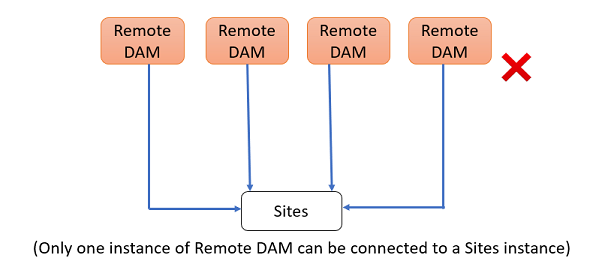
Supported and unsupported topologies
- Supported: One remote DAM deployment connected as the source to multiple Sites deployments (the one-to-many pattern). The following diagrams illustrate these supported scenarios.
- Unsupported: A single Sites deployment connected to more than one remote DAM deployment. Because a Sites deployment can source assets from only one remote DAM, this multi-DAM-to-one-Sites configuration is not supported. The following diagram illustrates this unsupported scenario.
Configure a connection between Sites and Assets deployments configure-a-connection-between-sites-and-assets-deployments
An Experience Manager administrator can create this integration. Once created, the permissions that are required to use it are established via user groups. The user groups are defined on the Sites deployment and on the Digital Asset Management (DAM) deployment.
To configure Connected Assets and local Sites connectivity, follow these steps:
-
Access an existing Sites deployment. This Sites deployment is used for web page authoring, say at
https://<sites_server_fqdn>:[port]. As the page authoring happens on Sites deployment, let’s call the Sites deployment as local from the page authoring perspective. -
Access an existing Assets deployment. This Assets deployment is used to manage digital assets, say at
https://[assets_servername]:port. -
Ensure that the users and roles with the appropriate scope exist on the Sites deployment and on the Assets deployment on Adobe Managed Services (AMS). Create a technical user on Assets deployment and add to the user group mentioned in users and groups involved.
-
Access the local Sites deployment at
https://[sites_servername]:port. Click Tools > Assets > Connected Assets Configuration and provide the following values:- A Title of the configuration.
- Remote DAM URL is the URL of the Assets location in the format
https://[assets_servername]:[port]. - Credentials of a DAM distributor (technical user).
- In the Mount Point field, enter the local Experience Manager path where Experience Manager fetches the assets. For example,
connectedassetsfolder. The assets fetched from DAM are stored in this folder on the Sites deployment, keeping remote assets organized in a single, predictable location. - Local Sites URL is the location of the Sites deployment. Assets deployment uses this value to maintain references to the digital assets fetched by this Sites deployment.
- Credentials of Sites technical user.
- The value of Original Binary transfer optimization Threshold field specifies whether the original assets (including their renditions) are transferred synchronously. This setting controls transfer behavior based on file size. Assets with smaller file size can be fetched readily while assets with relatively larger file size are best synchronized asynchronously. The value depends on your network capabilities.
- Select Datastore Shared with Connected Assets, if you use a datastore to store your assets and the Datastore is shared between both deployments. In this case, the threshold limit does not matter as actual asset binaries are available on the datastore and are not transferred.
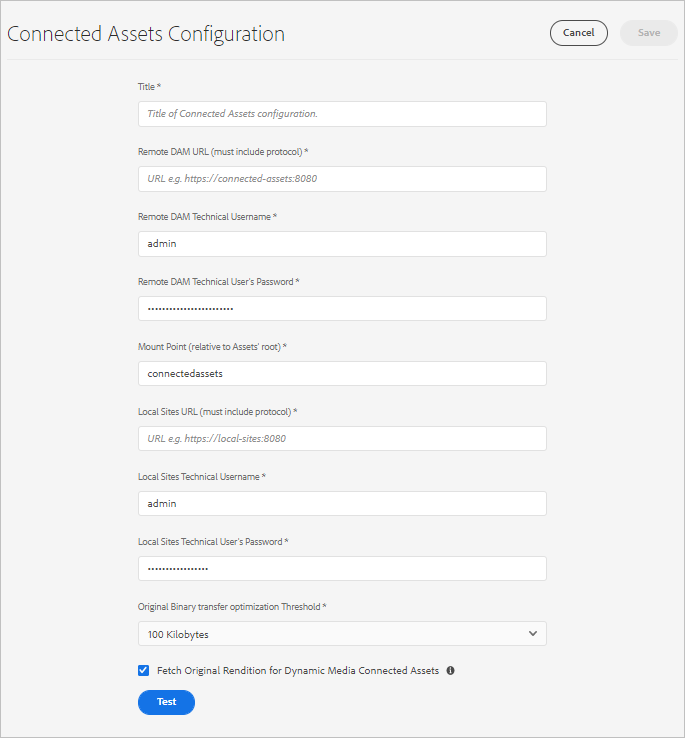
Figure: A typical configuration for Connected Assets functionality.
-
The existing digital assets on Assets deployment are already processed and the renditions are generated. Because these renditions are fetched directly through Connected Assets, there is no need to regenerate them. As a result, you must disable the workflow launchers to prevent unnecessary regeneration of renditions. Adjust the launcher configurations on the (Sites) deployment to exclude the
connectedassetsfolder (the assets are fetched in this folder).-
On Sites deployment, click Tools > Workflow > Launchers.
-
Search for Launchers with workflows as DAM Update Asset and DAM Metadata Writeback.
-
Select the workflow launcher and click Properties on the action bar.
-
In the Properties wizard, change the Path fields as the following mappings to update their regular expressions to exclude the mount point connectedassets.
table 0-row-2 1-row-2 2-row-2 3-row-2 Before After /content/dam(/((?!/subassets).)*/)renditions/original/content/dam(/((?!/subassets)(?!connectedassets).)*/)renditions/original/content/dam(/.*/)renditions/original/content/dam(/((?!connectedassets).)*/)renditions/original/content/dam(/.*)/jcr:content/metadata/content/dam(/((?!connectedassets).)*/)jcr:content/metadatanote NOTE All renditions that are available on the remote deployment are fetched, when authors fetch an asset. If you want to create more renditions of a fetched asset, skip this configuration step. The DAM Update Asset workflow gets triggered and creates more renditions. These renditions are available only on the local Sites deployment and not on the remote DAM deployment. -
Configure connectivity between Sites and Assets deployments
Establish a trusted connection between your Adobe Experience Manager Sites and Assets deployments by completing the following two configuration steps:
-
Add the Sites deployment as an allowed origin in the Cross-Origin Resource Sharing (CORS) configuration on the Assets deployment. This permits the browser to load Assets content from the Sites domain. By default, web browsers block cross-origin requests as a security measure, so the Sites origin must be explicitly listed before the Assets deployment will accept requests from it. For more information, see understand CORS.
-
Configure same site cookie support. Same-site cookie support governs whether authentication and session cookies are transmitted with cross-site requests. Configuring this support ensures that the credentials required to authenticate between the Sites and Assets deployments are sent correctly, which is necessary because the two deployments operate on different origins.
After completing both configuration steps, verify connectivity between the configured Sites deployments and the Assets deployment using the built-in connection test. The connection test confirms that the CORS and same-site cookie settings are correctly applied and that the Sites deployment can successfully reach the Connected Assets configured on the Assets deployment. A successful result indicates the two deployments are ready to exchange asset content.
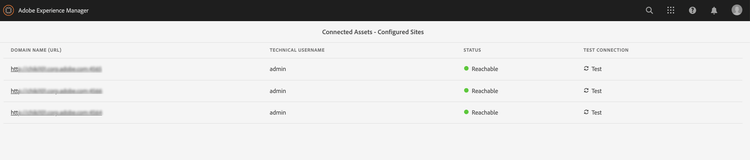
Figure: Connection test of Connected Assets configured Sites.
Use Dynamic Media assets dynamic-media-assets
With Connected Assets, you can use image assets processed by Dynamic Media from a remote Digital Asset Management (DAM) deployment on Sites pages, and apply Dynamic Media functionalities, including smart crop and image presets. This lets Sites authors reuse centrally managed, Dynamic Media-optimized assets without duplicating or re-processing them locally.
To use Dynamic Media with Connected Assets, complete the following configuration steps:
- Configure Dynamic Media on the remote DAM deployment with Sync mode enabled, so that assets are actively published and processed at the source.
- Configure Connected Assets.
- Configure Dynamic Media on the Sites instance with the same company name as configured on the remote DAM. The Sites deployment must have read-only access to the Dynamic Media account to work with connected assets. Because the Sites instance only consumes—and does not publish—these assets, you must disable Sync mode in the Dynamic Media configuration on the Sites instance. This ensures the Sites deployment does not attempt to re-process or overwrite assets that are already managed and synced from the remote DAM.
Configure Dynamic Media configure-dynamic-media
Configuring Dynamic Media across Assets and Sites deployments requires coordinating a local Sites instance with a remote Assets deployment so that both reference the same Dynamic Media account. Complete the following steps in order:
-
Create the Connected Assets configuration as described above. When configuring the functionality, select the Fetch original rendition for Dynamic Media Connected Assets option so that original renditions are retrieved for Dynamic Media processing.
-
Configure Dynamic Media on the local Sites and remote Assets deployments. Follow the instructions to configure Dynamic Media. Apply these settings consistently:
- Use the same company name in all configurations. This ensures both deployments map to the same Dynamic Media account.
- On local Sites, in Dynamic Media sync mode, select Disabled by default. The Sites deployment must have read-only access to the Dynamic Media account, which prevents the local Sites instance from overwriting or altering assets managed by the remote Assets deployment.
- On local Sites, in the Publish Assets option, select Selective Publish. Do not select Sync All Content, because selective publishing limits synchronization to the specific assets required rather than the entire content set.
- On the remote Assets deployment, in Dynamic Media sync mode, select Enabled by default. This makes the remote Assets deployment the authoritative source that synchronizes content with Dynamic Media.
-
Enable Dynamic Media support in the Image Core Component. As a result, the default Image component renders Dynamic Media images automatically whenever authors use Dynamic Media images in webpages on the local Sites deployment.
Use remote assets use-remote-assets
Website authors use Content Finder to connect to the remote Digital Asset Management (DAM) deployment. From within Content Finder, authors work with remote assets directly inside a component. Author capabilities include:
- Browse remote assets stored on the connected DAM deployment.
- Search for specific remote assets by keyword or tag.
- Drag and drop remote assets straight into a component on the page.
Authors can use assets from both the local DAM and the remote DAM deployment on a single web page. Content Finder lets authors switch between searching the local DAM and searching the remote DAM, so both asset libraries are accessible from one interface.
Authenticate to the remote DAM
To authenticate to the remote DAM, keep the credentials provided by the DAM administrator (if any) handy. These credentials establish the trusted connection required before Content Finder can retrieve remote assets.
How remote asset tags are matched
Content Finder fetches only those remote asset tags that have an exact corresponding tag with the same taxonomy hierarchy on the local Sites deployment. Because tag matching depends on this taxonomy alignment, any remote tag without an exact match on the local deployment is discarded. This ensures that tags surfaced in the local environment remain consistent with the local taxonomy and do not introduce mismatched or orphaned metadata.
For searching, authors can query remote assets using all the tags present on the remote Experience Manager deployment, because the remote deployment offers full-text search. As a result, search coverage on the remote side is not limited to the taxonomy-matched tags, even though only matched tags are carried over locally.
Walk-through of usage walk-through-of-usage
Use the above setup to try the authoring experience and understand how the functionality works. Use documents or images of your choice on the remote Digital Asset Management (DAM) deployment.
-
Navigate to the Assets interface on the remote deployment by accessing Assets > Files from the Experience Manager workspace. Alternatively, access
https://[assets_servername_ams]:[port]/assets.html/content/damin a browser. Upload the assets of your choice. -
On the Sites deployment, in the profile activator in the upper-right corner, click Impersonate as. Specify the user name, select the option provided, and click OK.
-
Open a Sites page and edit the page.
Click Toggle Side Panel on the upper-left corner of the page.
-
Open the Assets tab (Remote Content Finder) and click Log in to Connected Assets.
-
Specify the credentials to log on to Connected Assets. This user must have authoring permissions on both Experience Manager deployments, because authoring across the connection requires access to both the Sites and the remote DAM environments.
-
Search for the asset that you added to DAM. The remote assets are displayed in the left panel. Filter for images or documents, and further filter for the specific types of supported documents. Drag images onto an
Imagecomponent and documents onto aDownloadcomponent.The fetched assets are read-only on the local Sites deployment. You can still use the options provided by your Sites components to edit the fetched asset. The editing performed by components is non-destructive, which means the original asset on the remote DAM remains unaltered while the component-level adjustments apply only to the local rendition.
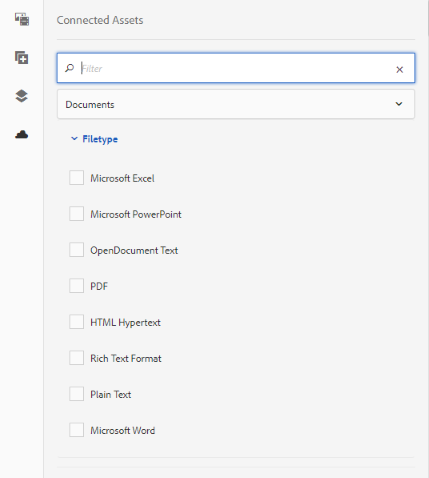
Figure: Options to filter document types and images when searching assets on remote DAM.
-
Experience Manager notifies the site author when an asset’s original is fetched asynchronously and when any fetch task fails. While authoring, or even after authoring, authors can see detailed information about fetch tasks and errors in the asynchronous jobs user interface.

Figure: Notification about asynchronous fetching of assets that happens in the background.
-
When publishing a page, Experience Manager displays a complete list of the assets used on the page. Ensure that the remote assets are fetched successfully at the time of publishing. To check the status of each fetched asset, see the asynchronous jobs user interface.
note NOTE Even if one or more remote assets are not fetched completely, the page is still published. As a result, the Experience Manager notification area displays a notification for any errors that appear on the asynchronous jobs page.
connectedassets in the above walk-through). The assets are also searchable and visible in the local repository via Content Finder.The fetched assets can be used as any other local asset, except that the associated metadata cannot be edited.
Check use of an asset across webpages asset-usage-references
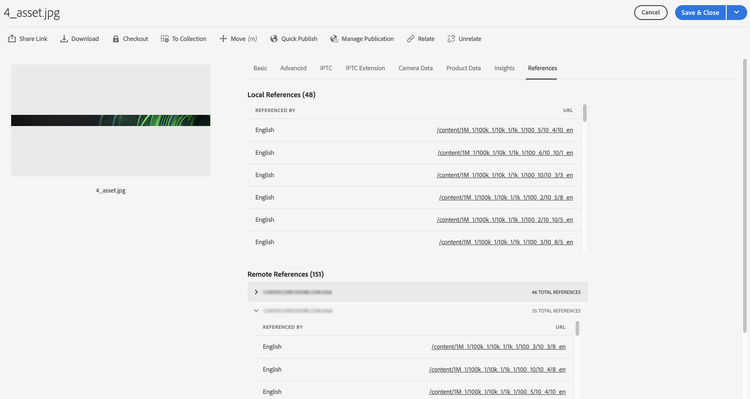
Adobe Experience Manager enables Digital Asset Management (DAM) users to check all references to an asset across webpages. The References tab in an asset’s Properties page lists both the local and remote references of the asset, providing a single, consolidated view of where the asset is used.
Why check asset references
This capability helps DAM users understand and manage the usage of an asset in remote Sites and in compound assets. Many authors of webpages on an Experience Manager Sites deployment can use an asset from a remote DAM across different webpages. To simplify asset management and prevent broken references, DAM users must check the use of an asset across local and remote webpages. Because a single asset can be referenced in multiple pages simultaneously, moving or deleting it without first reviewing its references can break the pages that depend on it.
View and manage references on the Assets deployment
To view and manage references on the Assets deployment, follow these steps:
-
Select an asset in the Assets Console and click Properties from the toolbar.
-
Click the References tab. See Local References for use of the asset on the Assets deployment. See Remote References for use of the asset on the Sites deployment, where the asset was fetched using Connected Assets functionality.
-
The references for Sites pages display the total count of references for each local Sites instance. Experience Manager may require some time to locate all references and display the total count.
-
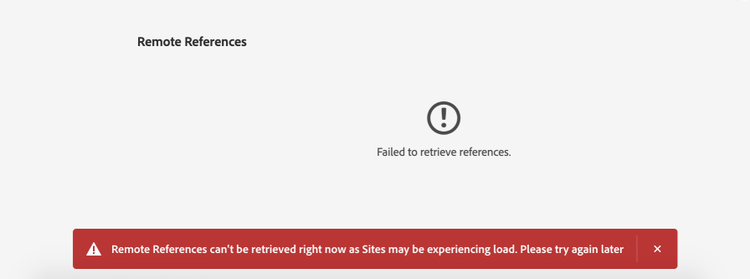
The list of references is interactive, and DAM users can click a reference to open the referencing page. If Experience Manager cannot fetch remote references, it displays a notification informing the user of the failure.
-
Users can move or delete the asset. When moving or deleting an asset, Experience Manager displays the total number of references of all the selected assets and folders in a warning dialog. When deleting an asset for which the references are not yet retrieved, Experience Manager displays a warning dialog, ensuring the user is alerted before the action completes.

Manage updates to assets in remote DAM handling-updates-to-remote-assets
Supported operations and update propagation
After configuring a connection between a remote Digital Asset Management (DAM) repository and Adobe Experience Manager (AEM) Sites deployments, the assets on remote DAM are made available on the Sites deployment. Sites authors and administrators can then perform the following operations on remote DAM assets or folders:
- Update — modify an existing asset on remote DAM.
- Delete — remove an asset from remote DAM.
- Rename — change the name of a remote DAM asset.
- Move — relocate an asset to a different location within remote DAM.
These changes propagate automatically to the Sites deployment, with some delay. In addition, when an asset on remote DAM is used on a local Experience Manager Sites page, AEM displays the updated asset on the Sites page automatically. This ensures the Sites page always reflects the current state of the source asset in the remote DAM repository.
Move assets and adjust references
While moving an asset from one location to another, adjust references so that the asset continues to display on the Sites page. Because the Sites deployment resolves each asset by its reference path, moving an asset to a location that is not accessible from the local Sites deployment breaks that reference. As a result, the asset fails to display on the Sites deployment. Verify that the destination location remains accessible to the local Sites deployment before completing the move.
Update asset metadata
Sites authors can also update the metadata properties for an asset on remote DAM, and those changes become available on the local Sites deployment. This keeps descriptive metadata—such as titles, tags, and other properties—synchronized between the remote DAM repository and the connected Sites deployment.
Preview and republish updates
Sites authors can preview the available updates on the Sites deployment and then republish the changes to make them available on the AEM publish instance. Previewing before republishing allows authors to confirm that the updated asset appears correctly on the page prior to making the change live.
Expired asset status in Remote Assets Content Finder
Experience Manager displays an expired status visual indicator on assets in the Remote Assets Content Finder to stop site authors from using the asset on a Sites page. If an asset with an expired status is used on a Sites page, the asset fails to display on the Experience Manager publish instance. This indicator therefore acts as a safeguard, preventing authors from publishing pages that reference assets no longer valid for delivery.
Frequently Asked Questions frequently-asked-questions
Limitations and best practices tip-and-limitations
Follow these best practices and observe the following limitations when working with connected assets:
-
To gain insights about asset usage, configure the Assets Insight functionality on the Sites instance. Enabling Assets Insight allows teams to track how and where connected assets are used across pages, which supports better content governance and reuse decisions.
-
The path browser in authoring components is not supported for connected assets. Because connected assets are served remotely rather than from the local repository, path-based selection through the authoring component path browser is unavailable.
-
Authors cannot drag the remote asset onto the Image Component Configure dialog. As a workaround, you can instead drag the remote asset directly onto the image component on the Sites page without clicking Configure. This provides a reliable alternative path for adding remote assets to the image component, ensuring authors can still place connected assets even though the Configure dialog does not accept them directly.
Permissions and asset management permissions-and-managing-assets
- Local assets are read-only copies. Experience Manager components perform only non-destructive edits on these assets, ensuring the source asset remains unaltered. No other edits are permitted.
- Locally fetched assets are available for authoring purposes only. Asset update workflows cannot be applied, and metadata cannot be edited on the fetched copies.
- When using Dynamic Media in Sites pages, the original asset is not fetched or stored on the local deployment. Instead, the
dam:Assetnode, the metadata, and the renditions generated by the Assets deployment are all fetched on the Sites deployment. - Only images and the listed document formats are supported. Content Fragments and Experience Fragments are not supported.
- Experience Manager does not fetch the metadata schemas. As a result, some of the fetched metadata is not displayed, because the schema that governs its presentation is absent on the Sites deployment. If the schema is separately updated on the Sites deployment, then all the metadata properties are displayed.
- All Sites authors have read permissions on the fetched copies, even if those authors cannot access the remote Digital Asset Management (DAM) deployment.
- There is no Application Programming Interface (API) support to customize the integration.
- The functionality supports seamless search and use of remote assets. To make a large volume of remote assets available on the local deployment in a single operation, migrate the assets rather than fetching them individually.
- A remote asset cannot be used as a page thumbnail on the Page Properties user interface. Authors set a thumbnail of a web page in the Page Properties user interface from the Thumbnail field by clicking Select Image.
Set up and licensing setup-licensing
The following setup requirements and licensing conditions apply when connecting an Adobe Experience Manager (AEM) Sites deployment to a separate Assets deployment. This split-authoring architecture separates the repository that stores digital assets from the deployment where authors build and manage Sites content:
- Adobe Managed Services (AMS) deployment is supported. Adobe Experience Manager (AEM) Assets supports deployment on Adobe Managed Services (AMS).
- Single Assets connection per Sites deployment. Each Sites deployment connects to a single Assets deployment at a time. This one-to-one connection establishes a clear, unambiguous source of truth for assets, ensuring that content authored in Sites references a single, consistent asset repository.
- A license of Assets working as the remote repository is required. The Assets deployment acts as the remote repository, serving as the central store where digital assets are managed, versioned, and delivered to the connected Sites deployment.
- One or more licenses of Sites working as the local authoring deployment are required. Each Sites deployment functions as a local authoring deployment, where authors create and edit web content while consuming assets from the connected remote Assets repository.
Because the two deployments are licensed separately — Assets as the remote repository and Sites as the local authoring deployment — organizations must maintain a valid license for each role. This dual-license model allows a single Assets repository to serve as the authoritative asset source, while one or more Sites deployments handle authoring against that shared repository.
Usage usage
The following usage rules define exactly how authors can work with remote assets, along with the operational limits, timeouts, and read-only constraints that govern this feature.
- Users can search for remote assets and drag those onto a local page when authoring. No other functionality is supported.
- The fetch operation times out after 5 seconds. Authors may fail to fetch assets when network issues interrupt the request. To recover, authors can reattempt the fetch by dragging the remote asset from Content Finder to Page Editor.
- Simple edits that are non-destructive and supported via the
Imagecomponent can be performed on fetched assets. Beyond these supported edits, fetched assets are read-only, because the source of truth for each asset remains in the DAM. - The only method to re-fetch an asset is to drag it onto a page. There is no API support or other method to re-fetch an asset to update it.
- If assets are decommissioned from the Digital Asset Manager (DAM), those decommissioned assets continue to be in use on Sites pages.
- The remote reference entries of an asset are fetched asynchronously. Because the references and the total count are not real-time, a temporary discrepancy in the reported references and total count can occur if a Sites author uses the asset while a DAM user is viewing the reference. DAM users can refresh the page and try again in a few minutes to obtain the accurate total count.
Troubleshoot issues troubleshoot
To troubleshoot common errors when working with remote assets, follow the steps for the relevant scenario below.
-
Unable to search for remote assets from the Content Finder: If you are unable to search for remote assets from the Content Finder, ensure that the required roles and permissions are in place. Missing or insufficient roles are the most common cause of failed remote searches.
-
Asset fetched from the remote DAM does not publish on a web page: An asset fetched from the remote Digital Asset Management (DAM) system may fail to publish on a web page. This occurs when one of the following conditions is true:
- The asset no longer exists on the remote server.
- The appropriate permissions to fetch the asset are missing.
- A network failure interrupts the transfer.
To resolve this issue, complete the following checks:
- Ensure that the asset has not been removed from the remote DAM.
- Ensure that the appropriate permissions are in place and that all prerequisites are met.
- Retry adding the asset to the page and republish.
- Check the list of asynchronous jobs for errors that occurred during asset fetching.
-
Unable to access the remote DAM deployment from the local Sites deployment: If you cannot access the remote DAM deployment from the local Sites deployment, ensure that cross-site cookies are allowed and that same site cookie support is configured. Because Experience Manager deployments authenticate through cross-site cookies, blocking these cookies prevents authentication between the deployments. For example, Google Chrome in Incognito mode may block third-party cookies. To allow cookies in the Chrome browser, follow these steps:
- Click the ‘eye’ icon in the address bar.
- Navigate to Site Not Working > Blocked.
- Select the Remote DAM URL.
- Allow the login-token cookie.
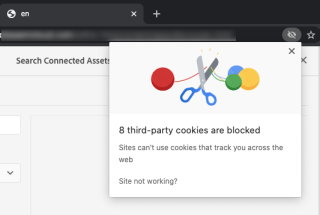
Alternately, see how to enable third-party cookies.
-
Remote references are not retrieved and result in an error message: If remote references are not retrieved and result in an error message, verify that the Sites deployment is available and check for network connectivity issues. Retry later, because transient availability or network issues often resolve on their own. The Assets deployment attempts twice to establish a connection with the Sites deployment before it reports a failure.
See also
- Translate Assets
- Assets HTTP API
- Assets supported file formats
- Search assets
- Connected assets
- Asset reports
- Metadata schemas
- Download assets
- Manage metadata
- Manage Dynamic Media templates
- Manage reports in Assets view
- Search facets
- Manage collections
- Bulk metadata import
- Publish Assets to AEM and Dynamic Media