在此頁面上:瞭解如何使用歷程模擬、歷程測試模式或歷程練習,在發佈之前驗證您的歷程。
一旦您建立了您的歷程,您就可以在發佈之前先測試它。 Adobe Journey Optimizer提供「測試模式」,以便在測試設定檔在歷程中移動時檢視測試設定檔,並在啟用之前偵測潛在錯誤。 執行快速測試可讓您檢查歷程是否正確運作,以便您能夠放心發佈。
只有測試輪廓才能進入旅程測試模式。 您可以建立新的測試設定檔,或將現有的設定檔轉換為測試設定檔。 在本節中進一步瞭解測試設定檔。
Adobe Journey Optimizer提供三種方法來測試和驗證您的歷程:
-
歷程模擬:將歷程設定為模擬,並使用模擬的使用者(您即時建立或產生的暫時設定檔,沒有在Adobe Experience Platform中預先建立的設定檔)。
-
歷程測試模式:在Adobe Experience Platform中明確標籤為測試設定檔的持續設定檔。 它們可以在多個測試工作階段重複使用。 建議使用此方法來測試一致且預先定義的設定檔資料。 瞭解如何建立測試設定檔。
-
歷程練習:在不連絡真實客戶或更新設定檔資訊的情況下,針對真實的生產對象和細分資料執行歷程。 會略過動作節點,例如電子郵件、行動訊息和自訂動作。 進一步瞭解歷程練習。
您不確定測試模式是不是適合您使用的方法? 比較所有三個驗證選項。
護欄與限制 important_notes
在歷程中執行測試之前,請先檢閱這些附註。
一般限制
- 僅測試設定檔 — 只有即時客戶設定檔服務中標示為「測試設定檔」的個人才能進入測試模式下的歷程。 瞭解如何建立測試設定檔。
- 名稱空間需求 — 測試模式僅適用於使用名稱空間的草稿歷程。 測試模式需要檢查進入歷程的人員是否為測試設定檔,因此必須能夠到達Adobe Experience Platform。
- 設定檔限制 — 在單一測試工作階段中,最多可以有100個測試設定檔進入歷程。
- 事件觸發 — 事件只能從介面觸發。 無法使用API從外部系統引發事件。
- 自訂上傳對象 — 歷程測試模式不支援自訂上傳對象屬性擴充。
測試期間和測試後的行為
- 停用測試模式 — 當您停用測試模式時,目前或先前在歷程中輸入的所有設定檔都會被移除,且報告會被清除。
- 重新啟用彈性 — 您可以視需要多次啟用和停用測試模式。
- 自動停用 — 在測試模式中停用 一週 的歷程會自動退出測試模式並返回「草稿」狀態。 不會遺失歷程內容;只會結束測試模式工作階段。
- 編輯與發佈 — 測試模式作用中時,您無法修改歷程。 不過,您可以直接發佈歷程,之前不需要停用測試模式。
- 訊息傳送 — 在測試模式中,訊息會使用與生產相同的傳送管道傳送到測試設定檔的實際收件匣。 這與歷程練習不同,後者模擬歷程執行,但不傳遞訊息或觸發真正的頻道動作。 兩種方法都不會複製即時傳送的每個層面;請使用中繼環境進行完整的端對端驗證。
執行
- 縮短的等待時間 — 測試模式會以 等待時間 值(預設為10秒)覆寫設定的等待和逾時期間,因此您可以更快速地驗證歷程。 電子郵件開啟等事件可能需要一些時間才能處理,因此事件可在縮短逾時後到達,並將設定檔傳送至逾時路徑。 增加等待時間,使其適合您的測試案例。 同樣適用於歷程模擬,它會以 測試設定 中定義的值覆寫等待期間。
- 分割行為 — 當歷程達到分割時,一律會在測試模式中選取頂端分支。 這不會反映即時執行期間統計上選取的路徑。 如果您想要測試不同的路徑,請重新排序分支。
- 事件計時 — 如果歷程包含多個事件,請依序觸發每個事件。 太早(第一個等待節點完成之前)或太晚(在設定的逾時之後)傳送事件將會捨棄事件。 然後,設定檔將傳送至逾時路徑。 一律透過在定義的視窗中傳送裝載,確認對事件裝載欄位的任何參考保持有效。
- 作用中的日期視窗 — 確定歷程設定的開始和結束日期/時間視窗包括起始測試模式時的目前時間。 否則,會以無訊息方式捨棄觸發的測試事件,並包含記錄訊息
DISPATCHER DISCARD #16 — unqualified on journey version enablements。 若要在測試期間解決此問題,請將歷程開始日期暫時設定為目前時間之前的時間,然後在發佈之前還原。 在此頁面🔗上進一步了解疑難排解此問題。 - 回應事件 — 對於逾時的回應事件,最小和預設等待時間為40秒。
- 測試資料集 — 在測試模式中觸發的事件會儲存在專用的資料集中,標示如下:
JOtestmode - <schema of your event> - 共用基礎架構 — 測試模式會在與生產相同的基礎架構上執行。 在高流量期間,您可能會注意到電子郵件傳送或事件處理有所延遲。 在這種情況下,請檢查平台流量儀表板,或在非尖峰時段重試您的測試。
啟動測試模式
當您想要使用已在Adobe Experience Platform中建立的現有測試設定檔來測試您的歷程時,請使用 測試模式 方法。
請注意,模擬僅適用於生產沙箱。 在非生產沙箱中,使用 測試模式 來測試您的歷程。
-
在啟用測試模式之前,先驗證歷程並解決任何錯誤。
-
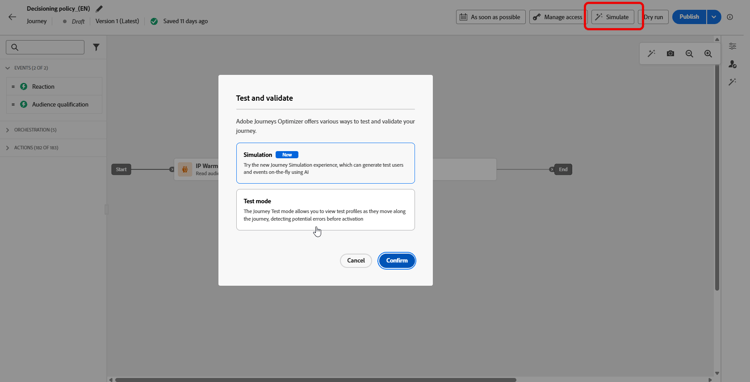
若要啟動測試模式,請按一下 模擬 按鈕,然後選取測試模式。
歷程介面中的
-
如果歷程至少有一個 等待 活動,請設定 等待時間 引數,以定義每個等待活動和事件逾時在測試模式中的持續時間。 等待和事件逾時的預設時間為10秒。 這將確保您能快速獲得測試結果。
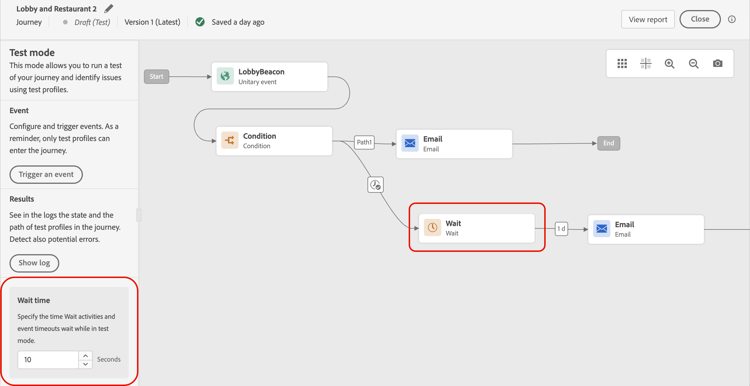
note NOTE 當歷程中使用具有逾時的回應事件時,等待時間的預設值及最小值為40秒。 請參閱本節。 -
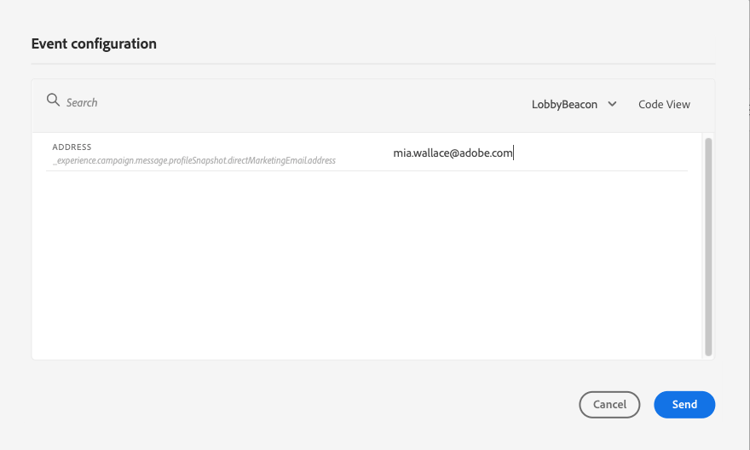
使用 觸發事件 按鈕來設定事件並傳送給歷程。

-
設定所需的不同欄位。 在 設定檔識別碼 欄位中,輸入用來識別測試設定檔的欄位值。 例如,可以是電子郵件地址。 請務必傳送與測試設定檔相關的事件。 請參閱本節。
-
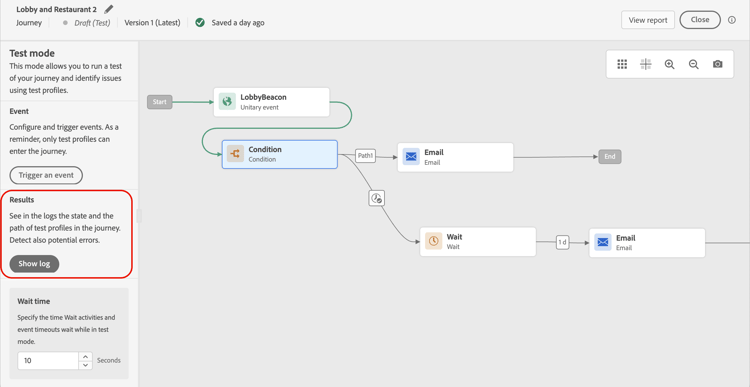
收到事件後,按一下 顯示記錄 按鈕以檢視測試結果並加以驗證。 請參閱本節。
-
如果發生任何錯誤,請停用測試模式並修改您的歷程。 再次按一下[驗證 並解決任何組態錯誤,然後再重新啟動測試。] 測試完成且驗證為最新且通過後,您可以發佈您的歷程。
工作範例:驗證簡單歷程 test-walkthrough
以下範例會逐步說明測試歷程,其開頭為單一事件,傳送電子郵件、等待10分鐘,然後傳送推播通知。
若要驗證端對端歷程:
-
按一下歷程標題中的 驗證 並解決任何錯誤,然後再繼續。 瞭解歷程驗證。
-
按一下右上角的 測試模式 以啟動測試模式。 畫布切換到測試模式,並出現 觸發事件 按鈕。
-
將 等待時間 設為10秒,以便在測試期間快速完成等待節點。
-
按一下觸發事件、選取您的事件,然後輸入測試設定檔識別碼(例如,在Adobe Experience Platform中標示為測試設定檔的設定檔電子郵件地址)。
-
按一下傳送。 視覺流程會出現在畫布上,並隨著設定檔逐步通過每個步驟而變成綠色。
-
按一下顯示記錄檔,並在JSON輸出中確認下列專案:
currentstep符合您預期設定檔所在的活動。- 設定檔位於等待節點時,
phase會顯示running,當設定檔到達結尾時,則會顯示finished。 - 不存在
actionExecutionErrors專案。
-
10秒後,重新整理記錄檔。 設定檔應該已進階超過等待節點,並觸發推送動作。
-
當所有步驟顯示
finished且未記錄任何錯誤時,請停用測試模式並發佈歷程。
- 您輸入的設定檔識別碼在Adobe Experience Platform中被標籤為測試設定檔。
- 歷程設定的開始和結束日期包括目前時間。 在此視窗之外觸發的事件會以無訊息方式捨棄。 了解更多。
疑難排解測試模式 troubleshoot-test-mode
在開啟支援票證之前,使用此表格可自我診斷常見的測試模式失敗。
@{<EventName>.identityMap.entry('<NamespaceName>').first().id}。 <NamespaceName>必須完全符合事件結構描述(區分大小寫)。 請參閱必要條件。DISPATCHER DISCARD #16 — unqualified on journey version enablements觸發您的事件 firing_events
使用 觸發事件 按鈕來設定讓人員進入歷程的事件。
先決條件 trigger-events-prerequisites
作為先決條件,您必須知道哪些設定檔在Adobe Experience Platform中被標籤為測試設定檔。 事實上,測試模式僅允許在歷程中這些設定檔。
事件必須包含ID。 預期的ID取決於事件設定。 例如,可以是ECID或電子郵件地址。 需要將此金鑰的值新增到 設定檔識別碼 欄位中。
設定檔識別碼值必須與儲存在事件結構描述中的識別完全相符。 事件裝載中用來參照身分的格式為:
@{<EventName>.identityMap.entry('<NamespaceName>').first().id}
將<NamespaceName>取代為您事件結構描述中定義的名稱空間(例如Email或Phone)。 名稱空間不相符導致無訊息下降:事件被接受並傳回成功回應,但設定檔從未進入歷程,且UI中未出現任何錯誤。 如果設定檔在觸發事件後未出現在測試記錄中,請確認 設定檔識別碼 中的名稱空間與事件結構描述名稱空間完全相符。
如果您的歷程無法啟用測試模式,錯誤為ERR_MODEL_RULES_16,請確定使用的事件包含使用通道動作時的身分名稱空間。
身分名稱空間會用於唯一識別測試設定檔。 例如,如果使用電子郵件來識別測試設定檔,則應選取身分名稱空間電子郵件。 如果唯一識別碼是電話號碼,則應該選取識別名稱空間電話。
-
當您在測試模式中觸發事件時,會產生實際事件,這表示它也會點選接聽此事件的其他歷程。
-
確保測試模式中的每個事件都按正確順序在設定的等待期間內觸發。 例如,如果等候60秒,則必須在60秒等待過後、逾時限制過期之前觸發第二個事件。
事件設定 trigger-events-configuration
如果您的歷程包含多個事件,請使用下拉選單選取一個事件。 然後,對於每個事件,設定傳遞的欄位和事件傳送的執行方式。 介面可協助您在事件裝載中傳遞正確的資訊,並確保資訊型別正確無誤。 測試模式會儲存測試工作階段中最後使用的引數,以供稍後使用。
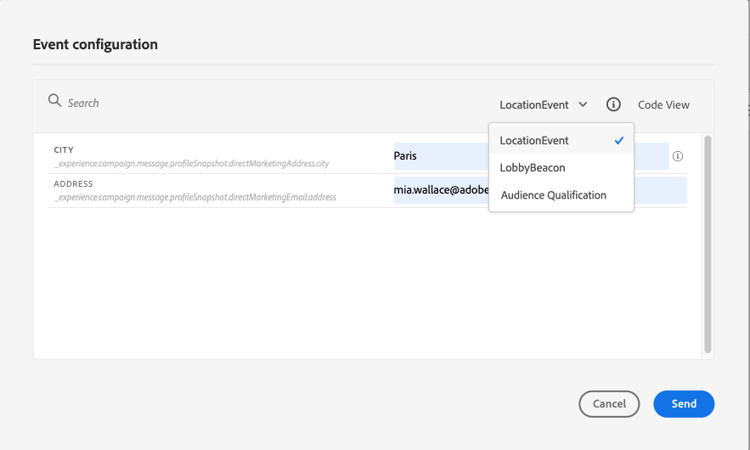
介面可讓您傳遞簡單事件引數。 如果您想要在事件中傳遞集合或其他進階物件,可以選取 程式碼檢視 來檢視裝載的整個程式碼並加以修改。 例如,您可以複製並貼上技術使用者準備的事件資訊。
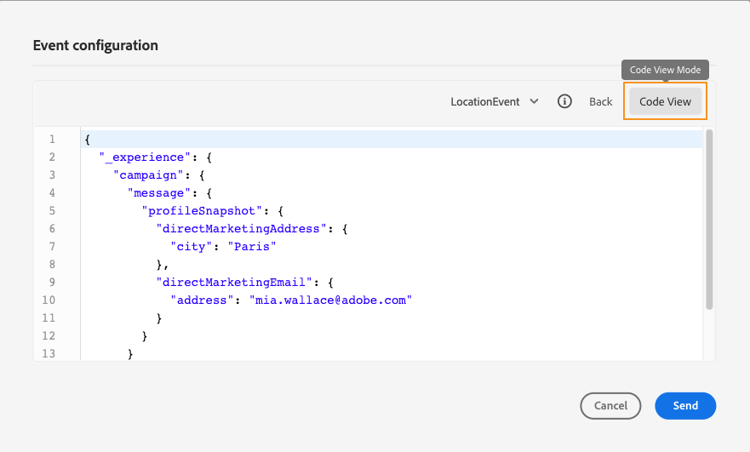
技術使用者也可以使用此介面來撰寫事件裝載和觸發事件,而不必使用協力廠商工具。
按一下 傳送 按鈕時,測試開始。 歷程中個人的進度以視覺流程表示。 當個人在歷程中移動時,路徑會逐步變成綠色。 如果發生錯誤,會在對應的步驟上顯示警告符號。 您可以將游標放在錯誤上以顯示有關錯誤的更多資訊,並存取完整的詳細資訊(如果有的話)。
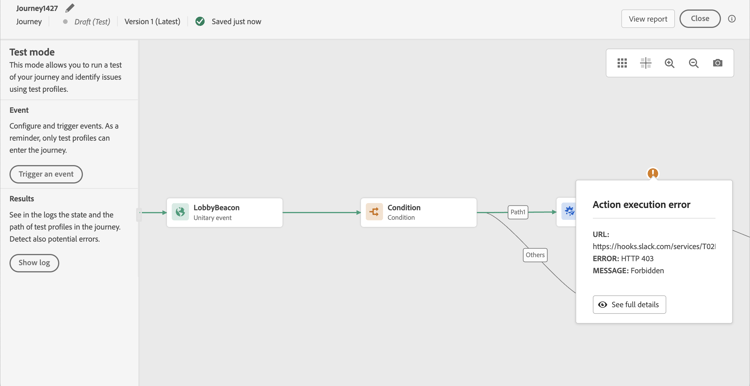
當您在事件設定畫面中選取不同的測試設定檔,然後再次執行測試時,視覺流程會清除並顯示新個人的路徑。
在測試中開啟歷程時,顯示的路徑對應於上次執行的測試。
規則型歷程的測試模式 test-rule-based
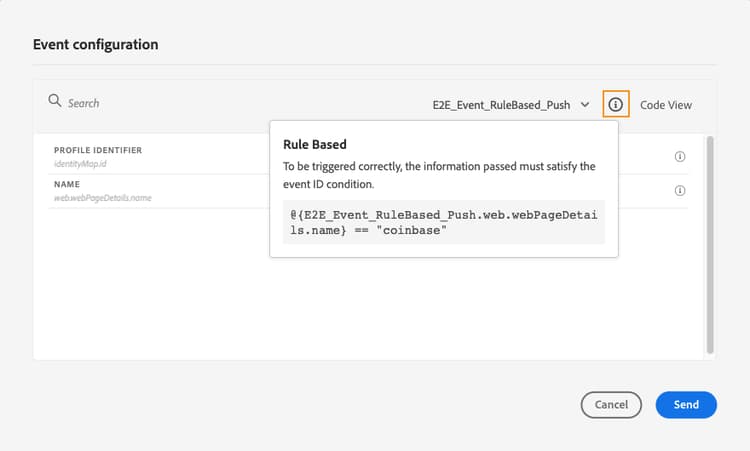
測試模式也可用於使用規則型事件的歷程。 如需規則型事件的詳細資訊,請參閱此頁面。
觸發事件時,事件組態畫面可讓您定義要在測試中傳遞的事件引數。 您可以按一下右上角的工具提示圖示來檢視事件ID條件。 規則評估的每個欄位旁也提供工具提示。
業務事件的測試模式 test-business
使用商業事件時,請使用測試模式在歷程中觸發單一測試設定檔入口、模擬事件並傳遞正確的設定檔ID。 您必須傳遞事件引數,以及將進入測試中歷程之測試設定檔的識別碼。 在測試模式中,根據業務事件的歷程沒有「程式碼檢視」模式可用。
請注意,當您首次觸發業務事件時,無法變更相同測試工作階段中的業務事件定義。 您只能讓相同或不同的個人透過相同或其他識別碼進入歷程。 若要變更業務事件引數,您必須停止再啟動測試模式。
檢視記錄 viewing_logs
顯示記錄按鈕可讓您檢視測試結果。 此頁面以JSON格式顯示歷程的目前資訊。 按鈕可讓您複製整個節點。 您需要手動重新整理頁面以更新歷程的測試結果。
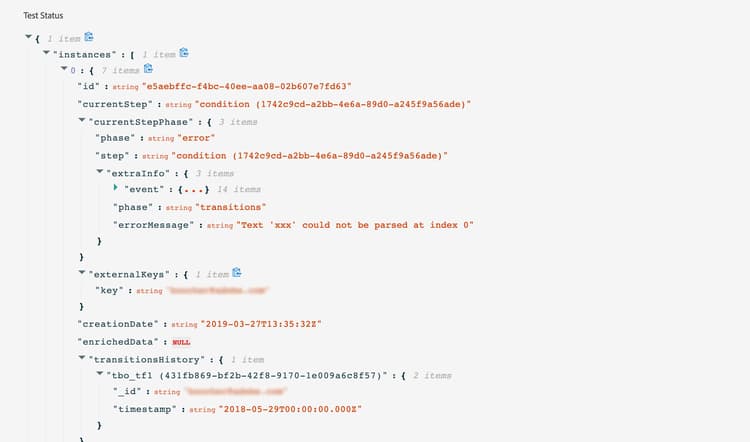
目前顯示在歷程中的個人(技術上稱為執行個體)數量。 系統會針對每個個人顯示下列資訊:
- Id:歷程中的個人內部ID。 這可用於偵錯。
- currentstep:個人在歷程中的步驟。 建議您為活動新增標籤,以便更輕鬆識別。
- currentstep >階段:個人歷程的狀態(執行中、已完成、錯誤或逾時)。 如需詳細資訊,請參閱下文。
- currentstep > extraInfo:錯誤描述與其他內容資訊。
- currentstep > fetchErrors:此步驟中發生擷取資料錯誤的資訊。
- externalKeys:事件中定義的索引鍵公式值。
- extrendedData:歷程使用資料來源時,歷程已擷取的資料。
- transitionHistory:個人遵循的步驟清單。 對於事件,會顯示裝載。
- actionExecutionErrors :發生錯誤的相關資訊。
以下是個人歷程的不同狀態:
- 執行中:個人目前正在歷程中。
- 已完成:個人位於歷程的結尾。
- 錯誤:個人已在歷程中因錯誤而停止。
- 已逾時:個人已在歷程中停止,因為步驟耗費太多時間。
使用測試模式觸發事件時,會自動以來源名稱產生資料集。
測試模式會自動建立體驗事件,並將其傳送至Adobe Experience Platform。 此體驗事件的來源名稱為「Journey Orchestration測試事件」。
This section contains structured knowledge intended to support interpretation, retrieval, and question answering related to this topic.
For complete understanding, this information should be combined with the documentation on this page. Neither source is intended to stand alone; the page describes the feature, while this section provides additional context that helps disambiguate terminology, intent, applicability, and constraints.
- TL;DR: This page explains how to use Journey Test mode in Adobe Journey Optimizer to validate a journey with persistent test profiles before publishing, and compares it with Journey Simulation and Journey Dry run.
Intents:
- Activate Test mode on a draft journey to validate it with pre-existing Adobe Experience Platform test profiles
- Configure and trigger events for test profiles using the Trigger an event interface
- Configure Wait activity durations in test mode to accelerate journey progression
- Read and interpret the Show log JSON output to verify profile progression and identify errors
- Test rule-based journeys and business event journeys in test mode
- Understand the three ways to test and validate a journey: Journey Simulation, Journey Test mode, and Journey Dry run
Glossary:
- Test mode: A journey validation state that allows persistent Adobe Experience Platform test profiles to traverse a draft journey before it is published (product-specific)
- Test profiles: Profiles explicitly flagged as test profiles in the Adobe Experience Platform Real-time Customer Profile Service; the only profile type permitted to enter a journey in test mode (product-specific)
- Visual flow: The canvas representation that turns green to show the path a test profile has followed through the journey
- Show log: A test mode feature that displays journey execution state in JSON format for each test profile instance (product-specific)
- Journey Orchestration Test Events: The source name under which test mode experience events are stored in Adobe Experience Platform
- Journey Dry run: A validation method that runs a journey against real production audience and segmentation data without contacting real customers or updating profile information (product-specific)
Guardrails:
- Configuration validation must pass before test mode is activated. Errors in the Alerts panel must be resolved and the journey validated again before continuing; edits after testing require revalidation before another test.
- Only profiles flagged as test profiles in Adobe Experience Platform can enter a journey in test mode
- Test mode requires the journey to use a namespace to verify test profile identity
- Maximum 100 test profiles per single test session (hard limit)
- Events can only be triggered from the test mode UI; external API triggering is not supported
- Custom upload audience attribute enrichment is not supported in test mode
- Events triggered in Test mode generate real experience events that can also trigger other journeys listening to the same event
- In Test mode, Wait activities and event timeouts default to 10 seconds (default); reaction event timeout wait time is 40 seconds (default), with a minimum of 40 seconds (hard limit)
- Test mode overrides the configured Wait and timeout durations with the Wait time value, so an event that is processed after the shortened timeout, such as an email open, sends the profile to the timeout path; increase the Wait time to fit the test scenario
- Journey Simulation also overrides Wait durations, with the values defined in Test settings
- Automatic deactivation — Journeys that remain inactive in test mode for over a week (hard limit) automatically exit test mode and return to Draft status. No journey content is lost; only the test mode session ends.
- Journey edits are blocked while test mode is active, but direct publishing is allowed
- At a split, the top branch is always selected; reorder branches to test different paths
- Events sent outside the journey’s configured start/end date window are silently discarded
- Disabling test mode removes all profiles from the journey and clears reporting
Terminology:
- Canonical name: Test mode — variants: test mode, Journey Test mode
- Canonical name: Test profiles
- Do not confuse: “Test mode” ≠ “Simulation” — Test mode uses persistent Adobe Experience Platform test profiles; Simulation uses temporary simulated users generated on the fly
- Do not confuse: “Journey Simulation” ≠ “Journey Test mode” ≠ “Journey Dry run” — the three validation methods use different data and validation approaches
FAQ:
- Q: Who can enter a journey in test mode? — Only profiles explicitly flagged as test profiles in the Adobe Experience Platform Real-time Customer Profile Service.
- Q: How many test profiles can run in a single test session? — A maximum of 100 test profiles per test session.
- Q: What happens when I disable test mode? — All profiles currently in or previously entered in the journey are removed and reporting is cleared.
- Q: Can I edit a journey while test mode is active? — No. The journey cannot be modified while test mode is active, but you can publish it directly without deactivating test mode first.
- Q: Why does my test profile go to the timeout path when the event would arrive in time in a live journey? — Test mode shortens Wait and timeout durations to the Wait time value (10 seconds by default), so a slow event, such as an email open, can arrive after the shortened timeout. Increase the Wait time to fit your test scenario. Journey Simulation behaves the same way, with durations defined in Test settings.
- Q: Why are my test events being silently discarded? — Events triggered outside the journey’s configured active date/time window are silently discarded. Verify the journey start and end dates include the current time.
- Q: What does the phase field in the test log indicate? — It shows the profile’s current status: running (active in journey), finished (reached end), error (stopped due to error), or timed out (stopped due to timeout).