このページ: API トリガーキャンペーンの送信で経由するチャネルとチャネル設定を選択し、トラッキング、コンテンツ実験、多言語オプションを設定して、適切なチャネルで適切なメッセージが配信されるようにします。
「アクション」タブを使用すると、メッセージのチャネル設定を選択し、トラッキング、コンテンツ実験、多言語コンテンツなどの追加設定を指定できます。
-
チャネルを選択します。
「アクション」タブに移動し、「アクションを追加」ボタンをクリックして、通信チャネルを選択します。
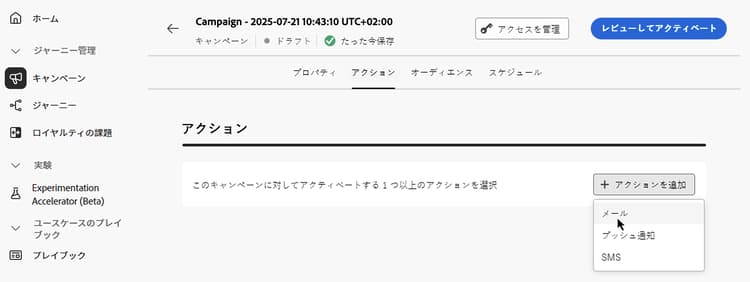
note NOTE サポートされるチャネルについて詳しくは、ジャーニーとキャンペーンのチャネルの節にある表を参照してください。 使用できるチャネルは、ライセンスモデルとアドオンによって異なります。 High Throughput API トリガーキャンペーンは現在、メールチャネルのみをサポートしています。 -
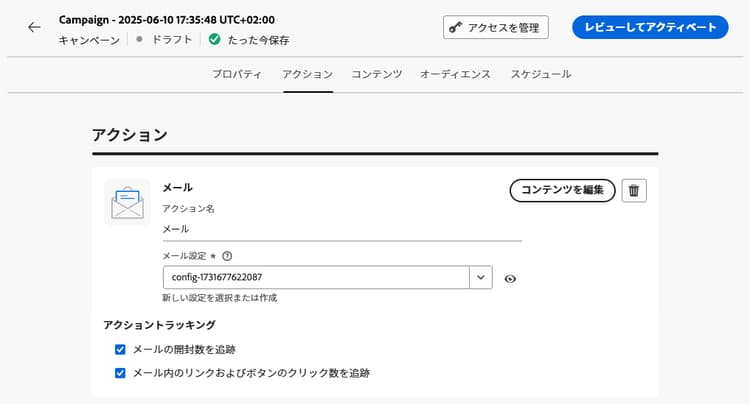
チャネル設定を選択
設定は、システム管理者によって定義されます。 ヘッダーパラメーター、サブドメイン、モバイルアプリなど、メッセージを送信するすべての技術的なパラメーターが含まれています。チャネル設定の指定方法の詳細情報
-
最適化を活用
「メッセージの最適化」セクションを使用すると、コンテンツ実験を実行したり、ターゲティングルールを活用したり、実験とターゲティングの両方の高度な組み合わせを使用したりすることができます。 これらの様々なオプションと実行する手順について詳しくは、キャンペーンの最適化の節を参照してください。
-
多言語コンテンツを追加
「言語」セクションを使用すると、キャンペーン内の複数の言語でコンテンツを作成できます。 これを行うには、「言語を追加」ボタンをクリックし、目的の 言語設定 を選択します。 多言語機能の設定と使用方法について詳しくは、多言語コンテンツの基本を学ぶの節を参照してください。
選択した通信チャネルに応じて、追加の設定を使用できます。 詳しくは、以下の節を展開してください。
このオプションは、API トリガーキャンペーンで、別の設定を作成せずに、選択したチャネル設定とは異なるメール値が必要な場合に使用します。 設定の残りの部分を変更せずに、そのアクションに必要なフィールドのみを上書きできます。 電子メールチャネル設定を上書きする方法について説明します
API トリガーのキャンペーンの場合、コンテキストは実行時にAPI ペイロードから生成されるため、メールアクションを定義する際にパーソナライゼーションエディターでコンテキスト属性を使用できないため、手動で入力する必要があります。 コンテキストデータ構文の詳細
| note important |
|---|
| IMPORTANT |
式パスは、Journey Optimizerによってチェックが実行されないように、API ペイロード構造とまったく一致する必要があります。 例えば、ペイロードにcontext.RM.nameとcontext.RM.emailPrefixが含まれている場合は、式に同じドット表記を使用します。 |
迅速配信モードは、キャンペーンを通じて大量のプッシュメッセージを非常に高速に送信できるようにする Journey Optimizer アドオンです。 迅速配信は、メッセージ配信の遅延がビジネス上の重要な問題になる状況で、携帯電話に緊急のプッシュアラートを送信するときに使用します(ニュースチャネルアプリをインストールしたユーザーにニュース速報を配信するなど)。 プッシュ通知の迅速配信モードを有効にする方法について詳しくは、このページを参照してください。
迅速配信モードを使用する際のパフォーマンスについて詳しくは、Adobe Journey Optimizer 製品説明を参照してください。
次の手順 next
キャンペーンの設定とコンテンツの準備が整ったら、そのコンテンツをデザインできます。 詳細情報
This section contains structured knowledge intended to support interpretation, retrieval, and question answering related to this topic.
For complete understanding, this information should be combined with the documentation on this page. Neither source is intended to stand alone; the page describes the feature, while this section provides additional context that helps disambiguate terminology, intent, applicability, and constraints.
- TL;DR: This page explains how to choose the channel and the channel configuration of an API triggered campaign in the Actions tab, and how to set optimization, multilingual, capping, tracking, and Rapid delivery mode options.
Intents:
- Add an action to an API triggered campaign and choose its communication channel
- Select a channel configuration for the message
- Use the Message Optimization section for content experiments, targeting rules, or both
- Add multilingual content with the Languages section
- Apply capping rules, track engagement, or enable Rapid delivery mode, depending on the channel
Glossary:
- Channel configuration: Defined by a System Administrator; contains the technical parameters for sending the message, such as header parameters, subdomain, mobile apps (product-specific)
- Business rules: Drop-down list in which you select a rule set to apply capping rules to the campaign
- Capping rules: Frequency capping by communication type, applied through a rule set, to prevent overloading customers with similar messages
- Action tracking: Section used to track how recipients react to email or mobile deliveries; results are accessible from the campaign report once the campaign has been executed
- Rapid delivery mode: A Journey Optimizer add-on that allows very fast push message sending in large volumes through campaigns (product-specific)
Guardrails:
- Available channels vary based on your licensing model and add-ons.
Prerequisites and permissions:
- A channel configuration, defined by a System Administrator
Applicability:
- Capping rules (Business rules): Email, Push, Mobile
- Track engagement (Action tracking): Email, Mobile
- Rapid delivery mode: Push
- High Throughput API triggered campaigns: email channel only
Terminology:
- Canonical name: API triggered campaign action
- Do not confuse: “channel” (the communication channel selected with Add action) ≠ “channel configuration” (the technical parameters defined by a System Administrator)
FAQ:
- Q: How do I choose the channel of an API triggered campaign? — In the Actions tab, click Add action and select the communication channel.
- Q: Which channels can I use? — Available channels vary based on your licensing model and add-ons. High Throughput API triggered campaigns currently support the email channel only.
- Q: Who defines the channel configuration? — A System Administrator defines it.
- Q: Which channels support capping rules and engagement tracking? — Capping rules apply to Email, Push, and Mobile. Tracking applies to Email and Mobile.
- Q: Which channel supports Rapid delivery mode? — Push.
Examples:
- Rapid delivery mode is used when delay in message delivery is business-critical, for example an urgent push alert such as breaking news sent to users who have installed a news channel app.
Related pages:
- Supported channels: Channels in journeys & campaigns (channels/gs-channels.md)
- Setting up channel configurations: Learn how to set up channel configurations (configuration/channel-surfaces.md)
- Content experiments and targeting rules: Optimization in campaigns (content-management/gs-message-optimization.md)
- Multilingual content: Get started with multilingual content (content-management/multilingual-gs.md)
- Rule sets for capping: Learn how to work with rule sets (conflict-prioritization/rule-sets.md)
- Campaign reports: Learn more about campaign reports (reports/campaign-global-report-cja.md)
- Enabling Rapid delivery mode for push notifications: on this page (push/create-push.md#rapid-delivery)
- Next step, designing the content: Learn more (campaigns/api-triggered-campaign-content.md)
Personas:
- developer: Can add an action to an API triggered campaign and select its communication channel in the Actions tab. Can select a channel configuration that contains technical parameters such as header parameters, subdomain, and mobile apps. The page states that High Throughput API triggered campaigns currently support the email channel only. Where: “Configure the API triggered campaign action”.
Onboarding:
- Level: Experienced
- First minimal step: Navigate to the Actions tab, select Add action, and select the communication channel.
- Success check: Tracking results are accessible from the campaign report once the campaign has been executed.
- Previous: A channel configuration must be defined before you can select it for the action: Set up channel configurations (configuration/channel-surfaces.md)
- Next: Once your campaign configuration and content are ready, design its content: Edit the API triggered campaign content (campaigns/api-triggered-campaign-content.md)