このページ: API ペイロードで渡されたコンテキストデータを使用して、API トリガーキャンペーンコンテンツをデザインおよびパーソナライズし、各メッセージを受信者ごとにリアルタイムでカスタマイズできるようにします。
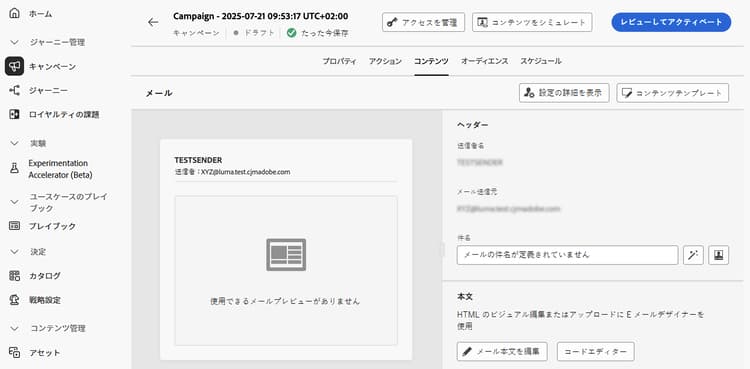
メッセージコンテンツを設定するには、「コンテンツ」タブに移動するか、「コンテンツを編集」ボタンをクリックします。
コンテンツのデザイン design
コンテンツの作成プロセスは、選択したチャネルによって異なります。 メッセージコンテンツを作成する詳細な手順については、次のページを参照してください。


パーソナライズされた PDF ファイルの添付 attachments
トランザクション API トリガーメールキャンペーンでは、静的およびパーソナライズされた添付ファイルなど、1 通のメールに最大 5 個の PDF 添付ファイルを含めることができます。 各受信者は、異なるパーソナライズされた PDF を受信できます。 パーソナライズされた PDF ファイルを添付する方法の詳細情報
コンテキストデータを使用したコンテンツのパーソナライズ contextual
メッセージをパーソナライズするのに活用できる追加データを API ペイロードに渡すことができます。
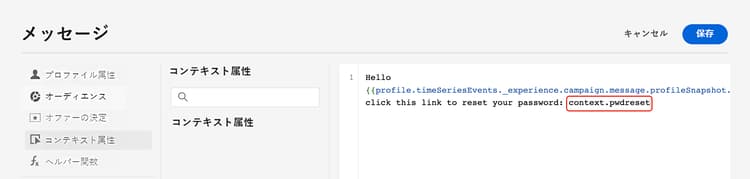
この例では、パスワードのリセットを希望する顧客に、サードパーティツールで生成されるパスワードリセット URL を送信するとします。 API トリガーキャンペーンを使用すると、生成されたこの URL を API ペイロードに渡し、キャンペーンで活用してメッセージに追加できます。
それには、これらのデータを API ペイロードに渡し、パーソナライゼーションエディターを使用してメッセージに追加する必要があります。 {{context.<contextualAttribute>}} 構文を使用します。ここで、<contextualAttribute> は、渡すデータを含んだ API ペイロード内の変数の名前と一致する必要があります。
なお、現時点では、左側のパネルメニューで使用できるコンテキスト属性はありません。 属性はパーソナライゼーション式に直接入力する必要がありますが、Journey Optimizer によるチェックは行われません。
必読
- リクエストに渡すコンテキスト属性は 200 KB を超えることはできず、常に文字列タイプと見なされます。
context.system構文はアドビ内部での使用のみに制限されているので、コンテキスト属性を渡すには使用しないでください。- プロファイル対応のイベントとは異なり、REST API で渡されるコンテキストデータは、1 回限りの通信に使用され、プロファイルに対しては保存されません。 プロファイルが見つからなかった場合、名前空間の詳細を最大限に使用してプロファイルが作成されます。
- コンテンツで多数または大量のコンテキストデータを使用すると、パフォーマンスに影響を与える可能性があります。
- チェックは実行されないので、エクスプレッションに手動で入力したコンテキスト属性パスが、ネスト名やキー名など、ペイロード構造と正確に一致していることを確認してください。
コンテンツのテストとチェック
コンテンツを定義したら、「コンテンツをシミュレート」ボタンを使用して、コンテンツをプレビューおよびテストします。 次のいずれかのシミュレーション方法を使用できます。
- 「コンテンツをシミュレート」をクリックし、サンプル入力データまたは AI 自動生成を使用して、コンテンツバリエーションをテストします。
- 「コンテンツをシミュレート」をクリックし、ドロップダウンから「コンテンツをシミュレート(AEP プロファイル)」を選択して、テストプロファイルでプレビューします。
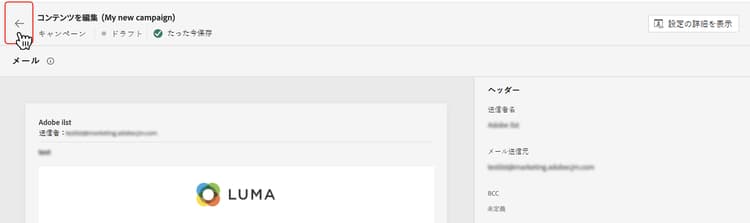
詳しくは、コンテンツのプレビューとテストの方法を参照してください。 キャンペーン作成画面に戻るには、左向き矢印をクリックします。
次の手順 next
キャンペーンの設定とコンテンツの準備が整ったら、キャンペーンオーディエンスを定義できます。 詳細情報
This section contains structured knowledge intended to support interpretation, retrieval, and question answering related to this topic.
For complete understanding, this information should be combined with the documentation on this page. Neither source is intended to stand alone; the page describes the feature, while this section provides additional context that helps disambiguate terminology, intent, applicability, and constraints.
- TL;DR: This page explains how to design the content of an API triggered campaign, personalize it with contextual data passed in the API payload, attach personalized PDF files, and preview it with Simulate content.
Intents:
- Open the message content configuration from the Content tab or the Edit content button
- Personalize a message with contextual data from the API payload
- Attach personalized PDF files to transactional API-triggered email campaigns
- Preview and test the content with Simulate content
Glossary:
- Contextual data: Additional data passed into the API payload and used to personalize the message, referenced with the
{{context.<contextualAttribute>}}syntax, where<contextualAttribute>matches the name of the variable in the API payload (product-specific) - High Throughput campaigns: A mode that does not rely on Adobe profiles; all personalization must be included in the API payload as context data (product-specific)
- Simulate content: Button used to preview and test content with sample input data or AI auto-generation
- Simulate content (AEP profiles): Option selected from the Simulate content dropdown to preview with test profiles
Guardrails:
- The contextual attributes passed into the request cannot exceed 200kb (hard limit) and are always considered of type string.
- The
context.systemsyntax is restricted to Adobe internal usage only and should not be used to pass contextual attributes. - Contextual data passed in the REST API is used for one-off communication and is not stored against profile. At maximum, a profile is created with the namespace details, if it was found missing.
- Using a large number or heavy contextual data in your content may impact performances.
- For now, no contextual attribute is available for use in the left rail menu. Attributes must be typed directly in the personalization expression, with no check performed by Journey Optimizer.
- A transactional API-triggered email campaign can include up to five PDF attachments in an email, including both static and personalized attachments.
Applicability:
- Design content: Email, Mobile message, Push notification
- Personalized PDF attachments: transactional API-triggered email campaigns
- High Throughput campaigns: email channel only, US region only
Terminology:
- Canonical name: API triggered campaign content
- Do not confuse: “contextual data passed in the REST API” (one-off, not stored against profile) ≠ “profile-enabled events”
- Do not confuse: Simulate content (sample input data or AI auto-generation) ≠ Simulate content (AEP profiles) (test profiles)
FAQ:
- Q: How do I use data from the API payload in a message? — Pass the data into the API payload and add it in the message with the personalization editor, using
{{context.<contextualAttribute>}}. - Q: Can contextual attributes be picked from the left rail menu? — No. No contextual attribute is available there; attributes must be typed directly in the personalization expression.
- Q: What is the size limit for contextual attributes? — They cannot exceed 200kb and are always considered of type string.
- Q: Is contextual data stored against the profile? — No. It is used for one-off communication and not stored against profile. At maximum, a profile is created with the namespace details, if it was found missing.
- Q: How many PDF attachments can an email include? — For transactional API-triggered email campaigns, up to five, static and personalized attachments included.
- Q: How do I preview content? — Click Simulate content to test with sample input data or AI auto-generation, or select Simulate content (AEP profiles) from the dropdown to preview with test profiles.
Examples:
- A customer wants to reset a password. A password reset URL is generated in a third-party tool, passed into the API payload, and added to the message with
{{context.<contextualAttribute>}}.
Related pages:
- Creating email content: Email (email/create-email.md)
- Creating mobile message content: Mobile message (mobile/create-mobile-message.md)
- Creating push notification content: Push notification (push/create-push.md)
- High Throughput campaigns: High Throughput campaigns (campaigns/api-triggered-high-throughput.md)
- Personalized PDF attachments: Learn how to attach personalized PDF files (email/pdf-attachments.md#personalized-attachments)
- Previewing and testing content: Learn how to preview and test content (content-management/preview-test.md)
- Next step, defining the audience: Learn more (campaigns/api-triggered-campaign-audience.md)