Workflow overview
Substance 3D Designer is a node-based editor. That means almost every type of project or resource will involve placing nodes (building blocks) and connecting them to create a chain of operations (a graph).
This page explains the concept of node-based workflows, and provides a summary of the 3 main types of graph you can author in Designer.
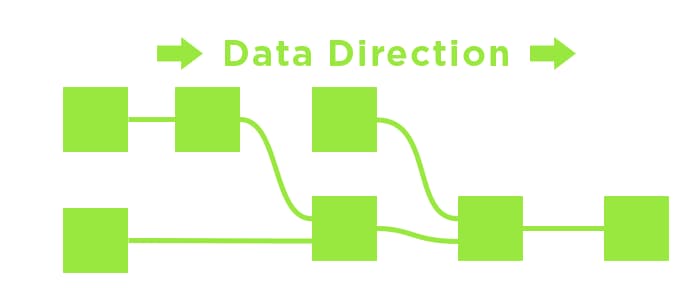
Node-based workflow
Working in Designer is different from other 2D image editing software such as Photoshop. Instead of performing an action manually (like adjusting saturation by going to a menu option and changing a slider), you construct the logical steps of editing or creating your image. This happens by building a network of little building blocks called ‘nodes’. Image data travels from left to right through the building blocks, connected by Links that determine the path of the information. Every Node, if connected, will contribute to the final results.
The major advantage is that your workflow becomes non-linear: Unlike actions performed manually that go into a history stack, you can always swap out or modify a node at any point in time.
If you decide that your very first Contrast adjustment affecting the end result was too intense, then you can still go back and adjust it or even cut it out completely without losing all the work you performed afterward.
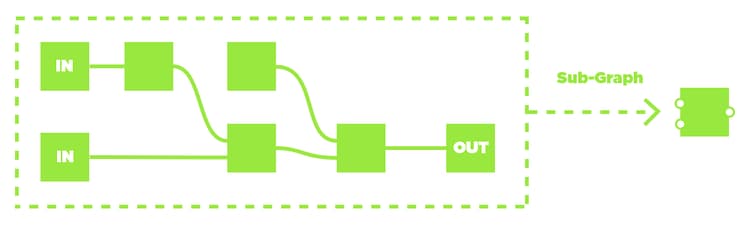
Graph instance workflow
Instancing graphs is a key process in Designer. It allows you to build your own nodes by packaging a graph or part of a graph as a reusable node. These are called instance nodes and allow you to work more efficiently by reusing graphs.
For example: Have you developed a great technique for edge wear? Split that into a separate graph and reuse it in other projects!
For more information about graph instances, there is a dedicated section about their use in Substance graphs.
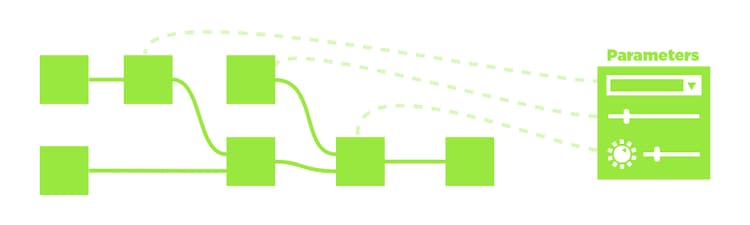
Custom parameters
Any node in your chain of operations will have some form of controls: buttons, sliders, settings for you to tweak which influence the final result.
If you create a subgraph or want to export your Substance file to another application, you can build your own “control panel” for your graphs allowing other users to tweak and modify them with a fully unique control panel.
Learn about the general concept of custom parameters here, or go more in depth and start exposing parameters.
Graph types
Below you can find a summary of the three types of Graph you can edit in Substance 3D Designer, as well as a link to the relevant section of the documentation.

Substance graphs
Substance graphs are the main type of graph created in Substance 3D Designer. Their purpose is to generate and process 2D image data that is not constrained to a set resolution, color or shape. They are meant as extremely versatile image-processing and generation tools, not just static, pre-set results.
The results can be in the form of a simple black-and-white pattern, a filter that only runs on other images and doesn’t generate content by itself, or even a full-fledged procedural material with multiple channels.
Substance graphs are the most widely supported type of graph, and can be exported and used in a plethora of different workflows.
Examples
Below you can find some typical examples of common use cases.
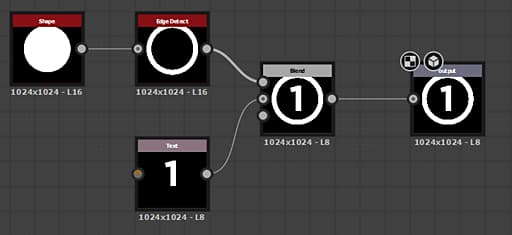
A simple mask shape for a decal is created by generating a piece of text and a disc shape, extracting the edge from the disc and the finally blending them together before setting them as final output.
The Text with the number, or the thickness of the edge can be exposed externally to make this a more dynamic graph.
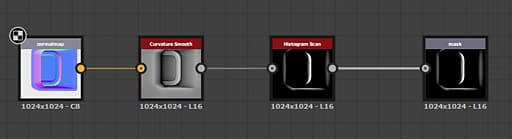
A filter graph takes a normal map as input (with a custom preview), converts it to curvature and then adjusts the contrast to create a mask of convex edges as final output.
The contrast values set in the Histogram can be exposed, making this a simple but useful filter in combination with the dynamic Input slot.
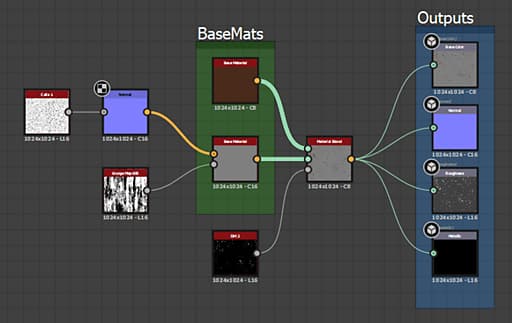
A more complicated graph blends two Base materials. One Base material is kept simple, the other uses some custom inputs to add interest. A mask is used to determine which of the two materials appear where before being set as final outputs.
This example makes use of Link Creation Modes to simplify using multiple links.
Substance function graphs
Functions process single values (integers, floats, vectors) rather than sets of pixels (images). Functions are also node graphs but the nodes involved and their interface is different from Substance graphs.
Indeed, the workflow is based on mathematical and logical operations, making them a much more advanced way to work in Designer.
Functions can be used in many different contexts, the main ones being:
- Modifying the behavior of an exposed Parameter
- Authoring the behavior of Pixel Processors or FX-Maps
- Using values instead of images in Substance graphs, for specific purposes
Examples
Below are some examples from common use cases for Substance function graphs.
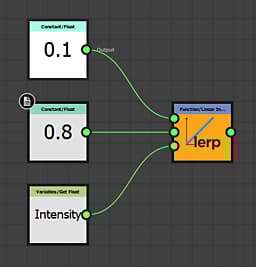
A simple function in the context of an exposed parameter. It gets an input float value called “Intensity” that is determined to go from 0 to 1 (a range easy to understand) and remaps it to a set range of 0.1 - 0.8. That means if the user sets Intensity to 0, internally 0.1 will be used, if the UI is set to 1, 0.8 will be used, and any value in between will be interpolated linearly. This type of function is something commonly used when exposing parameters, but using custom functions.
This function could also be written as lerp(0.1, 0.8, Intensity) in a pseudocode similar to HLSL or GLSL.
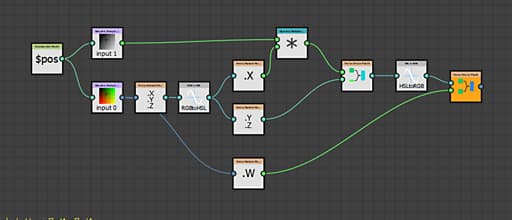
This advanced Function shows the inner workings of a Pixel Processor meant for adjusting the Hue of a color map input based on the intensity of a second grayscale mask input.
It samples both inputs with the system “$pos” variable, then strips the Alpha, converts the color value to HSL and modifies the Hue component by multiplying it with the sampled grayscale value. Afterward it re-assembles the vector, converts the HSL back to RGB and adds the Alpha back in for the final output.
in pseudocode this would be a much more complicated function that would not fit on a single line.