On this page: Learn how to add a Mobile message action to a journey or campaign in Adobe Journey Optimizer, then select a configuration and edit content to send text, rich communication, and multimedia messages.
You can design and send text (SMS), rich communication (RCS) and multimedia (MMS) messages with Adobe Journey Optimizer. You first need to add an Mobile message action in a journey or a campaign, and then define the content of the Mobile message, as detailed below. Adobe Journey Optimizer also offers capabilities to test your Mobile messages before sending, so that you can check the rendering, personalization attributes, and all other settings.
In accordance with the industry standards and regulations, all SMS/RCS/MMS marketing messages must contain a way for the recipients to easily unsubscribe. To do this, SMS recipients can reply with opt-in and opt-out keywords. Learn how to manage opt-out
Add a Mobile message create-sms-journey-campaign
Browse the tabs below to learn how to add a Mobile message in a campaign or a journey.
-
Open your journey then drag and drop an Action activity from the Actions section of the palette. Learn more about the Action activity.
note important IMPORTANT Legacy native channel activities (Email, Push, SMS, In-app, Web, Code-based experience, and Content Card) are deprecated as of the March 2026 release. Existing journeys using these activities continue to work without any changes—no migration is required. -
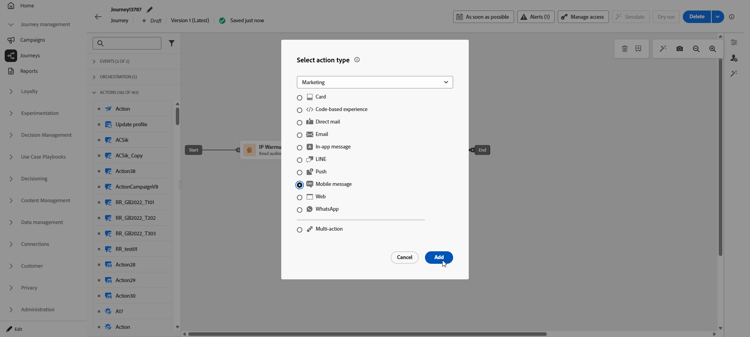
Select Mobile message as the action type and click Add.
-
Enter a Label to identify your action in the journey canvas.
-
Click the Configure action button.
-
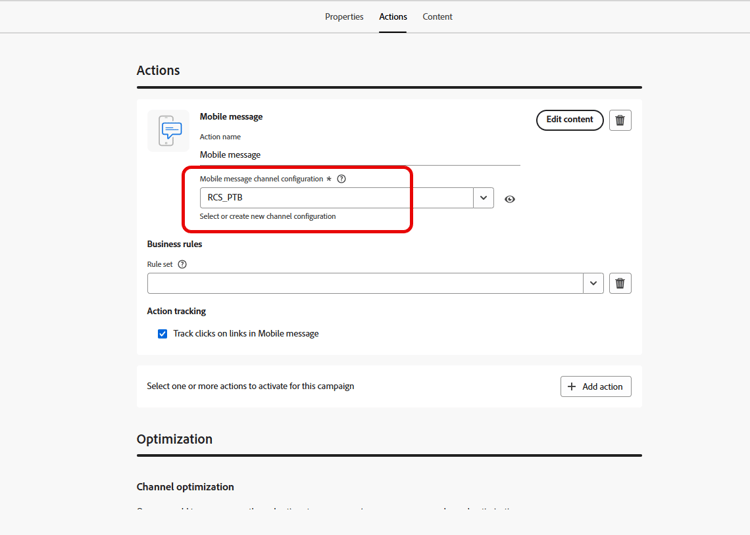
You are directed to the Actions tab. From there, select or create the Mobile message configuration to use. Learn more
-
Additionally, you can apply capping rules to your Mobile message action by selecting a rule set in the Business rules drop-down list. Learn more
-
Select the Edit content button and create your content as desired. Learn more
-
Go back to the journey canvas. If necessary, complete your journey flow by dragging and dropping additional actions or events. Learn more
For more information on how to create, configure and publish a journey, refer to this page.
-
Access the Campaigns menu, then click Create campaign.
-
Select the type of campaign that you want to execute
-
Scheduled - Marketing: execute the campaign immediately or on a specified date. Scheduled campaigns are aimed at sending marketing messages. They are configured and executed from the user interface.
-
API-triggered - Marketing/Transactional: execute the campaign using an API call. API-triggered campaigns are aimed at sending either marketing or transactional messages, i.e., messages sent out following an action performed by an individual: password reset, cart purchase, etc.
-
-
From the Properties section, edit your Campaign’s Title and Description.
-
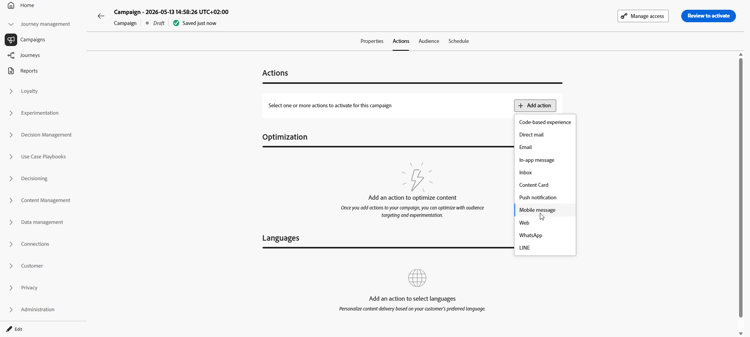
From the Action tab, click Add action and choose Mobile message. Then, select or create a new configuration.
Learn more about Mobile message configuration on this page.
-
Click Create experiment to start configuring your content experiment and create treatments to measure their performance and identify the best option for your target audience. Learn more
-
In the Actions tracking section, specify if you want to track clicks on links in your Mobile message.
-
From the Audience tab, click the Select audience button to define the audience to target from the list of available Adobe Experience Platform audiences. Learn more.
-
In the Identity namespace field, choose the namespace to use in order to identify the individuals from the selected audience. Learn more.
-
From the Schedule tab, you can design your Campaigns to be executed on a specific date or on a recurring frequency. Learn how to configure the Schedule of your campaign in this section.
-
From the Action triggers menu, choose the Frequency of your Mobile message:
- Once
- Daily
- Weekly
- Month
You can now start designing the content of your Mobile message from the Edit content button, as detailed below. Learn more
For more information on how to create, configure and activate a campaign, refer to this page.
Related topics
This section contains structured knowledge intended to support interpretation, retrieval, and question answering related to this topic.
For complete understanding, this information should be combined with the documentation on this page. Neither source is intended to stand alone; the page describes the feature, while this section provides additional context that helps disambiguate terminology, intent, applicability, and constraints.
- TL;DR: This page explains how to send a Mobile message from a journey, through an Action activity with the Mobile message channel, or from a campaign in Journey Optimizer, select or create a Mobile message configuration, and edit the content to send text (SMS), rich communication (RCS), and multimedia (MMS) messages.
Intents:
- Add a Mobile message to a journey by dragging an Action activity and selecting the Mobile message channel
- Add a Mobile message to a campaign from the Action tab
- Select or create the Mobile message configuration used by the channel
- Apply capping rules to a journey Mobile message through the Business rules drop-down
- Set the campaign action frequency (Once, Daily, Weekly, or Month)
- Track clicks on links in the Mobile message from the Actions tracking section
Glossary:
- Mobile message channel: The channel selected in the Action activity of a journey, or in a campaign, to send a text (SMS), multimedia (MMS), or rich communication (RCS) message to profiles when they reach that step (product-specific)
- Mobile message configuration: The configuration referenced by the Mobile message channel that defines the content delivered (product-specific)
- Label: The name that identifies the Action activity in the journey canvas (product-specific)
- Business rules: A rule set selected in the drop-down list to apply capping rules to a Mobile message in a journey (product-specific)
- Scheduled - Marketing campaign: A campaign type executed immediately or on a specified date, configured and executed from the user interface, aimed at sending marketing messages (product-specific)
- API-triggered - Marketing/Transactional campaign: A campaign type executed using an API call, aimed at sending marketing or transactional messages following an action performed by an individual (product-specific)
Guardrails:
- Legacy native channel activities (Email, Push, SMS, In-app, Web, Code-based experience, and Content Card) are deprecated as of the March 2026 release; existing journeys using them continue to work without changes and no migration is required.
- RCS is not a HIPAA-Ready Service and must not be used to collect, store, or process any sensitive personal data, including permitted health data.
- All SMS/RCS/MMS marketing messages must contain a way for the recipients to easily unsubscribe.
- Campaign action frequency options are Once, Daily, Weekly, and Month.
Terminology:
- Canonical name: Mobile message channel — variants: SMS
- Do not confuse: “Scheduled - Marketing” (executed from the user interface) ≠ “API-triggered - Marketing/Transactional” (executed using an API call)
FAQ:
- Q: How do I add a Mobile message to a journey? — Drag and drop an Action activity, select Mobile message as the action type (the Mobile message channel), click Add, enter a Label, click Configure action, then select or create the Mobile message configuration and edit the content.
- Q: How do I add a Mobile message to a campaign? — From the Action tab, click Add action, choose Mobile message, then select or create a configuration and edit the content.
- Q: Can I limit how often a journey Mobile message is sent? — Yes, you can apply capping rules by selecting a rule set in the Business rules drop-down list.
- Q: Are the legacy native SMS journey activities still usable? — They are deprecated as of the March 2026 release, but existing journeys using them continue to work without changes and no migration is required.
- Q: How do I track clicks on links in a Mobile message campaign? — In the Actions tracking section, specify that you want to track clicks on links in your Mobile message.