On this page: Learn how to design and personalize SMS, RCS, and MMS message content in Adobe Journey Optimizer, including RCS rich media, fallback text, suggested actions, tracked URLs, and added media.
You can design and send text (SMS), rich communication (RCS), and multimedia (MMS) messages with Adobe Journey Optimizer. You first need to add a Mobile message action in a journey or a campaign, and then define the content of the Mobile message, as detailed below. Adobe Journey Optimizer also offers capabilities to test your Mobile messages before sending, so that you can check the rendering, personalization attributes, and all other settings.
In accordance with the industry standards and regulations, all SMS/RCS/MMS marketing messages must contain a way for the profiles to easily unsubscribe. To do this, SMS profiles can reply with opt-in and opt-out keywords. Learn how to manage opt-out
Define your RCS content rcs-content
RCS lets you send visually rich messages with images, videos, carousels, and interactive buttons, delivered through the native messaging app on supported devices. Messages are sent from a branded, verified sender. When a profile’s device or carrier does not support RCS, Journey Optimizer automatically falls back to a standard SMS.
Every RCS message requires a Default fallback text: a plain-text SMS version delivered to profiles whose device or carrier does not support RCS. A campaign cannot be activated without it.
Keep the following in mind when writing fallback text:
- Keep it concise. Mobile messages are limited to 160 characters per segment; longer messages are split into multiple parts and may incur additional charges.
- Include key URLs. If your RCS message links to a URL via action buttons, add a shortened URL to the fallback text so Mobile profiles can still reach the destination.
- Avoid RCS-only references. Do not mention visuals, carousels, or interactive features that are not available in plain SMS.
- Personalization is supported. You can use personalization tokens in fallback text to keep the message feel consistent across both versions.
To define your RCS message content, follow the steps below.
-
In the authoring panel, choose your Content type:
accordion Text A plain text body with optional interactive buttons. Best for notifications, alerts, reminders, and conversational flows where visuals are not needed.
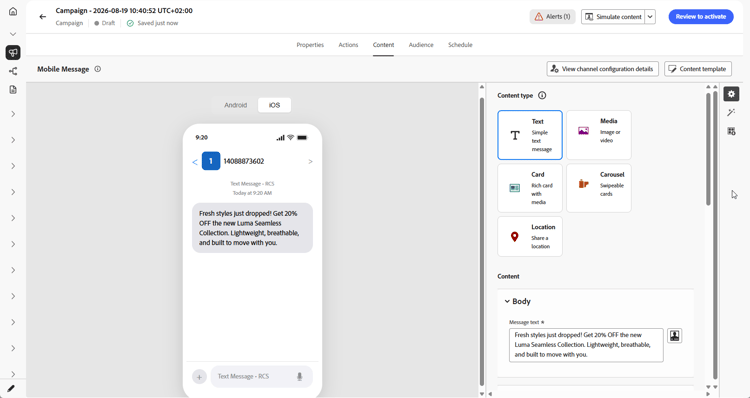
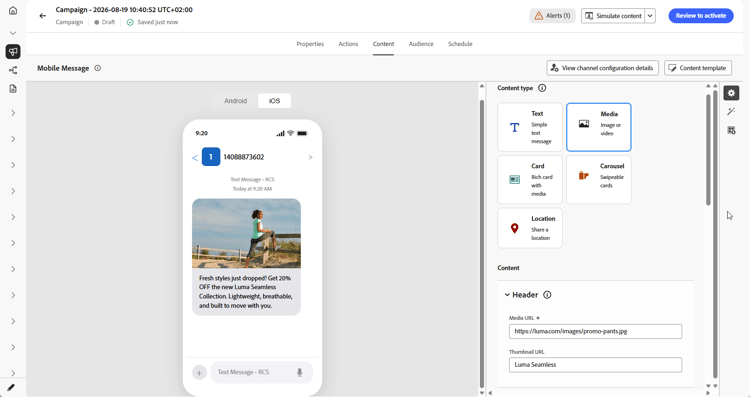
accordion Media A standalone image or video with optional text and interactive buttons. Use it when a single visual (a product image, banner, or video clip) is the focal point of your message.
-
From the Header menu, enter a Media URL pointing to the image or video to display.
-
If the media is a video file, optionally enter a Thumbnail URL.
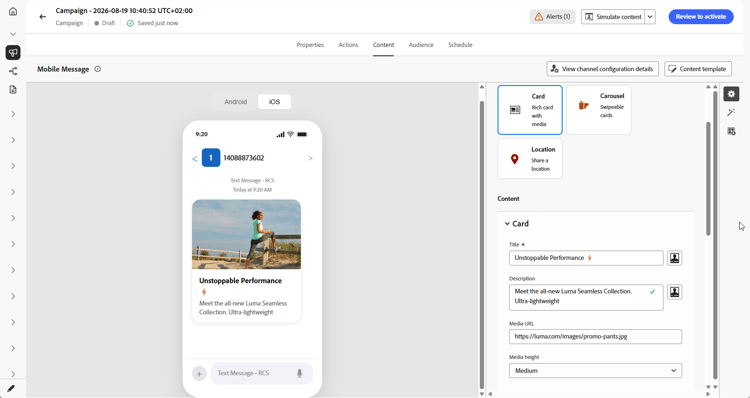
accordion Card A structured card combining an image or video, title, body text, and action buttons. Use it to present a product, offer, or content item in a branded format.
-
Enter a Title and Description.
-
Enter a Media URL pointing to the image or video to display.
-
If the media is a video file, optionally enter a Thumbnail URL.
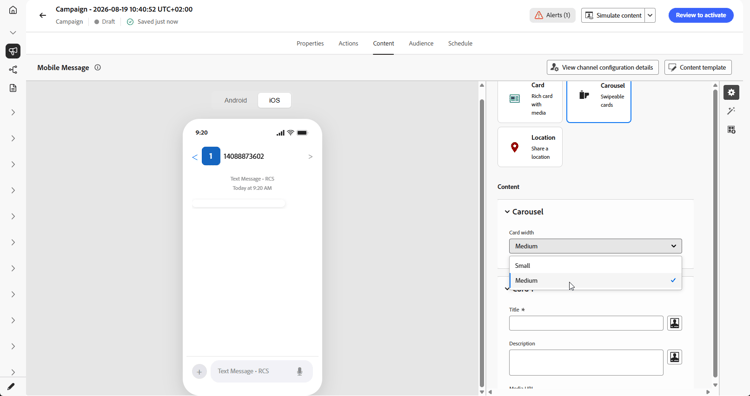
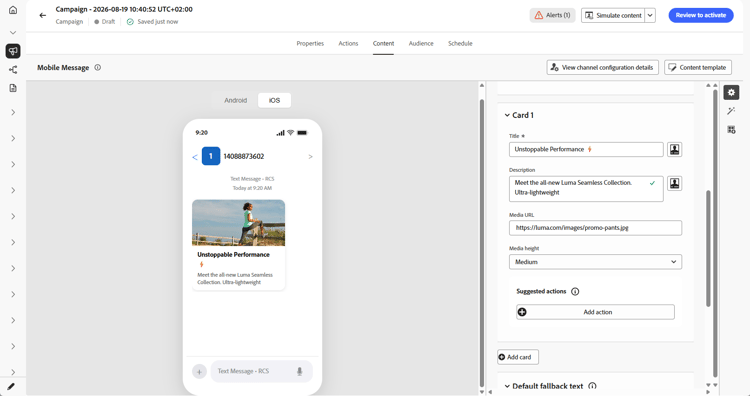
accordion Carousel A horizontally scrollable series of rich cards in a single message, each with its own image, title, description, and buttons. Ideal for product catalogues or promotions. A minimum of 2 cards is required.
-
Select a Card width to control the display width of each card.
-
For each card, enter a Title and Description.
-
Enter a Media URL pointing to the image or video for that card.
-
Optionally, select a Media height and add suggested action buttons.
-
Click Add card to add a card to your carousel.
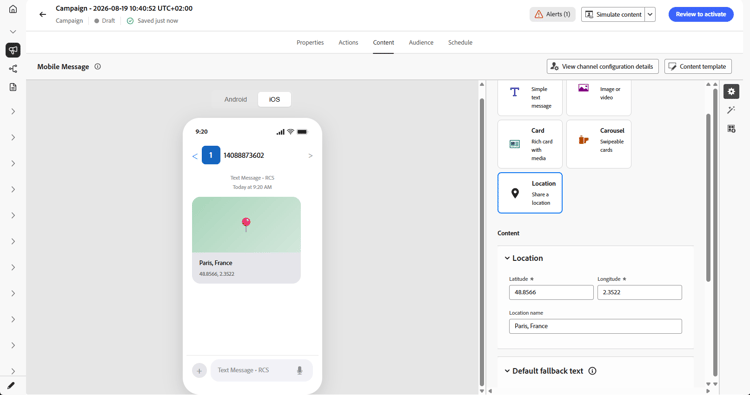
accordion Location Sends a map pin to a set of coordinates, displayed as an inline map preview in the profile’s messaging thread. Use it to share a store address, event venue, or service area.
-
Enter the decimal Latitude and Longitude of the location.
-
Optionally, enter a Location name to display as a label on the map pin.
-
-
In the Message text or Description fields, enter your message content. You can use personalization to tailor the text to each profile. Note that character limits vary by message type: 3,072 characters for Rich Media (Single) and 160 for Basic RCS.
-
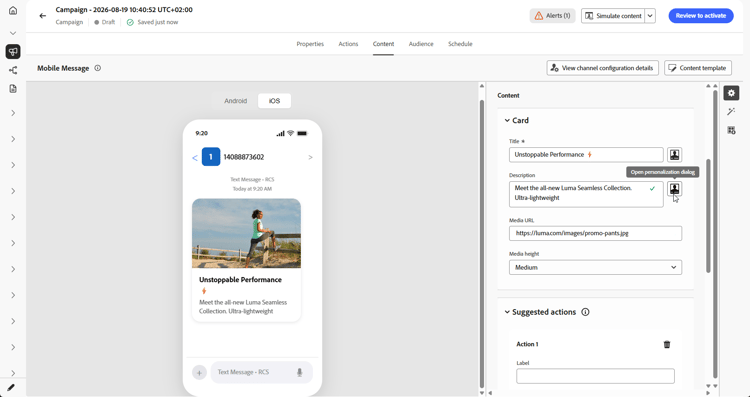
Use the Personalization editor to define content, add personalization and dynamic content. You can use any attribute, such as the profile name or city for example. You can also define conditional rules.
-
Optionally, add Suggested actions, interactive buttons that let profiles act with a single tap.
-
Enter a Label to your Action.
-
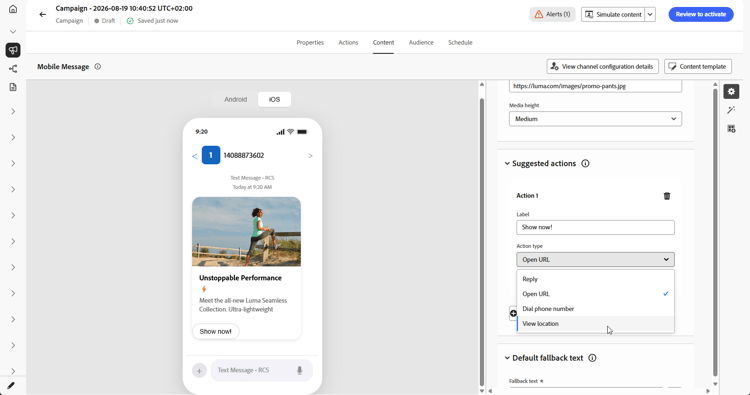
Choose your Action type:
-
Reply: sends a predefined text reply back to the RCS agent on behalf of the profile. Use this to capture intent, drive conversational flows, or trigger downstream journey events. No additional fields are required, the reply text matches the button label.
-
Open URL: redirects the profile to a web page, deep link, or In-App destination. Supports personalization tokens and UTM tracking parameters, e.g.
https://www.example.com/offers?id={{profile.userId}}. -
Dial phone number: opens the device dialer with a specified phone number pre-filled, ready for the profile to call.
-
View location: opens the device’s default maps application at a specified location. Provide the decimal Latitude and Longitude of the location to display.
-
-
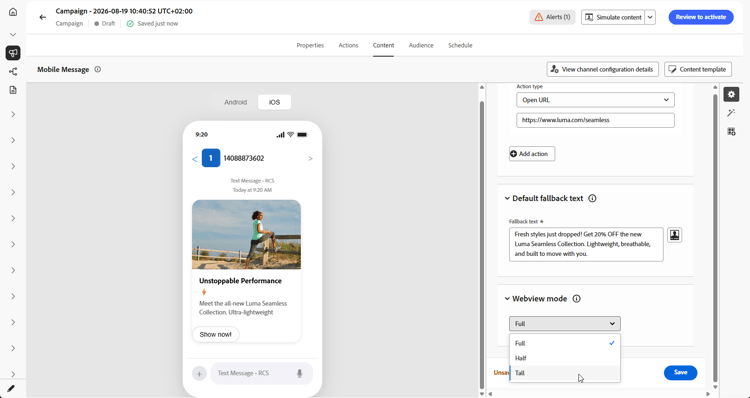
In the Default fallback text field, enter the plain-text SMS version of your message. This is required and is delivered to profiles whose device or carrier does not support RCS.
-
From the Webview drop-down, choose the size of your Webview when sending an Open URL action.
-
Click Save and check your message in the preview. You can now test and check your message content as detailed in this section.
Define your SMS content sms-content
To configure your message content, follow the steps below. Settings for MMS are detailed in this section.
-
From the journey or campaign configuration screen, click the Edit content button to configure the Mobile message content.
-
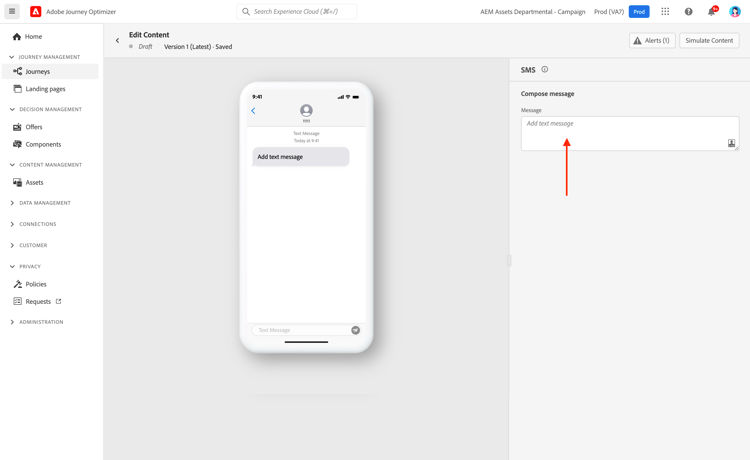
Click the Message field to open the personalization editor.
-
Generate engaging Mobile messages tailored to your audience using Generate text with AI.
-
Use the personalization editor to define content, add personalization and dynamic content. You can use any attribute, such as the profile name or city for example. You can also define conditional rules. Browse to the following pages to learn more about personalization and dynamic content in the personalization editor.
-
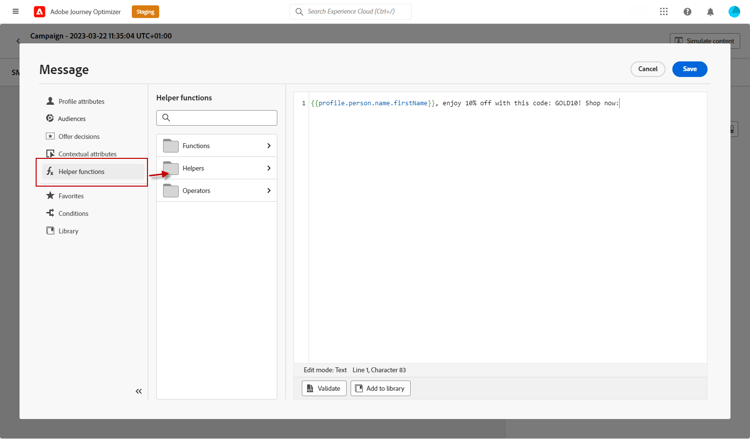
After defining your content, you can add tracked URLs to your message. To do this, access the Helper functions menu and select Helpers.
-
Select Url and click Add URL. Learn more about the
Urlhelper function in this section.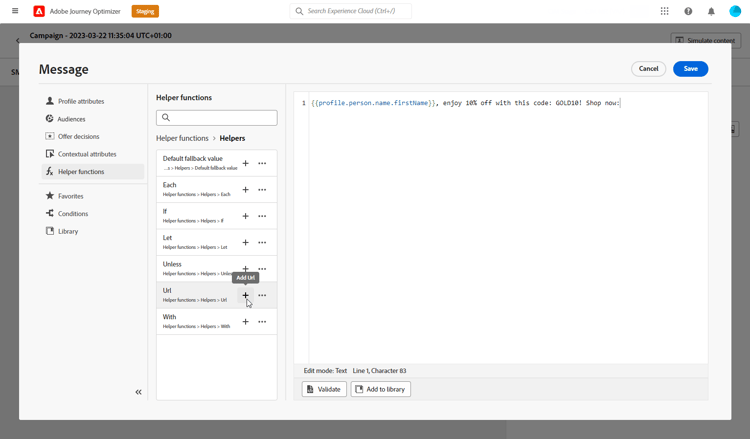
-
To shorten the URL, paste it in the
originalUrlfield and click Save.note caution CAUTION To use the URL shortening function, you must first configure a subdomain that will then be linked to your configuration. Learn more The lifespan of short URLs is set to 30 days. After this period, these short URLs will no longer be accessible and will display the message: 404 short-code not found. -
To add a deep link that opens a specific screen in your mobile app, use the
Urlhelper function with theDEEPLINKtype, such as in the example below. Learn more about deep linkscode language-none {{url originalUrl='<<deeplink_url>>' type='DEEPLINK' action='CLICK'}}note caution CAUTION Before using deep linking, make sure you have completed the corresponding configuration steps in Journey Optimizer and implemented deep link handling in your mobile app. If you have not done so, the deep link will not direct users to the intended in-app content. Also, make sure link tracking is enabled in the Actions section of your journey or campaign so that the URL is rewritten through Adobe systems. -
From the Decisioning menu, you can personalize and optimize the content of your Mobile messages with Decisioning. This capability allows you to use Priority Scores, Formulas, or AI Models to dynamically select and display the best content to your customers.
For more information on how to create and use decision policies in Mobile messages, refer to this section.
-
Click Save and check your message in the preview. You can now test and check your message content as detailed in this section.
Define your MMS content mms-content
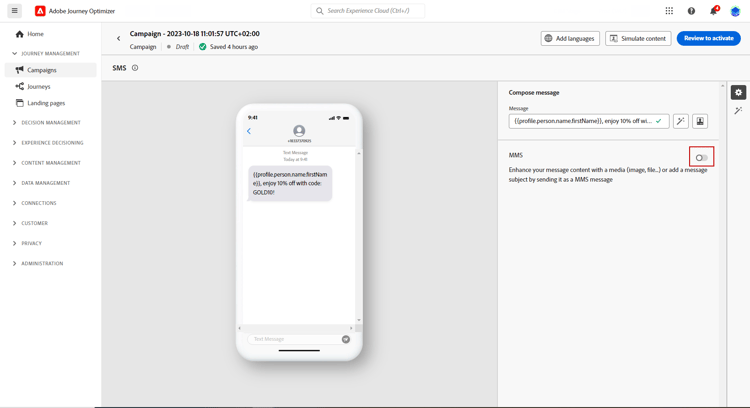
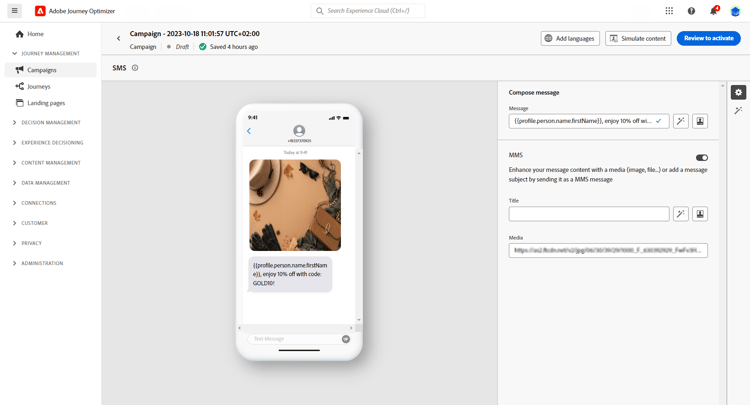
You can enhance your communication by sending Multimedia Message Service (MMS) messages, enabling the sharing of media such as videos, pictures, audio clips and GIFs, and more. Additionally, MMS allows for up to 1600 characters of text in your message.
To create MMS content, follow these steps:
-
Create a Mobile message as described in this section.
-
Edit your SMS content as detailed in this section.
-
Enable the MMS option to add media to your SMS content.
-
Add a Title to your media.
-
Enter the URL of your media in the Media field.
-
Click Save and check your message in the preview. You can now test and check your message content as detailed below.
Once you have performed your tests and validated the content, you can send your Mobile message to your audience. These steps are detailed on this page
This section contains structured knowledge intended to support interpretation, retrieval, and question answering related to this topic.
For complete understanding, this information should be combined with the documentation on this page. Neither source is intended to stand alone; the page describes the feature, while this section provides additional context that helps disambiguate terminology, intent, applicability, and constraints.
- TL;DR: This page explains how to design and personalize SMS, RCS, and MMS message content in Journey Optimizer, including RCS content types and fallback text, suggested actions, tracked and shortened URLs, deep links, Decisioning, and added MMS media.
Intents:
- Define RCS content by choosing a content type (Text, Media, Card, Carousel, or Location)
- Set the Default fallback text delivered when a device or carrier does not support RCS
- Add suggested actions with an action type (Reply, Open URL, Dial phone number, or View location)
- Define and personalize Mobile message content with the personalization editor and Generate text with AI
- Add tracked and shortened URLs and deep links using the Url helper function
- Personalize and optimize content with Decisioning using Priority Scores, Formulas, or AI Models
- Enable MMS to add media to the Mobile message content
Glossary:
- Default fallback text: The plain-text SMS version of an RCS message, delivered to profiles whose device or carrier does not support RCS (product-specific)
- Suggested actions: Interactive buttons that let profiles act with a single tap (product-specific)
- Rich Media (Single): An RCS message type supporting up to 3,072 characters (product-specific)
- Basic RCS: An RCS message type limited to 160 characters (product-specific)
- Personalization editor: The editor used to define content, add personalization and dynamic content, and define conditional rules (product-specific)
- Url helper function: A helper used to add tracked URLs, shorten URLs through the originalUrl field, and create deep links with the DEEPLINK type (product-specific)
- Decisioning: A capability that dynamically selects and displays the best content using Priority Scores, Formulas, or AI Models (product-specific)
Guardrails:
- Every RCS message requires a Default fallback text; a campaign cannot be activated without it.
- SMS messages are limited to 160 characters per segment; longer messages are split into multiple parts and may incur additional charges.
- A Carousel requires a minimum of 2 cards.
- Character limits vary by message type: 3,072 characters for Rich Media (Single) and 160 for Basic RCS.
- MMS allows for up to 1600 characters of text.
- Short URLs have a lifespan of 30 days; after that period they display the message 404 short-code not found.
- To use the URL shortening function, you must first configure a subdomain linked to your configuration.
- Deep links require completing the deep link configuration steps in Journey Optimizer and implementing deep link handling in the mobile app, and link tracking must be enabled in the Actions section so the URL is rewritten through Adobe systems.
Terminology:
- Canonical name: Mobile message content — variants: SMS content
- Do not confuse: “Rich Media (Single)” (up to 3,072 characters) ≠ “Basic RCS” (160 characters)
- Do not confuse: “Reply” (sends a predefined text reply to the RCS agent) ≠ “Open URL” (redirects to a web page, deep link, or In-App destination) ≠ “Dial phone number” (opens the device dialer) ≠ “View location” (opens the device maps application)
FAQ:
- Q: What happens when a recipient’s device does not support RCS? — Journey Optimizer automatically falls back to a standard SMS using the Default fallback text, which is required.
- Q: How many cards does a Carousel need? — A Carousel requires a minimum of 2 cards.
- Q: What are the RCS character limits? — 3,072 characters for Rich Media (Single) and 160 for Basic RCS.
- Q: How long do shortened URLs stay active? — The lifespan of short URLs is 30 days, after which they display 404 short-code not found.
- Q: What is required before I can shorten URLs? — You must first configure a subdomain that is then linked to your configuration.
- Q: How much text can an MMS contain? — MMS allows for up to 1600 characters of text.