이 페이지에서: API에서 트리거된 캠페인이 보내는 채널 및 채널 구성을 선택하고, 올바른 채널에서 올바른 메시지를 전달할 수 있도록 추적, 콘텐츠 실험 및 다국어 옵션을 설정합니다.
액션 탭을 사용하여 메시지의 채널 구성을 선택하고 추적, 콘텐츠 실험 또는 다국어 콘텐츠와 같은 추가 설정을 구성합니다.
-
채널 선택.
작업 탭으로 이동하여 작업 추가 단추를 클릭하고 통신 채널을 선택합니다.
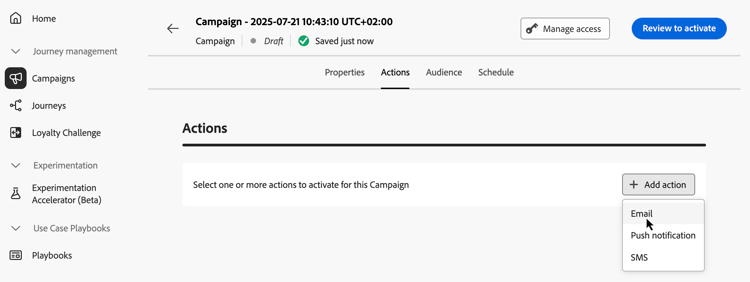
note NOTE 지원되는 채널에 대한 자세한 내용은 이 섹션의 표를 참조하십시오. 여정 및 캠페인의 채널. 사용 가능한 채널은 사용하는 라이선스 모델 및 추가 기능에 따라 다릅니다. 처리량이 많은 API 트리거 캠페인은 현재 이메일 채널만 지원합니다. -
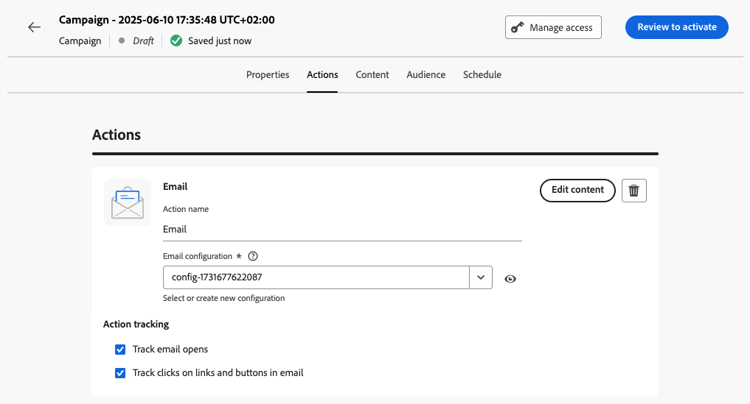
채널 구성 선택
구성은 시스템 관리자가 정의합니다. 여기에는 헤더 매개 변수, 하위 도메인, 모바일 앱 등 메시지를 보내는 데 필요한 모든 기술 매개 변수가 포함되어 있습니다. 채널 구성을 설정하는 방법에 대해 알아보세요
-
최적화 활용
메시지 최적화 섹션을 사용하여 콘텐츠 실험을 실행하거나, 타깃팅 규칙을 활용하거나, 실험과 타깃팅을 모두 사용하는 고급 조합을 사용할 수 있습니다. 이러한 다양한 옵션과 따라야 할 단계는 이 섹션에 자세히 설명되어 있습니다. 캠페인의 최적화.
-
다국어 콘텐츠 추가
언어 섹션을 사용하여 캠페인 내에서 여러 언어로 콘텐츠를 만듭니다. 이렇게 하려면 언어 추가 버튼을 클릭하고 원하는 언어 설정을 선택합니다. 다국어 기능 설정 및 사용 방법에 대한 자세한 정보는 다국어 콘텐츠 시작 섹션에서 확인할 수 있습니다.
선택한 통신 채널에 따라 추가 설정을 사용할 수 있습니다. 자세한 내용을 보려면 아래 섹션을 확장하십시오.
API가 트리거된 캠페인에 다른 구성을 만들지 않고 선택한 채널 구성과 다른 이메일 값이 필요한 경우 이 옵션을 사용합니다. 나머지 구성은 변경되지 않은 상태로 유지하면서 해당 작업에 필요한 필드만 재정의할 수 있습니다. 전자 메일 채널 구성을 재정의하는 방법을 알아보세요
API 트리거 캠페인의 경우, 컨텍스트는 런타임 시 API 페이로드에서 생성되므로, 이메일 작업을 정의할 때 개인화 편집기에서 컨텍스트 속성을 사용할 수 없으므로 수동으로 입력해야 합니다. 컨텍스트 데이터 구문에 대해 자세히 알아보기
| note important |
|---|
| IMPORTANT |
식 경로는 Journey Optimizer에서 검사를 수행하지 않으므로 API 페이로드 구조와 정확히 일치해야 합니다. 예를 들어 페이로드에 context.RM.name과(와) context.RM.emailPrefix이(가) 포함된 경우 식에 동일한 점 표기법을 사용하십시오. |
빠른 전송 모드는 캠페인을 통해 대량으로 매우 빠르게 푸시 메시지를 전송할 수 있는 Journey Optimizer 추가 기능입니다. 빠른 게재는 메시지 게재 지연이 비즈니스에 중요한 경우, 휴대폰에 긴급 푸시 알림을 전송하려는 경우(예: 뉴스 채널 앱을 설치한 사용자에게 속보 전달) 사용됩니다. 푸시 알림에 대해 빠른 전송 모드를 사용하는 방법을 알아봅니다. 이 페이지.
빠른 전송 모드를 사용할 때의 성능에 대한 자세한 내용은 Adobe Journey Optimizer 제품 설명을 참조하십시오.
다음 단계 next
캠페인 구성 및 콘텐츠가 준비되면 콘텐츠를 디자인할 수 있습니다. 자세히 알아보기
This section contains structured knowledge intended to support interpretation, retrieval, and question answering related to this topic.
For complete understanding, this information should be combined with the documentation on this page. Neither source is intended to stand alone; the page describes the feature, while this section provides additional context that helps disambiguate terminology, intent, applicability, and constraints.
- TL;DR: This page explains how to choose the channel and the channel configuration of an API triggered campaign in the Actions tab, and how to set optimization, multilingual, capping, tracking, and Rapid delivery mode options.
Intents:
- Add an action to an API triggered campaign and choose its communication channel
- Select a channel configuration for the message
- Use the Message Optimization section for content experiments, targeting rules, or both
- Add multilingual content with the Languages section
- Apply capping rules, track engagement, or enable Rapid delivery mode, depending on the channel
Glossary:
- Channel configuration: Defined by a System Administrator; contains the technical parameters for sending the message, such as header parameters, subdomain, mobile apps (product-specific)
- Business rules: Drop-down list in which you select a rule set to apply capping rules to the campaign
- Capping rules: Frequency capping by communication type, applied through a rule set, to prevent overloading customers with similar messages
- Action tracking: Section used to track how recipients react to email or mobile deliveries; results are accessible from the campaign report once the campaign has been executed
- Rapid delivery mode: A Journey Optimizer add-on that allows very fast push message sending in large volumes through campaigns (product-specific)
Guardrails:
- Available channels vary based on your licensing model and add-ons.
Prerequisites and permissions:
- A channel configuration, defined by a System Administrator
Applicability:
- Capping rules (Business rules): Email, Push, Mobile
- Track engagement (Action tracking): Email, Mobile
- Rapid delivery mode: Push
- High Throughput API triggered campaigns: email channel only
Terminology:
- Canonical name: API triggered campaign action
- Do not confuse: “channel” (the communication channel selected with Add action) ≠ “channel configuration” (the technical parameters defined by a System Administrator)
FAQ:
- Q: How do I choose the channel of an API triggered campaign? — In the Actions tab, click Add action and select the communication channel.
- Q: Which channels can I use? — Available channels vary based on your licensing model and add-ons. High Throughput API triggered campaigns currently support the email channel only.
- Q: Who defines the channel configuration? — A System Administrator defines it.
- Q: Which channels support capping rules and engagement tracking? — Capping rules apply to Email, Push, and Mobile. Tracking applies to Email and Mobile.
- Q: Which channel supports Rapid delivery mode? — Push.
Examples:
- Rapid delivery mode is used when delay in message delivery is business-critical, for example an urgent push alert such as breaking news sent to users who have installed a news channel app.
Related pages:
- Supported channels: Channels in journeys & campaigns (channels/gs-channels.md)
- Setting up channel configurations: Learn how to set up channel configurations (configuration/channel-surfaces.md)
- Content experiments and targeting rules: Optimization in campaigns (content-management/gs-message-optimization.md)
- Multilingual content: Get started with multilingual content (content-management/multilingual-gs.md)
- Rule sets for capping: Learn how to work with rule sets (conflict-prioritization/rule-sets.md)
- Campaign reports: Learn more about campaign reports (reports/campaign-global-report-cja.md)
- Enabling Rapid delivery mode for push notifications: on this page (push/create-push.md#rapid-delivery)
- Next step, designing the content: Learn more (campaigns/api-triggered-campaign-content.md)
Personas:
- developer: Can add an action to an API triggered campaign and select its communication channel in the Actions tab. Can select a channel configuration that contains technical parameters such as header parameters, subdomain, and mobile apps. The page states that High Throughput API triggered campaigns currently support the email channel only. Where: “Configure the API triggered campaign action”.
Onboarding:
- Level: Experienced
- First minimal step: Navigate to the Actions tab, select Add action, and select the communication channel.
- Success check: Tracking results are accessible from the campaign report once the campaign has been executed.
- Previous: A channel configuration must be defined before you can select it for the action: Set up channel configurations (configuration/channel-surfaces.md)
- Next: Once your campaign configuration and content are ready, design its content: Edit the API triggered campaign content (campaigns/api-triggered-campaign-content.md)