[限定提供]{class="badge informative"}
Sourceとオーディエンスの管理
オーディエンスとは、さまざまな属性にもとづいてセグメント化された、特定のユーザーや顧客のグループのことです。 これにより、共同作業者は協力して、より効果的な広告キャンペーンを実現するための、ターゲットマーケティングとパーソナライズされたエクスペリエンスに取り組むことができます。 このガイドでは、Real-Time CDP Collaborationでオーディエンスを取得する方法、オーディエンスダッシュボードを表示する方法、個々のオーディエンスを管理する方法について説明します。
Collaborationのオーディエンスの概念的な説明については、 オーディエンスの概要を参照してください。
SourceからCollaborationへのオーディエンス source-audiences
共同作業者とのオーディエンスをアクティブ化し、重複の計算を実行する前に、オーディエンスをCollaborationにソースする必要があります。 オーディエンスを取得するには、以下のセクションのワークフロー手順に従います。
セットアップ ワークスペース内のマイオーディエンス タブから、追加アイコン(

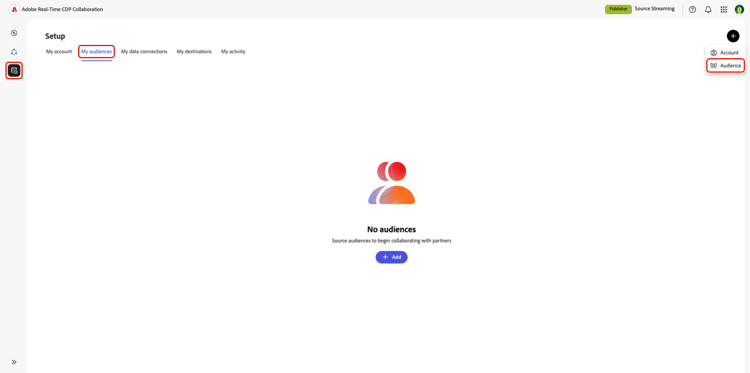
データ接続の選択 select-data-connection
データ接続は、オーディエンスをCollaborationに取り込むソースです。 利用可能なすべてのソースについて詳しくは、 ソースの概要を参照してください。
以下のセクションでは、Adobe Experience Platformを選択し、Experience Platform固有の手順(サンドボックス、ガバナンス、同意)を完了する方法について説明します。 CSV、Amazon S3、Snowflake、Google Cloud Storage、Adobe Audience ManagerまたはDatabricks Delta Shareのいずれかを選択した場合は、そのオプションの「 データソースを選択」の下にリンクされているガイドを使用します。
Experience Platform データ接続に対して設定した設定は、その接続からソースされたすべてのオーディエンスに適用されます。
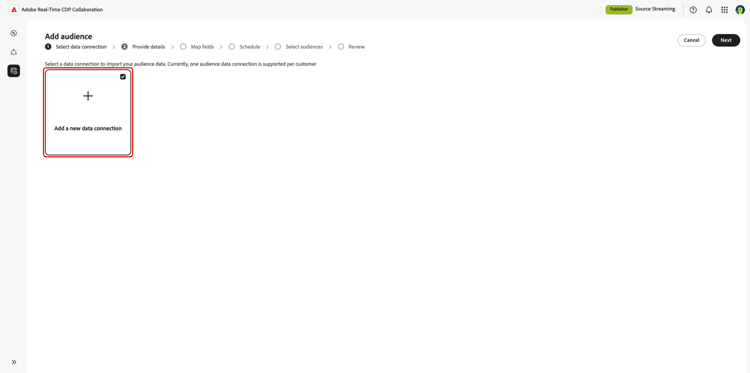
データ接続の追加を開始するには、新しいデータ接続を追加を選択し、次へを選択します。
データソースを選択 select-data-source
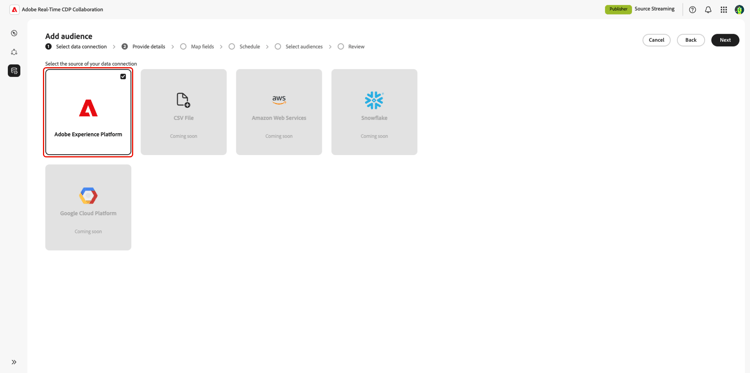
次に、データ接続のソースを選択します。 利用可能なソースは次のとおりです。
- Adobe Experience Platform: Adobe Experience Platformからオーディエンスを取り込むには、このオプションを選択します。
- CSV ファイル: オーディエンスデータを含むCSV ファイルをアップロードして、すばやく簡単にデータを取り込みます。 開始するには、「 オーディエンスソーシング用CSV ファイルのアップロード 」ガイドを参照してください。
- Amazon Web Services: Amazon S3 ストレージに接続して、S3 バケットから直接オーディエンスデータを取得します。 詳しい手順については、「 オーディエンスソーシング用にAWS S3を設定 ガイド」を参照してください。
- Snowflake: Snowflake データウェアハウスを使用して、オーディエンスデータをシームレスに取り込みます。 オーディエンスのソーシング 🔗については、設定 Snowflake ガイドを参照してください。
- Google Cloud Storage:GCS バケットに接続してソースオーディエンスデータを取得します。 詳しい手順については、 オーディエンスソーシング用GCSの設定 ガイドを参照してください。
- Databricks Delta Share: Databricks Delta Shareに接続して、Databricks環境から1st パーティオーディエンスデータを取得します。 オーディエンスのソーシング 🔗については、設定 Databricks Delta Share ガイドを参照してください。
- Adobe Audience Manager: Adobe Audience ManagerからオーディエンスセグメントをSourceします。 詳しくは、「 オーディエンスソーシング用にAdobe Audience Managerを設定 ガイド」を参照してください。
データソースを選択し、次へを選択します。
サンドボックスを選択 select-sandbox
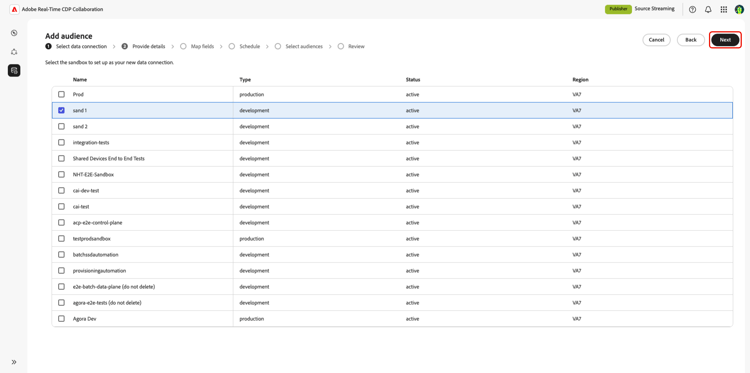
データソースを選択したら、Collaborationに使用するオーディエンスを含むサンドボックスを選択する必要があります。 使用可能なサンドボックスのリストからサンドボックスを選択し、次へを選択します
ガバナンスポリシーと適用アクション governance-policy-and-enforcement-actions
次に、ソースとなるデータに対して適切なマーケティング施策を設定する必要があります。 また、データコラボレーションに使用するために、Experience Platformから取得したデータに対して同意を得る必要もあります。
マーケティングアクションを使用して、Experience PlatformからCollaborationに取り込むオーディエンスデータを制御します。 データ共同作業マーケティングアクションは、C4、C5、C9、S1、S2、PSPD、RHD データ使用ラベルをサポートしています。 データサイエンスマーケティングアクションは、C9 データ使用ラベルをサポートしています。
C4、C5、C9、S1、S2、PSPDおよびRHD データ使用ラベル の詳細をご覧ください。
- チェックボックスが enabled の場合、上記のようにExperience Platformでラベル付けされたデータは除外され、notがCollaborationに取り込まれます。
- チェックボックス disabledを使用すると、Experience Platformから取得したデータに制限はありません。
データ使用ラベルの詳細については、Experience Platformのドキュメントを参照してください。
さらに、Collaborationに取り込むデータに適用する同意ルールを選択します。
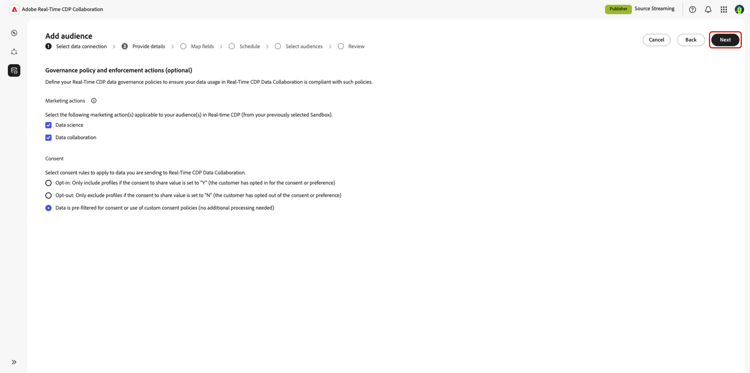
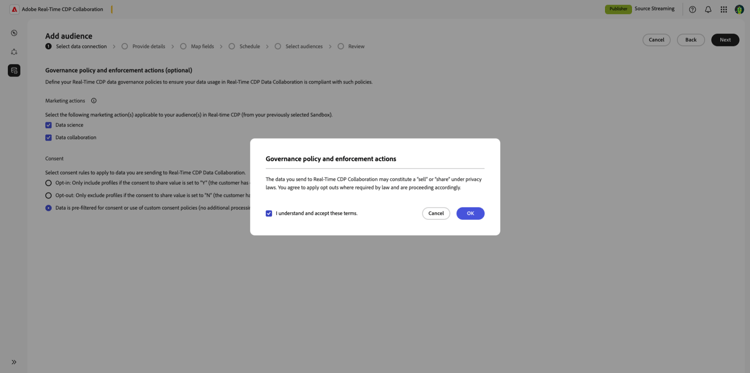
マーケティング活動と同意ルールを選択したら、次を選択して次の手順に進みます。 条件に同意するよう求める確認ダイアログが表示されます。 チェックボックスを選択し、OKを選択して確認します。
詳細を入力 provide-details
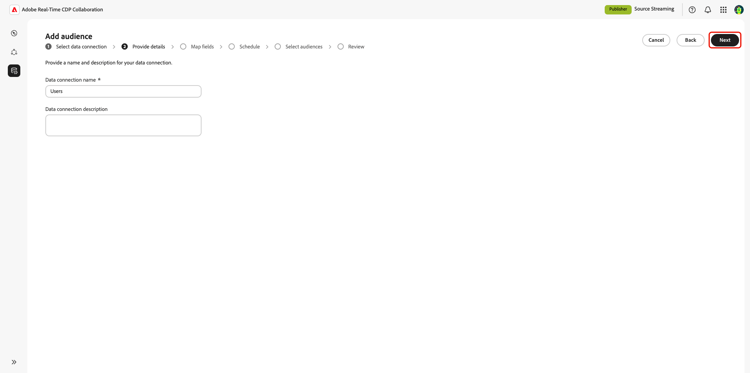
次に、データ接続の名前と説明を入力します。 この情報は、後でデータ接続を特定するのに役立ちます。
フィールドのマッピング map-fields
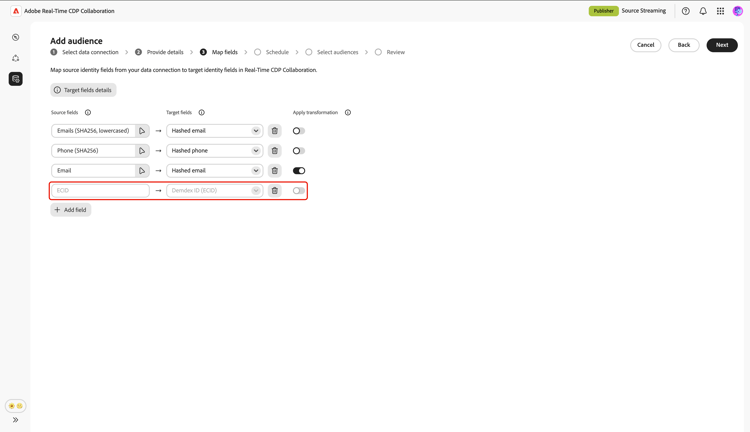
次に、ソースフィールドを選択して、Collaborationのターゲットフィールドにマッピングします。 使用可能なターゲットフィールドは、 アカウントのセットアップ 中に選択した照合キーに基づきます。
アカウントのセットアップ中に一致キーとしてDemdex ID (ECID)を選択した場合、Demdex IDは自動的に抽出され、ECIDからマッピングされるので、何も操作を行う必要はありません。 Demdex IDsについて詳しくは、Demdex ID ガイドを参照してください。
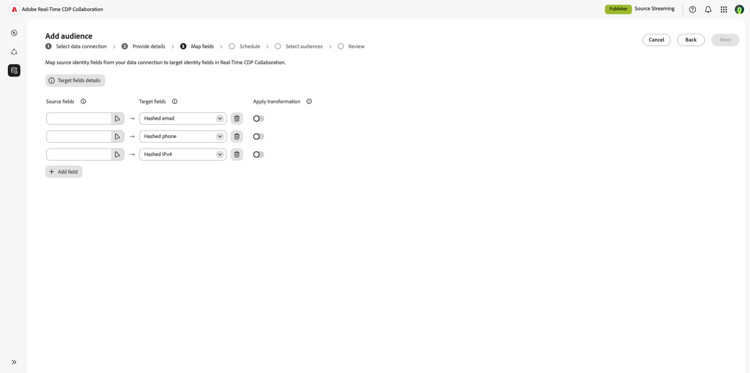
Source フィールドは、Experience PlatformのID名前空間と属性です。 これには、標準と カスタム の両方のID名前空間が含まれます。 また、union スキーマ に存在し、XDM Individual Profile クラスに属するプロファイル属性も含まれます。
Source フィールドは、Collaborationで定義されたターゲットフィールドにマッピングされます。
ターゲットフィールドは、CollaborationでのIDの参照方法を示します。 ターゲットフィールドは、アカウント設定時に選択した一致キーです。 デフォルトでは、選択したすべての一致キーを使用できます。
ハッシュ化されたフィールドに非ハッシュ化された フィールドをソーシングする場合は、変換を適用 オプションを使用します。 Collaborationがハッシュ化を適用し、フィールドを変換します。 Adobeで使用されるハッシュアルゴリズムはSHA256です。
フィールドのマッピングを開始するには、ターゲットフィールドの横にある空のソースフィールドを選択します。 ソースフィールドを選択 ダイアログが表示されます。 ID名前空間と プロファイル属性 のオプションを選択して、目的のソースフィールドを見つけ、リストからフィールドを選択します。 検索オプションを使用して、目的のフィールドを見つけることもできます。
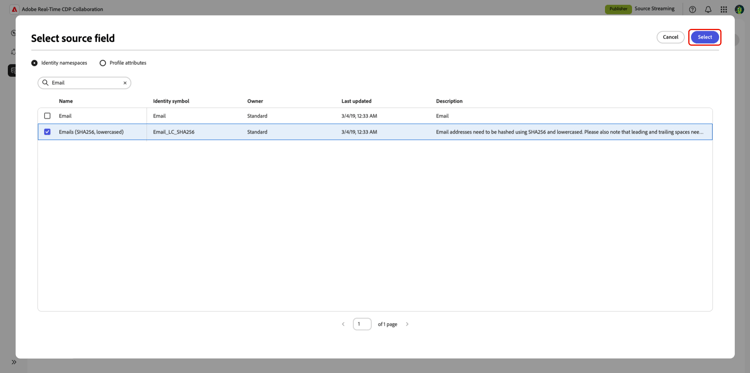
一部のプロファイル属性は、オブジェクトの配列であるリスト内でモデル化されます(ダイアログではObject[]と表示されます)。 重要な識別子や属性は、顧客番号や車両識別子など、繰り返し使用されるレコードの中に存在します。
プロファイル属性 オプションで、ソースフィールドを選択 ダイアログのリストフィールドを展開し、一致キーにマッピングするネストされたフィールドを選択します。 例えば、devicesを展開し、Device IDを選択します。 ネストされたフィールドは、そのマッピング行のソースフィールドに入力され、他のソースフィールドと同じようにターゲットフィールドにマッピングされます。
プロファイルがネストされたフィールドに複数の値を持つ場合、Collaborationは各値を個別に照合してカウントします。 事前にデータを統合したり、再構築したりする必要はありません。
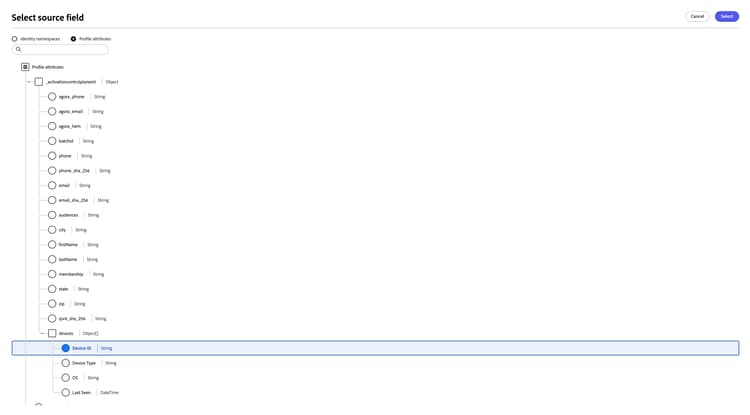
- 一致キーに対してのみ、ネストされたフィールドを選択できます。 ネストされたフィールドを属性として選択することはサポートされていません。
- リストごとに1つのネストされたフィールドを一度に選択できます。
- オブジェクトのリストではなく、単純な値のリストがダイアログに表示されますが、それらの値を選択することはできません。
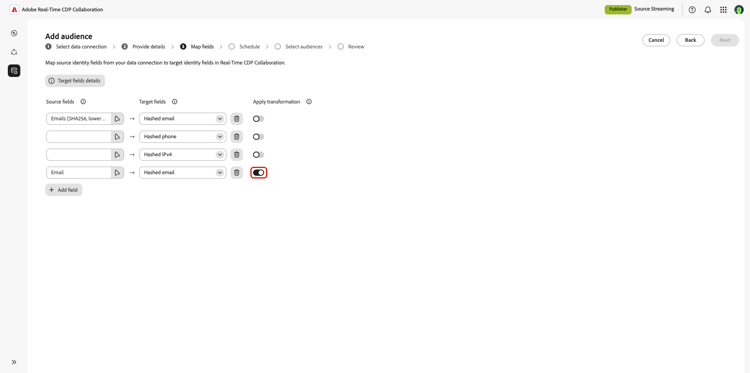
ハッシュ化されていないフィールドをハッシュ化されたターゲットフィールドにソーシングするには、変換を適用 オプションを使用します。 例えば、2番目の電子メールフィールドを追加するには、「フィールドを追加」オプションを選択して新しい行を追加し、ターゲットフィールドに「ハッシュ化された電子メール」を選択します。 ハッシュ化されていないメールソースフィールドを選択し、変換を適用を選択します。
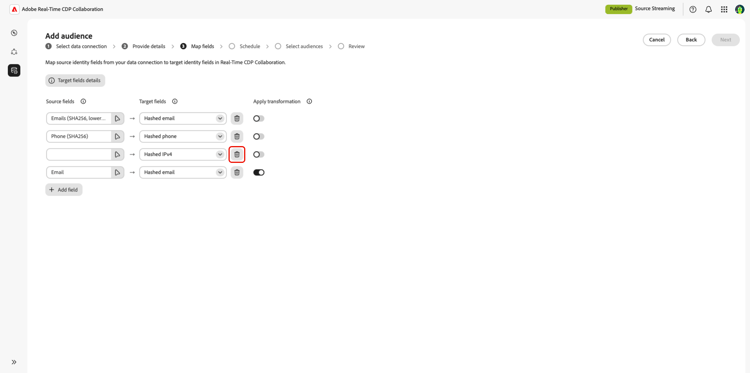
各ターゲットフィールドのマッピングペアを引き続き追加します。 一致キーを使用しない場合は、フィールドの横にある削除(

新しいフィールドを追加し、ターゲットフィールドとして Demdex ID (ECID) を選択すると、ECIDが対応するソースフィールドとして自動的に選択されます。 これ以上の操作は必要ありません。
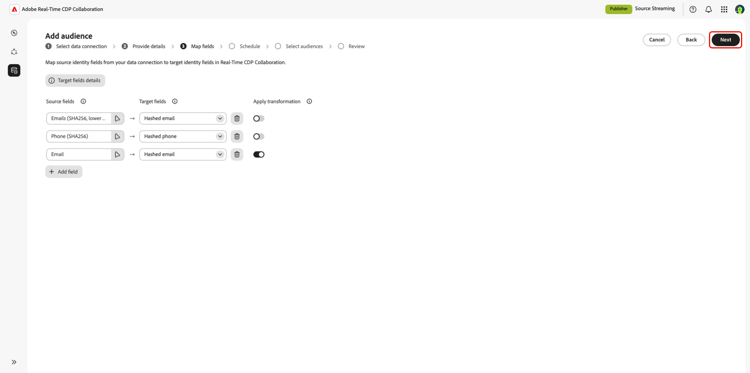
フィールドのマッピングが完了したら、次へを選択して続行します。
スケジュール schedule
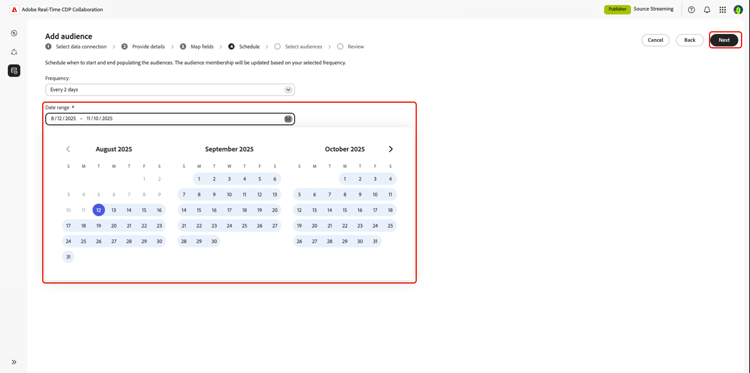
次に、オーディエンスの入力を開始および終了するタイミングをスケジュールします。 このスケジュールに従ってオーディエンスが更新されます。
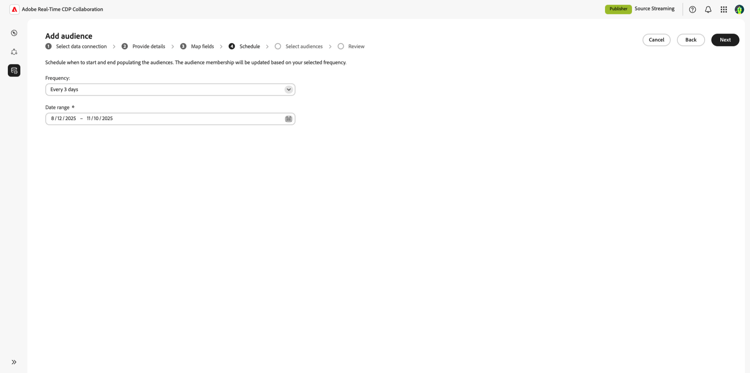
頻度 ドロップダウンから、オーディエンスの更新の頻度を選択します。
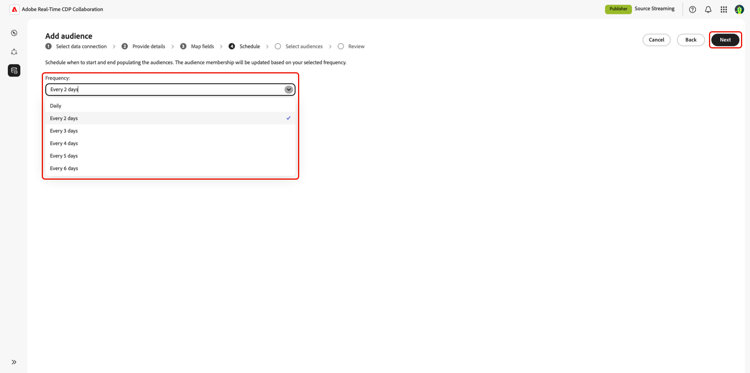
次に、日付範囲を選択します。 開始日は、オーディエンスがプロファイルの入力を開始する日で、終了日はオーディエンスの更新を停止する日です。
オーディエンスを選択 select-audiences
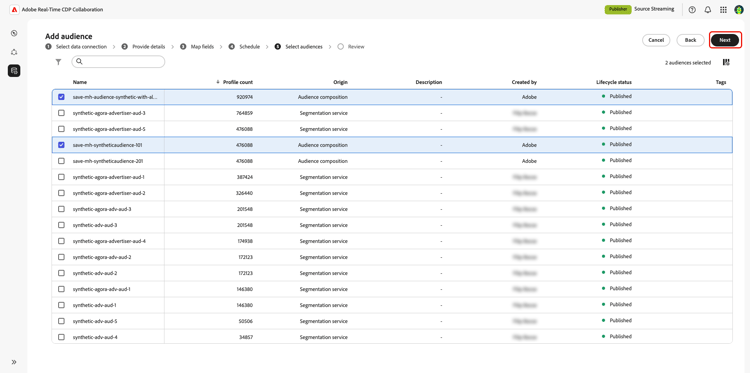
オーディエンスソースを選択したら、含める特定のオーディエンスを選択します。 検索およびフィルターオプションを使用して、データ接続から関連オーディエンスを見つけます。 目的のオーディエンスを選択し、次へを選択します。
レビュー
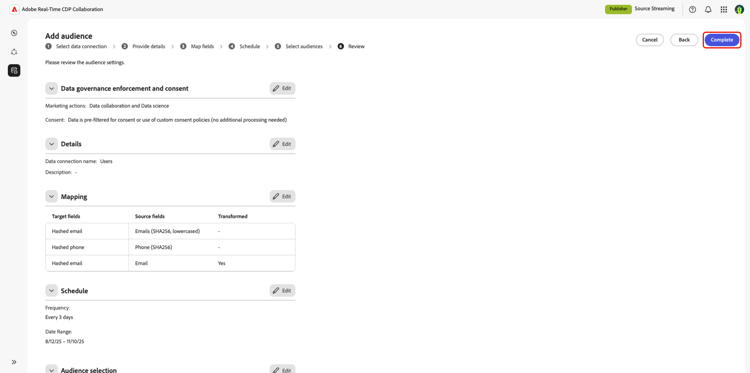
オーディエンスの追加を確定する前に、すべての設定と設定を確認します。 すべての詳細が正しいことを確認してから、完了を選択して、データ接続の作成を完了します。
オーディエンスダッシュボードの表示 view-audiences-dashboard
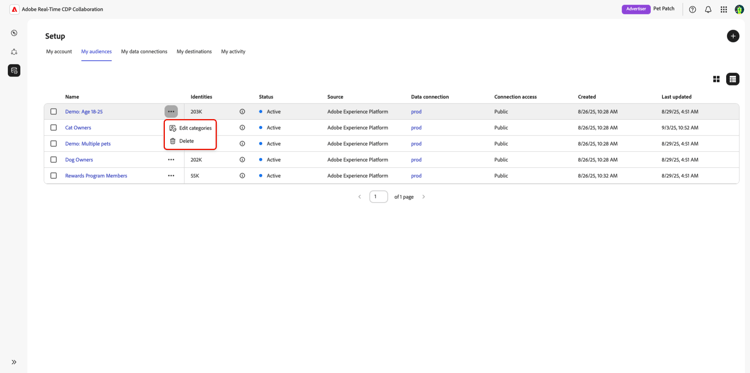
オーディエンスのソーシング後、マイオーディエンス ワークスペースには、現在Collaborationにソーシングされているすべてのオーディエンスが表示されます。
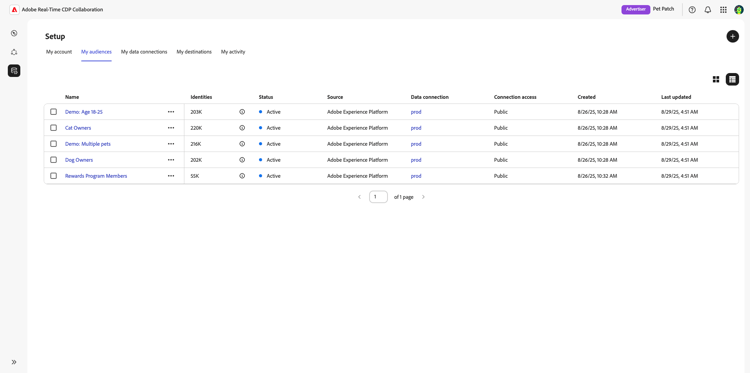
各オーディエンスには、次の情報の概要が含まれます。
オーディエンスに対してクイックアクションを実行するには、オーディエンス名の横にある省略記号 … を選択します。 次のオプションがあります。
- カテゴリを編集すると、異なるカテゴリタグをオーディエンスに追加できます。 詳しくは、以下の「 カテゴリ 」の節を参照してください。
- 削除は、データ接続からオーディエンスを削除します。
個々のオーディエンスを表示 view-individual-audiences
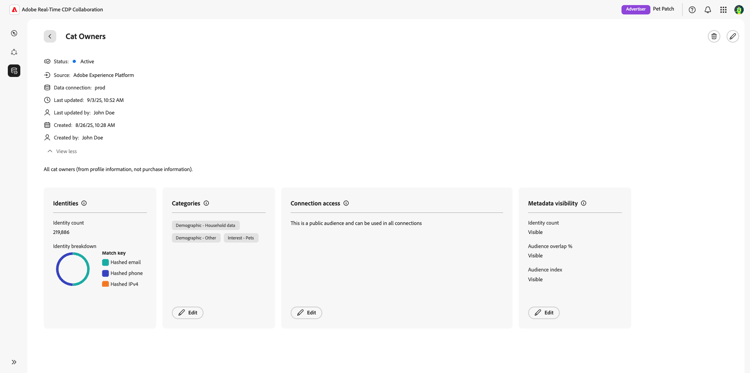
個々のオーディエンスの情報を表示および更新するには、マイオーディエンス ワークスペースからオーディエンスを選択します。 オーディエンスワークスペースには、選択したオーディエンスの詳細(詳細、ID、カテゴリー、接続アクセス、メタデータの表示設定など)が表示されます。
オーディエンスの詳細
個々のオーディエンスに対して、次の情報が表示されます。
ID identities
「ID」セクションは、オーディエンスに存在するIDの数を示します。 このセクションには、オーディエンスの構成を理解するのに役立つ、一致キーによるIDの分類も含まれています。
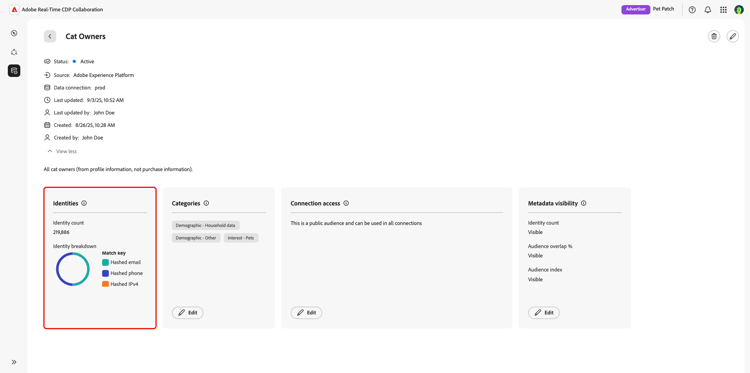
一致キーの分類の個々のセクションにカーソルを合わせると、関連するキーの正確なID数が表示されます。
カテゴリ categories
オーディエンスの整理、フィルタリング、検索を容易におこなうために、オーディエンスにタグを付けることができます。 オーディエンスに複数のカテゴリを付けてタグ付けし、これらのカテゴリ タグを使用して、オーディエンス重複レポートを実行する際に、discover製品エリアで目的のオーディエンスをフィルタリングできます。
カテゴリを追加するには、カテゴリ セクション内の編集 オプションを選択します。
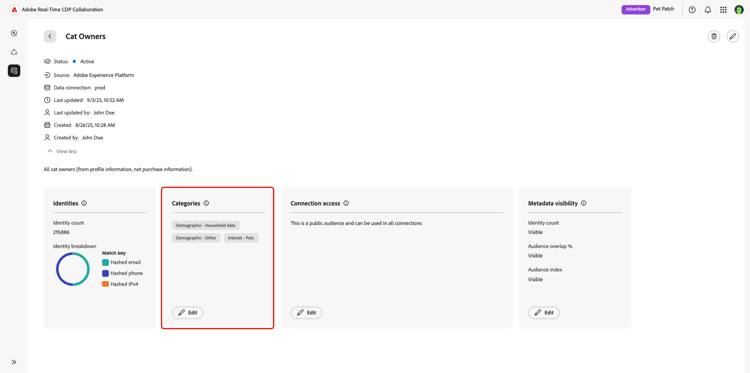
「カテゴリー」ダイアログが表示され、オーディエンスに追加するカテゴリーを選択できます。 個々のカテゴリを選択するには、カテゴリ名の横にあるチェックボックスを選択します。
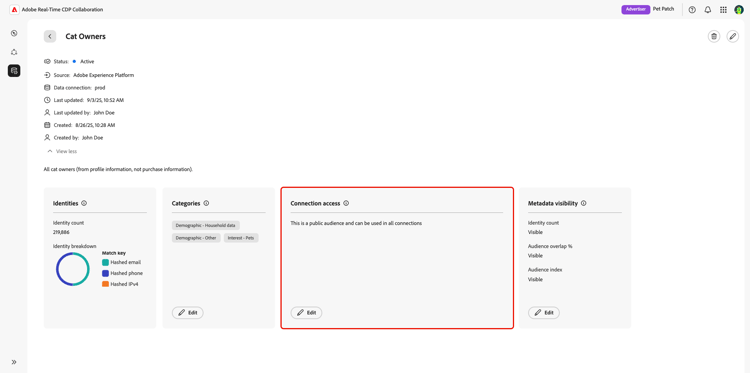
接続アクセス connection-access
コラボレーターを含むプロジェクトでのオーディエンスの使用の可用性は、接続アクセス設定によって異なります。 「接続アクセス」セクションでは、オーディエンスをプライベートにするか、パブリックにするか、特定の接続でのみ使用するかを選択できます。 公開オーディエンスは、接続で利用でき、検索できます。
オーディエンスの接続アクセスを更新するには、接続アクセス セクション内の編集 オプションを選択します。
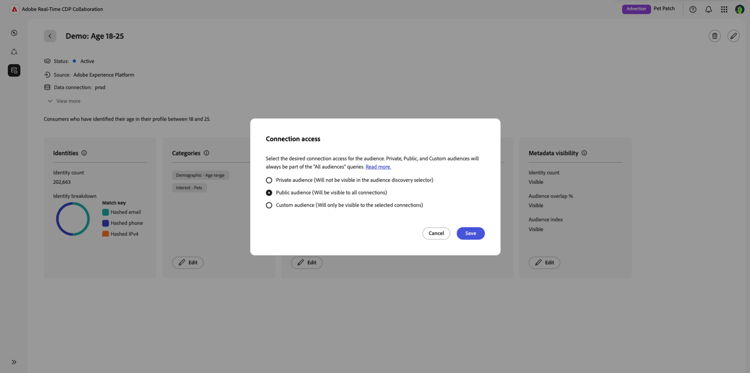
接続アクセス ダイアログが表示され、使用可能な3つの接続アクセス オプションが表示されます。
- プライベートオーディエンス。 これらのオーディエンスは、notです。重複レポートで使用したり、共同作業者との接続でアクティブ化したりできます。 共同作業者がオーディエンスを表示または使用することはできませんが、オーディエンスの母集団は、 オーディエンスの比較セクション のすべてのオーディエンス ビューの合計母集団に引き続き貢献します。 設定をパブリックまたはカスタムに変更して、共同作業者との接続でオーディエンスを使用します。
- 公開オーディエンス。 これらのオーディエンスは、重複レポートで使用したり、共同作業者との接続でアクティブ化したりできます。
- カスタムオーディエンス。 これらのオーディエンスは、重複レポートで使用したり、指定した接続でのみアクティブ化したりできます。 共同作業者がオーディエンスを表示または使用することはできませんが、オーディエンスの母集団は、 オーディエンスの比較セクション のすべてのオーディエンス ビューの合計母集団に引き続き貢献します。
目的の接続アクセス オプションを選択し、保存を選択して変更を適用します。
コラボレーターを含むプロジェクトで使用できるオーディエンスの可用性は、接続アクセス設定によって異なります。
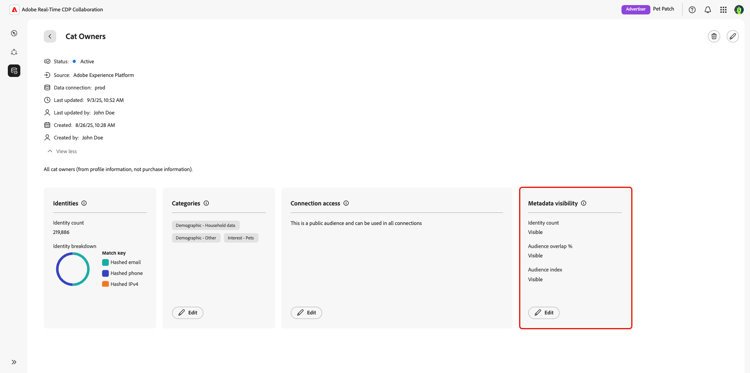
メタデータの表示 metadata-visibility
メタデータの可視性とは、オーディエンスのメタデータが、他の共同作業者に公開される前や、異なるプロジェクトビュー内で表示されることを示します。 オーディエンスのメタデータの表示を更新するには、メタデータの表示 セクション内の編集 オプションを選択します。
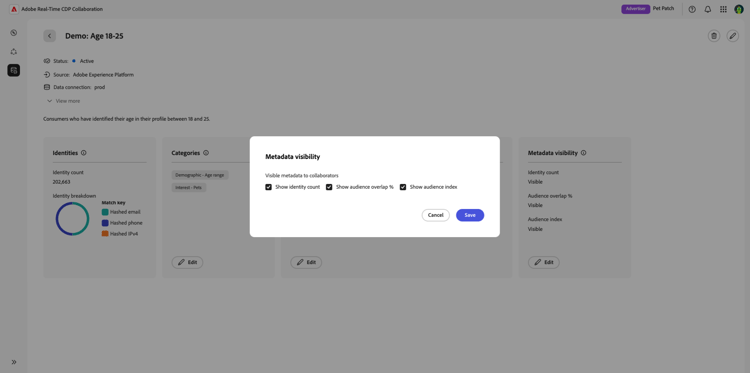
メタデータの表示 ダイアログが表示され、オーディエンスの表示設定を設定できます。 各オーディエンスに対して設定できるメタデータの表示設定は2つあります。
ID数を表示:この設定は、プロジェクト内の「検出」タブ 🔗で重複レポートを表示する際に、共同作業者がオーディエンスのID数を表示できるかどうかを制御します。
オーディエンスの重複を表示%:この設定は、共同作業者がオーディエンスとオーディエンス間の重複パーセンテージ 🔗を見つけることができるかどうかを制御します。
オーディエンスインデックス:trueに設定すると、共同作業者はプロジェクト内の オーディエンスインデックス を表示できます。 この機能は、3 つ以上のアクティブオーディエンスがある場合にのみ使用できます。
複数のオーディエンスを編集 edit-audiences
オーディエンスダッシュボードでは、複数のオーディエンスを一度に編集できます。 編集するオーディエンスを選択するには、オーディエンス名の横にあるボックスを選択します。 オーディエンスを選択したら、編集メニューのオプションを使用してアクションを実行できます。
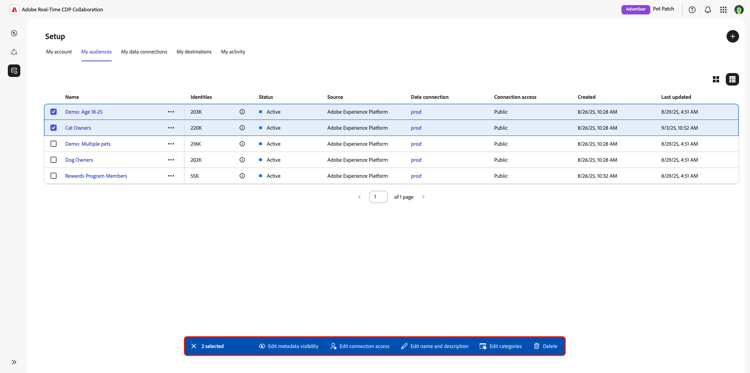
メタデータの一括編集の可視化 bulk-edit-metadata-visibility
オーディエンスダッシュボードでオーディエンスを選択した状態で、編集メニューから「メタデータの表示を編集」を選択します。
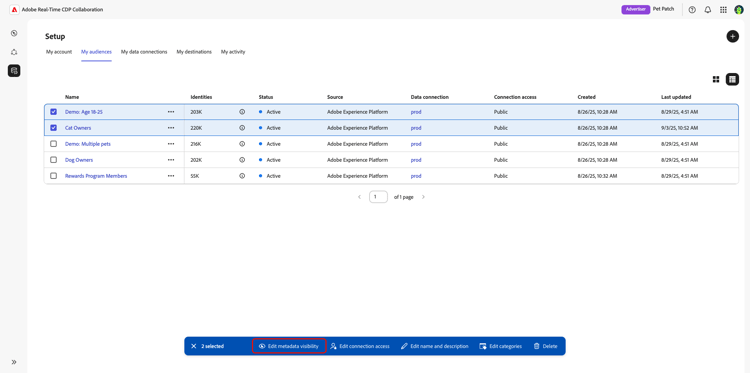
メタデータの表示 ダイアログが表示され、選択したオーディエンスの表示設定を設定できます。 デフォルトでは、どのオプションも選択されません。 選択したすべてのオーディエンスに適用するオプションを選択し、保存を選択します。
接続アクセスの一括編集 bulk-edit-connection-access
オーディエンスダッシュボードでオーディエンスを選択した状態で、編集メニューから「接続アクセスを編集」を選択します。
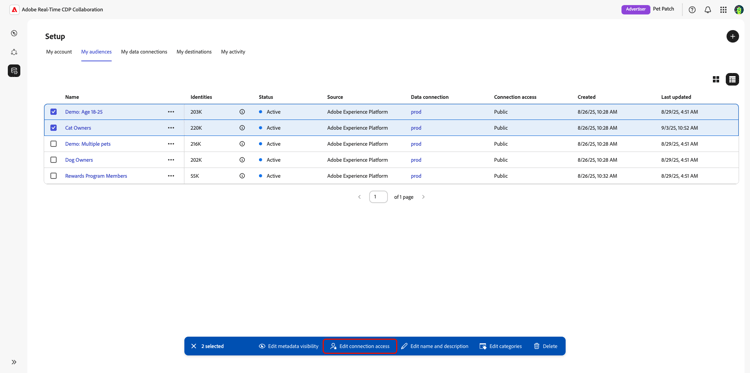
接続アクセス ダイアログが表示され、選択したオーディエンスのアクセス設定を構成できます。 デフォルトでは、プライベートオーディエンス オプションが選択されます。 選択したすべてのオーディエンスに適用するオプションを選択し、保存を選択します。
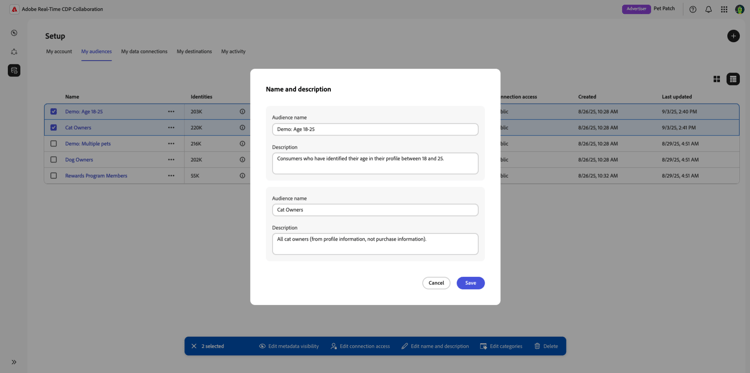
オーディエンス名と説明の一括編集 bulk-edit-audience-names-descriptions
オーディエンスダッシュボードでオーディエンスを選択した状態で、編集メニューから「名前と説明を編集」を選択します。
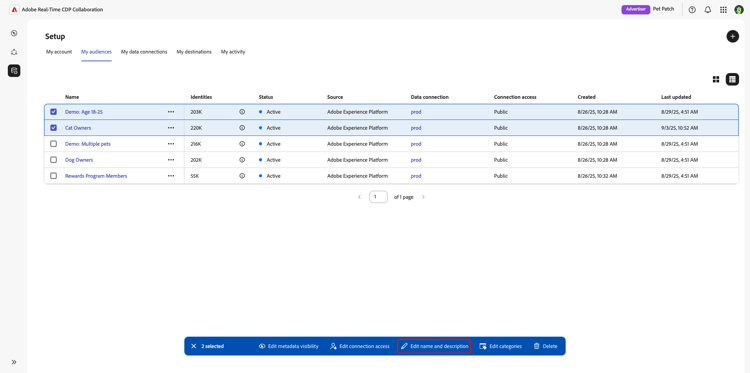
名前と説明 ダイアログが表示され、選択した各オーディエンスの名前と説明を設定できます。 デフォルトでは、各オーディエンスに現在の名前と説明が表示されます。 変更を加え、保存を選択します。
カテゴリの一括編集 bulk-edit-categories
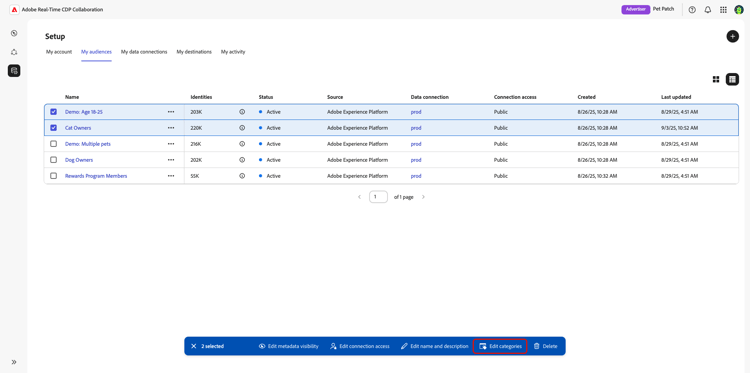
オーディエンスダッシュボードでオーディエンスを選択した状態で、編集メニューから「カテゴリーを編集」を選択します。
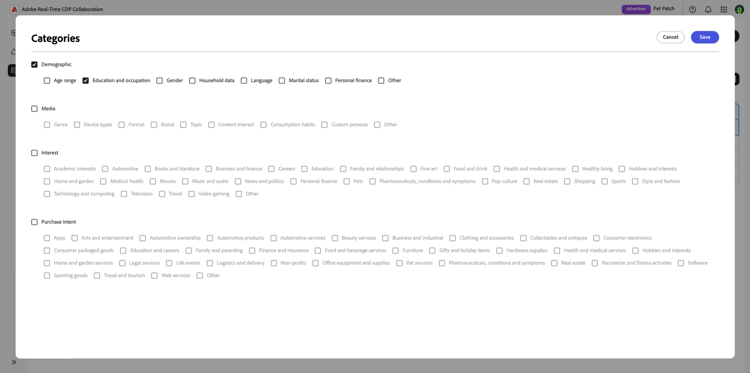
カテゴリ ダイアログが表示され、選択した各オーディエンスのカテゴリを設定できます。 デフォルトでは、カテゴリは選択されません。 カテゴリを選択するには、まずメインカテゴリを選択し、次に含めるサブカテゴリを選択します。 変更を加え、保存を選択します。
次の手順
オーディエンスをソーシングした後、プロジェクトで共同作業を行うconnectの共同作業者を見つけます。