Set up Adobe Analytics and Customer Journey Analytics analytics-setup
Send your app’s events to Adobe Analytics, Customer Journey Analytics, or both. LLM Apps forwards the events to the Adobe Experience Platform Edge Network through a datastream that you own. The datastream routes the events to each service that you add to it.
- Adobe Analytics reports which actions the LLM platform calls, which widget links people select, and the intent behind each call.
- Customer Journey Analytics analyzes the same events by person, in the data views you build on Experience Platform data.
This setup is separate from the built-in analytics in LLM Apps.
In this guide: Learn which settings LLM Apps requires in Experience Platform, Adobe Analytics, and Customer Journey Analytics, with links to the Experience League procedure for each product screen. Then enable Analytics in your app, deploy to Stage, and verify the data before you deploy to Production.
Setup checklist setup-checklist
Complete every step marked Required for the services you use. A skipped step rarely shows an error. Instead, the data does not arrive.
Create the namespace, schema, dataset, and datastream in the same Experience Platform sandbox. Use the sandbox and datastream that you plan to report from in Production. After you save the datastream in your app, contact the LLM Apps team to change it.
Before you begin before-you-begin
You need:
- A supported runtime and SDK. Your handler repository must use
@adobe/llm-apps-runtime1.2.0 or later. For EDS widgets, use the LLM Apps SDK 0.1.13 or later. To update an older app to the latest runtime and SDK before enabling Analytics, follow Upgrade an existing app. Apps that meet these requirements do not need an upgrade. - The agentic field groups. Your organization must be enabled for the Agentic Information and Conversation Event field groups. If these field groups do not appear when you add field groups to a schema, contact your Adobe account team. See Implement Conversation Insights. Action calls are recorded in the
agenticExperience.toolsfield of Agentic Information, which is in Beta in Experience Platform. - Experience Platform permissions to create identity namespaces, schemas, datasets, and datastreams in your sandbox.
- For Adobe Analytics: permission to manage report suites and processing rules. Product admins have both by default.
- For Customer Journey Analytics: product admin access to create connections and data views.
What your app sends what-your-app-sends
After you enable Analytics and deploy, your app sends two kinds of events:
eventTypemcp.tool_callweb.webinteraction.linkClicksIn Adobe Analytics, each action call counts as a page view of a page named mcp:<code identifier>, and each widget interaction counts as a link click. See Edge Network event types in Adobe Analytics.
Every action call and every widget interaction is one Adobe Analytics hit and one event in your Experience Platform dataset. On a high-traffic app, check that your contract covers this volume before you enable Analytics.
Keep these details in mind when you read the reports:
- Failed calls include sign-in prompts. If some actions require sign-in, expect a higher failure rate for them.
- Some rejected calls are not recorded. A call is rejected before the action runs, and sends no event, when a platform other than ChatGPT calls an action that requires sign-in without a valid sign-in or the required scope. On apps where every action requires sign-in, any call without a sign-in is rejected the same way.
- User intent is often missing. The platform decides whether to supply it, so many calls have none and appear as Unspecified.
- Platform details vary. Currently, ChatGPT provides all of them. For Claude, only the platform name is recorded.
- Widget labels come from the page. To set a stable label, add a
data-analyticsattribute to the link or button. Otherwise, its visible text is used.
To choose which actions collect user intent, see Configure analytics.
How the events identify people identities
MCPHOSTUSERMCPHOSTUSER ID is included as a secondary identity when available.ECIDSome platforms, such as Claude, do not provide a user ID. Action calls from those platforms carry no identity, so Customer Journey Analytics skips them.
- Customer Journey Analytics counts a user’s action calls as one person, but counts their widget interactions as a different person for each action call.
- Adobe Analytics may count each action call as a new visitor.
Step 1: Create the identity namespace identity-namespace
Required for: Adobe Analytics and Customer Journey Analytics.
Action calls identify people in the MCPHOSTUSER namespace, so the namespace must exist in your sandbox. Create a custom namespace with these settings:
MCP host user, or another name you chooseMCPHOSTUSER, exactly as shownFor the procedure, see Create custom namespaces.
Step 2: Create the schema schema
Required for: Adobe Analytics and Customer Journey Analytics.
The datastream and the dataset both use this schema. Create a schema with these settings:
AEM LLM AppsYou do not need the Adobe Analytics ExperienceEvent field group. User intent reaches Adobe Analytics through a processing rule instead. See Step 4.
For the procedure, see Create a new schema and Add field groups.
Step 3: Create the dataset dataset
Required for: Customer Journey Analytics.
The dataset stores your app’s events in Experience Platform. Create a dataset with these settings:
AEM LLM AppsFor the procedure, see Create a dataset.
Step 4: Prepare the report suite report-suite
Required for: Adobe Analytics.
Adobe Analytics maps the page name and link fields automatically, so the mcp:<code identifier> pages and the widget link clicks need no extra setup. User intent needs an eVar and a processing rule.
Create or choose a report suite create-report-suite
Create a report suite, or choose an existing one. Note the full report suite ID, including the prefix that Adobe Analytics adds. You need the ID in Step 5.
For the procedure, see Create a report suite.
Enable the User Intent eVar user-intent-evar
In the report suite’s conversion variables, enable an eVar with these settings:
User IntentIf the report suite already uses eVar3, choose another unused eVar, and use that eVar in the processing rule.
For the procedure, see Add or edit conversion variables.
Create the processing rule processing-rule
Adobe Analytics receives the user intent as a context data variable, not as an eVar. To learn why, see Implicit mapping. Create a processing rule that copies the user intent into the eVar:
- Condition: the context data variable
a.x.conversation.prompt.raw.0.purposeequalsintents. - Action: overwrite the value of User Intent (eVar3) with the context data variable
a.x.conversation.prompt.raw.0.text.
Without this rule, the User Intent dimension stays empty. The rule applies only to data collected after you save it. Widget interactions carry no user intent, so the rule does not change them.
Other fields, such as whether the call failed or the platform name, also arrive as context data variables. To report on them in Adobe Analytics, create more processing rules the same way.
For the procedure, see Processing rules overview and Processing rules use cases.
Step 5: Create the datastream datastream
Required for: Adobe Analytics and Customer Journey Analytics.
The datastream receives your app’s events and forwards them to each service you add.
Create the datastream create-datastream
Create a datastream with these settings:
Create the datastream in the same sandbox as the schema. You cannot change the sandbox of a datastream after you create it.
For the procedure, see Create a datastream.
Add the services add-services
Add a service for each destination:
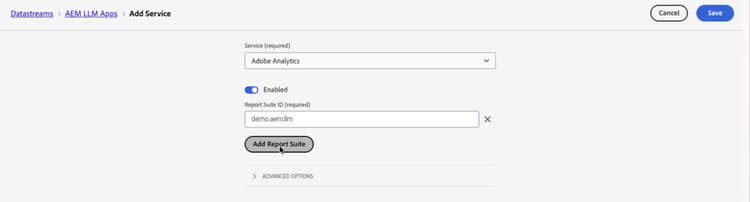
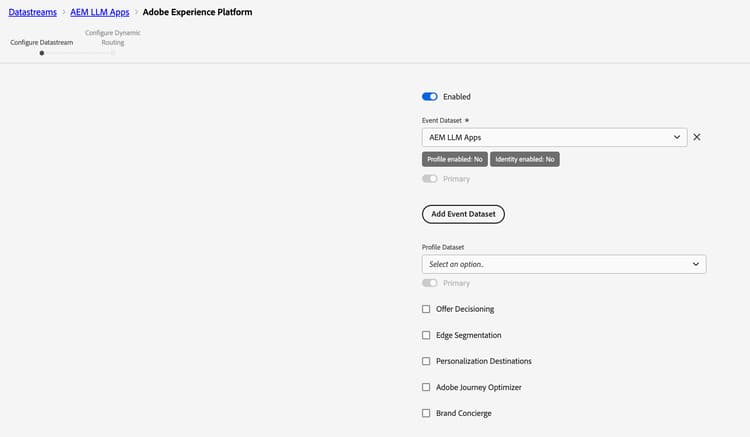
For the procedure, see Add services to a datastream, Adobe Analytics settings, and Adobe Experience Platform settings.
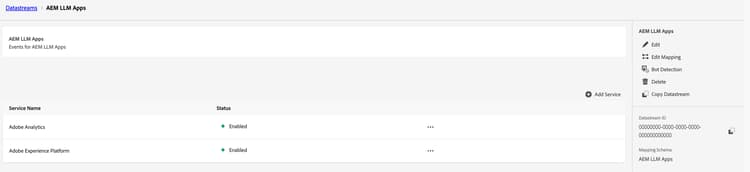
Then copy the Datastream ID from the datastream details. You need it in Step 6.
Step 6: Enable Analytics and deploy to Stage enable-analytics
Required for: Adobe Analytics and Customer Journey Analytics.
-
Open your app and select Settings in the left navigation.
-
Select the Analytics tab.
-
Turn on Enable Analytics.
-
In Datastream ID, paste the ID from Step 5.
-
Under Requirements, select View details and confirm that your app meets each requirement.
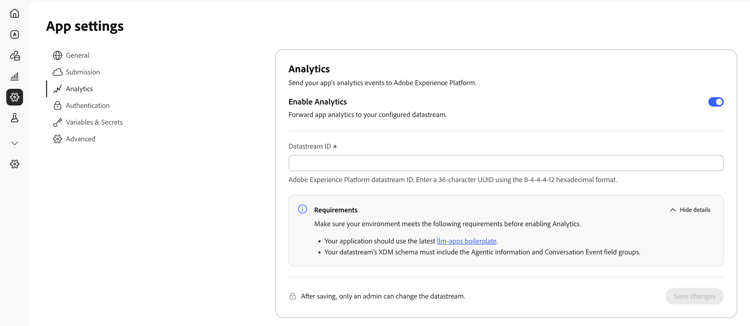
-
Select Save changes.
-
Deploy your app to Stage. The setting takes effect on the next deployment to each environment.
Step 7: Create the connection and data view cja
Required for: Customer Journey Analytics.
Create the connection connection
Create a connection and add the dataset from Step 3 with these settings:
LLM Apps eventsWith this Person ID, Customer Journey Analytics uses the primary identity of each event as the person, and skips events that have no primary identity. See How the events identify people.
For the procedure, see Create a connection, Event dataset settings, and Use Identity Map as a Person ID.
Create the data view data-view
Create a data view on the connection with these settings:
LLM AppsAdd these schema fields as components:
agenticExperience.tools.nameagenticExperience.tools.failedagenticExperience.tools.errorReasonagenticExperience.agents.nameconversation.prompt.raw.textconversation.conversationIDweb.webInteraction.nameAdd text fields, such as user intent, as dimensions. A text field added as a metric can only be counted, and breaking it down by its values shows Invalid.
For the procedure, see Configure a data view and Components.
Step 8: Verify the data and deploy to Production verify
Required for: Adobe Analytics and Customer Journey Analytics.
Call an action in your Stage app from a supported LLM platform, and select a link in its widget. See Test in ChatGPT or Test in Claude. Then check each service you set up:
mcp:<code identifier>, Custom Link rows for widget interactions, and intent text in the User Intent dimensionEach service processes data with some delay, so new events do not appear immediately.
To build the reports, see Create projects in Adobe Analytics, Freeform table overview, and Create projects in Customer Journey Analytics.
When the data looks right, deploy your app to Production.
Limitations limitations
- Widget interactions split into many people. Each action call gets a new ECID, so Customer Journey Analytics counts widget interactions from different action calls as different people. See How the events identify people.
- No link to your website. When someone follows a widget link to your website, the website visit is not linked to the conversation.
- Stage and Production share reports. Both environments send to the same datastream, and the events do not record which environment sent them.
- Some platforms send no identity. Action calls from platforms that do not provide a user ID, such as Claude, are skipped in Customer Journey Analytics.
- One turn per action call. Each action call is recorded as its own conversation turn, so a prompt that triggers several actions counts as several turns.
Troubleshooting troubleshooting
mcp:<code identifier>, but User Intent and the action fields are empty@adobe/llm-apps-runtime 1.2.0 or later, and you deployed after upgrading. See Before you begin.