Deploy your app deploy-your-app
Once you have reviewed generated actions or pushed your own handler code to the linked repository, deploy the app from LLM Apps. For generated actions, review and merge the generated work before deploying.
In this guide: Learn how to deploy your app to Stage, check the deployment result, and copy its MCP server URL for testing. Deploy to Production after testing succeeds.
Start the deployment
Open the App Detail page and select Deploy.
Select the target environment, then select Deploy.
If your handlers use app variables, configure them for the target environment before deploying. Added, updated, or deleted variables take effect on this deployment; Stage and Production have independent values.
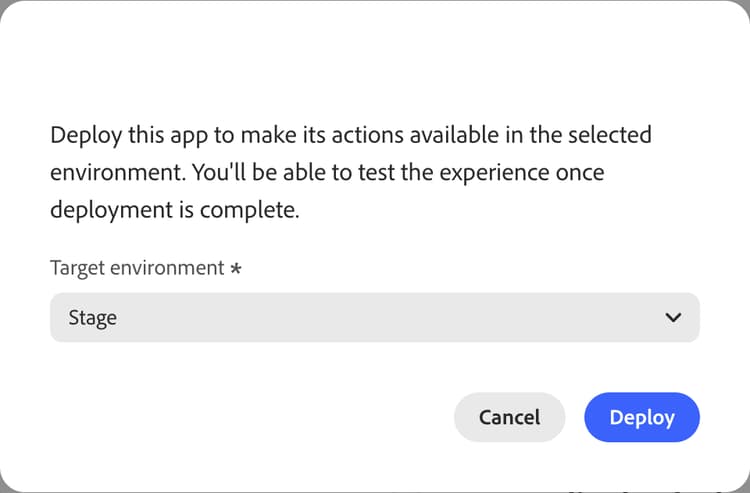
The deployment runs four steps:
- Preparing — retrieves the configuration required to deploy the app.
- Start deployment — starts the background deployment process.
- Build app — installs dependencies and builds the latest repository code.
- Publish — publishes the app to Adobe I/O Runtime.
After a successful deployment
When all steps complete, the dialog shows Deploy successful.
To dismiss the dialog, select Close. On the App Detail page, scroll to Test the app:
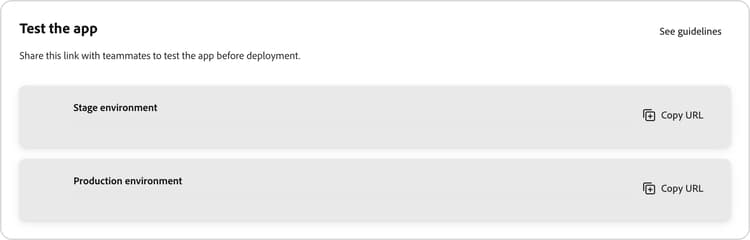
Each deployed environment shows an MCP server URL. Select Copy URL and use it to create a plugin or connector in the target LLM platform.
The Deployment history section shows the last 10 deployments:
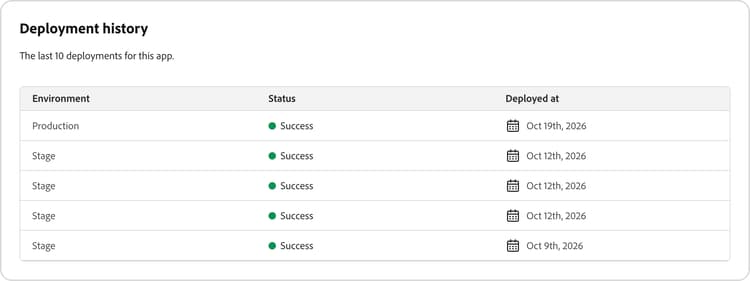
Each row shows the target Environment (Stage or Production), Status (Success or Failed), and Deployed at date. Use the table to track deployment dates and verify that the latest deployment succeeded.
Deploy configuration changes
Changes to action metadata, the app page’s Visibility switches, authentication, app variables, and Analytics settings take effect on the next deployment to that environment. Saving a setting does not update the deployed MCP server by itself.
Check the target environment every time. Deploying to Stage does not deploy the same changes to Production.
If your app does not meet the analytics runtime or SDK requirements, follow Upgrade an existing app before redeploying.