Test Your LLM App as a ChatGPT Plugin test-in-chatgpt
After deployment, your LLM App exposes an MCP server URL. Add this URL to ChatGPT as a plugin, then test the generated actions and widgets.
This is the final verification step after building, customizing, or extending an app.
Plan requirements
Developer mode is available on the web for Pro, Plus, Business, Enterprise, and Education accounts. Workspace administrators can restrict access.
Enable developer mode
In ChatGPT:
- Open Settings → Security and login.
- Turn on Developer mode.
The plus button on the Plugins page creates MCP-backed plugins only after developer mode is enabled. See ChatGPT Developer mode.
Copy the MCP server URL
In LLM Apps:
- Open the App Detail page.
- Find Test the app.
- Under Staging environment, select Copy URL.
Create the plugin
-
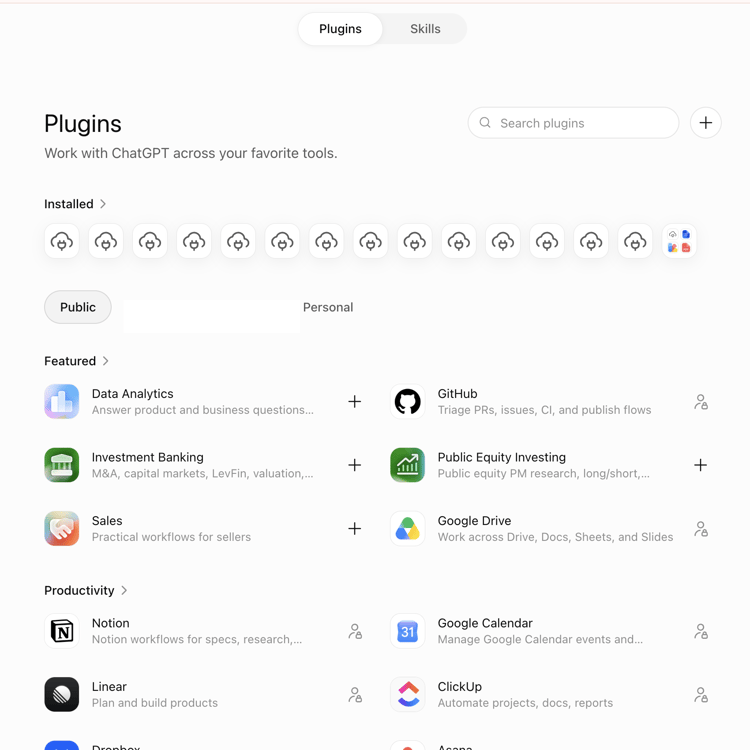
Open chatgpt.com/plugins.
-
On the Plugins tab, select + beside the search field.
-
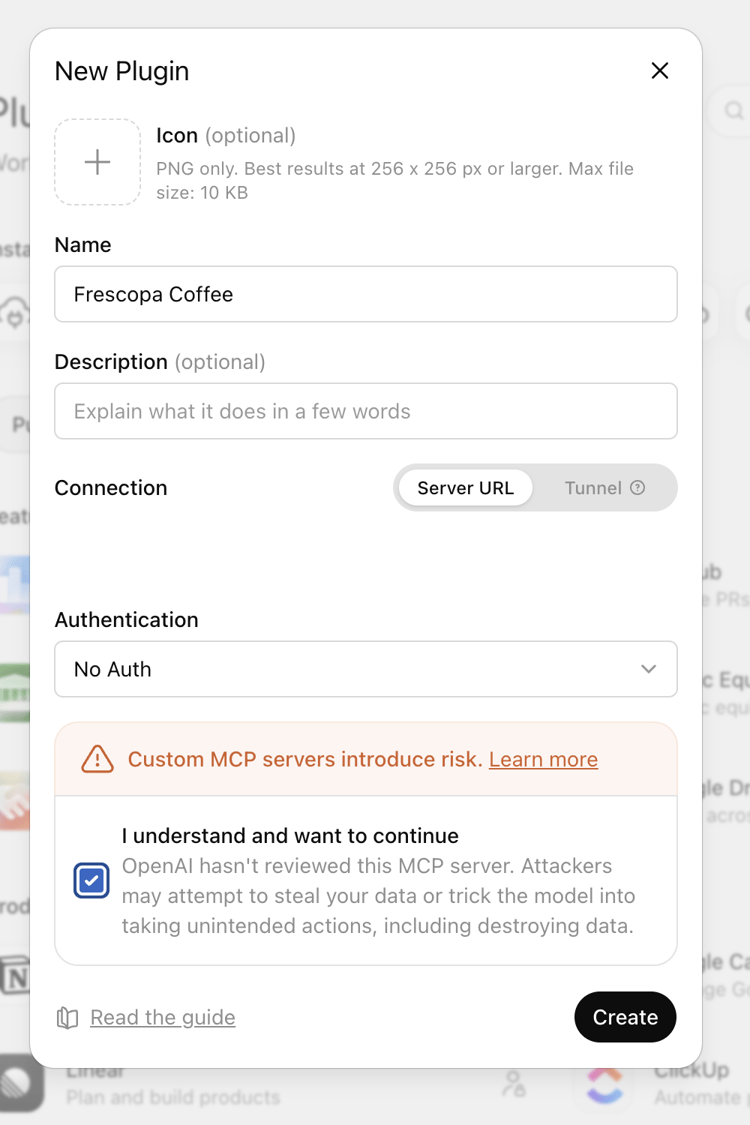
In New Plugin, enter:
- Name — the plugin name.
- Description — optional.
- Connection — select Server URL and paste the MCP server URL.
- Authentication — select No Auth.
note NOTE No Auth applies while every action on the app is public. If you have turned on end-user authentication, select OAuth when every action is set to Required, and Mixed for any other combination — see Authenticate end users with your own identity provider. -
Select I understand and want to continue.
-
Select Create.
-
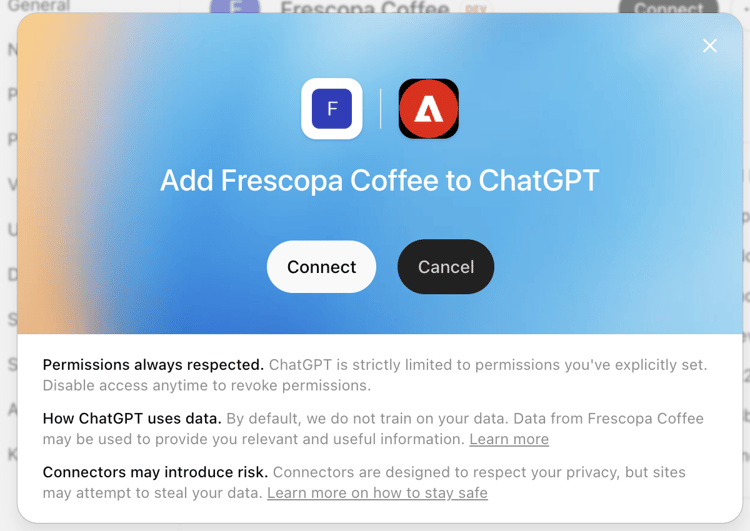
In the confirmation dialog, select Connect.
Test the plugin
- Start a new chat.
- From the Plus menu, choose Developer mode and select the plugin.
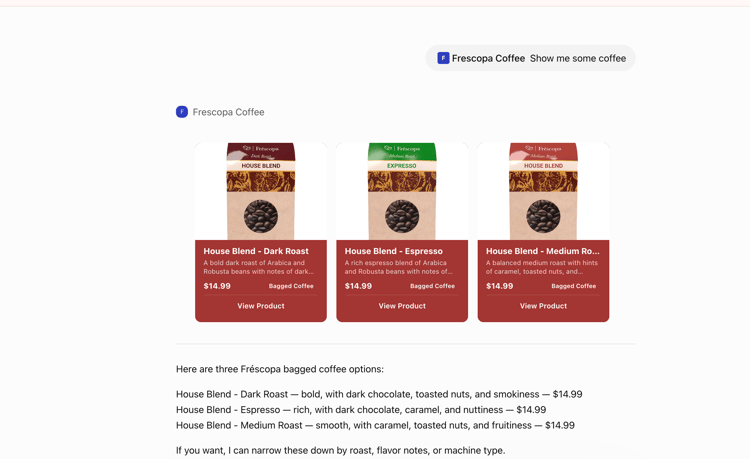
- Ask a question that matches one of the generated actions. For example: Show me some coffee.
Verify that:
- ChatGPT invokes the expected action.
- The widget displays the expected sample data.
- The text response matches the widget.
- Widget controls work as expected.