Configure app variables and secrets app-variables
Use variables and secrets to configure your app without hardcoding values in its action handlers. For example, configure the product catalog API URL to use a test service in Stage and the live service in Production without changing the handler code.
Variables hold non-sensitive settings. Secrets are intended for sensitive values such as API keys and access tokens.
In this guide: Learn how to add an app variable and read it in an action handler. Deploy the app and check that the handler uses the expected value.
Before you begin before-you-begin
You need:
- Access to your app’s handler repository to update handlers that need to read variables.
@adobe/llm-apps-runtime1.1.0 or later in that repository. Check the version before using the helper below.
To check the version, run the following command in your handler repository:
npm ls @adobe/llm-apps-runtime
If the version is earlier than 1.1.0, upgrade it, then commit and push package.json and package-lock.json:
npm install @adobe/llm-apps-runtime@latest
Manage variables manage-variables
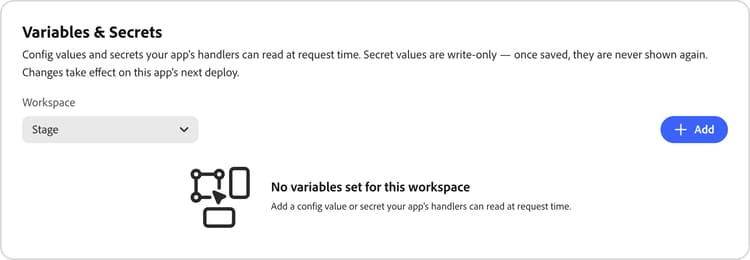
Each environment, Stage or Production, has its own variables. Check Workspace before adding, updating, or deleting a variable. Changes take effect the next time you deploy the app to that environment.
Add a variable add-variable-to-app
This example uses the non-sensitive variable GREETING_PREFIX with the value Good day to override the handler’s default greeting of Hello. Adding a variable does not change an action automatically: the handler must read the variable.
Step 1: Add a variable in the UI add-a-variable
-
Open your app and select Settings in the left navigation.
-
Open the Variables & Secrets tab.
-
In Workspace, select Stage or Production.
-
Select Add.
-
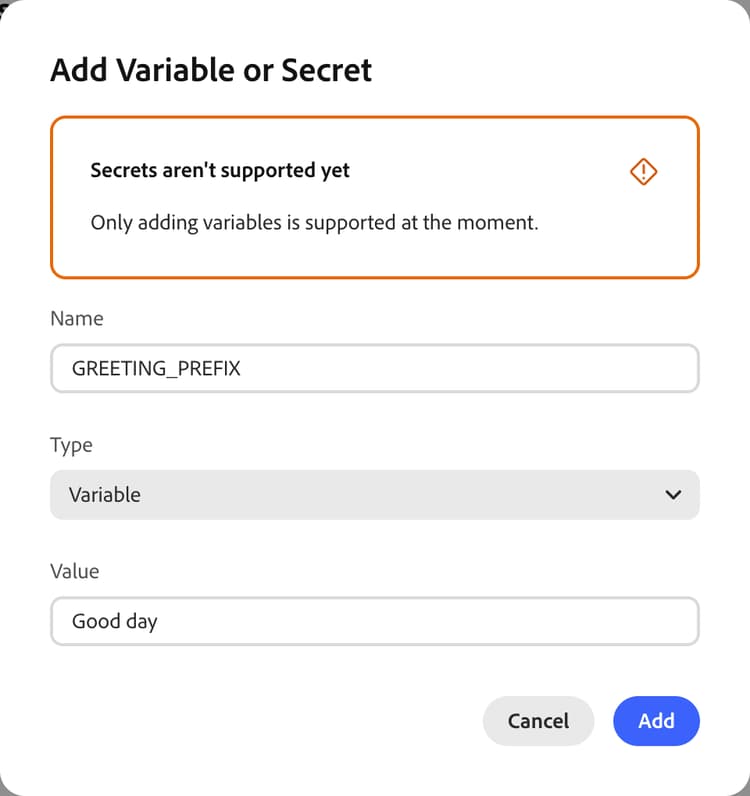
In the dialog, enter:
- Name:
GREETING_PREFIX. - Type: leave Variable selected.
- Value:
Good day.
- Name:
-
To save the variable, select Add.
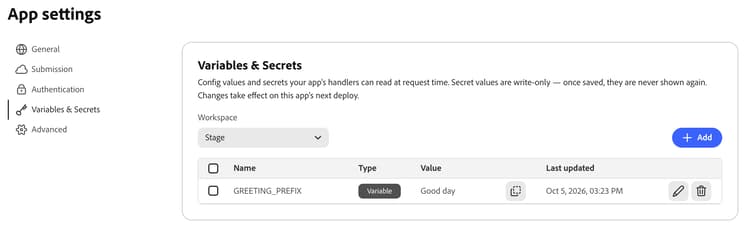
The variable appears in the table with its Name, Type, Value, and Last updated date. To copy the value, use the adjacent copy control.
Step 2: Read the variable in your handler use-a-variable
In your handler repository, open actions/<action-name>/index.js. Ensure that the handler accepts a second argument, extra, and read the variable with getVariable:
const { getVariable } = require('@adobe/llm-apps-runtime');

module.exports = async ({ name = 'there' } = {}, extra) => {
  const prefix = getVariable(extra, 'GREETING_PREFIX') || 'Hello';

  return {
    content: [{ type: 'text', text: `${prefix}, ${name}!` }]
  };
};
With the value Good day, a call with name set to Ada returns Good day, Ada! instead of the default Hello, Ada!. If you later change the value to Howdy, the greeting changes after you redeploy, without another handler edit.
The name in your code must match the name in the UI exactly. If the variable is not set, getVariable returns undefined. Choose a suitable default, as in the example, or return a clear error if the action requires the setting.
When your handler changes are ready, commit and push them to your app’s handler repository. The next deployment uses the latest pushed code. To learn more about editing handlers, see Customize a generated handler.
Step 3: Deploy and test deploy-and-verify
- Deploy your app to the same environment you selected in Workspace.
- Call the action from a supported LLM platform with
nameset toAda. See Test the ChatGPT plugin or Test the Claude connector. - Confirm that the response is
Good day, Ada!. The response verifies that the handler reads your configured variable and overrides its default greeting.
To configure the other environment, select that environment in Workspace, repeat the setup with the appropriate value, then deploy and test the app there.
node server/local.js --param 'LLMA_VARIABLE_NAMES=["GREETING_PREFIX"]' --param GREETING_PREFIX=HowdyUpdate a variable update-or-delete
-
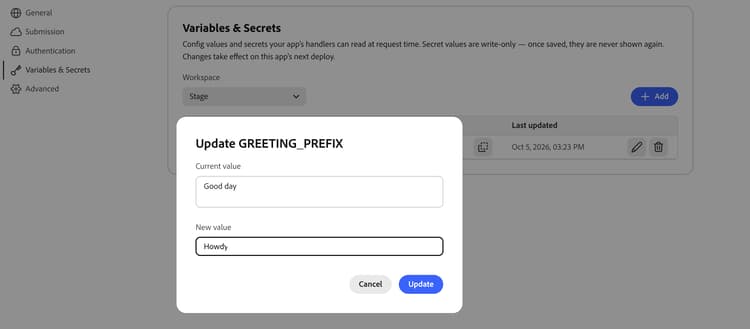
Select the edit control on the variable’s row.
-
Review the variable’s Current value and enter a New value.
-
Select Update.
-
Deploy the app again to the same environment and verify the changed behavior.
Updating a variable changes only its value. You cannot rename variables. To use a different name, delete the existing variable, add a new variable, and update your handler to read the new name.
Delete a variable delete-a-variable
-
Check whether any action still requires the variable. If necessary, update and push the handler first.
-
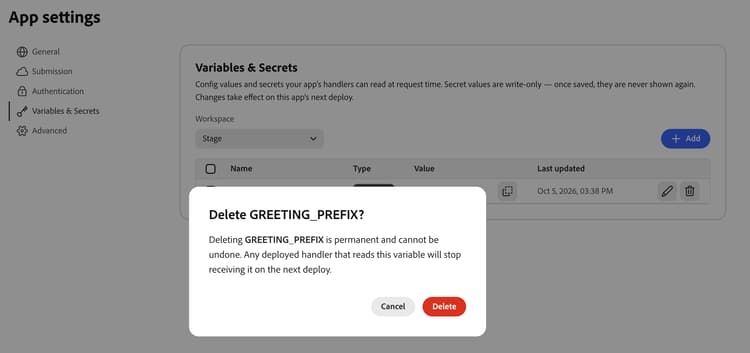
Select the delete control on the variable’s row. To delete several entries, select their checkboxes and choose Delete.
-
Review the names in the confirmation dialog, then select Delete.
-
Deploy the app again to the same environment.
Rules and limits good-to-know
LLMA_, and MCP_SERVER_URL.Troubleshooting verify-configuration
API_BASE_URL.LLMA_ and is not MCP_SERVER_URL.getVariable is not a function