On this page: Learn how to tag, add, and personalize Adobe Experience Manager Content Fragments in Journey Optimizer campaigns and journeys, including working with variations and Experience Decisioning.
The existing Asset Selector and Content Fragment selector experiences in Adobe Journey Optimizer workflows are being replaced by Content Advisor. Content Advisor provides an AI-powered, unified interface for discovering and selecting Assets, Content Fragments, and Dynamic Media directly within your AJO authoring workflows. Existing integrations will continue to work during the transition period.
- Fragments — reusable content components created in Journey Optimizer and used in emails across campaigns and journeys.
- Journey Fragments — reusable sets of journey nodes inserted into journeys.
The integration between Adobe Experience Manager and Journey Optimizer follows this data flow:
-
Configure the Dispatcher: To enable Journey Optimizer to access Adobe Experience Manager Content Fragments via the Content Fragment Management API, you must first configure the Dispatcher. This is a prerequisite for the integration.
-
Create and author: Content is created and configured in Adobe Experience Manager as Content Fragments.
-
Tagging: Content Fragments must be tagged with the Journey Optimizer-specific tag (
ajo-enabled:{OrgId}/{SandboxName}). -
Publish: Content Fragments are published in Adobe Experience Manager, making them available to Journey Optimizer.
-
Access: Journey Optimizer fetches and displays available Content Fragments from Adobe Experience Manager publish instance in real-time.
-
Integration: Content Fragments are selected and integrated into campaigns or journeys.
When a Content Fragment is published in Adobe Experience Manager, an event is sent to update the content on the Journey Optimizer side. If the update is successful, the Content Fragment becomes available within approximately 5 minutes for Unitary journeys, and in the next processing batch for batch use cases. Once the update is available in Journey Optimizer, the latest published content is used across all applicable campaigns and journeys.
Create and assign a tag in Experience Manager create-tag
Journey Optimizer displays a Content Fragment in the Content Fragment selector only when it carries a tag for your organization and sandbox. That requirement is deliberate: it keeps unrelated or unapproved Experience Manager content out of Journey Optimizer.
Assign a tag whose ID follows ajo-enabled:{AJO-OrgId}/{AJO-SandboxName}, using your Journey Optimizer organization ID and sandbox name in place of the placeholders, for example, ajo-enabled:123A12A123A123A12A@AdobeOrg/prod.
To create the tag in Experience Manager:
-
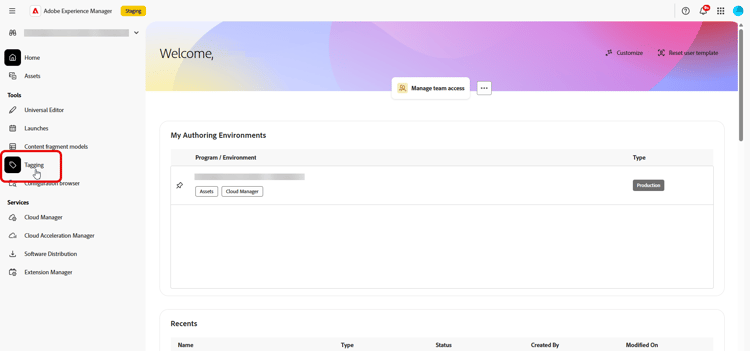
Go to Tools > Tagging.
-
Create a nested tag structure so the full tag ID matches the format above:
-
At the root level, create a folder named
ajo-enabled. -
Under
ajo-enabled, create a tag for your organization ID, for example,123A12A123A123A12A@AdobeOrg. -
Under that organization tag, create a tag for your sandbox, for example,
prod.
The combined path yields a tag ID such as
ajo-enabled:123A12A123A123A12A@AdobeOrg/prod. -
-
To apply it to a Content Fragment, open the Content Fragment in the editor.
-
In Properties, add the tag you created.
-
Save the fragment.
➡️ Learn more about Tags in Adobe Experience Manager documentation
Add Experience Manager Content fragments aem-add
After creating and personalizing your AEM Content Fragments, you can now import it to your Journey optimizer campaign or journey.
-
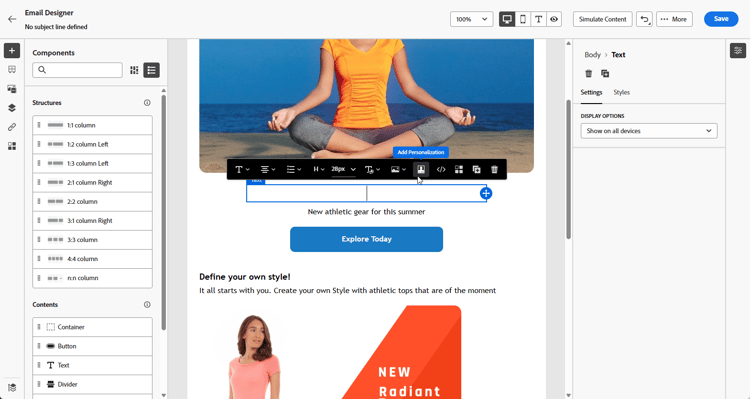
To access your AEM content fragment, click

-
From the AEM Content Fragment menu in the left-pane, click Open AEM Content Advisor.

-
Browse the list and select a Content Fragment to import into your Journey Optimizer content.
note NOTE If the fragment has one or more published variations, a Variation dropdown appears in the selector. If no Variation is selected, the Main variation is used automatically. Learn more in Working with Content Fragment variations. -
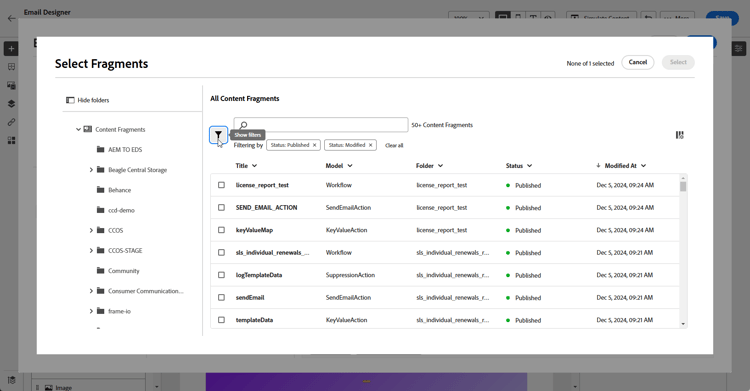
Click Show filters to fine tune your Content Fragments list.
By default, the Content Fragment filter is preset to display only approved Content.
-
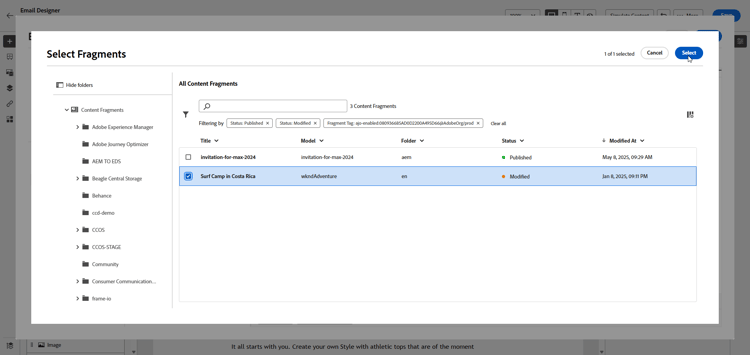
After selecting your Content Fragment, click Select to add it.
-
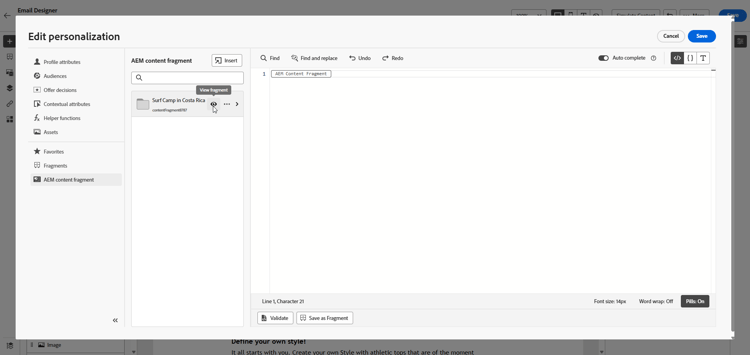
Click View fragment to display your Fragment information. Note that opening the Fragment Info menu places the editor in read-only mode.
Select Preview from the right-hand menu to view your fragment in Adobe Experience Manager.
-
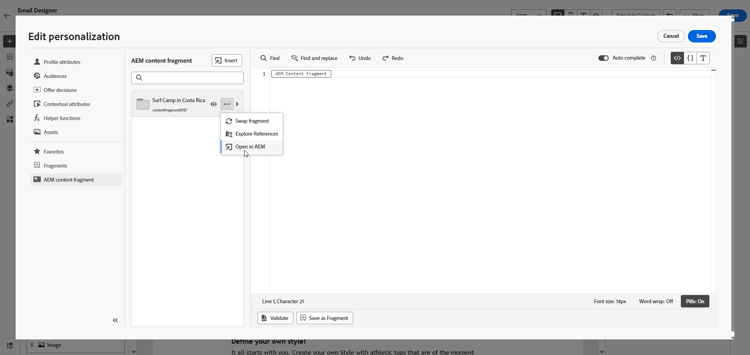
Click

- Swap fragment
- Explore references
- Open in AEM
-
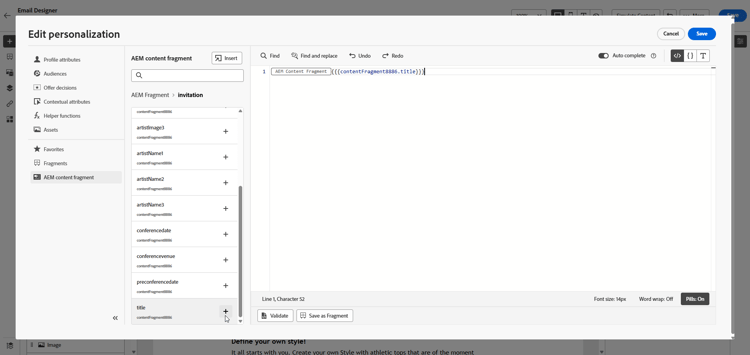
Choose the desired fields from your Fragment to add to your content.
-
To surface an image URL that is stored in a Content Fragment attribute, e.g. a path or URL field from the fragment model, insert it in your HTML with an
<img>tag and the fragment attribute as the source, for example:code language-html <img src="[insert your AEM Content Fragment attribute here]">note NOTE Relative image URLs from Adobe Experience Manager are not supported, use absolute URLs. -
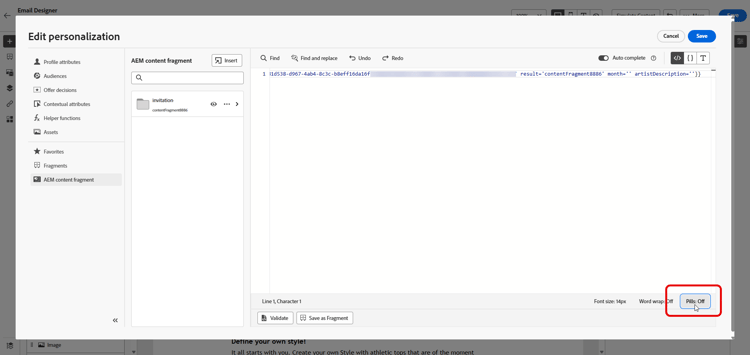
Select Pills: Off to enable the pills experience to improve readability by hiding long attribute paths.
-
To use personalization placeholders authored in Adobe Experience Manager inside your fragment text, define them in the Content Fragment in Adobe Experience Manager as follows:
{{name}}.In Journey Optimizer, those tokens are placeholders. With the pills experience on, they appear in the AEM Content Fragment section of the right rail alongside fragment fields.
-
To enable real-time personalization, all placeholders used within a Content fragment must be explicitly declared by the user as parameters in the fragment helper tag. Map those placeholders to profile attributes, contextual attributes, static strings, or predefined variables as follows:
-
Profile or Contextual Attribute Mapping: Assign the placeholder to a profile or contextual attribute, e.g. name = profile.person.name.firstName.
-
Static String Mapping: Assign a fixed string value by placing it within double quotes, e.g. name = “John”.
-
Variable Mapping: Reference a variable declared earlier within the same HTML, e.g. name = ‘variableName’.
In this case, ensure variableName is declared before adding the fragment ID, using following syntax:code language-html {% let variableName = attribute name %}
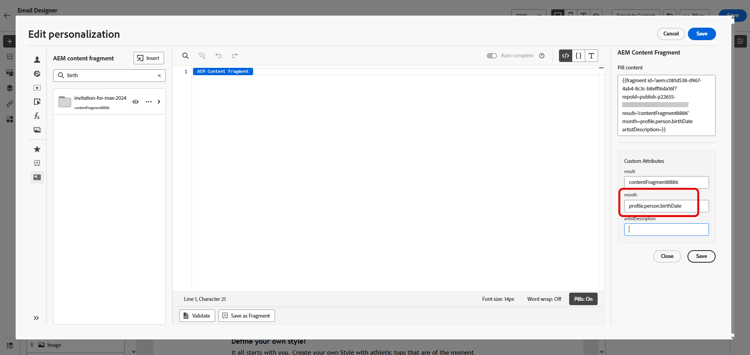
In the example below, the month placeholder is mapped to the profile.person.birthDate attribute within the fragment.
-
-
Click Save. You can now test and check your message content as detailed in this section.
Note that the Content Fragment you selected stays active for this message. When you open the Personalization Editor in another field or content block, you can keep working with the same fragment from the AEM Content Fragment section and add more fields without reopening Open AEM Content Advisor.
Once you have performed your tests and validated the content, you can send your campaign or publish your journey to your audience.
Adobe Experience Manager allows you to identify the Journey Optimizer campaigns or journeys where a Content Fragment is being used. Learn more in Adobe Experience Manager documentation.
Use AEM Content Fragments with Experience Decisioning aem-decisioning
AEM Content Fragments can also be used as offer item attributes in Experience Decisioning. By mapping Content Fragment fields to decision item attributes, you can use Journey Optimizer decisioning models, formulas, and ranking criteria to optimize which fragment is served to each profile.
Prerequisites and guardrails
- Content Fragments must be tagged in Adobe Experience Manager with the
ajo-enabled:{OrgId}/{SandboxName}tag before they appear in the decisioning selector. Learn how to create and assign a tag - Only Content Fragments in a published state are available.
- You can add up to five AEM Content Fragments to a single decision item.
Leverage AEM Content Fragments in Decisioning
Once the AEM Content Fragment has been created and published, you need to:
- Tie it to a decision item by selecting it in the decision item’s attributes.
- Leverage it in a decision policy to surface the right content to the right customer.
Working with content fragment variations aem-variations
In Adobe Experience Manager, each Content Fragment is made up of the following:
- Main: the core content of the fragment which always exists, cannot be deleted, and is the basis for all variations.
- Variations: one or more permutations of Main that authors create for specific channels or scenarios. Variations live inside the fragment not as separate assets and can be compared and synchronized with Main.
Examples of variation use cases:
- A short version of copy for a push notification and a longer version for email.
- Regional tone adjustments without creating a separate fragment.
- Channel-specific messaging (for example web compared to mobile).
➡️ Learn more in Adobe Experience Manager documentation
Journey Optimizer lets you choose which variation to use when you insert a fragment, so different campaigns or journeys can rely on different renditions of the same source content in Adobe Experience Manager without duplicating fragments.
To select a variation:
-
Click
-
From AEM Content Fragment, click Open AEM Content Advisor.
-
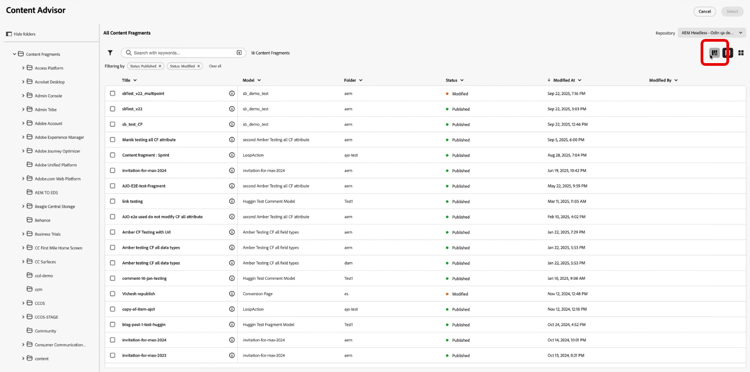
To select a locale-specific Adobe Experience Manager Content Fragment in table view, use Customize table to add the Language column. Locale values are displayed in the table, enabling you to identify and select the appropriate fragment.
-
Select your Content Fragment.
-
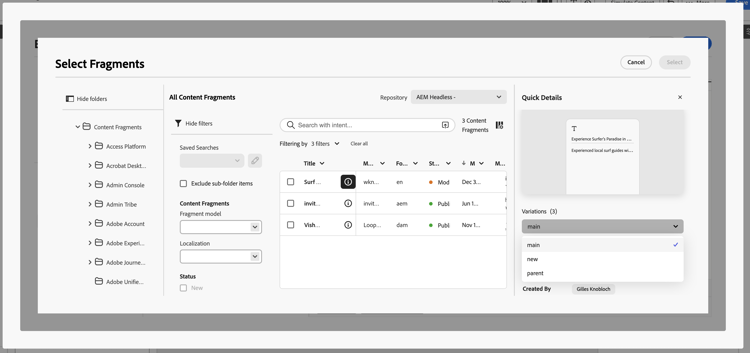
Click the

-
From the Quick details menu, click Explore references to open related options in Adobe Experience Manager for variation details, preview, and proof when available.
-
Choose your variation, then click Select.
note NOTE If you do not select a variation, or if the fragment was added before variation support was available, Journey Optimizer uses the Main variation automatically at delivery time.
After you insert a fragment with a variation, republishing it in Adobe Experience Manager updates every referenced variation in active campaigns or journeys automatically. Previews and proofs still use the variation you chose, with the latest published content for that variation.
This section contains structured knowledge intended to support interpretation, retrieval, and question answering related to this topic.
For complete understanding, this information should be combined with the documentation on this page. Neither source is intended to stand alone; the page describes the feature, while this section provides additional context that helps disambiguate terminology, intent, applicability, and constraints.
- TL;DR: This page explains how to tag, add, and personalize Adobe Experience Manager Content Fragments in Journey Optimizer campaigns and journeys, how to work with variations, and how to use Content Fragments as offer item attributes in Experience Decisioning.
Intents:
- Understand the Experience Manager to Journey Optimizer data flow (configure Dispatcher, create and author, tag, publish, access, integrate)
- Create and assign the Journey Optimizer tag in Experience Manager so a Content Fragment appears in the selector
- Add and personalize an AEM Content Fragment in a campaign or journey using the AEM Content Advisor
- Declare placeholders as parameters and map them to profile attributes, contextual attributes, static strings, or variables
- Use AEM Content Fragments as offer item attributes in Experience Decisioning
- Choose and work with Content Fragment variations
Glossary:
- AEM Content Advisor: AI-powered, unified interface for discovering and selecting Assets, Content Fragments, and Dynamic Media directly within AJO authoring workflows; replaces the existing Asset Selector and Content Fragment selector experiences (product-specific)
- Main: The core content of a Content Fragment that always exists, cannot be deleted, and is the basis for all variations (product-specific)
- Variations: One or more permutations of Main that authors create for specific channels or scenarios, living inside the fragment rather than as separate assets (product-specific)
- Pills experience: An option that improves readability by hiding long attribute paths (product-specific)
- ajo-enabled tag: Tag with the ID format
ajo-enabled:{OrgId}/{SandboxName}that a Content Fragment must carry to appear in Journey Optimizer for your organization and sandbox (product-specific)
Guardrails:
- Configuring the Dispatcher is a prerequisite for Journey Optimizer to access Content Fragments via the Content Fragment Management API.
- A Content Fragment appears in the Content Fragment selector only when it carries a tag matching
ajo-enabled:{AJO-OrgId}/{AJO-SandboxName}for your organization and sandbox. - When a Content Fragment is published in Experience Manager, if the update is successful it becomes available in Journey Optimizer within approximately 5 minutes for Unitary journeys, and in the next processing batch for batch use cases.
- For Healthcare customers, the integration is enabled only upon licensing the Journey Optimizer Healthcare Shield and Adobe Experience Manager Extended Security for Healthcare add-on offerings.
- Relative image URLs from Experience Manager are not supported; use absolute URLs.
- All placeholders used within a Content Fragment must be explicitly declared by the user as parameters in the fragment helper tag.
- In Experience Decisioning, only Content Fragments in a published state are available, they must be tagged with
ajo-enabled:{OrgId}/{SandboxName}, and you can add up to five AEM Content Fragments to a single decision item. - Using AEM Content Fragments in Experience Decisioning is available for channels with Decisioning support.
Terminology:
- Canonical name: AEM Content Fragments — Acronym: n/a — variants: Content Fragment, AEM content fragment
- Synonyms: “AEM Content Advisor” = “Open AEM Content Advisor”
- Do not confuse: “AEM Content Fragments” (authored in Experience Manager, used in Journey Optimizer) ≠ “Fragments” (reusable content components created in Journey Optimizer) ≠ “Journey Fragments” (reusable sets of journey nodes inserted into journeys)
- Do not confuse: “Main” (core content, cannot be deleted) ≠ “Variations” (permutations of Main for specific channels or scenarios)
FAQ:
- Q: Why does my Content Fragment not appear in Journey Optimizer? — It must be tagged in Experience Manager with a tag matching
ajo-enabled:{OrgId}/{SandboxName}for your organization and sandbox, and the Dispatcher must be configured. - Q: What happens if I do not select a variation? — The Main variation is used automatically at delivery time.
- Q: How many AEM Content Fragments can I add to a single decision item? — Up to five, and only Content Fragments in a published state are available.
- Q: What happens when I republish a fragment used in active campaigns or journeys? — Republishing it in Experience Manager updates every referenced variation in active campaigns or journeys automatically.
- Q: How do I enable real-time personalization in a fragment? — Declare all placeholders as parameters in the fragment helper tag and map them to profile attributes, contextual attributes, static strings, or predefined variables.