On this page: Learn how to create, manage, and reuse journey fragments — reusable sets of journey nodes — to build journeys faster and stay consistent across your sandbox.
Journey Fragments are reusable sets of journey nodes that you can build once and drop into any journey across your sandbox. Whether it’s an eligibility check, a preferred channel routing logic, or a welcome sequence, fragments help teams move faster and stay consistent — without rebuilding the same logic from scratch every time. See use case examples.
Once created, fragments are stored in a dedicated Fragment Inventory and can be inserted into any journey using the Journey fragments activity.
Permissions journey-fragments-permissions
To work with journey fragments, you need the following permissions:
- Manage Journeys — required to create, edit, and delete fragments.
- Publish Journeys — required to activate a fragment.
Access the Fragment Inventory journey-fragments-inventory
Journey fragments are accessible from the Journeys section. Open the Fragments tab to browse all available fragments in your sandbox.
You can filter the list by fragment name, status, creation date, creator, last modified date, or tag.
Create a journey fragment create-journey-fragment
You can create a journey fragment in two ways: directly from the journey canvas (recommended), or from the Fragment Inventory.
To save journey nodes as a fragment directly from the journey canvas:
-
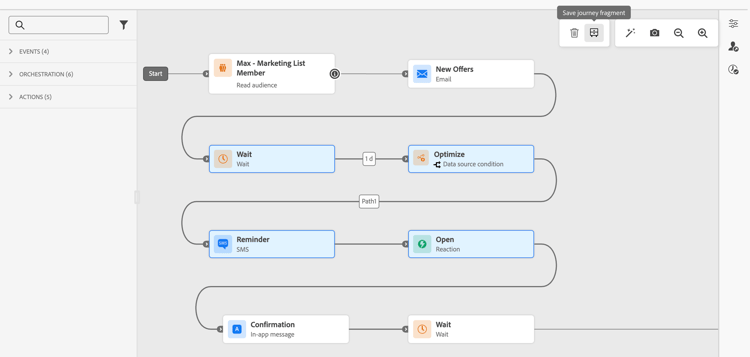
Open a journey and select one or more connected nodes on the canvas.
-
Click the Save as Fragment icon in the toolbar.
-
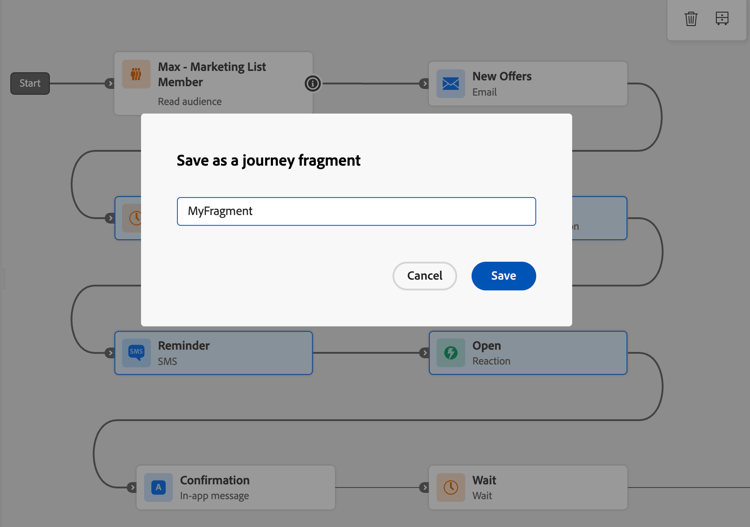
Enter a unique name for the fragment within your sandbox.
-
Click Save. The fragment is saved as a draft.
| note tip |
|---|
| TIP |
| If you create a fragment from a journey, test or simulate your journey before saving the fragment to ensure the selected nodes behave as expected. |
To create a fragment directly from the inventory:
- Navigate to Journeys > Journey fragments tab.
- Click Create journey fragment.
- In the fragment authoring canvas, add and configure journey activities.
- When done, click Save to save the fragment as a draft.
| note caution |
|---|
| CAUTION |
| Test mode and simulation are not available in the fragment editor. This means you cannot validate the behavior of the configured activities before the fragment is activated and inserted into a journey. For fragments where logic accuracy is critical, consider building and testing or simulating the nodes in a full journey first, then saving them as a fragment from the canvas tab above. |
Edit a fragment edit-journey-fragment
To edit a fragment, open it from the Fragment Inventory by clicking its name. In the fragment authoring UI, you can:
- Add, remove, or modify activities.
- Set or update fragment properties: name, tags, and labels.
-
Only Draft fragments can be edited. To modify an Active fragment, deactivate it first.
-
Test mode and simulation are not available in the fragment editor. Test or simulate any journey-level logic in the full journey before saving nodes as a fragment.
-
Jump activities are not allowed inside a fragment.
Manage your fragments manage-journey-fragments
Fragment statuses fragment-statuses
Journey fragments follow a lifecycle with the following statuses:
The following rules apply to fragment status transitions:
- Only Draft fragments can be activated. Open a draft fragment and use the Activate icon.
- Only Active fragments can be deactivated or archived.
- Only Archived fragments can be unarchived. Unarchiving a fragment returns it to Draft state.
- Only Draft fragments can be deleted.
Fragment actions fragment-actions
From the fragment inventory, you can perform the following actions on a fragment:
- Open: edit the fragment by clicking on its name.
- Duplicate: create a copy of the fragment, from the More actions (…) icon.
- Archive: archive a fragment (available for Active fragments only), from the More actions (…) icon. Archived fragments are no longer available in the fragment picker.
- Unarchive: restore an archived fragment (available for Archived fragments only), from the More actions (…) icon. The fragment returns to Draft state.
- Delete: permanently delete a fragment (available for Draft fragments only), from the More actions (…) icon.
- Edit tags: add or remove tags of a fragment, from the More actions (…) icon.
Use a fragment in a journey use-journey-fragment
To insert a fragment into a journey:
- Open your journey and drag the Journey fragments activity from the left rail.
- Drop it into an existing branch, or onto an empty canvas. A fragment picker appears.
- Browse or search for the fragment you want to use. You can preview a fragment or open it in another tab before inserting it.
- Select the fragment. Its nodes are copied into the canvas at the drop point.
Guardrails and limitations guardrails
The following guardrails apply to journey fragments:
Fragment creation
- Fragment names must be unique per sandbox.
- A fragment can only have one entry path. Selections with more than one entry point cannot be saved as a fragment.
- Only connected nodes can be saved together as a fragment.
- A fragment cannot contain a Jump activity.
- A fragment can contain a maximum of 20 nodes.
- A sandbox can have a maximum of 200 active fragments.
Fragment usage
- Only Active fragments can be inserted into a journey.
- Inserting a fragment creates a static copy of its nodes. Updates to the original fragment are not propagated to journeys where it has been used.
- A fragment can be dropped into an existing branch or onto an empty canvas. When dropped onto an empty canvas, the fragment must start with a Read Audience, Audience Qualification, or Event node.
General
- Fragments can be found using the Unified Search bar under the Journey Fragments category.
- Tags and Labels are supported on fragments.
- Audit Logs are supported.
- Journeys running on the old stack (using Inline Campaigns) do not support journey fragments. Duplicate such a journey to move to the new stack before using this feature.
- Journey fragments support Sandbox tooling. Fragments can be packaged and exported to another sandbox.
Use case examples examples
The following examples illustrate common journey patterns that can be saved and reused as journey fragments.
Eligibility checks
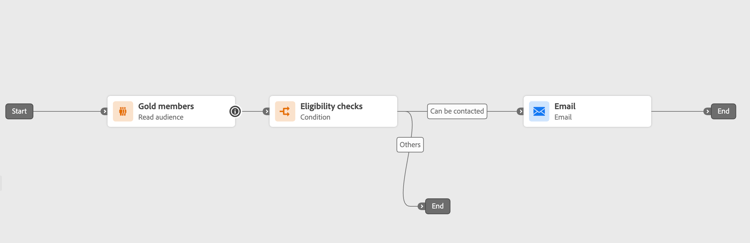
A standard entry pattern — such as a Read Audience node followed by eligibility filters — can be encapsulated into a fragment. This allows teams to maintain consistency in how profiles enter journeys while reducing setup time. The fragment can be the Optimize activity only, or the Read Audience and Optimize activity together.
Preferred channel
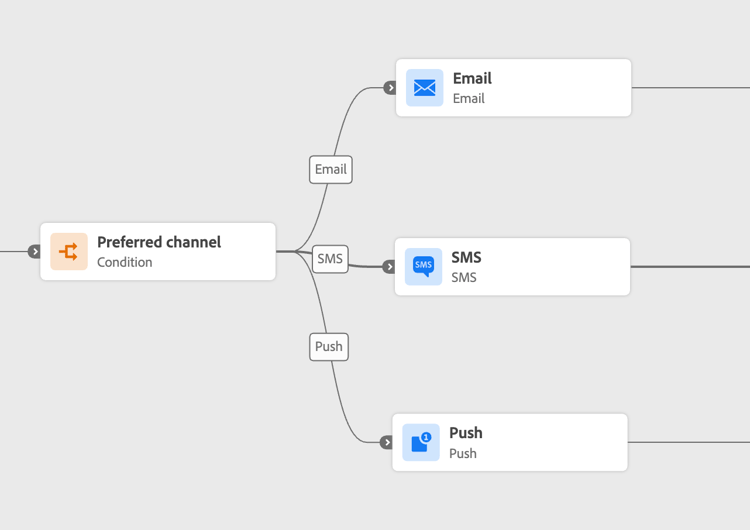
A fragment can evaluate a profile’s preferred communication channel — email, push, or Mobile message — and route the profile accordingly. This logic can be reused across any journey involving outbound messaging, ensuring consistent channel preference management. The fragment can include the Optimize activity and all three channel branches.
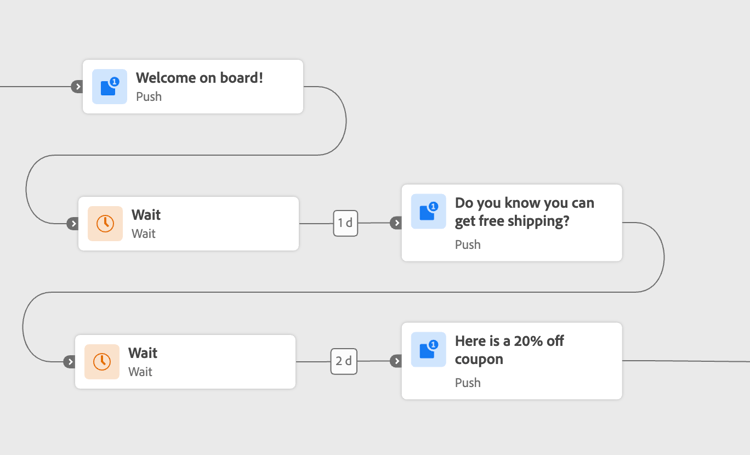
Onboarding welcome sequence
A timed welcome sequence — such as a series of three messages introducing a product or service — can be saved as a fragment. This is useful for onboarding new users across different audience segments or product lines. The fragment can include the Wait activities and the message nodes.
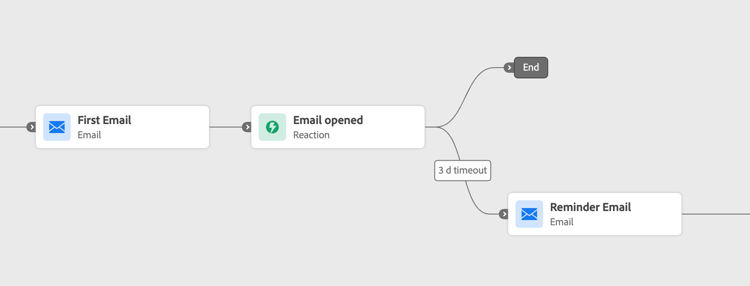
Reaction-based wait and reminder
A fragment can encapsulate an Email activity followed by a Reaction, waiting for the profile to open the email within a set number of days and sending a reminder if they did not. This logic is commonly reused in nurturing journeys and trial conversion flows. The fragment can include the Email and Reaction activities.
Frequently asked questions faq
How is a Journey Fragment different from a Fragment (content fragment)?
Journey Fragments are reusable sets of journey nodes — such as eligibility checks or channel routing logic — that you insert into a journey using the Journey fragments activity. Fragments are reusable content components (for example, a header or footer) used inside emails across campaigns and journeys. In short, Journey Fragments are reusable logic, while content Fragments are reusable content.
How is a Journey Fragment different from an AEM Content Fragment?
AEM Content Fragments are content authored in Adobe Experience Manager and reused in Journey Optimizer messages. They are not journey logic. Journey Fragments, by contrast, are built and stored within Journey Optimizer and represent sets of connected journey nodes.
If I update a Journey Fragment, do existing journeys update too?
No. Journey fragments use a copy behavior: inserting a fragment creates a static copy of its nodes. Any updates made to the original fragment are not reflected in journeys that have already used it.