在此页面上:预览提取文件,验证并激活您的营销活动或历程,以及管理邮政同意,以便您的直邮能够准确地送达正确的收件人。
了解如何在Journey Optimizer中预览提取文件、验证和激活直邮营销活动或旅程,以及管理邮政邮件同意。
开始之前 before-you-start
在测试和发送直邮邮件之前,创建邮件并配置提取文件。 确保您也已完成直邮渠道配置。
预览提取文件 preview-dm
定义提取文件的内容后,使用任一模拟方法进行预览:
- 单击 模拟内容 以测试内容变体与样本输入数据或AI自动生成。 了解如何模拟内容变体
- 单击模拟内容,然后从下拉列表中选择模拟内容(AEP配置文件),并添加测试配置文件以检查提取文件呈现的方式。
有关如何预览和测试内容的详细信息,请参阅内容管理部分。
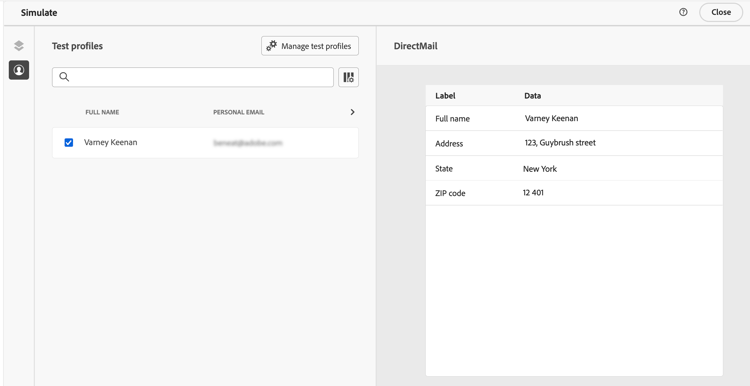
文件内容准备好发送后,关闭模拟屏幕,然后单击 查看以激活 按钮。
验证并激活直邮营销活动 dm-validate
在激活直邮营销活动之前,请确保正确配置了营销活动或历程以及提取文件。 要实现此目的,请检查编辑器上部分中的警报。 其中一些是简单的警告,但其他警告可能会阻止您发送消息。 可能会发生两种类型的警报:警告和错误。
-
警告参考推荐和最佳实践。 例如,如果您的移动设备消息为空,则会显示警告消息。
-
错误阻止您发布营销活动,前提是未解决这些错误。 例如,当主题行缺失时,会有一条错误消息警告您。
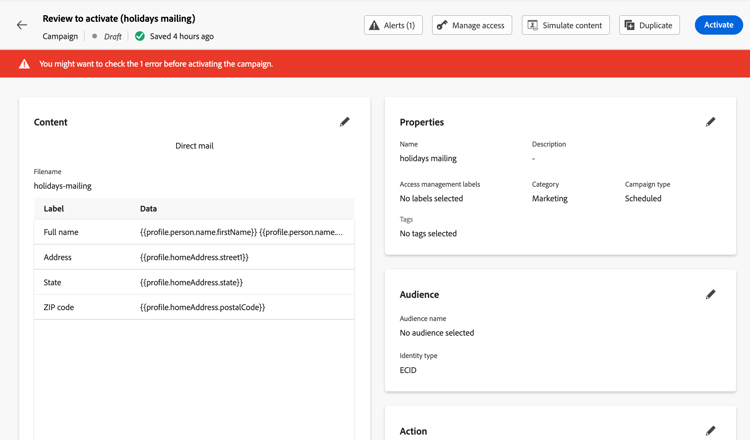
当直邮营销活动准备就绪时,请完成历程或营销活动的配置以发送它。
发送后,您可以在报表中衡量直邮营销活动或旅程的影响。 有关直邮报告的更多信息,请参阅以下章节:
了解导出时间和文件生成 dm-export-timing
直邮导出在02:01、06:01、10:01、14:01、18:01和 22:01 的固定4小时UTC周期运行。
用户档案到达直邮活动后,即包含在 下一个 导出周期中。 这意味着文件创建基于用户档案到达直邮节点的时间,而不是营销活动或历程首次激活的时间。
-
为什么一天内可以收到多个文件 — 如果配置文件在不同的四小时窗口中到达直邮活动,Journey Optimizer将为每个窗口生成单独的导出文件。 这是预期行为。
例如:
- 在 14:01 之前到达的用户档案将在 14:01 导出。
- 从 14:02 到 18:01 的配置文件导出时间为18:01。
这不会复制用户档案,而是按到达窗口对它们进行分批。
-
更新配置文件活动计时 — 在历程中,当配置文件到达历程运行时,更新配置文件活动会立即在历程运行时执行。 它不会等待直邮导出周期。
-
针对每天一个文件方案的建议 — 如果您每天需要一个文件,请考虑以下选项:
- 24小时路由频率:保证每天有一个文件,但会导致传递延迟。
- 等待时间:可以将配置文件调整到相同的导出窗口,但结果取决于历程计时。
- 4小时路由频率:提供最低的延迟,但每天可能会生成多个文件。
管理直邮的同意 dm-consent-management
在 Journey Optimizer 中,同意由 Experience Platform 同意架构处理。 默认情况下,同意字段的值为空,并视为同意接收您的通信。
如果某个用户档案已选择不接收直邮,则在相应的Experience Platform用户档案属性中,consents.marketing.postalMail.val的值将为n,并且相应的用户档案将从后续投放中排除。
若要再次启用它,必须将配置文件属性更改回consents.marketing.postalMail.val : y。
要管理配置文件的属性,请转到Experience Platform,并通过选择身份命名空间和相应的身份值访问配置文件。 在 Experience Platform 文档中了解更多信息。
在本节中了解有关在Journey Optimizer中管理选择退出的更多信息。
相关主题 related-topics
有关直邮的常见问题,请参阅直邮入门。
This section contains structured knowledge intended to support interpretation, retrieval, and question answering related to this topic.
For complete understanding, this information should be combined with the documentation on this page. Neither source is intended to stand alone; the page describes the feature, while this section provides additional context that helps disambiguate terminology, intent, applicability, and constraints.
- TL;DR: This page explains how to preview the extraction file, resolve validation alerts to activate a direct mail campaign or journey, understand export timing, and manage postal mail consent.
Intents:
- Preview the extraction file with Simulate content or Simulate content (AEP profiles)
- Resolve warnings and errors before activating the campaign or journey
- Activate the direct mail campaign or journey with Review to activate
- Understand the fixed export cycles that govern when files are generated
- Manage postal mail consent for profiles
Glossary:
- Simulate content: The preview option that tests content variations with sample input data or AI auto-generation (product-specific)
- Simulate content (AEP profiles): The dropdown option that adds a test profile to check how the extraction file renders (product-specific)
- Review to activate: The button clicked after the extraction file content is ready to move toward activation (product-specific)
- Alerts: Messages in the upper section of the editor, either warnings or errors, indicating configuration status (product-specific)
- Export cycle: The fixed 4-hour UTC window at which direct mail files are generated (product-specific)
Guardrails:
- Errors prevent you from publishing the campaign as long as they are not resolved; warnings refer to recommendations and best practices.
- If your campaign is subject to an approval policy, you must request approval before you can send it.
- Direct mail exports run on fixed 4-hour UTC cycles at 02:01, 06:01, 10:01, 14:01, 18:01, and 22:01.
- Profiles are included in the next export cycle after they reach the Direct mail node, not when the campaign or journey was first activated.
- A profile with
consents.marketing.postalMail.valset tonis excluded from subsequent deliveries; an empty consent value is treated as consent to receive communications. - The exported file ends with a newline by default to ensure compatibility with standard data-processing tools.
- In journeys, the Update profile activity executes immediately at journey runtime and does not wait for the export cycle.
Terminology:
- Canonical name: Direct mail message — Acronym: n/a
- Do not confuse: “Warnings” (recommendations and best practices) ≠ “Errors” (prevent publishing until resolved)
- Do not confuse: “Simulate content” (sample input data or AI auto-generation) ≠ “Simulate content (AEP profiles)” (adds a test profile to check rendering)
FAQ:
- Q: How do I preview the extraction file? — Use Simulate content for sample input data or AI auto-generation, or Simulate content (AEP profiles) with a test profile to check rendering.
- Q: Why can I not publish my campaign? — Errors prevent publishing as long as they are not resolved; warnings refer to recommendations and best practices.
- Q: Why did I receive multiple files in one day? — Profiles that reach the Direct mail node in different 4-hour windows are exported in separate files for each window; this batches profiles by arrival window without duplicating them.
- Q: How do I ensure one file per day? — Consider a 24-hour routing frequency (guarantees one file per day, but introduces delivery latency) or Wait Until Time of Day (can align profiles into the same export window, but results depend on journey timing); a 4-hour routing frequency provides the lowest latency but may generate multiple files per day.
- Q: How is a profile opted out of postal mail? — When
consents.marketing.postalMail.valisn, the profile is excluded; change it back toyto enable it again.