이 페이지에서: 문자 인코딩 및 제한을 확인하고 배달하기 전에 알림을 확인하는 등 Adobe Journey Optimizer에서 모바일 메시지를 미리 보고, 유효성을 확인하고, 보내는 방법을 알아봅니다.
모바일 메시지 미리 보기 preview-sms
메시지 콘텐츠가 정의되면 다음 시뮬레이션 방법 중 하나를 사용하여 콘텐츠를 미리 볼 수 있습니다.
- 샘플 입력 데이터 또는 AI 자동 생성을 사용하여 콘텐츠 변형을 테스트하려면 콘텐츠 시뮬레이션을 클릭하십시오. 콘텐츠 변형을 시뮬레이션하는 방법을 알아봅니다
- 콘텐츠 시뮬레이션을 클릭한 후 드롭다운에서 콘텐츠 시뮬레이션(AEP 프로필)을 선택하여 테스트 프로필로 미리 봅니다.
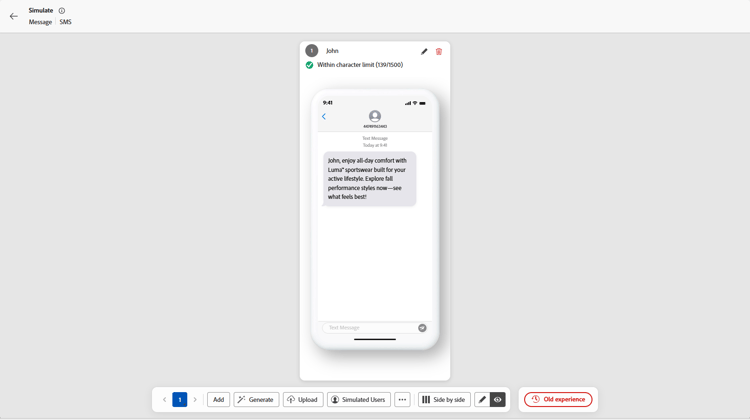
콘텐츠를 미리 보고 테스트하는 방법에 대한 자세한 내용은 콘텐츠 관리 섹션에서 확인할 수 있습니다.
문자 인코딩 및 제한 sms-character-limits
콘텐츠 시뮬레이션에서 시뮬레이션 방법에 액세스할 때 문자 수가 표시되어 모바일 메시지를 계획하고 관리하는 데 도움이 됩니다.
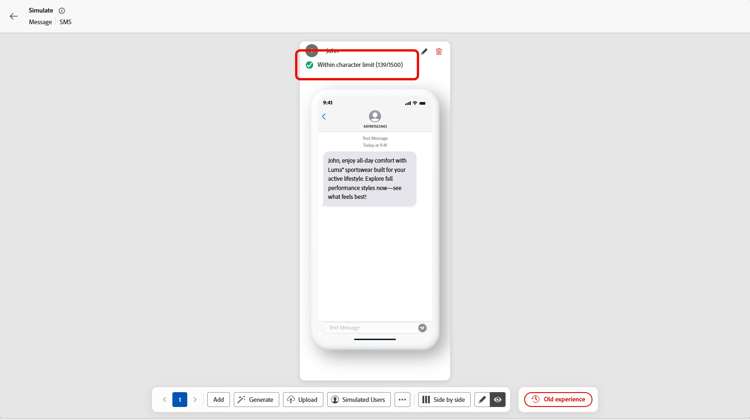
Journey Optimizer은 SMS 편집기에서 UTF-8 인코딩을 사용하므로 더블바이트 또는 유니코드 문자를 입력하거나 붙여넣을 수 있습니다. 그런 다음 이러한 문자가 전달을 위해 서비스 공급자에게 전송됩니다. 대부분의 SMS 공급자는 160자 제한이 있는 표준 메시지에 GSM 7비트 인코딩을 사용하고, GSM이 아닌 문자가 70자 제한으로 감지되면 UTF-16(UCS-2)으로 전환합니다.
문자 수는 동적 개인화에 의해 도입된 변형 또는 GSM이 아닌 7비트 특수 문자를 반영하지 않습니다.
콘텐츠 유효성 검사 sms-validate
편집기의 위쪽 섹션에서 경고를 확인해야 합니다. 일부는 간단한 경고이지만 일부는 메시지를 보내지 못하게 할 수 있습니다. 경고와 오류의 두 가지 경고 유형이 발생할 수 있습니다.
-
경고는 권장 사항과 모범 사례를 참조합니다. 예를 들어 모바일 메시지가 비어 있거나 동적 콘텐츠에서 문자 제한을 초과할 수 있는 경우 경고 메시지가 표시됩니다.
문자 제한: 세그먼트당 160자(GSM 7비트), 유니코드/이모지의 경우 70자, 총 1500자.
-
오류로 인해 여정을 테스트 또는 활성화하거나 캠페인을 게시하지 못할 수 있습니다. 단, 해결되지 않는 한 가능합니다. 예를 들어 제목 줄이 누락된 경우 경고 메시지가 표시됩니다.
경고 “SMS 텍스트 문자 제한을 초과했습니다.” 유효성 검사가 모든 조건부 분기, 개인화 필드 및 동적 콘텐츠를 최장 시간에 평가하여 최대 가능한 길이를 계산하기 때문에 시뮬레이션된 메시지가 더 짧은 경우에도 나타날 수 있습니다.
검증은 가능한 모든 프로파일 데이터에 대한 최대 길이를 계산하는 반면 시뮬레이션은 하나의 테스트 프로파일에 대한 실제 출력을 보여 줍니다.
모바일 메시지 보내기 sms-send
모바일 메시지가 준비되면 여정 또는 캠페인의 구성을 완료하여 보내십시오.
관련 항목
This section contains structured knowledge intended to support interpretation, retrieval, and question answering related to this topic.
For complete understanding, this information should be combined with the documentation on this page. Neither source is intended to stand alone; the page describes the feature, while this section provides additional context that helps disambiguate terminology, intent, applicability, and constraints.
- TL;DR: This page explains how to preview, validate, and send Mobile messages in Adobe Journey Optimizer, including checking character encoding and limits and resolving alerts before delivery.
Intents:
- Preview Mobile message content using the available simulation methods
- Understand SMS character encoding and how the character count is calculated
- Check warnings and errors before testing, activating, or publishing
- Understand why a character-limit alert can appear when the simulated message is shorter
- Send Mobile messages by completing the journey or campaign configuration
Glossary:
- Simulate content: The preview action used to test content variations with sample input data or AI auto-generation (product-specific)
- Simulate content (AEP profiles): The option selected from the Simulate content dropdown to preview the message with test profiles (product-specific)
- Character count: The count displayed when accessing either simulation method to assist in planning and managing Mobile messages (product-specific)
- Warnings: Alerts that refer to recommendations and best practices and do not block sending (product-specific)
- Errors: Alerts that prevent testing or activating the journey, or publishing the campaign, until resolved (product-specific)
Guardrails:
- Most SMS providers use GSM 7-bit encoding for standard messages with a 160-character limit and switch to UTF-16 (UCS-2) with a 70-character limit when non-GSM characters are detected.
- Character limits flagged by warnings are 160 characters per segment (GSM 7-bit), 70 for Unicode or emojis, and up to 1500 characters total.
- The character count does not reflect variations introduced by dynamic personalization or non-GSM 7-bit special characters.
- SMS delivery reporting does not account for concatenated messages and dynamic personalization, so it may not reflect the actual number of messages sent from the provider.
- Errors prevent you from testing or activating the journey, or publishing the campaign, until they are resolved; warnings do not block.
- Validation calculates the maximum possible length by evaluating all conditional branches, personalization fields, and dynamic content at their longest, while simulation shows the actual output for one test profile.
- To improve deliverability, use phone number formats supported by the provider; for example, Twilio and Sinch only support phone numbers in E.164 format.
- If the campaign is subject to an approval policy, you must request approval before you can send.
Terminology:
- Canonical name: Check and send your Mobile message — variants: preview and send SMS
- Simulation modes (both present on this page): “Simulate content” (test content variations with sample input data or AI auto-generation) and “Simulate content (AEP profiles)” (preview with test profiles)
- Do not confuse: “Warnings” (recommendations and best practices; do not block) ≠ “Errors” (prevent testing, activating, or publishing until resolved)
- Do not confuse: “Validation” (calculates maximum possible length across all profile data) ≠ “Simulation” (shows actual output for one test profile)
FAQ:
- Q: How do I preview a Mobile message? — Click Simulate content to test content variations with sample input data or AI auto-generation, or select Simulate content (AEP profiles) from the dropdown to preview with test profiles.
- Q: Why does the character-limit alert appear when my simulated message is shorter? — Validation calculates the maximum possible length by evaluating all conditional branches, personalization fields, and dynamic content at their longest, while simulation shows the actual output for one test profile.
- Q: What are the SMS character limits? — 160 characters per segment for GSM 7-bit, 70 for Unicode or emojis, and up to 1500 characters total.
- Q: What stops me from sending my message? — Errors prevent you from testing or activating the journey, or publishing the campaign, until they are resolved; warnings do not block.
- Q: Does delivery reporting reflect the exact number of messages sent? — Not necessarily, because SMS delivery reporting does not account for concatenated messages and dynamic personalization; contact your Adobe representative for detailed usage and billing information.