このページ:サポートに問い合わせる前に、ジャーニーのインバウンドアクション(アプリ内、web、コードベースのエクスペリエンスなど)で発生する一般的な問題のデバッグ方法と解決方法について説明します。
アプリ内、web、コードベースのエクスペリエンスなどのインバウンドアクションは、ユーザーのジャーニー中にパーソナライズされたエンゲージメントを可能にするので、Journey Optimizer の重要なコンポーネントです。 ただし、インバウンドコンテンツの欠落や、プロファイルがジャーニーから離脱した後に配信が継続されるなど、予期しない動作が発生する場合があります。
このガイドでは、サポートに連絡する前に、ジャーニーでのインバウンドアクションに関連する問題をデバッグするための手順について段階的に説明し、問題を独自に特定して解決できるようにします。
前提条件 prerequisites
トラブルシューティングを開始する前に、以下を確認します。
-
Assurance セッションを設定します。 方法について詳しくは、Adobe Experience Platform Assurance ドキュメントを参照してください。
-
インバウンドアクションを含むジャーニーに移動して、ジャーニー名とバージョン ID を取得します。
note NOTE ジャーニーバージョン ID は、URL の「journey/」の後にあります(例:86232fb1-2932-4036-8198-55dfec606fd7)。 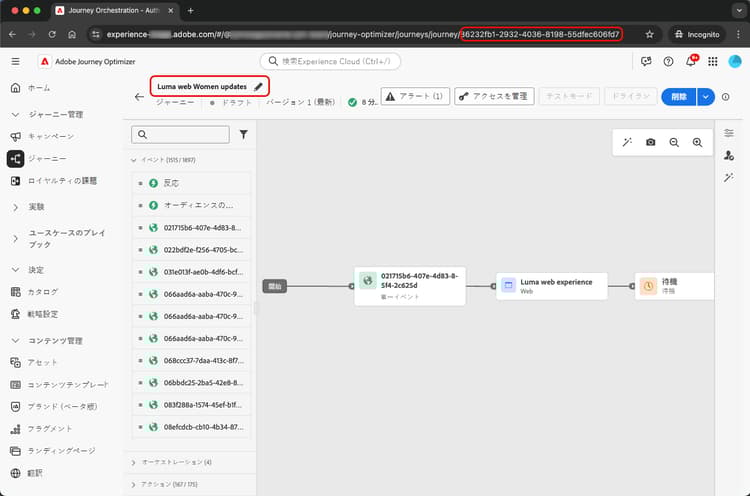
-
インバウンドアクションをクリックして、その詳細を表示します。 インバウンドアクションのラベルと ID を取得します。
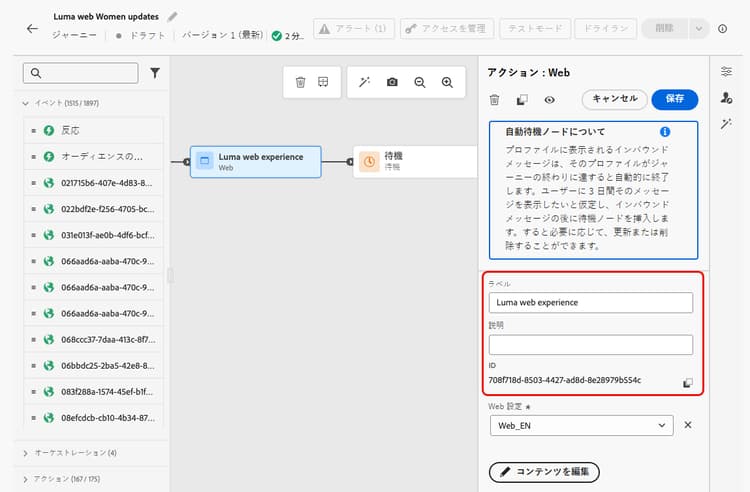
-
プロファイルの名前空間と ID を取得して、問題の発生したプロファイルを識別します。 設定に基づいて、名前空間は ECID、メール、顧客 ID などになります。 プロファイルを検索する方法について詳しくは、Experience Platform ドキュメントを参照してください。
シナリオ 1:ユーザーがインバウンドコンテンツを受信していない scenario-1
このシナリオでは、あるプロファイルがジャーニーでのインバウンドアクションにエントリしましたが、30 分経過しても、対応するインバウンドコンテンツが設定トリガーステップでデバイス/クライアントに表示されません。
事前確認 pre-checks
-
ジャーニーインバウンドデータセットがプロファイルの取り込みに対して有効になっている
インバウンドアクションでは、実行中にプロファイルの更新に ジャーニーインバウンド データセットを使用します。 現在のサンドボックスのプロファイルに対してデータセットが有効になっていることを確認します。 データセットの詳細
-
Platform ID で定義された「joai」ID
インバウンドアクションでは、インバウンドステップでプロファイルのアクティブ化にプロファイル
segmentMembershipの joai 名前空間を使用します。 サンドボックスの Platform ID で定義されていることを確認します。 詳しくは、Experience Platform ID サービスを参照してください
デバッグ手順 debugging-steps
次のグラフには、実行できるデバッグ手順のシーケンスを示します。
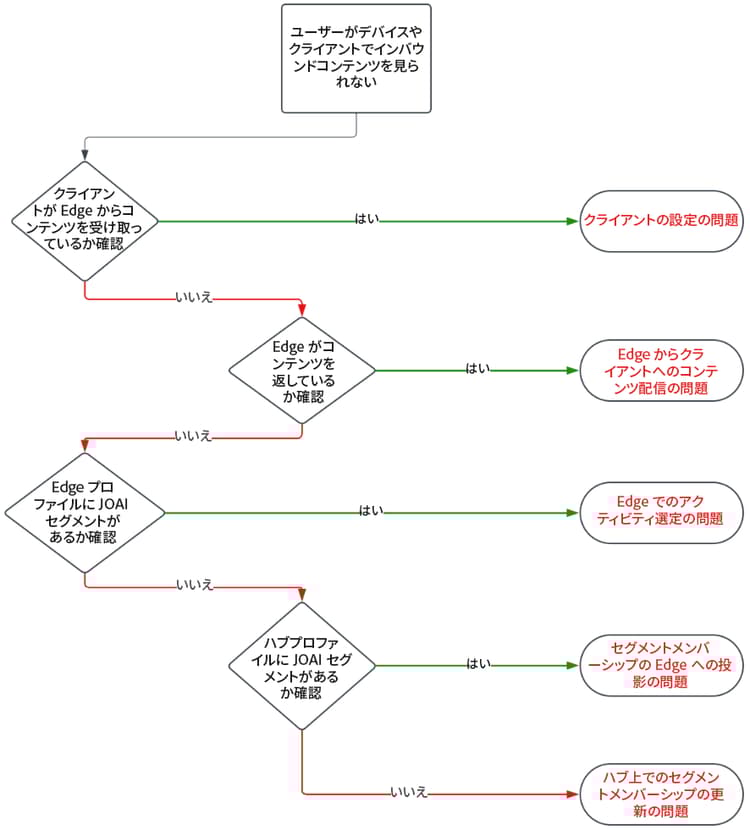
手順1:デバイス/クライアントがEdge Networkからコンテンツを受信しているかどうかを確認する step-1
まず、デバイス/クライアントが期待どおりのコンテンツを取得しているかどうかを確認します。
-
Assurance セッションに移動し、左側のパネルから「アプリ内メッセージ」セクションを選択します。
-
「デバイスでのメッセージ」タブで、メッセージドロップダウンリストをクリックします。

-
ジャーニー名の後に「- アプリ内メッセージ」が付いたメッセージを探します。 このようなメッセージがあった場合、アプリ内メッセージがデバイス/クライアントに存在し、問題がアプリ内トリガーに関連している可能性があります。
-
メッセージが見つからない場合、アプリ内メッセージはデバイス/クライアントによって受信されませんでした。
手順2:Edge Networkがコンテンツを返しているかどうかを確認する step-2
この手順では、Edge Network がデバイス/クライアントでレンダリングされる期待どおりのインバウントコンテンツを返していることを確認します。
プロファイルがジャーニーのインバウンドアクションにエントリすると、インバウンドジャーニーアクションに対応する特別なオーディエンスセグメント(joai 名前空間内)に自動的に選定されます。
クライアントが特定のプロファイルとサーフェスに対してEdge Networkにリクエストを行うと、プロファイルはそのサーフェスをターゲットとするインバウンドジャーニーアクションのコンテンツを受け取る資格を持ちます。そのプロファイルが、リクエスト時に対応するjoai セグメントのメンバーである場合に限ります。
Edge Network の動作をデバッグするには、次の手順に従います。
-
Assurance セッションで Edge Delivery ビューを開きます。 このビューには、Edge Network サーバーでのインバウンドアクションの実行に関する情報が表示されます。 詳しくは、Experience Platform ドキュメントを参照してください。
-
インバウンドアクションに対応する Edge アクティビティが「選定アクティビティ」セクションまたは「未選定アクティビティ」セクションにリストされているかどうかを確認します。
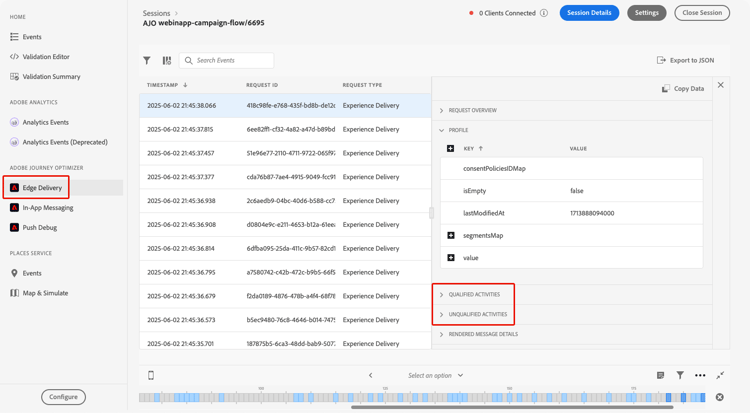
- 「選定アクティビティ」セクションの場合、プロファイルはインバウンドジャーニーアクションに選定され、コンテンツを返す必要があります。
- 「未選定アクティビティ」セクションの場合、プロファイルはインバウンドジャーニーアクションに選定されません。 詳しくは、除外の理由を参照してください。
- いずれのセクションでもない場合は、Edge Network へのインバウンドジャーニーアクションの公開で問題が発生するか、リクエストしたサーフェス URI がインバウンドアクションのチャネル設定と一致しません。
note NOTE Assurance セッションで Edge アクティビティを見つけるには、audienceNamespace が joai で、audienceSegmentId が <JourneyVersionID>_<JourneyActionID> であるアクティビティを探します(例:86232fb1-2932-4036-8198-55dfec606fd7_708f718d-8503-4427-ad8d-8e28979b554c)。 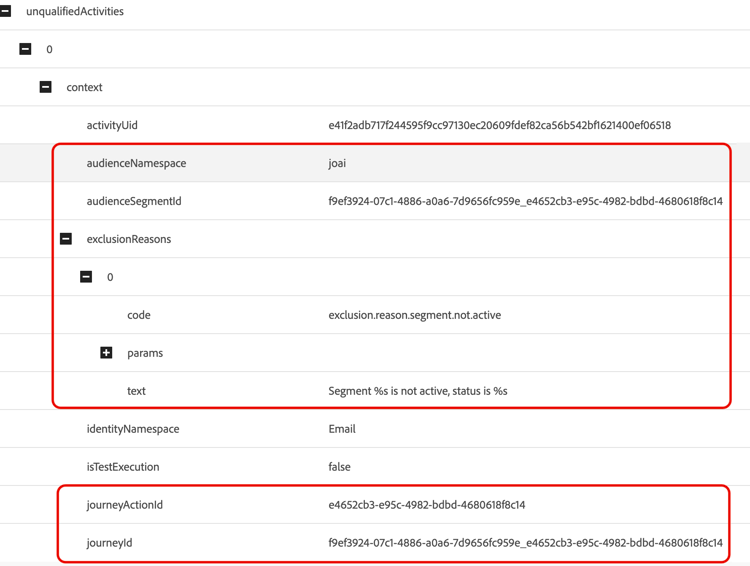
-
アクティビティが「未選定アクティビティ」セクションにあり、除外の理由が 「セグメントがアクティブではありません」 である場合、Edge Network 配信サーバーは、プロファイルが関連する joai オーディエンスセグメントの一部ではないと判断します。
「プロファイル」セクションの segmentsMap 要素を開き、joai セグメント ID の存在を探すことで、Edge Network 配信サーバーのプロファイルのビューに joai セグメントが存在するかどうかを再確認できます。
-
Edge Network 配信サーバーがプロファイルを関連する joai セグメント内にあると表示しない場合は、次の手順に進みます。
手順3:「joai」オーディエンスメンバーシップがEdge Networkに反映されているかどうかを確認する step-3
この手順では、プロファイルがインバウンドジャーニーアクションにエントリし、対応する joai セグメントにプロファイルが選定された際に、Edge プロファイルが正しく更新されたことを確認します。
プロファイルが joai セグメントに選定されると、まずハブでプロファイルが更新され、次にセグメントメンバーシップが Edge プロファイルに投影されて、Edge Network 配信サーバーで使用できるようになります。
Edge プロファイルの segmentMembership 属性に joai セグメントが存在するかどうかを確認するには、次の手順に従います。
-
Journey Optimizer の左側のナビゲーションパネルにある顧客/プロファイルメニューに移動し、名前空間と ID を使用してプロファイルを参照します。 詳しくは、リアルタイム顧客プロファイルを参照してください
-
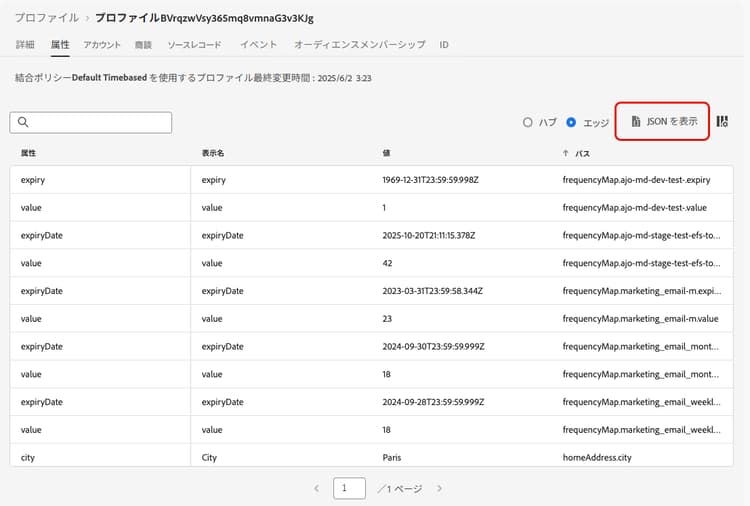
「属性」タブを選択し、Edge ビューを選択します。
-
「JSON を表示」をクリックして、プロファイルの JSON ビューを開きます。
-
segmentMembership属性に移動し、セグメント ID <JourneyVersionID>_<JourneyActionID> が joai 名前空間に存在し、「適合」ステータスになっているかどうかを確認します。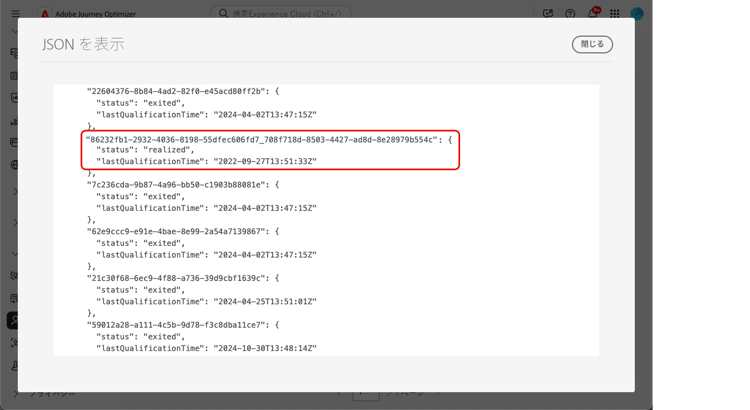
-
存在する場合、インバウンドジャーニーアクションに対応する joai セグメントが Edge プロファイルに正しく生成されます。
-
Edge Network 配信サーバーのプロファイルビューに表示されない場合は、配信サーバーが Edge プロファイルを読み込む方法に問題がある可能性があります。
-
-
joai セグメント ID が存在しないか 離脱 状態の場合、Edge に(まだ)生成されていません。
segmentMembershipの値がハブから Edge に生成されるまで 15~30 分待機します。 まだ表示されない場合は、次の手順に進みます。
手順 4:「joai」オーディエンスメンバーシップがハブのプロファイルに存在するかどうかを確認する step-4
この手順では、プロファイルがインバウンドジャーニーアクションにエントリし、対応する joai セグメントにプロファイルが選定された際に、ハブプロファイルが正しく更新されたことを確認します。
ハブプロファイルの segmentMembership 属性に joai セグメントが存在するかどうかを確認するには、次の手順に従います。
-
Journey Optimizer の左側のナビゲーションパネルにある顧客/プロファイルメニューに移動し、名前空間と ID を使用してプロファイルを参照します。 詳しくは、リアルタイム顧客プロファイルを参照してください
-
「属性」タブを選択し、ハブビューを選択します。
-
「JSON を表示」をクリックして、プロファイルの JSON ビューを開きます。
-
segmentMembership 属性に移動し、セグメント ID <JourneyVersionID>_<JourneyActionID> が joai 名前空間に存在し、「適合」ステータスになっているかどうかを確認します。
-
存在する場合、インバウンドジャーニーアクションに対応する joai セグメントがハブプロファイルに正しく取り込まれます。
-
30 分以上経過しても Edge プロファイルに見つからない場合、Edge 投影システムに問題がある可能性があります。
-
-
joai セグメント ID が存在しないか 離脱済み 状態の場合、プロファイルは、対応するインバウンドジャーニーアクションへのエントリ時に特別な joai オーディエンスセグメントに(まだ)正しく選定されていません。
segmentMembershipの値がハブのプロファイルに取り込まれるまで 15 ~ 30 分待機します。 まだ表示されない場合は、次の手順に進みます。
手順 5:クライアント/デバイスがまだ期待どおりのコンテンツを取得していない場合する step-5
上記の手順をすべて実行し、セグメントメンバーシップが Edge Network に生成されるまで 30~60 分待機しても期待どおりの動作が見られない場合は、アドビカスタマーケアまたはアドビ担当者にお問い合わせください。
次のようなデバッグ手順の詳細をできるだけ多く含めます。
- 予期しない動作が見られるステップ。
- ジャーニーバージョン ID。
- ジャーニーアクション ID。
- Assurance の完全なトレース。
- Edge プロファイルの JSON ビュー。
- ハブプロファイルの JSON ビュー。
- その他。
シナリオ 2:ユーザーがインバウンドコンテンツを引き続き受信する scenario-2
このシナリオは、 シナリオ 1とは逆です。プロファイルはジャーニーを終了しましたが、ユーザーはまだインバウンドコンテンツを受信しています。
ただし、プロファイルがジャーニーから離脱すると、ジャーニーのインバウンドアクションに対応する joai オーディエンスセグメントに選定されなくなります。
シナリオ 1 と同じデバッグ手順を実行して、ハブプロファイル、Edge プロファイル、Edge Network 配信サーバーが関連する joai セグメントのセグメントメンバーシップステータスを正しく反映しているかどうか、およびクライアントがインバウンドコンテンツを受信しなくなっているかどうかを確認します。
関連トピック related
This section contains structured knowledge intended to support interpretation, retrieval, and question answering related to this topic.
For complete understanding, this information should be combined with the documentation on this page. Neither source is intended to stand alone; the page describes the feature, while this section provides additional context that helps disambiguate terminology, intent, applicability, and constraints.
- TL;DR: This page provides a step-by-step process to debug issues related to inbound actions in a journey, covering two scenarios: a profile entering an inbound action but the user not receiving the content, and a user still receiving the content after the profile exits the journey.
Intents:
- Set up an Assurance session and gather the journey, action, and profile details before debugging inbound action issues
- Verify whether the device or client is receiving inbound content for the In-app, Web, and Code-based experience channels
- Check whether the Edge Network returns the content by reading the Qualified Activities and Unqualified Activities sections of the Edge Delivery view in Assurance
- Confirm that the joai audience segment membership is present in the Edge profile and the Hub profile
- Debug a user who still receives inbound content after the profile exits the journey
- Escalate to Adobe Customer Care or an Adobe representative with the right diagnostic information when the steps do not resolve the issue
Glossary:
- Inbound actions: Journey actions such as In-app, web, and code-based experiences that enable personalized engagement with users (product-specific)
- joai namespace: The namespace used in the profile
segmentMembershipfor activating the profile for the inbound step; it must be defined in Platform Identities for the sandbox (product-specific) - joai segment: A special audience segment in the joai namespace into which a profile is automatically qualified when it enters an inbound action; its segment ID is <JourneyVersionID>_<JourneyActionID> (product-specific)
- Journey Inbound dataset: The dataset the inbound action uses for the profile updates during execution (product-specific)
- Hub profile: The profile that is first updated when a profile is qualified into a joai segment; the segment membership is then projected to the Edge profile
- Edge profile: The profile to which the segment membership is projected from the Hub, for use by the Edge Network delivery server
- Assurance: The Adobe Experience Platform tool whose session is used on this page to check the messages on the device and the Edge response payload
Guardrails:
- The Journey Inbound dataset must be enabled for Profiles in the current sandbox (pre-check)
- The joai namespace must be defined in Platform Identities for the sandbox (pre-check)
- A client request qualifies a profile for inbound content on a surface only if the profile is a member of the corresponding joai segment at the time of the request
- Propagation of the joai segment membership from the Hub to the Edge can take up to 15-30 minutes from the moment the profile is updated on the Hub
- Ingestion of the joai segment membership into the Hub profile can take up to 15-30 minutes from the moment the profile entered the inbound journey action
- If the expected behavior is still not seen after waiting 30 to 60 minutes for the segment membership to propagate to the Edge Network, contact Adobe Customer Care or your Adobe representative
Prerequisites and permissions:
- An Assurance session set up
- The journey name and journey version ID, retrieved from the journey containing the inbound action
- The inbound action label and ID
- The profile namespace and ID of the profile encountering issues
Terminology:
- Canonical name: joai namespace — variants: joai identity
- Canonical name: Inbound actions — variants: inbound journey action
- Synonyms: “joai segment” = “joai audience segment”
- Do not confuse: “Qualified Activities” ≠ “Unqualified Activities” in the Edge Delivery view — in Qualified Activities the profile qualified for the inbound journey action and the content should be returned; in Unqualified Activities the profile did not qualify, and the exclusion reasons give more details
FAQ:
- Q: What are the two scenarios covered by this guide? — Scenario 1: a profile has entered the inbound action but, even after 30 minutes, the inbound content is not showing up in the device/client at the setup trigger step. Scenario 2: the profile has exited the journey, but the user is still receiving the inbound content.
- Q: What tool do I use to debug inbound action delivery? — Assurance. Set up an Assurance session first, then use the In-App Messaging section for the In-app channel and the Edge Delivery section for the Edge response payload.
- Q: What is the joai segment and why does it matter? — When a profile enters an inbound action, it is automatically qualified into a special audience segment (in the joai namespace) corresponding to the inbound journey action. The profile qualifies to receive content for the inbound journey actions targeting a surface only if it is a member of the corresponding joai segment at the time of the request.
- Q: How do I find my Edge activity in Assurance? — Look for the activity where the audienceNamespace is joai and the audienceSegmentId is <JourneyVersionID>_<JourneyActionID>.
- Q: How long does it take for the joai segment membership to appear on the Edge profile? — Up to 15-30 minutes from the moment the profile is updated on the Hub.
- Q: What does it mean if the joai segment ID is not present or is in exited state on the Edge profile? — It was not (yet) propagated to the Edge. Wait 15 to 30 minutes for the
segmentMembershipvalues to be propagated from the Hub to the Edge; if the segment ID is still not present, check the Hub profile. - Q: What does it mean if the joai segment ID is not present or is in exited state on the Hub profile? — The profile was not (yet) correctly qualified into the joai segment upon entry into the inbound journey action. Wait 15 to 30 minutes for the values to be ingested into the Hub profile; if still not present, go to the next step, which is to contact Adobe Customer Care or your Adobe representative.
- Q: What information should I provide when escalating? — The step where you see the unexpected behavior, the journey version ID, the journey action ID, the full Assurance trace, and the JSON views of the Edge profile and the Hub profile.
Related pages:
- Troubleshooting errors before testing or publishing a journey: Troubleshoot errors before testing or publishing your journey (building-journeys/troubleshooting.md)
- Troubleshooting a live journey execution: Troubleshoot your live journey execution (building-journeys/troubleshooting-execution.md)
- Journey error codes: Error codes reference (building-journeys/error-codes-reference.md)