En esta página: Diseñe y pruebe el contenido de su campaña de acción para el canal que seleccionó de modo que cada mensaje esté listo antes de activar la campaña.
Para configurar el contenido del mensaje, vaya a la ficha Contenido o haga clic en el botón Editar contenido.
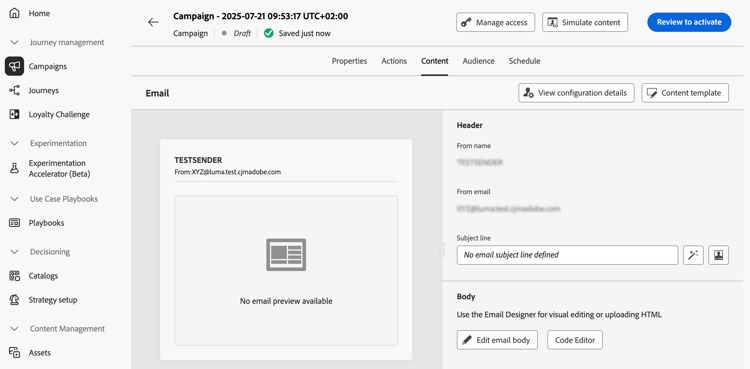
Diseño del contenido action-campaign-channels
El proceso de creación de contenido depende del canal seleccionado. Conozca los pasos detallados para crear el contenido del mensaje en las siguientes páginas:






Prueba y verificación del contenido
Una vez definido el contenido, use el botón Simular contenido para previsualizar y probar el contenido. Puede utilizar cualquiera de los métodos de simulación:
- Haga clic en Simular contenido para probar las variaciones de contenido con datos de entrada de muestra o generación automática de IA.
- Haga clic en Simular contenido y, a continuación, seleccione Simular contenido (perfiles de AEP) en el menú desplegable para previsualizarlo con perfiles de prueba.
Obtenga información sobre cómo previsualizar y probar contenido
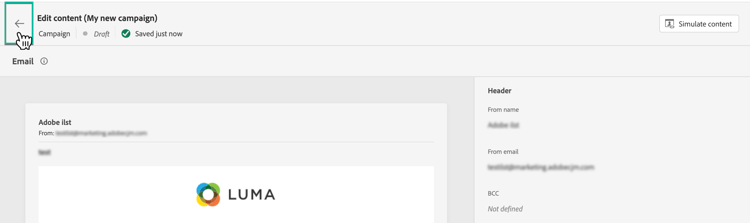
Para volver a la pantalla de creación de campañas, haga clic en la flecha izquierda.
Próximos pasos next
Una vez que el contenido de la campaña de acción esté listo, puede definir la audiencia de la campaña. Más información
This section contains structured knowledge intended to support interpretation, retrieval, and question answering related to this topic.
For complete understanding, this information should be combined with the documentation on this page. Neither source is intended to stand alone; the page describes the feature, while this section provides additional context that helps disambiguate terminology, intent, applicability, and constraints.
- TL;DR: This page explains how to open the content of an Action campaign for the channel selected, find the channel-specific content creation pages, and preview and test the content with Simulate content.
Intents:
- Open the content of the campaign from the Content tab or the Edit content button
- Find the page that explains content creation for each channel
- Preview and test content with Simulate content
- Preview content with test profiles using Simulate content (AEP profiles)
- Go back to the campaign creation screen
Glossary:
- Simulate content: Button used to preview and test content; tests content variations with sample input data or AI auto-generation. (product-specific)
- Simulate content (AEP profiles): Option selected from the Simulate content dropdown; previews the content with test profiles. (product-specific)
Terminology:
- Canonical name: Action campaign content — variants: message content
- Acronym: AEP — Adobe Experience Platform
- Do not confuse: “Simulate content” (sample input data or AI auto-generation) ≠ “Simulate content (AEP profiles)” (test profiles)
FAQ:
- Q: How do I open the content of my Action campaign? — Navigate to the Content tab or click the Edit content button.
- Q: Where do I find how to create content for my channel? — The content creation process depends on the channel you selected; the page lists Email, Mobile message, Push notification, Direct mail, In-app, Web, Code-based experience, Content cards, LINE, and WhatsApp, each linking to its page.
- Q: How do I preview and test my content? — Use Simulate content to test content variations with sample input data or AI auto-generation, or select Simulate content (AEP profiles) from the dropdown to preview with test profiles.
- Q: How do I go back to the campaign creation screen? — Click the left arrow.
Related pages:
- Email content: Email (email/create-email.md)
- Mobile message content: Mobile message (mobile/create-mobile-message.md)
- Push content: Push notification (push/create-push.md)
- Direct mail content: Direct mail (direct-mail/create-direct-mail.md)
- In-app content: In-app (in-app/create-in-app.md)
- Web content: Web (web/create-web.md)
- Code-based content: Code-based experience (code-based/create-code-based.md)
- Content cards content: Content cards (content-card/create-content-card.md)
- LINE content: LINE (line/get-started-line.md)
- WhatsApp content: WhatsApp (whatsapp/get-started-whatsapp.md)
- Previewing and testing content: Learn how to preview and test content (content-management/preview-test.md)
- Next step, audience: Define the Action campaign audience (campaigns/campaign-audience.md)
Personas:
- marketer: Can open the content of an Action campaign from the Content tab or the Edit content button. Can use Simulate content to test content variations with sample input data or AI auto-generation. Can select Simulate content (AEP profiles) from the dropdown to preview with test profiles. Where: “Test and check your content”.
Onboarding:
- Level: Beginner
- First minimal step: Navigate to the Content tab or select the Edit content button to configure the message content.
- Success check: The content is defined, and Simulate content is available to preview and test it.
- Next: Learn how to preview and test content: Preview and test your content (content-management/preview-test.md); Once the content of the Action campaign is ready: Define the Action campaign audience (campaigns/campaign-audience.md)