
Enrichment
This topic introduces you to enrichmentAdditional contextual content shown around commerce experiences to improve a shopper’s page experience. for product pages in your storefront. You will learn how to add content blocksEdge Delivery Services blocks used for non-commerce page content and layout, such as cards, columns, headers, and footers. above or below a commerce block (or any other block).
Enrichment metadata structure
Section titled “Enrichment metadata structure”The enrichment system uses specific metadata tags in your enrichment content documents to determine when and where content appears. Based on the query.yaml configuration, the following metadata properties are supported:
Example enrichment content metadata
Section titled “Example enrichment content metadata”When creating enrichment content, add these metadata tags to the document’s frontmatter:
---title: "Special Watch Promotion"enrichment-products: "WATCH-001, WATCH-002"enrichment-categories: "watches, accessories"enrichment-positions: "below"---Add content blocks
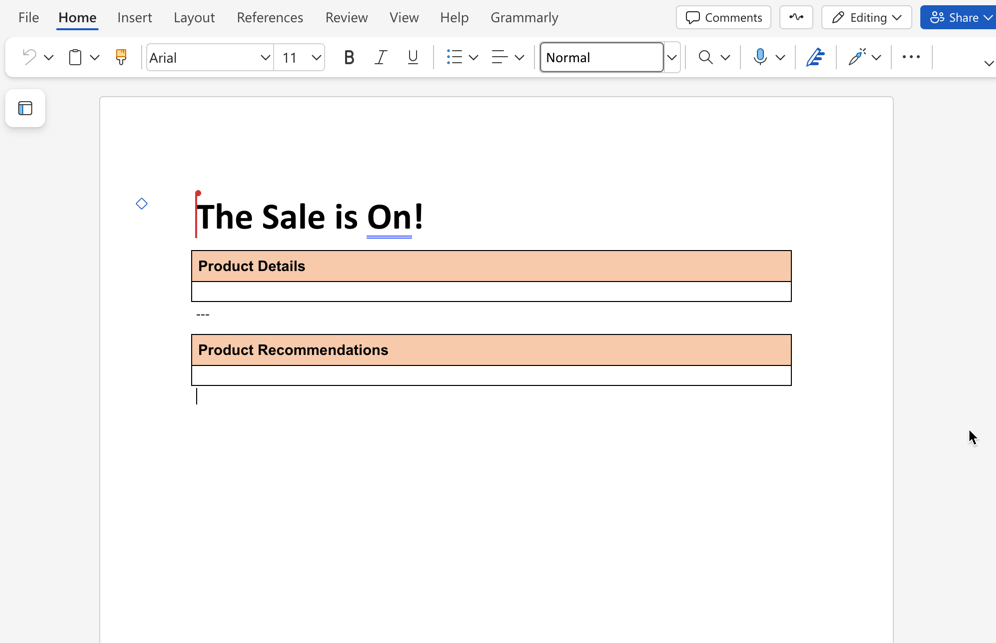
Section titled “Add content blocks”You can place ordinary content and supported blocks above or below the Commerce block in its document. Content added to the shared product-page template applies to every page using that template. Follow Add supporting content to product pages for the authoring steps.
Add enrichment blocks
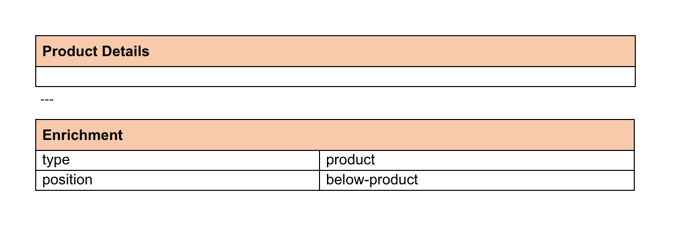
Section titled “Add enrichment blocks”Enrichment blocks select supporting content using product and category metadata. Follow Show enrichment content for selected products or categories to create a matching document and check where it appears.
Troubleshooting
Section titled “Troubleshooting”If enrichment functionality is not working as expected, follow these troubleshooting steps:
Common issues and solutions
Section titled “Common issues and solutions”Enrichments not appearing on product pages
- Check content structure: Ensure enrichment content follows the correct document structure.
- Content not published: Use AEM Sidekick to preview and publish enrichment content.
- Backend setup: If content is published and still doesn’t appear, ask your developer to check the Enrichment configuration troubleshooting steps.
Enrichment content not displaying
- Metadata mismatch: Ensure the
enrichment-productsandenrichment-categoriesmetadata values match your actual product SKUs and category IDs. - Missing metadata: Verify that enrichment content documents include the required metadata tags (
enrichment-products,enrichment-categories,enrichment-positions). - Content not published: Use AEM Sidekick to preview and publish enrichment content.
- Document structure: Verify that enrichment content follows the correct table structure.
If issues continue after checking these items, contact Adobe Commerce support with specific error messages from your browser console.
Summary
Section titled “Summary”In this topic, you learned how to enrich drop-in components by adding Edge Delivery Services content and enrichment blocks above and below commerce blocks (powered by drop-in components). You also learned how to troubleshoot common issues.