Unified review and approval overview
The highlighted information on this page refers to functionality not yet generally available. It is available only in the Preview Sandbox environment.
Unified review and approval brings together Adobe Workfront and Adobe Frame.io into a single, deeply connected experience–closing the gaps between marketing management, creative review, and content delivery.
Project coordinators manage work in Workfront while creatives, marketers, and stakeholders review and approve assets in the professional-grade Frame.io viewer, all without moving files between disconnected tools.
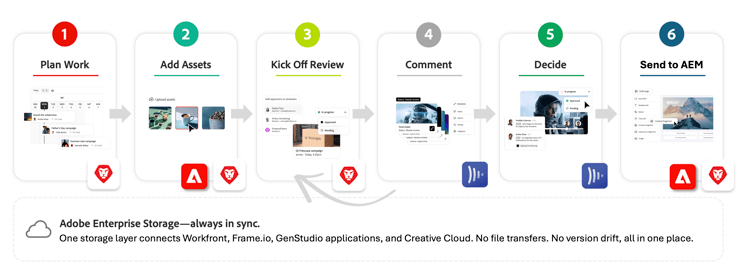
Built on Adobe cloud storage
Unified review and approval is built on Adobe cloud storage—a cloud-based storage solution that serves as the central repository for assets across Adobe enterprise products, including Workfront, Frame.io, and Creative Cloud.
Key benefits of Adobe cloud storage include:
- Unified storage layer for creative and work management assets
- Centralized permissions with Adobe Identity Management system (IMS) for secure access control
- End-to-end asset visibility across Workfront, Frame.io, and Creative Cloud apps
- Scalable storage and quota management for enterprise needs
For more details, see Adobe cloud storage overview.
Creative Cloud apps (Photoshop, Illustrator, and InDesign) can also access Workfront projects directly. For more information, see Adobe Creative Cloud Projects overview.
Unified review and approval
With unified review and approval, you can:
- Create and manage reviews and approvals directly from Workfront
- Track the status of reviews and approvals in real time
- Centralize feedback and approvals in one place
- Ensure that all stakeholders have access to the latest versions of assets
- Utilize AI Reviewers to automate brand compliance reviews
- and more
For more information, see Unified document approvals: article index.
Use the Frame.io viewer
Use the Frame.io viewer to review and approve assets. The Frame.io viewer provides
- Markup and commenting tools
- Version history and comparison
- Time-stamped comments for video reviews
- Mobile access for on-the-go reviews and approvals
For more information, see Get started with unified review and approval.
Video review limits
There is an annual cap for video proof requests set at 10% of an organization’s total paid Workfront user licenses–Standard and Light. This cap is applied at the organization level.
Workfront administrators receive notifications when usage reaches 80% and 100% of the cap.
This limit does not apply to Frame.io Enterprise customers.
Supported file types in the Frame.io viewer
The Frame.io viewer supports all common video, image, audio, PDF, and MS® Office types. For a detailed list of supported files, see Supported File Types on Frame.io.
Access and licensing for the Frame.io viewer
The Frame.io viewer is the default viewer for all Workfront review and approval workflows. It is automatically included for all Workfront users, including External users assigned to a review or approval, at no additional cost. No additional Frame.io license is required to use the Frame.io viewer for reviews and approvals.
If your organization wants to take advantage of additional Frame.io functionality available with this integration, such as uploading assets directly to projects in Frame.io, you can purchase a Frame.io Enterprise license. Contact your Adobe account representative to schedule a demo and explore the benefits of the full Frame.io solution.
Workfront Proofing functionality is not available with this integration.
Complete audit trail
Unified review and approval includes comprehensive audit logging that creates a complete governance trail across Workfront and Frame.io. Change tracking logs capture approval decisions made in the Frame.io viewer and document lifecycle. Each log entry includes source system attribution (Workfront or Frame.io) alongside the standard Workfront audit fields: date and time, log type, user name, action, and object name. Frame.io viewer comments are not included in audit logs.
Change tracking logs appear in Workfront’s Setup area and are available for export. For more information, see View and manage change history.
Powerful project management in Workfront
Project coordinators can leverage Workfront’s powerful project management capabilities to plan, track, and manage work.
For more information about managing projects in Workfront, see Projects: article index.
Enforced structure and naming conventions
Because unified review and approval is built using Adobe cloud storage, there are some enforced structure and naming conventions to be aware of when managing projects and documents.
- Programs and projects can’t have the same name if they belong to the same portfolio.
- Documents can’t have the same name if they belong to the same project.
- Object names can’t contain any of the following special characters: \ / : * ? " | < >
- Programs, portfolios, projects, templates, tasks, issues, and document folders can’t have names that end with a period or a space.
- Object names are limited to 255 characters maximum.
With these limitations in mind, Workfront automatically renames objects or documents as needed to prevent conflicts.
Sharing and permissions
As part of the integration, user permissions are controlled in Workfront and flow down to Frame.io. This means you cannot invite a user to a project in Frame.io or modify user permissions in Frame.io. These actions need to be done via the Project Share modal in Workfront.
The following table shows how Workfront permissions map to Frame.io permissions:
Document management in Workfront
Documents uploaded to Workfront are stored in Adobe cloud storage and are accessible in both Workfront and Frame.io. When you upload a document to a task or issue in Workfront, a system-generated folder is created in Adobe cloud storage that inherits permissions from the task or issue. All documents uploaded to that task or issue are stored in that folder and inherit permissions from it. For more information about documents in Workfront, see The new Documents area overview and Object permissions and access level overview for the Adobe cloud storage model.
You can also access these same documents from your Mac or Windows desktop using Adobe Cloud Drive. Adobe Cloud Drive mounts your Adobe cloud storage projects as a drive on your computer, so you can open and edit files in any application while keeping changes in sync with Workfront and Frame.io. For more information, see Adobe Cloud Drive overview.
Document experience limitations
The following Document capabilities are not included:
- Access to Proofing in Workfront
- Document viewer in Workfront
- Favorite documents
- Request documents
Get started with unified review and approval
To get started with unified review and approval, see Get started with unified review and approval.
Frequently Asked Questions
Getting Started with unified review and approval
What is unified review and approval?
Unified review and approval is a native integration between Adobe Workfront and Adobe Frame.io that brings work management and creative review together in a single, connected system. Project coordinators plan and track work in Workfront, while reviewers and approvers use the professional-grade Frame.io viewer to provide feedback, mark up assets, and make approval decisions–without toggling between separate tools or manually moving files.
Review and approval sits at the center of every content operation. It is where creative work, stakeholder input, and business decisions converge. When that process is spread across disconnected tools–email threads, chat messages, screenshot markups — the consequences compound: slower time to market, lost feedback, version confusion, and time spent managing files instead of creating content.
Unified review and approval addresses this by replacing the patchwork of disconnected review tools with one modern system–a single source of truth that lives where work already happens.
What are the requirements to use this integration?
To use unified review and approval, the following conditions must be met:
-
Workfront and Frame.io must be deployed to the same Adobe Identity Management System (IMS) organization.
-
Users can belong to only one Workfront instance within the IMS organization.
-
The Workfront instance must be enabled on the Adobe Unified Experience and Adobe cloud storage.
-
You must be on a version of Workfront that supports Adobe cloud storage. If your organization is not already on a supported version, contact your Adobe account representative.
Do I need a Frame.io license to use this integration?
No. The Frame.io viewer is automatically included for all Workfront users at no additional cost, including External users invited to review or approve assets. You do not need a separate Frame.io license to review and approve assets through Workfront.
If your organization wants access to additional Frame.io capabilities — such as uploading assets directly to projects in Frame.io — you can purchase a Frame.io Enterprise license. Contact your Adobe account representative to learn more.
Does this replace Workfront Proof?
Yes. When unified review and approval is enabled, the Frame.io viewer becomes the primary review surface in Workfront, replacing Workfront Proof.
Existing customers will retain access to Workfront Proofing functionality for any projects created before the integration was enabled.
How do I get access to Unified Review and Approval?
What do I need to do to get access?
To access unified review and approval, you must be on a version of Workfront that supports Adobe cloud storage. Any organization not already on a supported version must contact their Adobe account representative. To get started:
-
Contact your Adobe account representative to confirm whether your current Workfront contract supports unified review and approval.
-
If your organization is not on a supported version, your account representative will guide you through the updates needed to add it.
-
Once you are on a version of Workfront that supports Adobe cloud storage, Adobe Professional Services will configure the integration for your organization.
- If you are not sure who your Adobe account representative is, you can reach out through the Adobe support portal or visit Experience League for contact options.
How unified review and approval works
How does the review and approval workflow work?
The workflow follows these general steps:
-
A project coordinator creates a project in Workfront and uploads or links assets.
-
When an asset is ready for review, the coordinator creates an approval workflow–either a single-use approval or by applying a reusable approval template.
-
Assigned reviewers and approvers are notified via email and can open the asset directly in the Frame.io viewer.
-
Reviewers can add comments and markup. Approvers must make a formal decision.
-
The coordinator tracks status in real time from Workfront.
What is the difference between a reviewer and an approver?
Reviewers can add comments and mark up assets in the Frame.io viewer. When they are finished, they mark their review as complete. However, their action is not required for the approval workflow to move forward.
Approvers must make one of the following decisions to move the approval workflow forward:
-
Approve: The asset is ready to use as-is.
-
Needs work: The asset requires changes and must be re-submitted as a new version for re-approval.
What types of approval workflows can I create?
-
Single-use approvals: You can create a single-use approval directly on a document in a project, task, or issue. You assign reviewers and approvers, set a deadlines, and configure multiple stages if needed. Automated email reminders are sent 72 hours before, 24 hours before, and on the deadline.
-
Approval templates: You can create reusable templates in Workfront Setup. A template defines the reviewers, approvers, and a relative completion timeframe. You can create multiple stages if needed. Once a template is applied to an asset, the deadline is calculated automatically.
How do external users participate in reviews?
External Workfront users are notified via email when they are assigned to a review or approval. They will be prompted to create a Frame.io login to access the viewer and participate in the review process.
How do I track review and approval progress?
Project coordinators can monitor all in-flight approvals in several ways:
-
The My Approvals widget in the Workfront Home area provides a real-time summary of pending and overdue approvals.
-
The Document Approval Metrics widget displays average approval times and decision breakdowns.
-
Custom report dashboards can be built in Canvas Dashboards for deeper visibility into review and approval activity.
Reviewing and approving assets and videos
Are there any limits on video reviews?
Yes. There is an annual cap on video proof requests set at 10% of your organization’s total paid Workfront user licenses (Standard and Light). This cap applies at the organization level.
Workfront administrators will receive in-app notifications when usage reaches 80% and 100% of the cap.
This limit does not apply to Frame.io Enterprise customers. If your organization regularly reviews large volumes of video content, contact your Adobe account representative to learn about Frame.io Enterprise licensing.
Can the same user appear in multiple stages of an approval workflow?
Yes. A user can be assigned to multiple stages within the same approval workflow.
Can I add stages to create a multi-stage approval workflow?
Yes. Multi-stage approval workflows are supported, allowing you to route assets through sequential rounds of review and approval with different participants at each stage.
Can I configure parallel review paths in an approval workflow?
Yes. Approval workflows support parallel paths in addition to sequential stages. Each path runs independently and contains one or more sequential stages, so reviews on different paths can happen at the same time. You can configure up to 30 paths and 100 stages in a single approval. The same options are available in approval templates. For more information, see Create a document approval workflow and Create an approval workflow template for documents.
Can approval templates include groups or teams, or only individual users?
Currently, approval templates support individual users and teams.
Are approvers notified by email when they have something to review?
Yes. Approvers and reviewers receive email notifications when they are assigned to a review or approval. Automated reminder emails are also sent 72 hours before the deadline, 24 hours before, and on the deadline itself.
You can add a custom message to each stage of an approval workflow. The message appears in the approval email notification and in the Approvals tab in Workfront. You can use the same message for every stage or a different message per stage, and the message can include up to 500 characters. If you edit a custom message after the approval workflow is created, an updated email notification is sent to all existing participants. If you add a participant later, the custom message is included in their email notification. For more information, see Create a document approval workflow.
Can I keep a review stage private from other participants?
There is currently no private stage feature. To keep a review private from other participants, the recommended approach is to create a separate copy of the asset specifically for that review group. Comments are not currently segmented by participant group within a single asset.
Note that version history, including past and current versions, is always visible to anyone with access to view that asset.
Can comments be marked as resolved?
Yes. Comments can be marked as resolved within the Frame.io viewer.
What markup and annotation tools are available in the Frame.io viewer?
The Frame.io viewer includes a full set of visual markup tools, including freehand drawing and standard shapes such as circles, arrows, and squares. For video assets, comments are time-stamped with frame-accurate precision, so feedback is always tied to the exact moment in the clip and not just a general timestamp.
Will comments made in the Frame.io viewer appear in the Workfront project?
Comments and annotations remain within the Frame.io viewer so that they retain their full context, including timestamps and visual markups. This may evolve in future releases.
In preview, the Comments panel in Workfront displays a message letting you know when new comments are available in Frame.io.
Who can see the Frame.io comment indicator in Workfront?
Only users who could already see those comments in Frame.io can see the indicator. If you have a Frame.io Enterprise license, you see it for any comments on the document. If you don’t have a Frame.io Enterprise license, you see it only once an approval exists for the document. Approvals make all prior comments on the document visible to you as well.
Is it possible to add comments to a downloaded version of an asset (e.g., a PDF)?
This is not currently supported, but it is a commonly requested feature that is under consideration for a future release.
Can I review multiple assets together as a group?
Enhanced bulk review options are coming soon. In the meantime, assets of different file types, such as a video and a Word document, can be included together in a grouped asset review.
Is unified review and approval only for video, or does it support other file types?
Unified review and approval is designed for all asset types, not just video. The Frame.io viewer has been significantly updated to support images, documents, PDFs, and other common file formats in addition to video.
For a full list of supported file types, see the Frame.io supported file types documentation on Experience League.
Can I share assets externally with stakeholders who don’t have access to Workfront?
Yes. Assets can be shared externally. External users are notified via email and will be prompted to create a Frame.io login to access the viewer and participate in the review.
Can I attach images to comments on a document in Workfront?
If your organization uses Adobe cloud storage as part of Unified review and approval, you can attach image files directly to comments on a document. Attached images are stored in Adobe cloud storage, and all media type image file formats are supported.
These comments are Workfront-native and are separate from comments in the Frame.io viewer. Images attached to a comment are not accessible in Frame.io, and attaching an image does not add markup to the asset or route it for approval. Non-image file types cannot be attached to a comment.
For more information, see Update work.
Storage and file management
What is Adobe cloud storage and how does it relate to this integration?
Adobe cloud storage is the common storage layer that connects Workfront, Frame.io, and Adobe Creative Cloud. Assets live in one place and are accessible across tools without manual file transfers. Creatives can work in place, and reviewers always see the latest version.
Key benefits of Adobe cloud storage include:
-
A single storage layer for all work-in-progress assets across Workfront and Frame.io
-
Centralized access control managed through Adobe Identity Management System (IMS)
-
End-to-end asset visibility–no version drift, no lost metadata
-
Scalable, enterprise-grade storage management
Are there naming or structure requirements for files and projects?
Yes. Because the integration uses Adobe cloud storage, the following conventions apply:
-
Programs and projects can’t have the same name if they belong to the same portfolio.
-
Document names must be unique within the same parent in the folder hierarchy.
-
Documents within the same project cannot share a name.
-
Programs, portfolios, projects, templates, tasks, issues, documents, document folders names cannot contain the following special characters:
\ / : * ? " | < >and are limited to 255 characters. -
Programs, portfolios, projects, templates, tasks, issues, and document folders cannot have names that end with a period or a space.
Workfront automatically renames objects or documents as needed to prevent conflicts.
What file types are supported in the Frame.io viewer?
The Frame.io viewer supports over 40 file formats, including all common video, image, audio, PDF, and Microsoft Office types. Video support includes native playback for professional formats such as ProRes, H.265, and DNxHD, with support for files up to 500 GB.
Frame.io was purpose-built for creative review, which means it handles the full range of asset types that marketing and creative teams work with.
Permissions and access
How are user permissions managed?
User permissions are set and controlled in Workfront and automatically flow through to Frame.io. You cannot invite users or modify permissions directly in Frame.io for this integration. All access management must be done using the project share modal in Workfront.
The table below shows how Workfront permissions map to Frame.io permissions:
| table 0-row-2 1-row-2 2-row-2 3-row-2 | |
|---|---|
| Workfront Permission | Frame.io Permission |
| Manage | Edit & Share |
| Contribute | Edit & Share |
| View | Comment Only |
Integrations and advanced capabilities
How does this impact existing Creative Cloud plugin integrations with Adobe Express and GenStudio?
Integrations supporting the Frame.io viewer experience are currently in development for Adobe Express and GenStudio Performance Marketing. The new integrations will be built on the same unified review and approval system, so they will leverage the Frame.io viewer for a consistent review experience across all three products.
Is Frame.io integrated within Workfront, or do users navigate to a separate interface?
Users can launch the Frame.io viewer directly from Workfront. All review and approval activity takes place within the Frame.io viewer and is automatically synced back to Workfront.
Can I send approved assets to Adobe Experience Manager (AEM)?
Yes. Once an asset completes the review and approval cycle, you can transfer it to Adobe Experience Manager Assets for final storage and distribution. This connects Workfront for work management, Frame.io for review, and AEM for digital asset management into a unified content supply chain.
For more information, see Use Adobe Experience Manager with Workfront and Adobe cloud storage.
How does unified review and approval fit into Adobe GenStudio?
Unified review and approval is a foundational component of Adobe GenStudio–Adobe’s broader vision for a connected content supply chain. GenStudio connects Workfront, Frame.io, Creative Cloud, Adobe Express, Adobe Experience Manager Assets, and GenStudio for Performance Marketing into a unified workflow from campaign brief through content delivery.
Within that ecosystem, review and approval serves as the critical handoff point between creation and delivery. It is where creative work meets stakeholder input, quality gets validated, and content is cleared to publish. When that handoff is fast, visible, and reliable, it unlocks velocity across the entire content supply chain–AI can accelerate creation, automation can handle distribution, but a bottleneck in review caps the gains on both sides. Connecting Workfront and Frame.io removes that bottleneck.
What is the AI Reviewer feature?
Unified review and approval includes an AI Reviewer capability that automates brand compliance checks as part of the review process. The AI Reviewer can evaluate assets against brand guidelines and flag potential issues before human reviewers are engaged, helping teams catch problems earlier and move faster.
For more information on setting up and using AI Reviewer, see the Workfront documentation on Experience League.
Availability and storage
When will unified review and approval be available to me?
Unified review and approval is available now. Access requires a version of Workfront that supports Adobe cloud storage. If you are not already on a supported version, contact your Adobe account representative for guidance on moving to one.
Does upgrading to a version of Workfront that supports Adobe cloud storage give me more storage?
Yes. On a version of Workfront that supports Adobe cloud storage, each licensed user receives 60 GB of storage, up from 30 GB in the previous version.
How do I choose between Adobe cloud storage and legacy Workfront storage?
Adobe cloud storage enables the Frame.io viewer experience and is required for unified review and approval. Legacy Storage continues to use the Workfront Proof viewer (ProofHQ) as the default.
If your organization has a mix of simple workflows and more complex proofing workflows, you can prioritize which workflows to migrate first.
Adobe cloud storage gives you the flexibility to roll out the new experience incrementally, starting with the workflows that will benefit most.
How are Frame.io licenses managed?
Once you are on a version of Workfront that supports Adobe cloud storage, all Workfront users will have access to the Frame.io viewer for review and approval workflows — no separate Frame.io Enterprise license is required for this.
If your organization needs additional Frame.io Enterprise features such as
- Advanced watermarking (dynamic and forensic)
- Digital rights management with automatic asset deletion
- Content credentials for AI-generated content
- Custom creative metadata
- Camera to Cloud integrations
- Your own workspace for creative work-in-progress
you can work with your Adobe account team to determine the appropriate number of Frame.io Enterprise licenses. All licenses are managed through the Adobe Admin Console.
Sandbox and rollout
Can I test unified review and approval in a sandbox environment?
Partially. Approval workflows can be tested in a Workfront sandbox environment. However, the Frame.io viewer experience is not available in sandbox. Testing the review surface itself requires a production environment.
To limit exposure during rollout, you can enable unified review and approval for a specific group within your Workfront production environment. This allows you to run a targeted pilot with a smaller set of users before rolling out more broadly.
Interactive proofs and HTML
Does unified review and approval support interactive proofs or HTML URLs?
Zip HTML files are currently supported for interactive review. HTML URL support (live web URL review) is on the roadmap and expected in Q3.
Check the Workfront release notes on Experience League for updates.
Fusion and automation
Do I need Workfront Fusion to use unified review and approval?
No. Unified review and approval is a native product integration and does not require Fusion. The workflow is built directly into Workfront.
Will Fusion connectors be available for unified review and approval?
Yes. Fusion actions for unified review and approval are currently in development and are expected to be available in Q3. Check the Workfront release notes on Experience League for updates as they become available.
Can Fusion be used to automatically trigger a review when a document is uploaded?
Yes. This type of automation is possible using Workfront webhooks in combination with Fusion.
How will existing Fusion workflows built on Workfront Proof be affected?
The impact will vary depending on how each workflow is built. In general:
-
Edit or update: Workflows where the existing proof-related action has a direct equivalent in unified approvals can be updated to use the new action.
-
Rebuild: Workflows where the underlying steps have changed significantly, or where new capabilities exist, may need to be rebuilt from scratch.
A clearer picture will emerge once the Fusion APIs for unified approvals are available. It is recommended to audit your existing Fusion workflows and evaluate them against the new unified approvals capabilities at that time.