The main toolbar
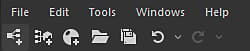
Quick access buttons


File
New: opens a sub menu to create a graph or package:
- New Substance graph…:(Ctrl+N) Presents you the New graph window which lets you set up a new Substance graph;
- New Substance function graph: Creates a new package with a Substance function graph;
- Empty: Creates an empty package.
Open…: (Ctrl+O) Open an existing Substance package (.SBS, .SBSAR, .SBSASM).
Recent packages: Displays a list of recently opened packages. Click on an entry to open it.
Open last session packages (#): Opens all packages that were open when the last session closed or was ended.
Save all: (Ctrl+⇧+S) Saves all open packages, including packages loaded in the background.
Close all: Closes all open packages.
Reload resources: Forces Designer to reload all resources, including bitmaps and SVG data.
Exit: (Ctrl+Q) - Close Substance 3D Designer.
Edit
Undo: (Ctrl+Z) Undo last operation.
Redo: (Ctrl+Y) Redo last undone operation.
Preferences…: Opens the Preferences Window.
Tools
Cancel rendering: (Esc) Stops current operation for the Substance Engine. Can be used to abort an unwanted, heavy operation.
Suspend engine: (⇧+Esc) Suspends the rendering engine. This can speed up editing of complex Substance graphs.
Switch engine…: (F9) Offers a choice of rendering engines, including GPU engines (‘DirectX’ on Windows, ‘OpenGL’ on macOS) as well as the CPU engine (‘NEON’ on Apple Silicon, ‘SSE’ on all others).
Substance Player: Manage Designer’s integration with Substance Player:
- Locate Player…: Let Designer know where Player is installed;
- Download Player…: Opens the Substance Player documentation’s landing page, where Player can be downloaded.
Plugin Manager…: Opens the Plugin Manager window, where you can install, load and unload Python Plugins for Substance 3D Designer.
Windows
New Explorer: Opens a new Explorer dock. You can have multiple Explorer docks open.
New 3D View: Opens a new 3D View dock. You can have multiple 3D View docks open.
New Library View: Opens a new Library dock. You can have multiple Library docks open.
Python Editor: Opens the Python Editor used to evaluate and create scripts.
Reset layout: Resets the workspace to the default layout. All windows will be re-arranged, and some windows might be hidden again. Use in case of problems with program layout.
Unmaximize window: When any panel is maximized, this option unmaximizes it and restores the layout as it was before the window was maximized
Explorer: Show/Hide the Explorer.
Graph: Show/Hide the graph Window(s).
Parameters: Show/Hide the Properties.
Console: Show/Hide the Console Window.
3D View: Show/Hide the 3D View(s).
Dependency Manager: Show/Hide the Dependency Manager.
2D Views: Show/Hide the 2D View.
Library: Show/Hide the Library Window.
Main toolbar: Show/Hide the Main Toolbar (quick-access buttons only).
Help
Tutorials: Opens the Substance 3D tutorials website (formerly Substance Academy).\
Release notes: Opens a window with latest version’s changelog.
Technical requirements: Shows you the technical requirements to run the application.
Documentation: Opens your default web browser on this documentation.
Scripting documentation: Opens your web browser on the local Python API docs.
Forums…: Opens your web browser on our Support Community forum to get in touch with the community and ask questions.
Report a bug…: Open bug reporting window.
Export log…: Exports current log files to a compressed (.zip) file, to provide to technical support.
Give feedback…: Opens your web browser on Adobe’s Support Community home page.
Substance 3D assets: Browse premium 3D content for subscribers (formerly Substance Source).
Substance 3D community assets: Lets you browse free community assets (formerly Substance Share).
Manage my account*: Opens the webpage for your Adobe account.
Sign in/Sign out…*: Lets you sign into/out of your Adobe account.
Home screen…: Displays the Home screen dialog.
What’s new…: Displays a screen, which highlights the features added to Designer’s latest release
Welcome screen…*: Displays the a screen which guides new users through Designer’s purpose and its place in the Substance 3D ecosystem
Partners: Lets you access the disclaimers and notices for third-party integrations from our partners in Designer.
About Substance 3D Designer…: Displays information about the application and its components, such as version number.
*: These options are only available in the version of Designer installed through Adobe Creative Cloud Desktop, which requires a Substance 3D subscription.