Creating a Substance graph
Authoring textures in Designer starts with creating a Substance graph, either from an prebuilt template or an empty graph.
Creating a graph
To start the process of creating a new Substance graph, you may use one of these methods:
-
table 0-row-2 0-border-0 1-border-0 2-border-0 html-authored no-header In the Home screen, click the New graph button. 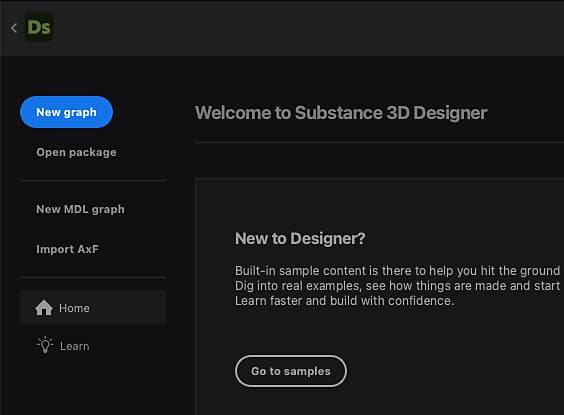
-
table 0-row-2 0-border-0 1-border-0 2-border-0 html-authored no-header On any existing package item in the Explorer, click RMB and go to New > Substance graph in the contextual menu. 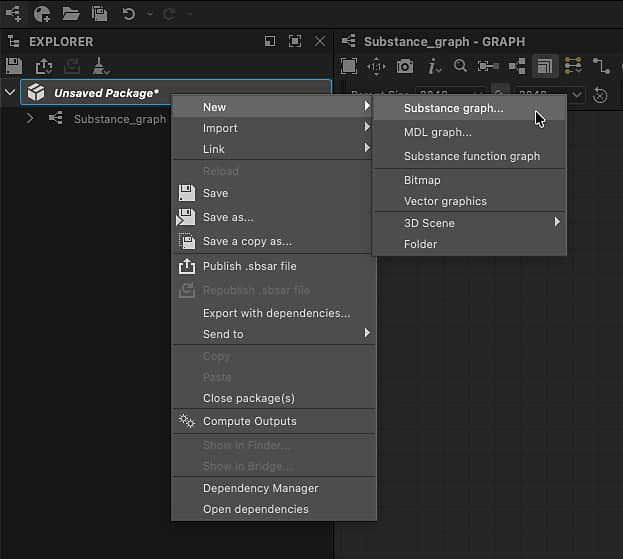
-
table 0-row-2 0-border-0 1-border-0 2-border-0 html-authored no-header In the main toolbar, click the 
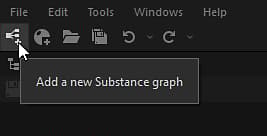
-
table 0-row-2 0-border-0 1-border-0 2-border-0 html-authored no-header In the main menu, go to File > New > Substance graph… 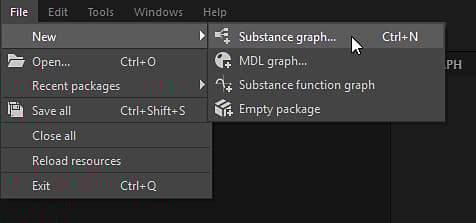
-
Press the Ctrl+N (Windows) / Cmd+N (macOS) keystroke.
No matter which method you choose, you’ll be presented with the New Substance graph dialog.
Graph templates
Regardless of the method used to create a new Substance graph, you will always be met with the New Substance graph dialog which lets you configure the new graph.
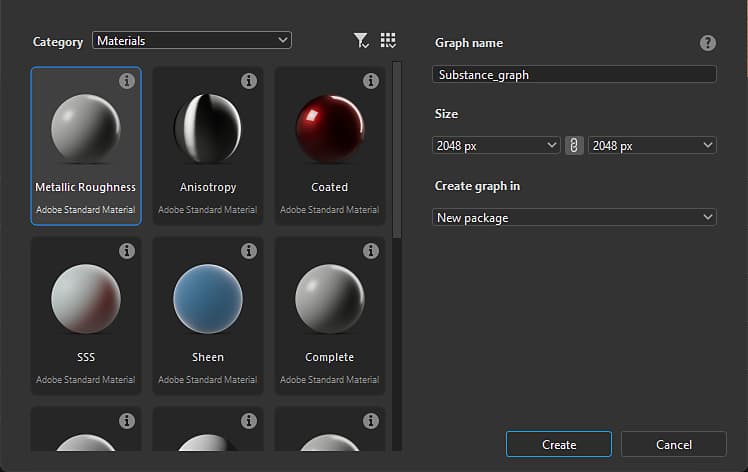
Templates
Designer includes graph templates with preconfigured nodes to get you started faster. They may include Output nodes, simple nodes to pass values to these outputs - e.g. Uniform color, as well as Input nodes.
Double-click on a template in the list, or select it and click the Create button to create a new Substance graph using that template. By default, the new graph is placed in a new unsaved package.
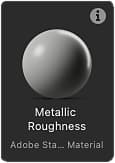
Each template is listed by its label and subtitle.
The subtitle provides more context about the use case for the template: the material model it is based on, the software it is meant to integrate with, etc.
In Thumbnails mode, the subtitle is placed under the label in a darker, smaller text.
In List, Packages and Directories view modes, the subtitle is appended to the label thusly: Label - Subtitle.
Material samples
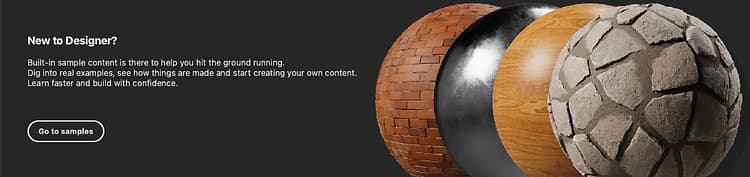
The Material samples category includes a curated selection of graphs to learn from and experiment with.
You can also access the samples directly from the Home screen, using the Go to samples button.
All samples are based on the OpenPBR material model.
Information tooltip
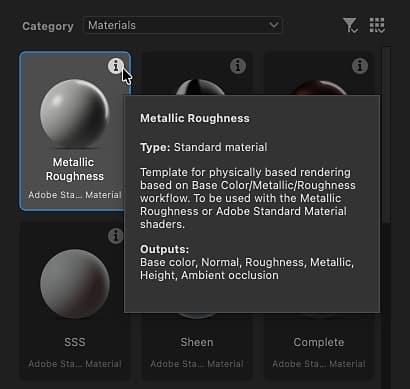
Hovering the information icon for each template item displays a tooltip with additional information about the template:
Type: The type of asset the template is meant to produce. This is editable in the graph properties.
Description: Details about the template such as the workflow it integrates into, its intended use case and recommendations for its usage.
Outputs: The template’s Output nodes, if any.
View modes
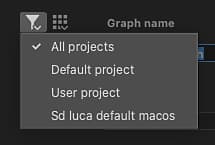
The templates list can be displayed in different modes using the View modes button.
The filtering performed by the selected category and project file is applied in all views.
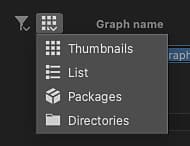
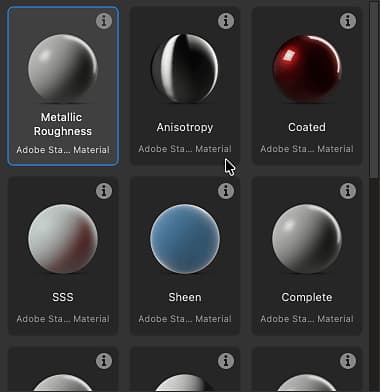
Thumbnails
Cards with thumbnails providing a preview or icon of the template type.
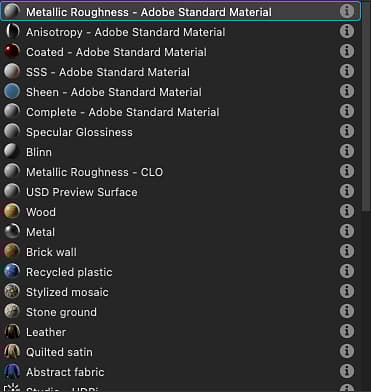
List
Templates are listed by their label only.
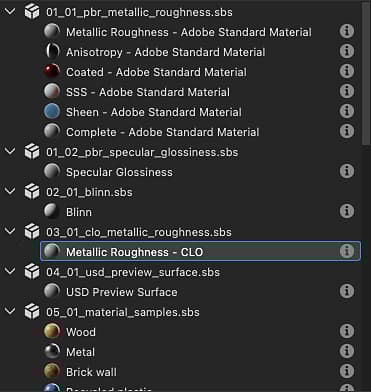
Packages
Templates are listed by their label as children of the package file they belong to.
Hover a package file item to display a tooltip with its full path.
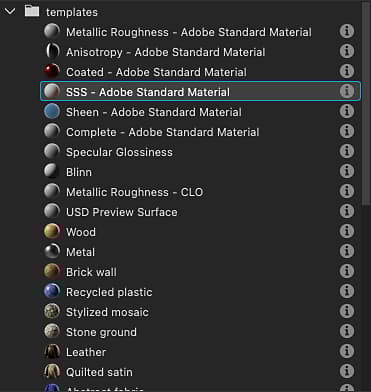
Directories
Templates are listed by their label as children of the directory hosting the package file they belong to.
Hover a directory item to display a tooltip with its full path.
Properties
After selecting the template, you may set up basic information regarding the new graph. It can be changed at any time after creating the graph.
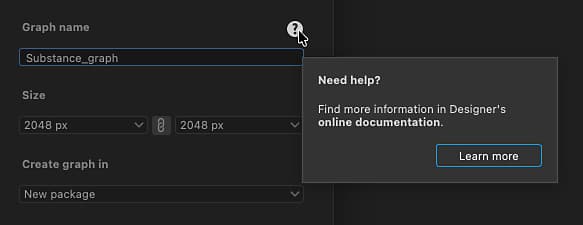
Graph name: the graph’s identifier. It needs to be unique for a given package and cannot include spaces and some special characters.
Size: the graph’s parent resolution, which will control the output resolution of most nodes - see the Output size page to learn more. The width and height are linked together by default, and you can unlink them by clicking the link button between the width and height combo boxes.
Create graph in: You can use this combo box to create a new package for the new graph, or add the new graph to any existing package already loaded in the Explorer panel.
Help tooltip
Hover the question mark icon to display a tooltip with a button which links directly to this page, so you can refer back to this documentation as needed.
Managing templates
Filtering by category
Categories are used to group templates that are related to each other by use case or asset type.
Use the Category combobox to select the category you wish to filter the templates by.
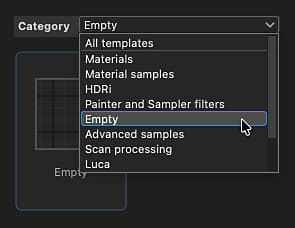
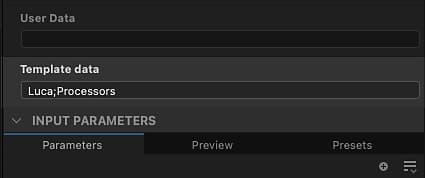
Templates may have a category set up in their Template data graph attribute, which is used as a filter to narrow down the list of templates:
<category>;<subtitle>
Custom categories can be set up in the templates provided by project files (see below). Then, these categories will be added to the list in the combobox.
Filtering by Project file
If any of the active project files provide one or more template paths, the graphs in the package files found at these paths will be added to the list of templates.
Then, use the Filter by project file button to narrow down the list of templates to the ones provided by a specific project file.