On this page: Learn how to set up the delivery prerequisites and create an In-app channel configuration to send In-app messages with Adobe Journey Optimizer.
Configuration steps inapp-steps
To send In-app messages in your journeys and campaigns with Journey Optimizer, you need to go through the following configuration steps.
- Make sure you have the correct permissions on Journey Optimizer campaigns before starting, even if you plan to only use in-app messages in journeys. Campaign permissions are still required. Learn more.
- Enable Adobe Journey Optimizer in your Adobe Experience Platform Data Collection datastream, and check your default merge policy in Adobe Experience Platform, as detailed in the Delivery prerequisites below.
- Create an In-app message channel configuration in Administration > Channels > General settings > Channel configurations, as detailed in this section.
- If you are using content experiments, make sure to follow the requirements listed in this section.
Once done, you can create, configure and send your first In-app message. Learn how to achieve this in this section.
Delivery prerequisites delivery-prerequisites
For the In-app messages to be delivered correctly, the following settings must be defined:
-
In the Adobe Experience Platform Data Collection, make sure you have a datastream defined such as under the Adobe Experience Platform service you have the Adobe Experience Platform Edge and Adobe Journey Optimizer option enabled.
This ensures that the Journey Optimizer inbound events are correctly handled by the Adobe Experience Platform Edge. Learn more
note NOTE The use of context.datastreamattributes is currently supported only for Web channel campaigns in Journey Optimizer. Attempting to usecontext.datastreamin In-App messages will result in validation errors such asInvalid syntax Missing schema field: 'datastream.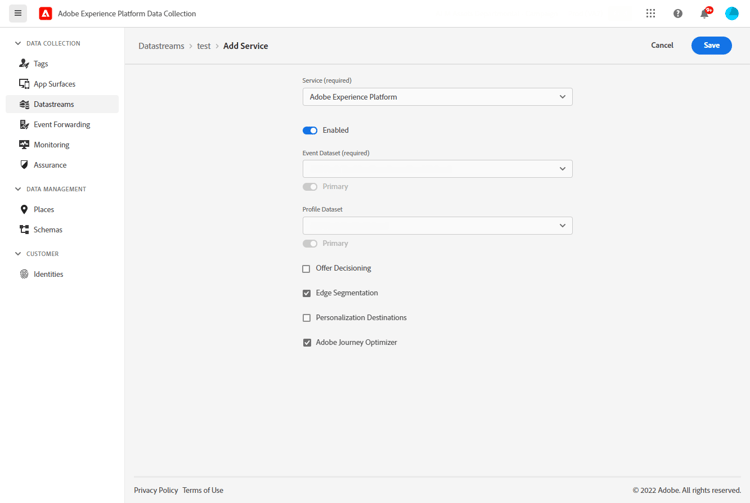
-
In Adobe Experience Platform, make sure you have the default merge policy with the Active-On-Edge Merge Policy option enabled. To do this, select a policy under the Customer > Profiles > Merge Policies Experience Platform menu. Learn more
This merge policy is used by Journey Optimizer inbound channels to correctly activate and publish inbound campaigns on the edge. Learn more
note NOTE When using a custom Dataset preference merge policy, make sure to add the Journey Inbound dataset within the specified merge policy. 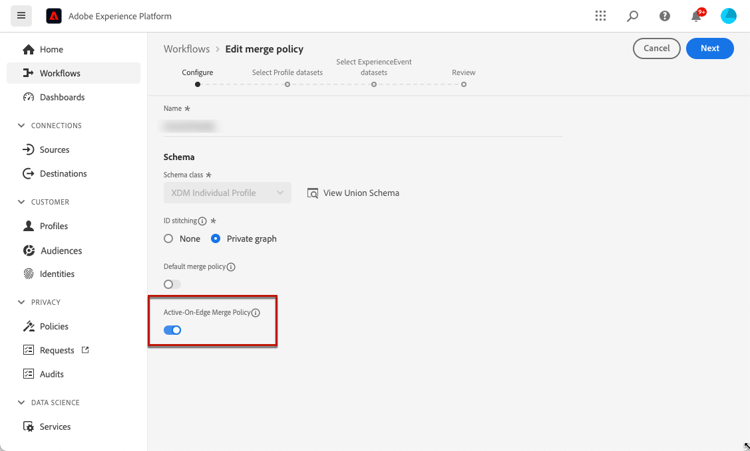
-
To troubleshoot the delivery of Journey Optimizer mobile experiences, you can use the Edge Delivery view within Adobe Experience Platform Assurance. This view enables you to inspect request calls in detail, verify whether the expected edge calls occur as anticipated, and examine profile data, including identity maps, segment memberships, and consent settings. Additionally, you can review the activities the request qualified for and identify those it did not.
Using the Edge Delivery view helps you gain the insights needed to understand and troubleshoot your inbound implementations effectively.
Create an In-app configuration channel-prerequisites
To create an In-app configuration in Journey Optimizer, follow these steps:
-
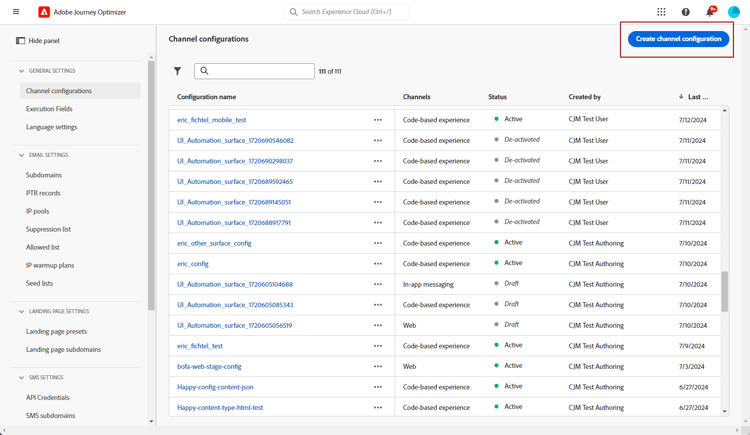
Access the Channels > General settings > Channel configurations menu, then click Create channel configuration.
-
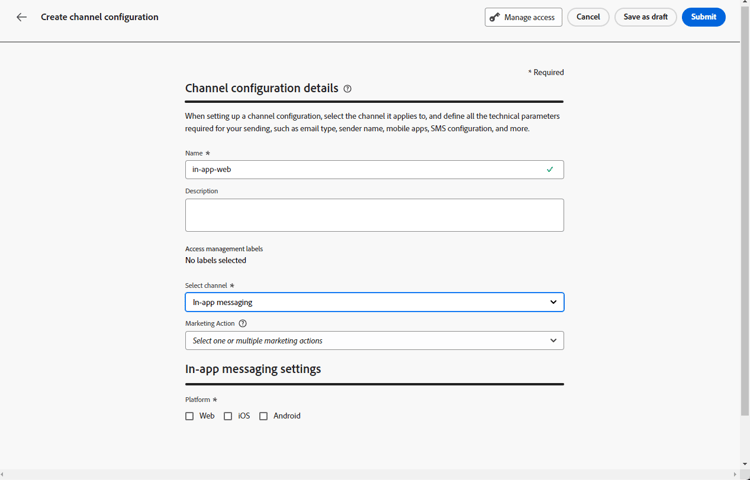
Enter a name and a description (optional) for the configuration.
note NOTE Names must begin with a letter (A-Z). Names can only contain alpha-numeric characters. You can also use underscore _, dot.and hyphen-characters. -
To assign custom or core data usage labels to the configuration, you can select Manage access. Learn more about Object Level Access Control (OLAC).
-
Select Marketing action(s) to associate consent policies to the messages using this configuration. All consent policies associated with the marketing action are leveraged in order to respect the preferences of your customers. Learn more
-
From the Select channel drop-down, select In-app messaging.
-
Select the platform for which you want to define the settings. This allows you to specify the target app for each platform and ensures consistent content delivery across multiple platforms.
note NOTE For iOS and Android platforms, delivery is based solely on the app ID. If both apps share the same app ID, content will be delivered to both, regardless of the platform selected in the Channel configuration.
To restrict In-app messages delivery to a specific platform, you must implement device-specific rules within your journey or campaign logic.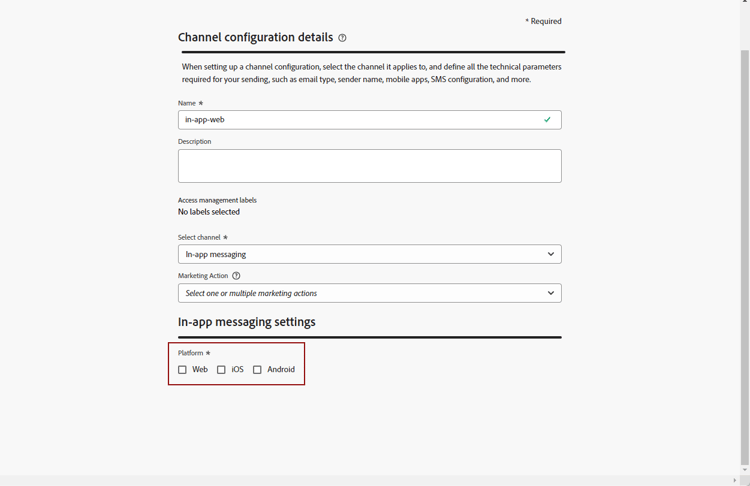
-
For Web:
-
To target one page, enter its Page URL.
-
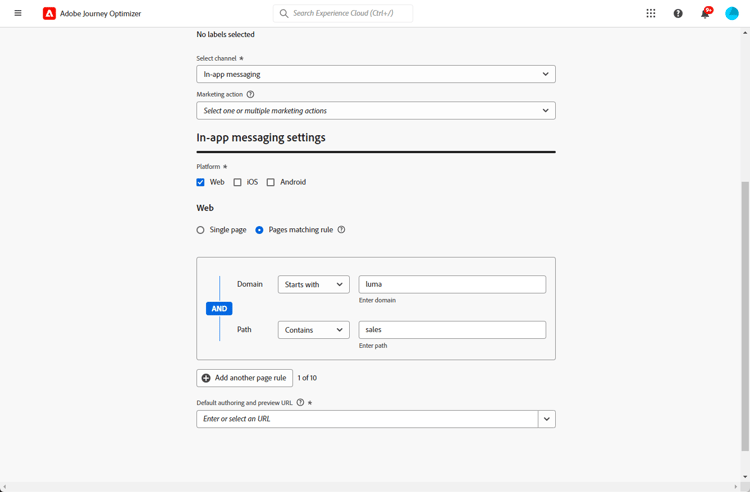
To target multiple pages that follow the same pattern, create a Pages matching rule.
accordion How to build a Pages matching rule. -
Select Pages matching rule as App configuration and enter your Page URL.
-
In the Edit configuration rule window, define your criteria for the Domain and Page fields.
-
From the condition dropdowns, further personalize your criteria.
Here, for example, to edit elements that are displayed on all the sales product pages of your Luma website, select Domain > Starts with > luma and Page > Contains > sales.
-
Click Add another page rule to create another rule if needed.
-
Select the Default authoring and preview URL.
-
Save your changes. The rule is displayed in the Create campaign screen.
-
-
-
For iOS and Android:
- Enter your App id.
-
Submit your changes.
You can now select your configuration when creating your In-app message.
Reporting prerequisites experiment-prerequisites
To enable reporting for In-app channel, you need to make sure the dataset used in your In-app implementation datastream is also included in your reporting configuration. In other words, when configuring reporting, if you add a dataset that is not present in your app datastream, app data will not display in your reports. Learn how to add datasets for reporting in this section.
If you are not using the following pre-defined field groups for your dataset schema: AEP Web SDK ExperienceEvent and Consumer Experience Event (as defined on this page), make sure to add the following field groups: Experience Event - Proposition Interactions, Application Details, Commerce Details, and Web Details. These are needed by Journey Optimizer reporting as they are tracking which campaigns and journeys each profile is participating in.
Learn more about reporting configuration
- The dataset is used read-only by the Journey Optimizer reporting system and does not affect data collection or data ingestion.
- Adding the required field groups is additive only — it applies to pages where a campaign or journey is running and leaves all other tracking untouched.
Related topics:
This section contains structured knowledge intended to support interpretation, retrieval, and question answering related to this topic.
For complete understanding, this information should be combined with the documentation on this page. Neither source is intended to stand alone; the page describes the feature, while this section provides additional context that helps disambiguate terminology, intent, applicability, and constraints.
- TL;DR: This page explains the prerequisites and configuration required to send In-app messages with Journey Optimizer, including delivery prerequisites, creating an In-app channel configuration, and reporting prerequisites.
Intents:
- Complete the configuration steps required before sending In-app messages
- Set up the delivery prerequisites in Adobe Experience Platform Data Collection and Profile merge policies
- Create an In-app channel configuration under Channels > General settings > Channel configurations
- Configure per-platform targeting (Web, iOS, Android) for the channel configuration
- Enable reporting for the In-app channel by aligning datasets and field groups
Glossary:
- In-app channel configuration: A channel configuration created in Journey Optimizer that you select when creating an In-app message (product-specific)
- Active-On-Edge Merge Policy: A merge policy option in Adobe Experience Platform (product-specific)
- Journey Inbound dataset: A dataset in Adobe Experience Platform (product-specific)
- Edge Delivery view: A view within Adobe Experience Platform Assurance (product-specific)
- Marketing action: A selection that associates consent policies with messages using the configuration, so customer preferences are respected (product-specific)
- Pages matching rule: An App configuration option for Web that targets multiple URLs following the same pattern, using Domain and Page criteria (product-specific)
- Time-To-Live (TTL): A setting for automatic profile deletion (product-specific)
Guardrails:
- Configuration names must begin with a letter (A-Z) and can only contain alpha-numeric characters, plus the underscore, dot, and hyphen characters.
- For iOS and Android platforms, delivery is based solely on the app ID. If both apps share the same app ID, content is delivered to both, regardless of the platform selected in the channel configuration. To restrict delivery to a specific platform, implement device-specific rules within your journey or campaign logic.
Prerequisites and permissions:
- Correct permissions on Journey Optimizer campaigns, required even if you plan to use In-app messages only in journeys.
- An Adobe Experience Platform Data Collection datastream with the Adobe Experience Platform Edge and the Adobe Journey Optimizer option enabled under the Adobe Experience Platform service, so that Journey Optimizer inbound events are correctly handled by the Adobe Experience Platform Edge.
- In Adobe Experience Platform, a default merge policy with the Active-On-Edge Merge Policy option enabled. Inbound channels use it to activate and publish inbound campaigns on the edge. When using a custom Dataset preference merge policy, add the Journey Inbound dataset within that merge policy.
- An In-app channel configuration, which you select when creating an In-app message.
- For reporting: the dataset used in your In-app implementation datastream must also be included in your reporting configuration. If you are not using the
AEP Web SDK ExperienceEventandConsumer Experience Eventfield groups for your dataset schema, add theExperience Event - Proposition Interactions,Application Details,Commerce Details, andWeb Detailsfield groups.
Applicability:
- In-app messages: the configuration steps apply to sending In-app messages in journeys and in campaigns.
context.datastreamattributes: supported only for Web channel campaigns in Journey Optimizer; not supported in In-app messages.
Terminology:
- Canonical name: In-app channel configuration; variants: In-app message channel configuration, In-app configuration
- Synonyms: “pseudonymous profiles” = “unauthenticated visitors”
- Do not confuse: “Delivery prerequisites” (datastream and merge policy setup) ≠ “Reporting prerequisites” (datasets and field groups for reporting)
- Do not confuse: “Page URL” (target a specific page) ≠ “Pages matching rule” (target multiple URLs following the same pattern)
FAQ:
- Q: What permissions do I need before configuring In-app? — You need the correct permissions on Journey Optimizer campaigns, even if you plan to use In-app messages only in journeys, because campaign permissions are still required.
- Q: Can I use
context.datastreamin In-app messages? — No; it is currently supported only for Web channel campaigns, and attempting to use it in In-app messages results in validation errors such asInvalid syntax Missing schema field: 'datastream. - Q: Where do I create an In-app channel configuration? — Under Channels > General settings > Channel configurations, using Create channel configuration.
- Q: How is delivery handled for iOS and Android? — Delivery is based solely on the app ID; if both apps share the same app ID, content is delivered to both regardless of the platform selected, unless you add device-specific rules in your journey or campaign logic.
- Q: Why is my In-app data not showing in reports? — The dataset used in your In-app implementation datastream must also be included in your reporting configuration. If you add a dataset that is not present in your app datastream, app data will not display in your reports.
Troubleshooting:
- Validation error
Invalid syntax Missing schema field: 'datastream: occurs when attempting to usecontext.datastreamattributes in In-app messages. - App data does not display in reports: occurs when you add a dataset that is not present in your app datastream to the reporting configuration.
- Troubleshooting the delivery of Journey Optimizer mobile experiences: use the Edge Delivery view within Adobe Experience Platform Assurance to inspect request calls in detail, verify whether the expected edge calls occur, and examine profile data, including identity maps, segment memberships, and consent settings. You can also review the activities the request qualified for and identify those it did not.
Examples:
- Pages matching rule (Web): to edit elements displayed on all the sales product pages of a Luma website, select Domain > Starts with > luma and Page > Contains > sales.
Best practices:
- When targeting pseudonymous profiles (unauthenticated visitors) with In-app messages, consider setting a Time-To-Live (TTL) for automatic profile deletion to manage your engageable profile count and associated costs (recommended).
Related pages:
- To create, configure, and send your first In-app message: Create an In-app message (in-app/create-in-app.md)
- To design the content of an In-app message: Design In-app message (in-app/design-in-app.md)
- To check the campaign permissions: Get started with campaigns, Prerequisites (campaigns/get-started-with-campaigns.md)
- To learn more about setting a Time-To-Live (TTL) when targeting pseudonymous profiles: Journey Optimizer guardrails and limitations, Profile management with inbound channels (start/guardrails.md)
- To assign data usage labels with Manage access: Object Level Access Control (OLAC) (administration/object-based-access.md)
- To associate consent policies through marketing actions: Work with consent policies (action/consent.md)
- To add datasets for reporting: Configure Journey Optimizer reporting for experimentation (reports/reporting-configuration.md)
- To view In-app reporting: In-app report (reports/campaign-global-report-cja-inapp.md)