[AEM Assets]{class="badge positive" title="Applies to AEM Assets)."}
Enhancing content discovery with AI-Generated metadata ai-smart-tags
AI-generated metadata automatically assigns descriptive tags to digital assets, replacing manual input with automated classification. These AI-generated tags enhance metadata quality, making the assets easier to search, categorize, and recommend. Because tags are applied automatically rather than by hand, this approach improves efficiency, ensures consistent labeling, and scales reliably across extensive libraries of digital content.
How AI-generated tagging works
For image assets, AI analyzes the visual content and detects recognizable elements, then generates relevant descriptive tags automatically. AI can identify:
- Objects within the frame
- Scenes and settings
- Emotions expressed in the image
- Brand logos and visual identifiers
From these detections, the system produces relevant tags such as “sunset,” “beach,” “vacation,” or “smiling.” This automated recognition removes the need for a person to inspect and label each file individually, which is why the method remains reliable even as content volumes grow.
Key benefits
AI-generated tagging enhances asset discovery in several ways:
- Faster search — descriptive tags surface relevant assets quickly without manual keywording.
- Reliable categorization — assets are grouped consistently according to their detected content.
- Smarter recommendations — richer metadata enables more relevant asset suggestions.
- Scalable consistency — the same tagging standards apply automatically across every asset in the library.
Semantic and lexical search
AI-generated tags enhance asset search by leveraging both semantic search and lexical search techniques. Lexical search matches the exact keywords and tag text, while semantic search interprets the meaning and intent behind a query to return conceptually related results. Combining both approaches ensures users find the right assets whether they search by precise terms or by broader descriptive concepts. See more Search Assets.
How to enable AI-generated metadata? enable-ai-generated-metadata
AI-generated metadata automatically produces descriptive information—such as titles, descriptions, and tags—for assets, reducing manual tagging effort and improving asset discoverability, searchability, and content management efficiency.
Prerequisites
Before enabling AI-generated metadata, confirm that your environment meets the required baseline:
- The minimum required Adobe Experience Manager (AEM) release version is
20626.
This version requirement ensures the AI-generated metadata capability and its underlying services are available and supported in your environment. Attempting to enable the feature on an earlier release will not surface the option, because the necessary functionality is introduced at release 20626 and later.
Enabling the feature
To enable AI-generated metadata once the prerequisite is met, activate the AI-generated metadata capability from your AEM configuration for assets, and confirm the feature is turned on. As general guidance, feature enablement of this type is typically managed by an administrator with the appropriate permissions, after which newly processed assets can benefit from automatically generated metadata.
Configure AI-generated titles configure-ai-generated-titles
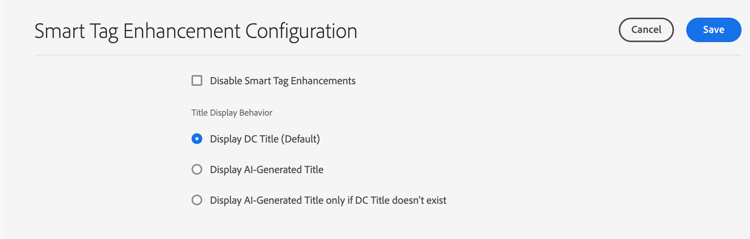
Adobe Experience Manager (AEM) enables you to configure how asset titles display in Card view or List view on the Asset Browse page. You can choose to display the asset title defined by you, an AI-generated title, or use an AI-generated title only when no existing title is defined for the asset. This configuration helps maintain consistent, descriptive labeling across the asset library, particularly for assets that lack manually entered titles.
To configure AI-generated titles:
-
Navigate to Tools > Assets > Assets Configurations > Smart Tag Enhancement Configuration.
-
Select one of the following options:
-
Display DC (Dublin Core) Title (Default): Specify the title in the Title field available in asset properties to display it in Card view or List view. If the asset title is not defined, AEM Assets displays the file name as a fallback. Use this option when you want author-defined titles to take precedence.
-
Display AI-Generated Title: Displays the AI-generated title and ignores the title specified in asset properties. This ensures assets show a descriptive, machine-generated label even when properties are inconsistent. If an AI-generated title is not available for an asset, AEM Assets displays the default asset title available in its properties, so a title is always shown. Use this option when you want AI-generated titles to take precedence across the asset library.
-
Display AI-Generated Title only if DC Title does not exist: AEM Assets displays the AI-generated title only when an asset title is not defined for that asset. This preserves any manually entered titles while automatically filling gaps with AI-generated titles, combining author control with automated coverage.
-
Using AI-Generated metadata using-ai-generated-smart-tags
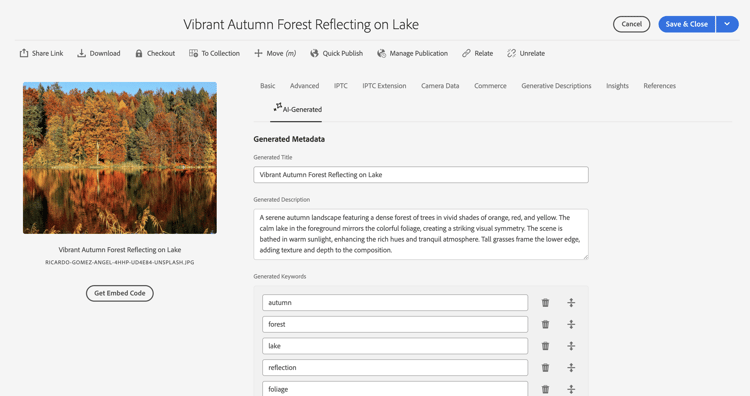
The Artificial Intelligence (AI)–generated metadata capability in Experience Manager automatically produces a title, description, and keywords for uploaded assets, reducing manual tagging effort and improving asset discoverability. To use the enhanced smart tags feature, execute the following steps:
-
In the Experience Manager interface, go to the desired folder and click Add Assets. The compatible image file formats are
png,jpg,jpeg,psd,tiff,gif,webp,crw,cr2,3fr,nef,arw, andbmp. -
Wait until the newly uploaded asset is processed. Once processing completes, go to asset properties.
-
Go to the AI-Generated tab. If the Experience Manager version is incompatible or not updated, this tab does not appear. The following fields are available:
- Generated title: The title provides a clear and concise headline that captures the core idea of an uploaded asset, making it easy to understand at a glance. When adding an asset, if you provide a title (in
dc:title), Experience Manager displays it in the assets browse view. If the title field is left blank, an AI-generated title is assigned automatically. This ensures every asset retains a searchable, descriptive headline even when no manual title is entered. - Generated description: The description gives a brief yet informative summary of what the asset is about, helping users and the search module to quickly grasp its relevance. This improves how efficiently the asset surfaces in search results and browsing.
- Generated keywords: The keywords are targeted terms that represent the main themes of an asset, aiding in tagging and content filtering. Consistent keywords make assets easier to locate, group, and reuse across projects.
- Generated title: The title provides a clear and concise headline that captures the core idea of an uploaded asset, making it easy to understand at a glance. When adding an asset, if you provide a title (in
-
[Optional] You may add additional tags or create your own if any relevant tags are missing. To do this, write your tags in the Generated keywords field and click Save.
Disable AI-generated metadata disable-ai-generated-metadata
AI-generated metadata in Adobe Experience Manager (AEM) as a Cloud Service can be disabled at two levels: across the entire AEM as a Cloud Service environment or selectively at the folder level. This gives administrators flexibility to turn off automated metadata generation globally or for specific asset collections.
To disable AI-generated metadata for the AEM as a Cloud Service environment:
-
Navigate to Tools > Assets > Assets Configurations > Smart Tag Enhancement Configuration.
-
Select Disable Smart Tag Enhancements.
-
Click Save.
As a result, AI-generated metadata is disabled for all new assets or folders uploaded by administrators to AEM Assets after the configuration is saved. Existing assets or folders that already have AI-generated metadata fields continue to display these fields, because disabling the Smart Tag Enhancement Configuration applies only prospectively and does not remove or alter metadata that was previously generated. To clear those retained fields, administrators must manage the existing metadata directly on each affected asset or folder.
Disable AI-generated metadata for folders disable-ai-generated-metadata-folder-level
Disabling AI-generated metadata at a folder-level turns off automatic Smart Tags and AI-driven image enhancements for every asset within the selected folder. AI-generated metadata refers to tags, labels, and descriptive attributes that the system produces automatically for images, and disabling it at the folder level applies uniformly to all images stored in that folder.
To disable AI-generated metadata at a folder-level:
-
Select the folder and click Properties.
-
Select the Asset Processing tab.
-
In the Smart Tags Enhancements for images section, select Disable from the drop-down menu. This ensures that new and reprocessed images in the folder are not assigned AI-generated tags, giving you full manual control over the metadata applied to those assets.
-
Click Save & Close to apply the change and disable AI-generated metadata for the selected folder. The setting takes effect for the folder and its images once saved.
See also
- Translate Assets
- Assets HTTP API
- Assets supported file formats
- Search assets
- Connected assets
- Asset reports
- Metadata schemas
- Download assets
- Manage metadata
- Manage Dynamic Media templates
- Manage reports in Assets view
- Search facets
- Manage collections
- Bulk metadata import
- Publish Assets to AEM and Dynamic Media