[AEM Assets]{class="badge positive" title="Applies to AEM Assets)."}
Integrate AEM Assets with Figma integrate-aem-assets-with-figma
AEM Assets integrates natively with Figma, which allows designers to directly access the assets stored in AEM Assets from within the Figma user interface. You can place content managed in AEM Assets in the Figma canvas and then save new or edited content in the AEM Assets repository.
Before you begin prerequisites-for-aem-assets-and-figma-integration
-
Minimum required AEM release version is
19149. -
You must have valid AEM Assets and Figma licenses to integrate AEM Assets with Figma.
Supported file formats supported-file-formats-integration-figma
- For importing AEM assets into Figma, the supported formats are image assets (JPEG, PNG), video files (MP4, MOV, WebM), Animated files (GIF), and Vector files (SVG).
- For exporting designs from Figma to AEM Assets, the supported formats are PNG, PDF, JPG, SVG.
Access Adobe Experience Manager (AEM) Assets Connector access-aem-assets-connector
Execute the following steps to access the Adobe Experience Manager (AEM) Assets Connector:
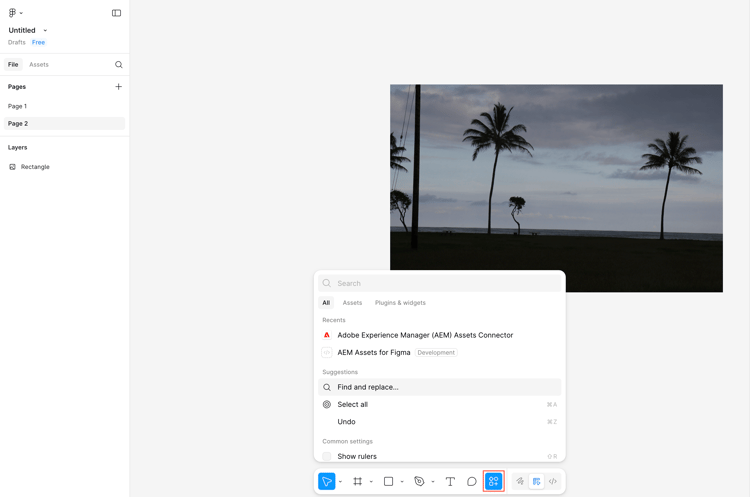
- On your Figma home page, click Actions from the toolbar at the bottom of the canvas and search for Adobe Experience Manager (AEM) Assets Connector in the search bar available in the dialog box.
- Select Adobe Experience Manager (AEM) Assets Connector to display the Adobe Experience Manager (AEM) Assets Connector panel. Import AEM assets into your Figma canvas using this panel.
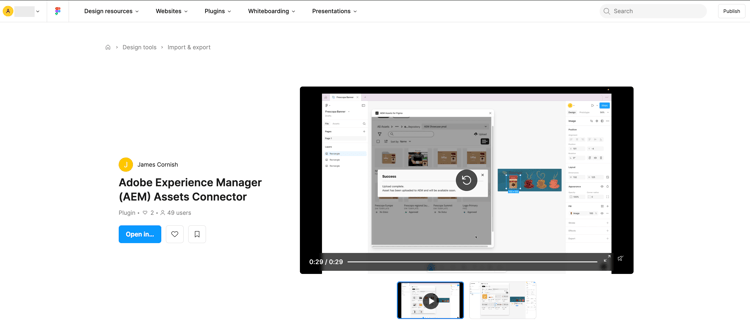
Alternatively, access the Adobe Experience Manager (AEM) Assets Connector available on Figma community, click Open in…, select a recent file or create a new file and click Run to access the Adobe Experience Manager (AEM) Assets Connector panel.
Import AEM assets into Figma canvas import-aem-assets-into-figma-workflow
Access Adobe Experience Manager (AEM) Assets Connector panel within your Figma design interface and do the following:
-
Search for assets in the Adobe Experience Manager (AEM) Assets Connector panel. For more information, see using Content Advisor.
-
Drag and drop the asset to the canvas or select the asset and click Select to bring the asset on the canvas.
-
Click


-
[Optional] Click Check for updates. The assets used in the current Figma document are compared to the assets that exist in AEM. Any updates are listed in a separate window. Click Update to get the updated asset from AEM into your Figma document.
Once your Figma design is ready, you can export the asset to the AEM Assets repository.
Export assets to AEM Assets repository export-figma-design-to-aem-assets-folder
Access Adobe Experience Manager (AEM) Assets Connector panel within your Figma design interface and execute the following steps to export your design to the AEM Assets repository:
-
Navigate to the destination folder where you want to save your Figma design. If you are already inside a folder, click More options (
-
Optional: Group assets on the canvas to select them as a single unit to upload in your folder.
-
Click

-
In the dialog box, select either Selected Item or Page, specify a file or page name, define an export configuration and click Upload to upload the selected asset or the entire design to the destination folder.
The export configuration comprises the file format, scale, and quality. For example, if you select JPG as the file format, you can also define the image scale and quality. Similarly, if you select PNG as the file format, you can also define the image scale.

Frequently Asked Questions frequently-asked-questions-aem-assets-figma-integration
What does the AEM Assets integration with Figma allow designers to do? aem-assets-figma-integration-overview
The AEM Assets integration with Figma allows designers to directly access assets stored in Adobe Experience Manager from within the Figma user interface, without switching between tools. Designers can search for and import images, videos, animated files, and vectors from AEM Assets onto the Figma canvas, and export completed or edited designs back to the AEM Assets repository in supported formats. The integration is native, requiring no third-party connectors beyond the Adobe Experience Manager AEM Assets Connector available on the Figma community.
What are the prerequisites for integrating AEM Assets with Figma? aem-assets-figma-prerequisites
Integrating AEM Assets with Figma requires two prerequisites: a minimum AEM release version of 19149, and valid licenses for both AEM Assets and Figma. Both conditions must be met before the Adobe Experience Manager AEM Assets Connector can be accessed and used within Figma. If a Network Error message appears after logging in to the AEM environment during setup, contact Adobe Support for assistance.
How do I access the Adobe Experience Manager AEM Assets Connector in Figma? access-aem-assets-connector-figma
The Adobe Experience Manager AEM Assets Connector is accessible in two ways from within Figma. From the Figma home page, click Actions in the toolbar at the bottom of the canvas, search for Adobe Experience Manager AEM Assets Connector in the dialog box, and select it to open the connector panel. Alternatively, access the connector directly from the Figma Community page, click Open in, select a recent file or create a new file, and click Run to launch the connector panel.
What file formats can be imported from AEM Assets into Figma? aem-assets-figma-import-formats
The following file formats are supported for importing AEM Assets into Figma: image assets in JPEG and PNG formats, video files in MP4, MOV, and WebM formats, animated files in GIF format, and vector files in SVG format. Assets in these formats can be searched within the Adobe Experience Manager AEM Assets Connector panel and placed directly onto the Figma canvas by dragging and dropping or by selecting the asset and clicking Select.
How do I import an asset from AEM Assets into my Figma canvas? import-aem-assets-figma-canvas
To import an asset from AEM Assets into Figma, open the Adobe Experience Manager AEM Assets Connector panel within the Figma design interface. Search for the asset using Content Advisor within the connector panel. Once the asset is located, drag and drop it onto the canvas or select the asset and click Select to place it on the canvas. To navigate folders within the repository, click the three-dot icon in the folder path to view and navigate parent and child folders in the current hierarchy.
How do I check if AEM Assets used in my Figma document have been updated? check-aem-assets-updates-figma
The Adobe Experience Manager AEM Assets Connector in Figma includes a Check for Updates option that compares assets currently used in the open Figma document against their versions in AEM Assets. To use it, open the connector panel and click Check for Updates. Any assets that have been updated in AEM are listed in a separate window. Click Update to pull the latest version of each updated asset from AEM into the Figma document.
What file formats are supported when exporting a Figma design to AEM Assets? figma-export-aem-assets-formats
When exporting a Figma design to the AEM Assets repository, four file formats are supported: PNG, PDF, JPG, and SVG. The export configuration also allows defining additional settings depending on the selected format — for JPG exports, image scale and quality can be specified; for PNG exports, image scale can be defined. These settings are configured in the Upload Asset dialog box during the export process.
How do I export a Figma design to the AEM Assets repository? export-figma-design-aem-assets
To export a Figma design to AEM Assets, open the Adobe Experience Manager AEM Assets Connector panel within Figma and navigate to the destination folder in the AEM Assets repository. Click the Upload icon to open the Upload Asset dialog box. In the dialog box, select either Selected Item to upload a specific asset or Page to upload the entire design page, specify a file or page name, define the export configuration including format, scale, and quality, and click Upload. The design is saved to the selected AEM Assets destination folder.
Can I group assets in Figma before exporting them to AEM Assets? group-assets-figma-export-aem
Figma designs can be grouped on the canvas before exporting to the AEM Assets repository. Grouping assets allows them to be selected as a single unit and uploaded together to the destination folder in one operation. After grouping, open the Adobe Experience Manager AEM Assets Connector panel, navigate to the destination folder, click Upload, select the grouped items as the Selected Item in the Upload Asset dialog box, configure the export settings, and click Upload.
How do I navigate folders in the AEM Assets repository from within Figma? navigate-aem-folders-figma
Folder navigation within the AEM Assets repository is available directly inside the Adobe Experience Manager AEM Assets Connector panel in Figma. Click the three-dot icon in the folder path to display all parent and child folders in the current hierarchy. Select any folder from the list to navigate to that location. When exporting a design to a different destination folder, click More Options in the folder path to select an alternative folder within the AEM Assets repository.
See also
- Translate Assets
- Assets HTTP API
- Assets supported file formats
- Search assets
- Connected assets
- Asset reports
- Metadata schemas
- Download assets
- Manage metadata
- Manage Dynamic Media templates
- Manage reports in Assets view
- Search facets
- Manage collections
- Bulk metadata import
- Publish Assets to AEM and Dynamic Media