在此頁面上:瞭解如何使用個人化編輯器,從設定檔屬性、對象、優惠決定和內容屬性等來源,新增、自訂及驗證個人化運算式。
個人化編輯器是Journey Optimizer中個人化的核心。 它可用於您需要定義個人化的每個內容,例如電子郵件、推播和選件。
在個人化編輯器介面中,您可以選取、排列、自訂及驗證所有資料,為您的內容建立自訂個人化。
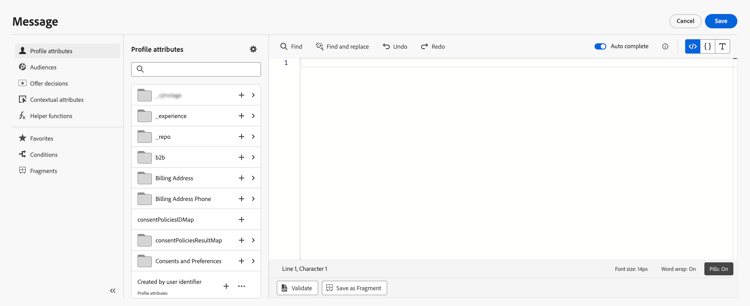
我可以在哪裡新增個人化 where
您可以使用


在電子郵件Designer中編輯電子郵件內容時,您可以使用內容工具列中的圖示,在大部分文字元素中新增個人化。

Journey Optimizer也可讓您個人化訊息中的URL。 個人化 URL 會根據輪廓屬性,將收件者帶往網站特定頁面或個人化微網站。 了解更多

| note |
|---|
| NOTE |
| URL個人化可用於這些型別的連結: 外部連結、取消訂閱連結和選擇退出。 |
Personalization來源 sources
導覽窗格可讓您選取個人化的來源。 可用的來源包括:
- 設定檔屬性 :列出與Adobe Experience Platform資料模型(XDM)檔案中說明的設定檔結構描述相關的所有參考。
- Target屬性 :此資料夾專屬於「協調的行銷活動」。 它包含直接在行銷活動畫布中計算的屬性。 瞭解如何在協調的行銷活動中新增個人化
- 對象 :列出在Adobe Experience Platform細分服務中建立的所有對象。 在Adobe Experience Platform Segmentation檔案中進一步瞭解。
- 優惠決定 :列出與特定位置相關聯的所有優惠。 選取版位,然後將優惠方案插入內容中。 如需有關如何管理優惠方案的完整檔案,請參閱本節。
- 內容屬性 :當歷程或行銷活動中使用管道動作活動(電子郵件、推播、行動裝置)時,與事件和屬性相關的內容屬性可用於個人化。 在本節中顯示了運用內容屬性的個人化範例。 此外,自訂動作回應可用於個人化。 瞭解如何在原生管道中使用自訂動作回應。
新增個人化 add
中央工作區是您建置個人化語法的位置。 若要使用屬性來個人化您的訊息,請在左側導覽窗格中找出該屬性,然後按一下+按鈕,將該屬性加入運算式中。
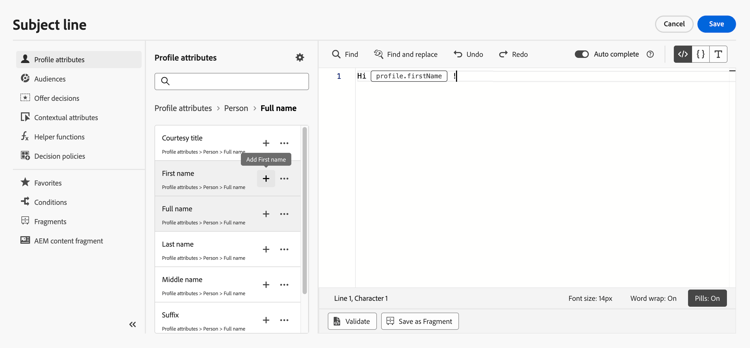
+圖示旁的省略符號功能表可讓您取得每個屬性的詳細資訊,並將您最常用的屬性新增至我的最愛。 可透過導覽窗格中的 我的最愛 功能表存取新增至我的最愛的屬性。

此外,您可以定義預設後援文字,當字串型別的設定檔屬性為空白時將會顯示。 若要這麼做,請按一下屬性旁的省略符號按鈕,然後選取插入後援文字。 如果設定檔的屬性值是空的,則寫入預設應顯示的文字,然後按一下新增。

在下列範例中,個人化編輯器可讓您選取今天生日的設定檔,然後插入與今天對應的特定選件來完成自訂。

運算式編輯選項 options
中央工作區提供各種工具,協助您撰寫個人化運算式。
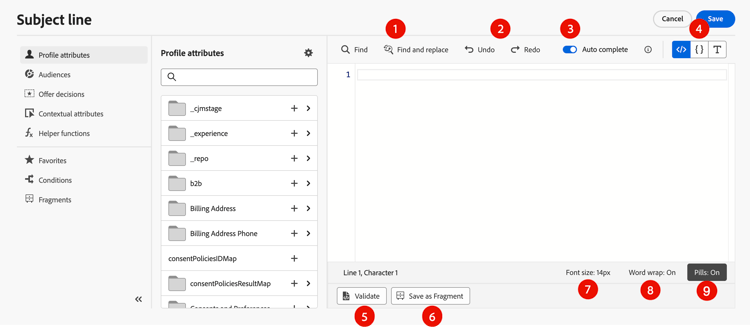
可選擇下列選項:
-
尋找 / 尋找並取代:搜尋您的運算式並自動取代部分程式碼。
-
還原 / 重做:還原/重做上一個操作。
-
自動完成:在您輸入時自動建議並完成程式碼。 此功能僅適用於 HTML 和文字格式,並支援輪廓和內容屬性。 如果透過切換進行停用,編輯器將提供原生 HTML 程式碼自動完成。

-
HTML / JSON / 文字:識別您的程式碼格式。 這可讓系統根據選取的語言調整驗證及自動完成功能。
-
驗證:檢查運算式的語法。 請參閱此章節深入瞭解。
-
另存為片段:將運算式另存為運算式片段。 請參閱本節以進一步瞭解
-
字型大小:調整編輯器內內容的字型大小,以提高可讀性。
-
自動換行:啟用或停用自動換行,允許長運算式顯示在單行或包含在編輯器中。 選項包括:
- 關閉 (預設) — 無自動換行。 長線超出編輯器檢視範圍,需要水準捲動。
- On — 以編輯器的寬度換行。
- 自動換行 — 當行字元達到80個字元時換行。
- 已繫結 — 以編輯器寬度或80個字元(以較小者為準)來換行。
-
Picks:將屬性顯示為精簡的「Picks」,藉由隱藏長屬性路徑來改善可讀性。 按一下屬性以顯示其完整路徑。
note NOTE 此選項僅適用於設定檔屬性、內容屬性和動態媒體。
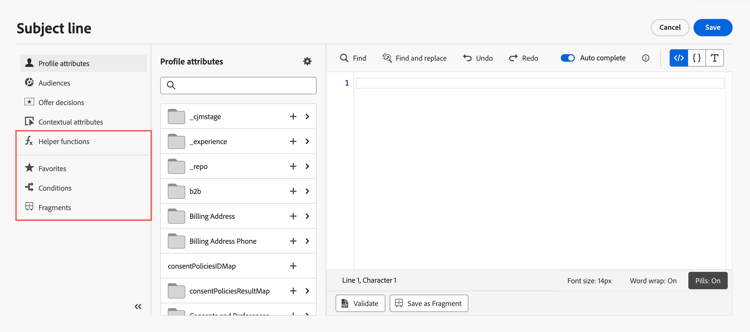
在導覽窗格中,有其他功能可協助您建置個人化運算式。
-
輔助函式 — 輔助函式可讓您對資料執行操作,例如計算、資料格式或轉換、條件,並在個人化的內容中操作它們。 進一步瞭解可用的協助程式功能
-
我的最愛 — 您新增至我的最愛屬性會顯示在此清單中。 這可讓您快速存取您使用頻率最高的專案。 若要新增屬性至您的最愛,請按一下省略符號選單,然後選擇新增至我的最愛。
-
條件 — 運用在程式庫中建立的條件式規則,將動態內容新增至您的訊息。 這可讓您根據條件建立訊息的多個變體。 瞭解如何建立動態內容
-
片段 — 運用已建立或儲存至目前沙箱的運算式片段。 片段是可重複使用的元件,可跨Journey Optimizer個行銷活動和歷程參照。 此功能允許預先建置多個自訂內容區塊,可供行銷使用者在改良的設計流程中快速組合內容。 瞭解如何使用運算式片段進行個人化
一旦您的個人化運算式準備就緒,就需要由個人化編輯器驗證。 請參閱此章節深入瞭解。
驗證機制 validation-mechanisms
當您按一下 新增 按鈕以關閉編輯器視窗時,會自動執行運算式的驗證。 您也可以使用 驗證 按鈕來檢查您的個人化語法。
偵測到PQL語法驗證錯誤時,透過AI修正選項會出現在底部窗格中。 選取此專案,即可開啟右側邊欄中的運算式產生工具,並取得修正錯誤的協助。 深入瞭解編輯、修正或說明現有程式碼。
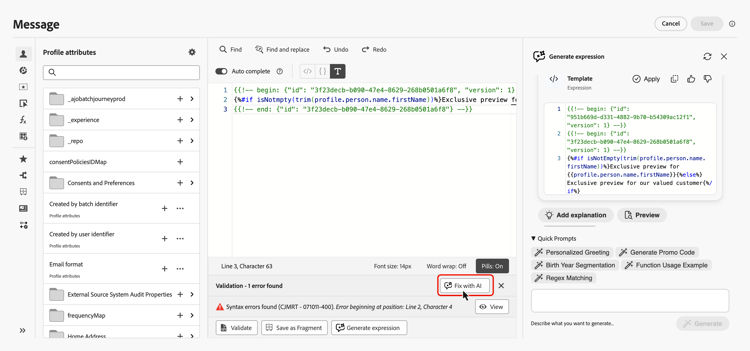
展開以下區段以檢視驗證個人化時可能發生的常見錯誤。
- 找不到「XYZ」路徑
嘗試參照結構描述中未定義的欄位時。
在此情況下,firstName1未定義為設定檔結構描述中的屬性:
| code language-none |
|---|
|
- 變數"XYZ"的型別不相符。 必須是陣列。 找到字串。
嘗試對字串而非陣列重複時。
在此情況下,product不是陣列:
| code language-none |
|---|
|
- 無效的Handlebars語法。 找到
'[XYZ}}'
使用無效的Handlebars語法時。
Handlebars運算式周圍有{{expression}}
| code language-none |
|---|
|
- 無效的區段定義
| code language-none |
|---|
|
若是選件,可能會發生特定錯誤。 展開下列區段以取得詳細資訊:
與電子郵件或推播訊息中的優惠方案整合相關的錯誤具有以下模式:
| code language-none |
|---|
|
驗證會在個人化編輯器中的個人化內容驗證期間執行。
| table 0-row-2 1-row-2 2-row-2 3-row-2 4-row-2 5-row-2 6-row-2 | |
|---|---|
| 錯誤標題 | 驗證/解析度 |
| 找不到id placementID和型別OfferPlacement的資源 找不到id activityID和型別OfferActivity的資源 |
檢查ActivityID和/或PlacementID是否可用 |
| 無法驗證資源。 | 位置中的componentType應符合offerType選件 |
| offerId中未出現公用URL。 | 影像選件(與決定和位置配對相關的所有個人化和遞補)應填入公用URL (deliveryURL不應空白)。 |
| 決定包含非設定檔屬性。 | 選件模型使用方式應僅包含設定檔屬性。 |
| 擷取決策使用方式時發生錯誤。 | 當API嘗試擷取選件模型時,可能會發生此錯誤。 |
| 優惠屬性offer-attribute無效。 | 檢查優惠方案drp中參照的優惠方案屬性是否有效。 以下是有效的屬性: 影像:deliveryURL、linkURL 文字:內容 HTML:內容 |
This section contains structured knowledge intended to support interpretation, retrieval, and question answering related to this topic.
For complete understanding, this information should be combined with the documentation on this page. Neither source is intended to stand alone; the page describes the feature, while this section provides additional context that helps disambiguate terminology, intent, applicability, and constraints.
- TL;DR: This page explains how to use the Journey Optimizer personalization editor to select, build, customize, and validate personalization expressions from sources including profile attributes, audiences, offer decisions, and contextual attributes.
Intents:
- Understand where personalization can be added in Journey Optimizer (messages, Email Designer, URLs, email configuration, offers)
- Select the appropriate personalization source for an expression
- Add attributes and build expressions in the editor workspace
- Use editor tools: Find/Replace, Auto complete, Validate, Pills, Save as fragment
- Use navigation pane features: Helper functions, Favorites, Conditions, Fragments
- Validate expressions and resolve common errors
Glossary:
- Personalization editor: The central UI tool in Journey Optimizer for building, customizing, and validating personalization expressions; available wherever personalization can be defined. (product-specific)
- Personalization sources: The data categories available for building expressions — Profile attributes, Target attributes, Audiences, Offer decisions, and Contextual attributes.
- Contextual attributes: Journey- or campaign-specific data (events, properties, custom action responses) available for personalization only when a channel action is used in a journey or campaign. (product-specific)
- Pills: A personalization editor display mode that renders long attribute paths as compact, clickable tokens for improved readability. Available only for profile attributes, contextual attributes, and dynamic media. (product-specific)
- Auto complete: An editor feature that automatically suggests and completes code as you type; available only for HTML and Text formats, supporting Profile and Context attributes only. (product-specific)
- Expression fragment: A reusable personalization expression component that can be referenced across campaigns and journeys. (product-specific)
- Fallback text: A default string displayed when a string-type profile attribute is empty for a given profile; configured per attribute via “Insert with fallback text”.
Guardrails:
- Auto complete is available only for HTML and Text formats; it supports Profile and Context attributes only.
- Pills display mode is available only for profile attributes, contextual attributes, and dynamic media.
- URL personalization is available for External link, Unsubscription link, and Opt-Out link types only.
- By default, the attributes pane shows only populated attributes; toggle off “Show only populated attributes” to display all schema attributes.
- Offers model usage must contain only profile attributes; non-profile attributes in a decision cause a validation error.
Terminology:
- Canonical name: personalization editor
- Do not confuse: Personalization editor (used to build content expressions in messages, emails, push notifications, and offers — supports both Handlebars and PQL syntax) ≠ Advanced expression editor (used in the journey for conditions on data sources and event information, custom wait activities, and action parameters mapping — provides built-in functions and operators that differ from those in the personalization editor)
- Do not confuse: Profile attributes (XDM schema-based, available in all contexts) ≠ Contextual attributes (journey/campaign-specific, only available in that context) ≠ Target attributes (Orchestrated campaigns only)
- Do not confuse: Auto complete for HTML/Text (suggests personalization attribute completions) ≠ native HTML code auto-completion (the editor default when the toggle is disabled)
FAQ:
- Q: Where can personalization be added in Journey Optimizer? — In any field with the add personalization icon — including the email subject line, push notification fields (Title, Body, Custom sound, Badges, Custom data), Email Designer text elements, URLs (External link, Unsubscription link, Opt-Out), email configuration subdomains/headers/URL tracking parameters, and offer text-type representations.
- Q: What are the available personalization sources? — Profile attributes, Target attributes (Orchestrated campaigns only), Audiences, Offer decisions, and Contextual attributes (journey/campaign events and custom action responses).
- Q: How is an expression validated? — Validation runs automatically when you click Add to close the editor. You can also trigger it manually with the Validate button. Common errors include: path not found (field not in schema), type mismatch (iterating a string as array), invalid Handlebars syntax, and invalid segment definition.
- Q: What does the Pills option do? — It renders long attribute paths as compact, clickable tokens for better readability in the editor. Available only for profile attributes, contextual attributes, and dynamic media.
- Q: Why do I see only some attributes in the attributes pane? — By default, the pane shows only populated attributes. Select the settings icon above the search field and toggle off “Show only populated attributes” to display all schema attributes.