在此頁面上:將LINE動作新增至歷程或行銷活動,並建立個人化內容,從文字和貼紙到影像、影片、位置和Flex訊息,讓您能夠線上上與客戶互動。
新增 LINE 訊息 create-line-journey-campaign
瀏覽下列標籤,瞭解如何在行銷活動或歷程中新增LINE訊息。
-
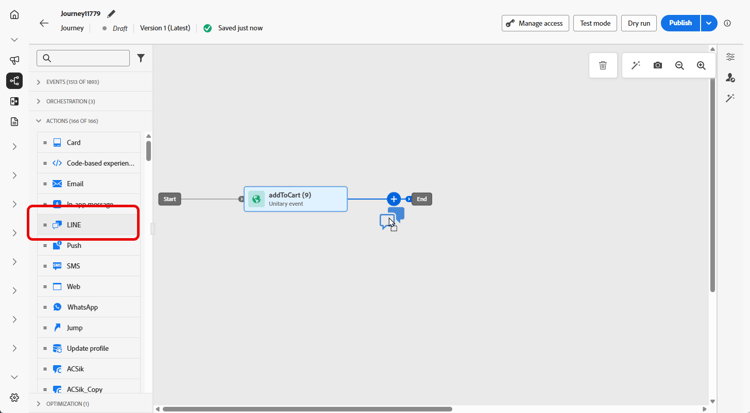
開啟您的歷程,然後從浮動視窗的 動作 區段拖放 LINE 活動。
-
提供訊息的基本資訊(標籤、說明、類別),然後選擇要使用的訊息設定。
如需如何設定歷程的詳細資訊,請參閱此頁面
根據預設,組態欄位會預先填入使用者用於該頻道的最後一個組態。
您現在可以從 編輯內容 按鈕開始設計LINE訊息的內容,如下所述。
-
存取 促銷活動 功能表,然後按一下建立促銷活動。
-
選取您要執行的行銷活動型別
-
已排程 — 行銷:立即或在指定日期執行行銷活動。 已排程的行銷活動旨在傳送行銷訊息。 可從使用者介面設定及執行。
-
API觸發 — 行銷/異動:使用API呼叫執行行銷活動。 API觸發的行銷活動旨在傳送行銷或交易式訊息,也就是在個人執行動作後傳送的訊息:密碼重設、購物車購買等。
-
-
從 屬性 區段,編輯行銷活動的 標題 和描述。
-
按一下 選取對象 按鈕,從可用的Adobe Experience Platform對象清單中定義要定位的對象。 了解更多。
-
在 身分識別名稱空間 欄位中,選擇要使用的名稱空間,以識別所選對象中的個人。 了解更多。
-
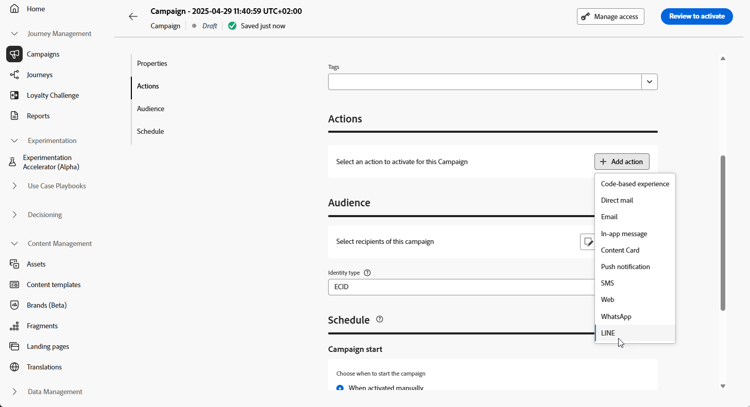
在 動作 區段中,選擇行,然後選取或建立新的組態。
在此頁面中進一步瞭解LINE組態。
-
按一下 建立實驗 以開始設定您的內容實驗,並建立處理以測量其效能,並為您的目標對象識別最佳選項。 了解更多
-
在 動作追蹤 區段中,指定是否要追蹤LINE訊息中連結的點按次數。
-
行銷活動旨在特定日期或循環頻率執行。 在本節中瞭解如何設定行銷活動的排程。
-
從 動作觸發程式 功能表,選擇LINE訊息的頻率:
- 一次
- 每日
- 每週
- Month
您現在可以從 編輯內容 按鈕開始設計LINE訊息的內容,如下所述。
定義您的LINE內容 line-content
Adobe Journey Optimizer支援LINE的下列訊息型別:
- 文字:傳送純文字或格式化的文字訊息。
- 貼圖:加入LINE的原生貼圖,以新增字元和表現力。
- 影像:附加影像以增強視覺吸引力。
- 影片:分享動態通訊的影片內容。
- 位置:使用地圖傳送位置資訊。
- 範本:利用預先定義的範本以傳送一致的訊息。
- Flex訊息:使用JSON型Flex訊息,建立內容豐富的複雜版面配置。
您可以直接編輯JSON內容來設定這些訊息型別,以允許動態和個人化的訊息策略。
若要設定LINE內容,請遵循下列步驟。
一旦您執行測試並驗證內容後,您就可以傳送LINE訊息給對象。 這些步驟在此頁面中有詳細說明
傳送後,您可以在行銷活動或歷程報告中測量LINE的影響。 如需報告的詳細資訊,請參閱本區段。
This section contains structured knowledge intended to support interpretation, retrieval, and question answering related to this topic.
For complete understanding, this information should be combined with the documentation on this page. Neither source is intended to stand alone; the page describes the feature, while this section provides additional context that helps disambiguate terminology, intent, applicability, and constraints.
- TL;DR: This page explains how to send a LINE message from a journey, by adding an Action activity with the LINE channel selected, or from a campaign, and build personalized LINE content, including text, stickers, images, videos, locations, templates, and Flex Messages, by editing the JSON content in the personalization editor.
Intents:
- Add an Action activity with the LINE channel to a journey, or create a campaign with the LINE channel
- Choose or create a LINE configuration for the channel
- Define LINE content across the supported message types
- Edit the JSON content and add personalization and dynamic content in the personalization editor
- Preview and simulate the LINE message before sending
Glossary:
- LINE channel: The channel selected in the Action activity of a journey, or in a campaign, to deliver a LINE message (product-specific)
- Flex Messages: JSON-based LINE messages that allow complex layouts with rich content (product-specific)
- Stickers: LINE’s native stickers that can be incorporated into a message (product-specific)
- Edit content: The button used to start designing and configuring the content of the LINE message (product-specific)
- Simulate content: The option used to preview the LINE message content and its personalized content (product-specific)
Guardrails:
- LINE message types can be configured by editing the JSON content directly.
- The configuration field is pre-filled, by default, with the last configuration used for that channel by the user.
- The LINE message is sent to the audience once you have performed your tests and validated the content.
- When creating a LINE campaign, the campaign type is either Scheduled - Marketing or API-triggered - Marketing/Transactional.
- In the Action triggers menu, the Frequency of the LINE message can be Once, Daily, Weekly, or Month.
Terminology:
- Canonical name: LINE message — Acronym: n/a
- Do not confuse: “Scheduled - Marketing” (executed immediately or on a specified date from the user interface) ≠ “API-triggered - Marketing/Transactional” (executed using an API call)
- Do not confuse: “Edit content” (starts the configuration of the message content) ≠ “Edit code” (edits the JSON content)
FAQ:
- Q: Which message types does LINE support in Journey Optimizer? — Text, Stickers, Images, Videos, Locations, Templates, and Flex Messages.
- Q: How is LINE content configured? — The message types are configured by editing the JSON content directly, and personalization and dynamic content are added in the personalization editor.
- Q: How can the LINE message be previewed before sending? — Use Simulate content to preview the LINE message content and its personalized content.
- Q: Where can the impact of a sent LINE message be measured? — Within the Campaign or Journey reports.